Enabling Multiple Styles in the same Guide
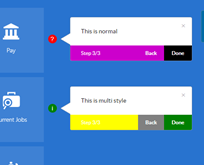
When there is a requirement to have different formatting for tips or help icons within the same guide (or even the same step), you will need to update the theme. An example of this would be having Smart Tip icons for policy documentation be one color, the associated tip a different style, and Smart Tip icons for how to use the tool in the default style.
To enable multiple styles:
-
Download the Design Kit and open the html doc in your preferred text editor
- Best Practice: Search for "ir-marker" then organize your code in an orderly fashion
- It will help to have your custom code entered in proximity to the default code
- The following code will result in the help icon containing an "i" when the POLICY class is active:
div.<your_class_name >.ir-marker:after {
content:'i';
}
so, for a class called "POLICY"...
/*This is the text for the POLICY Smart Tip*/ div.POLICY.ir-marker:after { content:'i'; } - The following code will result in the help icon having a green background when the POLICY class is active:
div.<your_class_name >.ir-marker{
background-color: deeppink;
}
so, for a class called "POLICY"...
div.POLICY.ir-marker { background-color: green; } - The following code will result in the Next and Done buttons being green when the POLICY class is active:
div.sttip div.tooltip.<your_class_name> div.stFooter [data-iridize-role="nextBt"] {
background-color: darkorchid;
}
so, for a class called "POLICY"...
div.sttip div.tooltip.POLICY div.stFooter [data-iridize-role="nextBt"] { background-color: green; } - The following code will result in the back button being grey when the POLICY class is active:
div.sttip div.tooltip.<your_class_name> div.stFooter [data-iridize-role="prevBt"] {
background-color:grey
}
so, for a class called "POLICY"...
div.sttip div.tooltip.POLICY div.stFooter [data-iridize-role="prevBt"] { background-color:grey } - Save the edited HTML file. The above code will result in changes to the tip footer appearance outside the Next and Back buttons when the POLICY class is active.
- Open Settings for the appId and select Themes
- Scroll to bottom of Setup Theme configuration page and select Upload Theme.
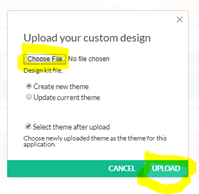
- Select Choose File button to select your edited HTML file then configure dialogue window as shown below then select Upload
- In a new guide or existing guide, create a simple tip pointing to an element on the screen and enable the help icon without "show tip on hover-over" enabled
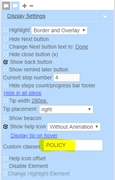
- In the same step, create another tip just as above (point to a different element on the screen), but enter "POLICY" in the class field as shown below
- Save the guide and launch the application
- The step created above should look something like this