Exporting and Importing Guide Content
This section explains the process for exporting and importing Guided Learning guides for translation purposes. Translation of guides allows you to dynamically control which language of the guide will be displayed to the end user. Once the guides are exported you can translate the relevant text in the provided files and import them back to Guided Learning with the new language.
Export
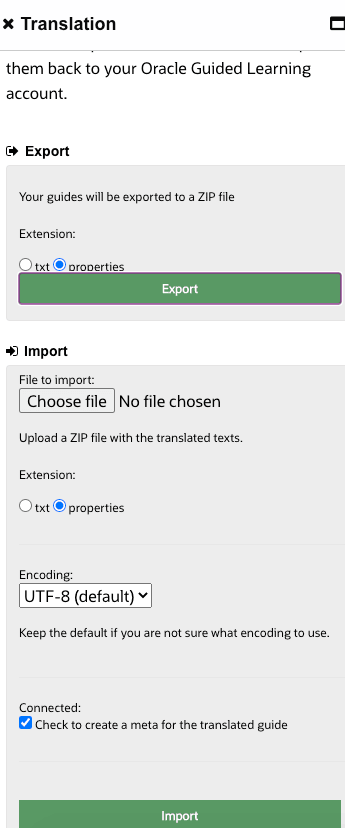
- Click Translation on the left panel of the OGL Console
- Click Export (make sure the "properties" option is selected)
Guided Learning items will be saved as a ZIP file with all the exported content in the target folder (usually your "Download" folder).
Extract and save the information in the ZIP file to a folder of choice. If your operating systems does not support ZIP files you can use one of the following software providers: Winzip, Winrar, izip.
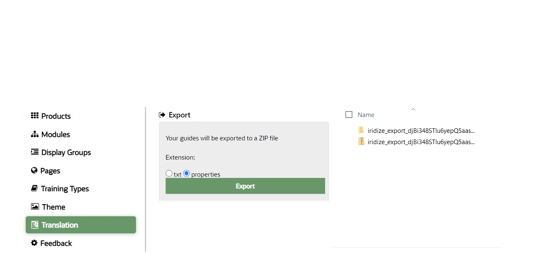
Your exported folder should include the following directories:
- active - This folder contains all published/active revisions of your guides; it should match what you see in your production environment. The folder will contain a list of directories, one for each language. In each such language folder you will find a list of files named according to your guides’ api-names. The folder names ‘--’ denotes the native language you used to create your guides originally; this will be English in most cases.
- testing - This folder contains all draft revisions of your guides; it should match what you see in your staging/test environment. The structure of this folder is identical to the active folder.
- import - This folder has no real content. It is where you will need to place your translated guides before importing them back to Guided Learning. For more information about the import process please read the section below.
- README.txt - this is the file you are reading now :)
Import
In order to import the translated guides back to Guided Learning you will need to populate the import folder with the translated content.
The import folder should include a folder for each language you support. The name of each folder signifies the language it contains and should follow this naming convention. For your convenience, during the export process we have generated in the import folder a folder for each language you currently have guides for in the Guided Learning servers. You can add more language folders if needed.
To import the translated content you will need to ZIP the contents of this language folder only and upload it using the “Import” button in the Translation section on the left panel of your OGL Console.
- Click Translation on the left panel of your OGL Console
- Choose the file to import; this is the zipped language folder in your import folder
- Click Import (make sure Connected is checked)