How to configure Country Segmentation
To configure Country Segmentation, you will need to add the following code to the custom script in Fusion:
window.oglInfo = {fields:{user_country:"#{Profile.values.FND_TERRITORY}"}};Step 1: Create Sandbox
Note:
Please make sure you don’t have any active sand box.- Select Navigator and select “Sandboxes” under Configuration.

- Click the “Create Sandbox” button. Enter the “Sandbox Name” and optional
description.

- Select “Page Composer” ,“Page Template Composer” and “Guided
Learning” from All Tools.Select “Create and
Enter”.

Step 2: Customize Global Page Template
- Select the dropdown under the username and select Edit Global Page
Template.

- Select the View button and then Design.
- Select the Edit icon next to HTML Markup.

Note:
If you are not able to select Design you may need to enable the Administrator Profile Value: FSM > Manage Administrator Profile Values > FND_PAGE_COMPOSER_SOURCE_VIEW > Set to “Yes. - On the Component Properties pop-up, select the Edit icon next to the
Value field and then Expression Builder.

- Copy and paste the JavaScript into the “Type a value or expression” field. Select
OK.
Note:
Please contact your Guided Learning Delivery Point of Contact for JavaScript.Script to be updated:<script type="text/javascript"> window.oglInfo = {fields:{user_country:"#{Profile.values.FND_TERRITORY}"}}; </script>
- Select Apply button then OK.

Step 3: Activate Sandbox
- Select the hyperlinked sandbox name and then “Publish”


- Select Publish.

- Select Continue to Publish on the Warning pop-up.

- You may need to log out and then log back in to view the widget.
Enabling Country Segmentation in Guide Activation conditions
Now that you have configured Country Segmentation in Fusion, you can now reference the 'user_country' field in Advanced Conditions.
- From the My Content page, select Activation from the bottom of the guide
tile:
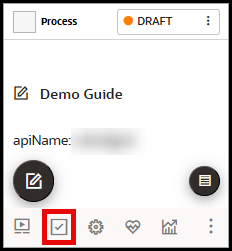
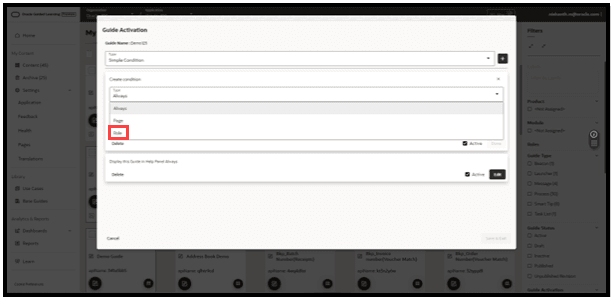
- In the Guide Activation modal, select Advanced Condition from the Type
dropdown menu, then select the Add (
 ) button.

- In the Create condition section, set the following parameters:
- Type = User
- Connector = has/has not
- Subtype = field
- Name = user_country
- Operator = Equals
Enter Operand value = 'enter a country or territory value' (For example: US for United States of America)
Check Display in Help Panel and/or Autoload, as needed.
Note:
For multiple countries/territories, you can use a vertical pipe ( | ) symbol to separate each value.
Note:
For information on how to enable Guide Activation conditions, refer to the following OGL User Guide topic: