How to Enable Integrating Oracle Guided Learning into Oracle Analytics Cloud and Fusion Data Intelligence
Overview
The OGL Custom Extension for Oracle Analytics acts as an interface between OGL and Oracle Analytics Cloud (OAC)/Fusion Data Intelligence (FDI), allowing you to embed task-specific, interactive guides and walkthroughs directly within analytics dashboards. With just a few configuration steps, users can receive in-the-moment guidance without leaving their workflow.
This article focuses on the OGL Custom Extension for Oracle Analytics Cloud (OAC), detailing its purpose, setup process, and how it enables seamless in-app guidance within OAC dashboards.
Set Up Your OGL Account to Connect to Your Application Domains
To set up your OGL Account:
- Log into the OGL console (i.e., OGL authoring environment):
https://guidedlearning.oracle.com/
Note:
The URL above is for the OGL North America (NAMER) tenancy. If your OGL account was provisioned on the APAC or EMEA tenancies, please refer to your OGL provisioning email to find the specific URL for your OGL console or contact your OGL Account Team. The OGL console URLs for each respective OGL tenancy are as follows:- NAMER tenancy: https://guidedlearning.oracle.com/
- APAC tenancy: https://guidedlearning-apac.oracle.com/
- EMEA tenancy: https://guidedlearning-emea.oracle.com/
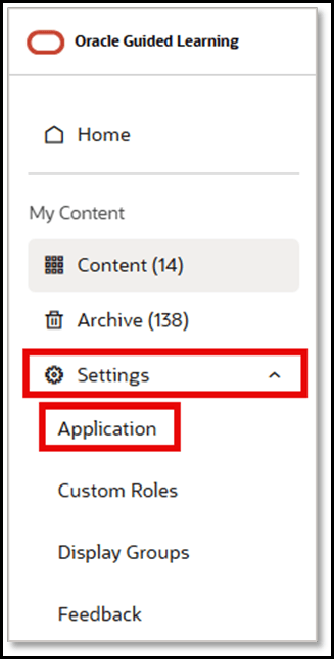
- On the OGL console, go to Settings > Application.
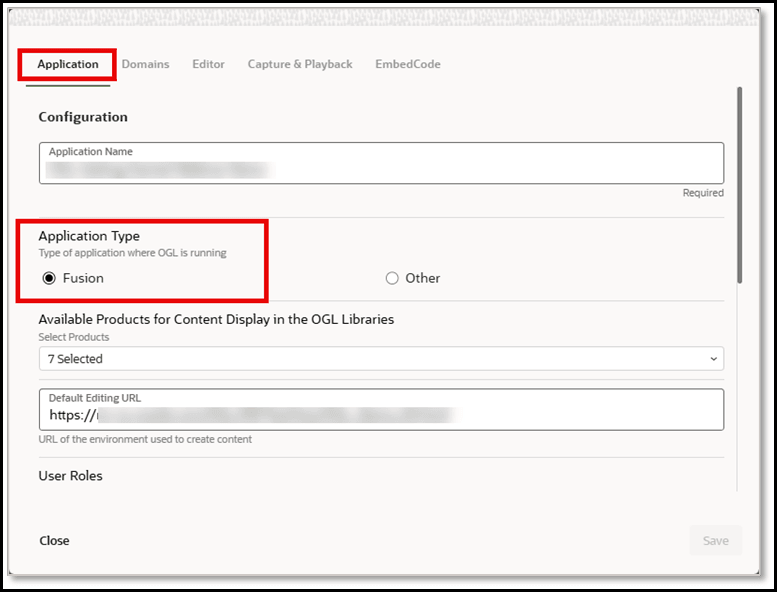
- Set the Application Typeto Fusion if you are enabling OGL on an
Oracle Fusion application.
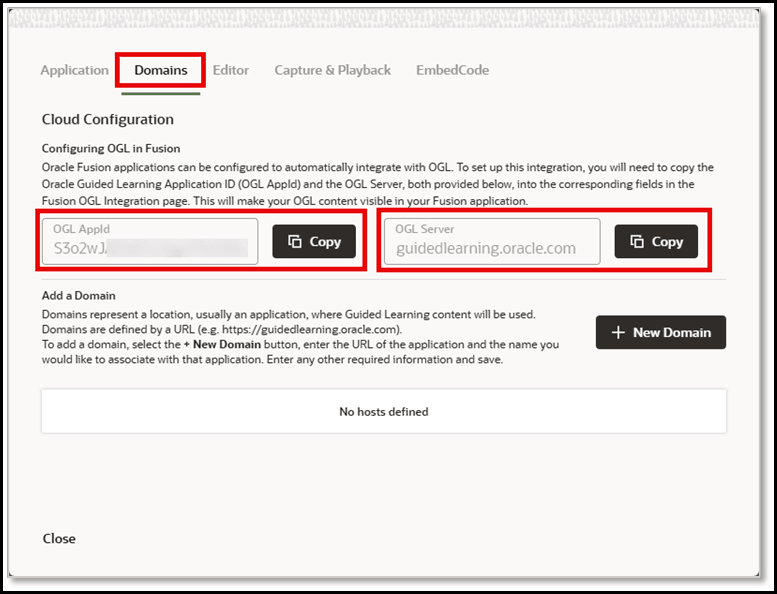
- Select the Domains tab.
While enabling OGL on an Oracle Fusion application, the OGL AppId and OGL Server values are required to complete the OGL configuration in the OAC/FDI application. Use the Copy button to copy AppId and OGL Server values to the clipboard and paste it to a text file to use later.
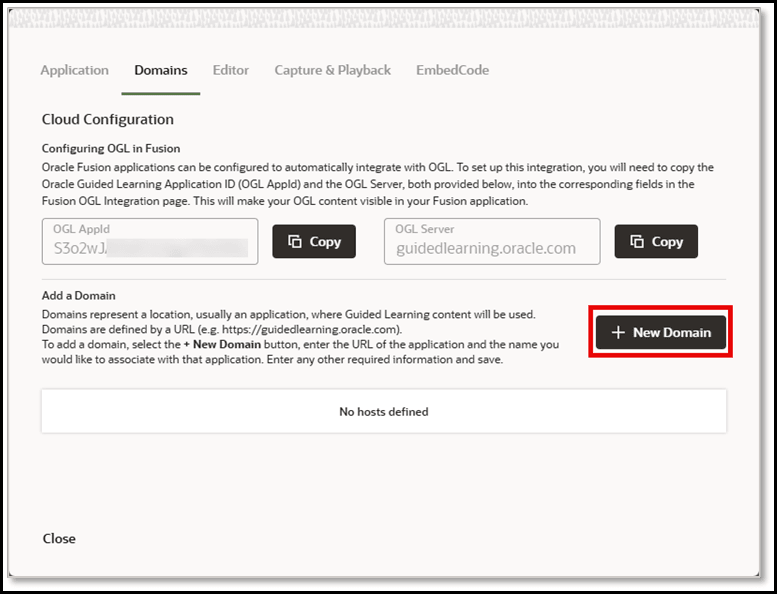
- Select ‘+ New Domain’.
- Enter the desired Domain Name. For example, enter "Fusion Test" if
you are adding the Domain for the Oracle Fusion Environment to develop
OGL content.
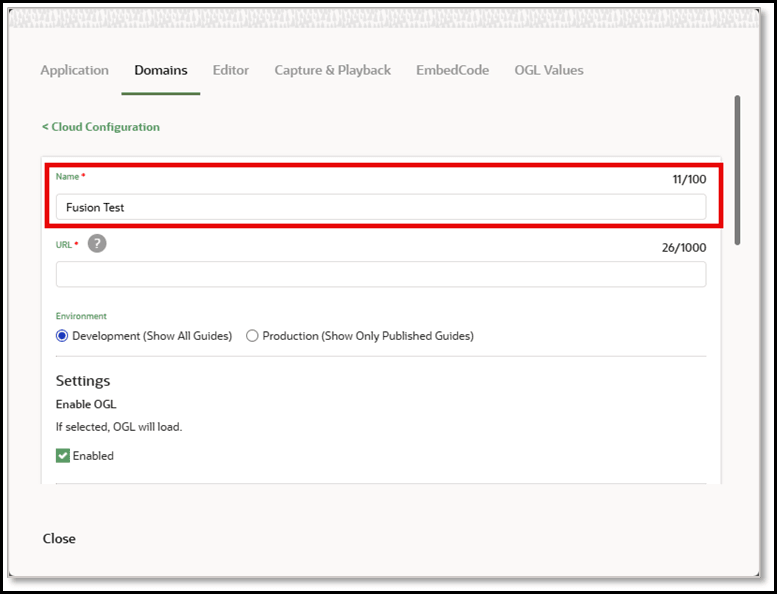
- Enter the URL for the Oracle Fusion environment domain.
Note:
The URL must be limited to the top-level domain (.com) with no other proceeding characters.For example:
- √ https://oracle-fusion-test-saastest.oraclecloud.com
- X https://oracle-fusion-test-saastest.oraclecloud.com/oa/server/eq.cgi?query%
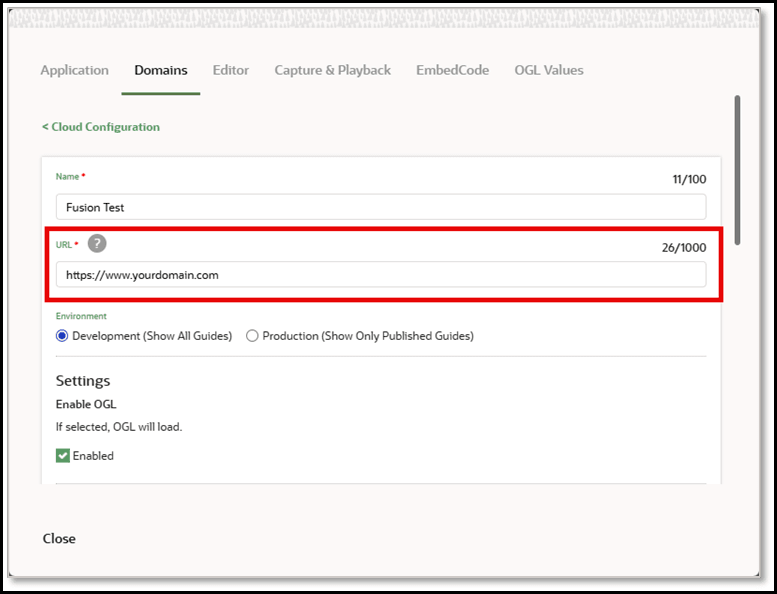
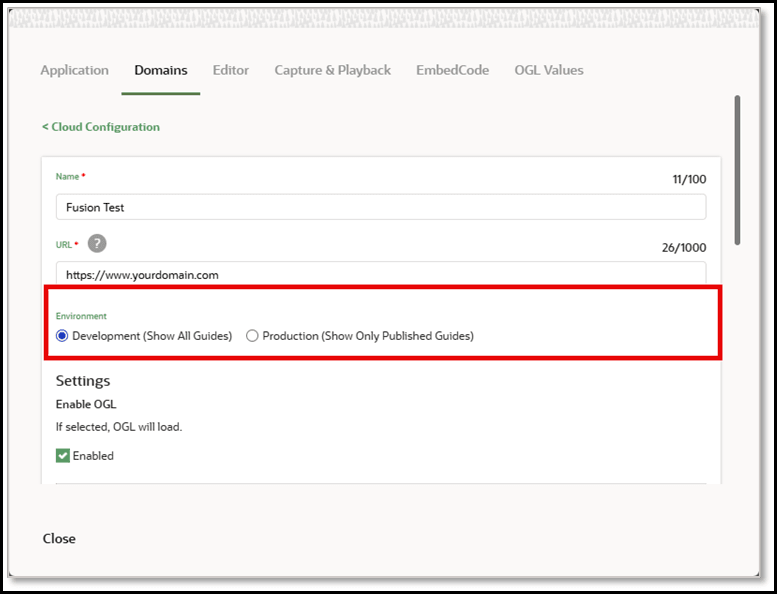
- The Environment option refers to the OGL content you want to display in
the application:
- Development (Show All Guides):Displays all Draft, Unpublished Revisions, and Published content. Use this setting for Fusion testing and development environments.
- Production (Show Only Published Guides): Displays only
Published content. Use this setting for Fusion Production
environments.
Note:
In this example, we selected Development (Show All Guides).
- Review the Settings, then scroll down and select Save
Domain.
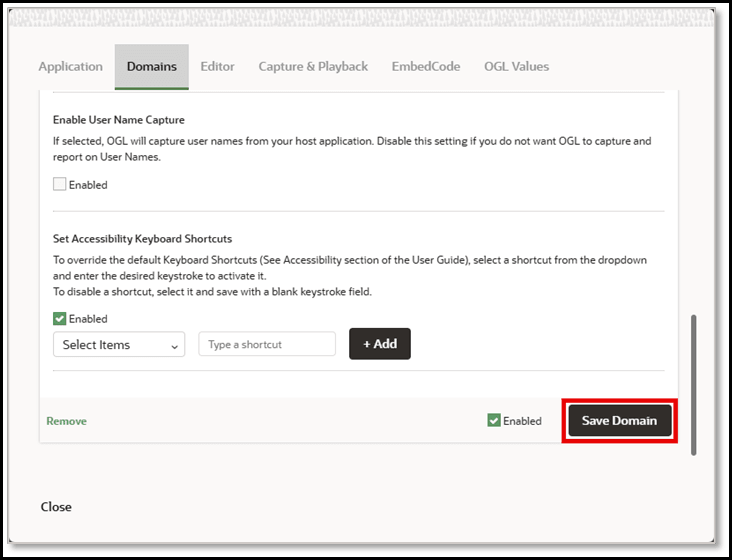
- The Domain has now been added to your list of Domains. To add additional
Domains, repeat the process.
Select Close to exit the modal window.
Once the Domain is added to the OGL Console, the next step is to create a guide for your OAC or FDI instance. Keep the AppID and OGL Server values handy, which is required in the upcoming process.
Creating a Guide in OGL
- To create an OGL guide, log into the OGL console (i.e., OGL authoring environment): https://guidedlearning.oracle.com/ (or your assigned OGL tenancy URL)
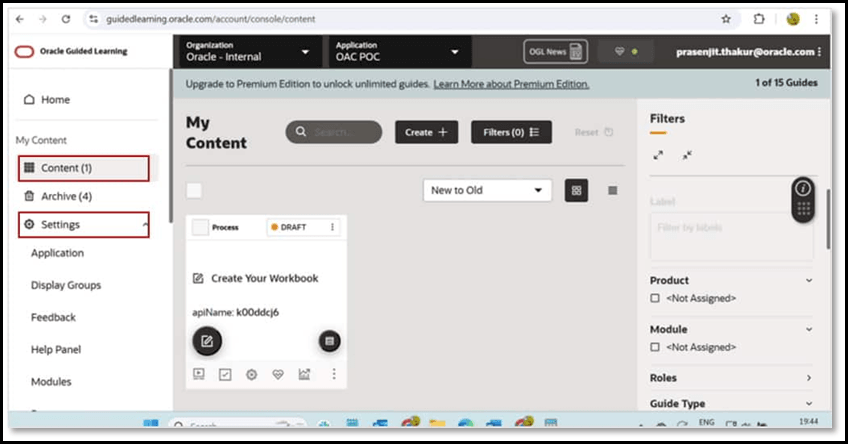
- Navigate to and expand Settings.
- Click Application to retrieve your Account Application ID (AppID), which
is required for configuring the extension in Oracle Analytics.
- Locate the value in the Account Application (AppID).
Note:
If you have already pasted the AppID into a text document, you can copy it from there as well.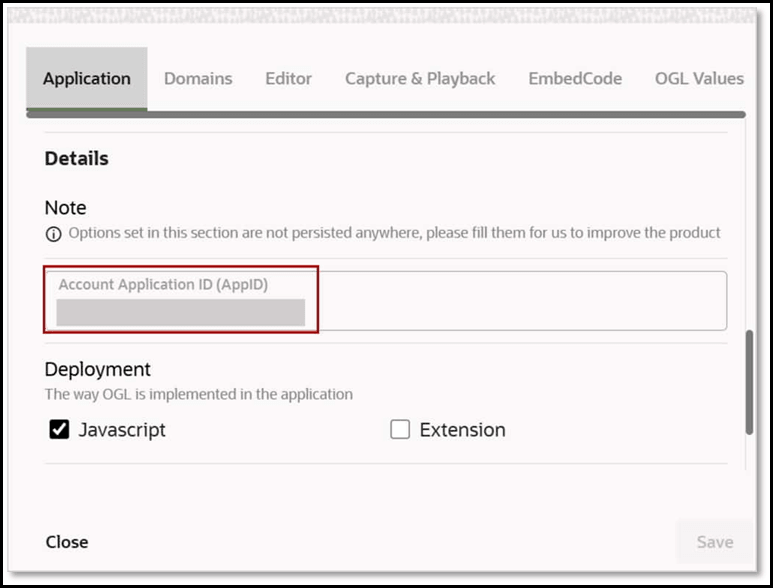
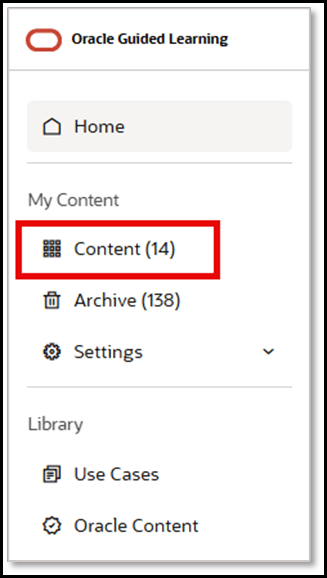
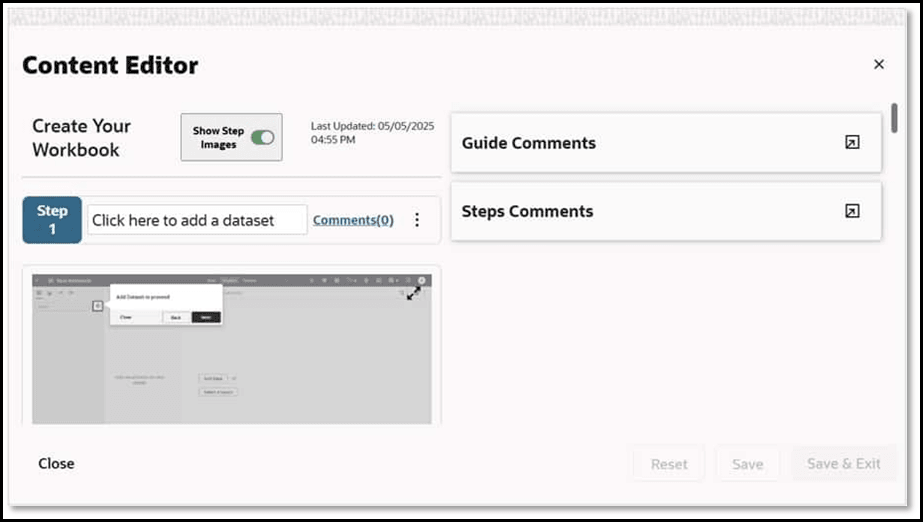
Navigate to the Content section on the Home page to begin authoring. For example, you create a guide to help new users build a bar chart in Oracle Analytics. Once published, this guide can be launched directly from the analytics interface with the custom extension.
Integrating OGL into Oracle Analytics Using the Custom Extension
Once your guide is ready, follow these steps to bring it into Oracle Analytics or FDI instance:
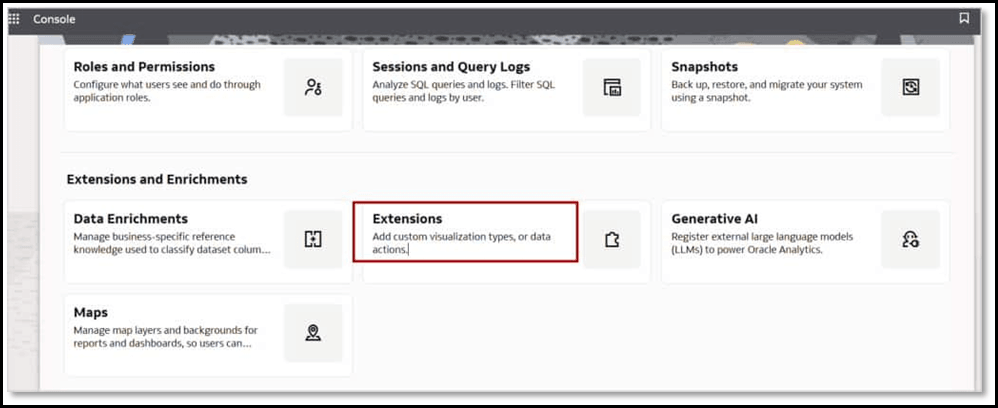
- Upload the OGL custom extension.
- Download the extension ZIP file from the Oracle Analytics Extensions Public Library.
- In Oracle Analytics, navigate to Console, and click
Extensions to upload the file.
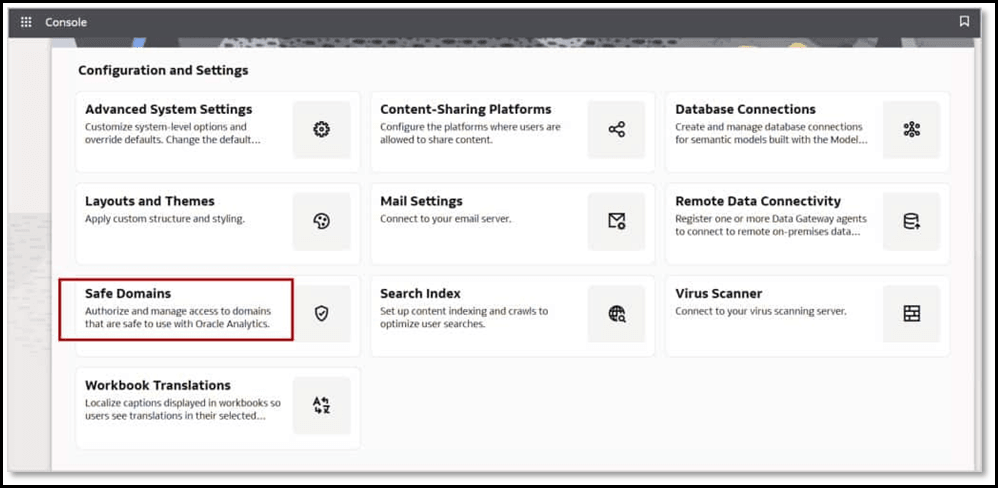
- Whitelist the OGL server.
- In Console, click Safe Domains.
- Add your OGL Server URL (e.g., guidedlearning.oracle.com) to allow secure access.
- Ensure the relevant options are selected to comply with CORS policies.
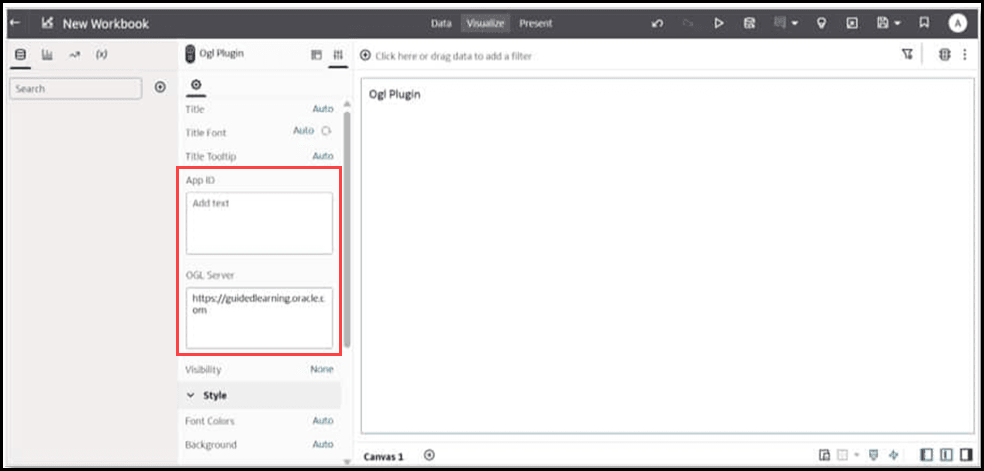
- Create a workbook using the extension.
Drag the OGL custom extension to a workbook canvas and provide the following values (Note: You can copy/paste these values from your text document, if available):
- AppID – from the OGL guide setup
- OGL Server URL – typically https://guidedlearning.oracle.com (or the URL for your OGL tenancy)
- Enable the OGL Widget.After providing the values, the
extension loads the OGL Launch Widget, connects to the OGL server, and retrieves
guides associated with the provided AppID.

- Launch the guide.
Click the widget to open the Help Panel and to see available guides. For instance, launching the “Create Your Workbook” guide —which we created — walks the user through building a bar chart within Oracle Analytics.
And that’s it! You’ve successfully deployed OGL to Oracle Analytics Cloud. With OGL embedded in Oracle Analytics, users receive real-time guidance in the flow of their work. You can similarly create your own guides to support any specific task or workflow within a workbook.
Note:
OGL will display for the users when each user opens the workbook where OGL has been deployed configured. If the user enters the workbook where OGL is deployed and then opens another workbook, OGL will remain active, and the launch widget will be displayed. However, if the user closes the browser tab and then opens a new session, the widget will no longer display and OGL will no longer be available until the user re-opens the workbook where OGL has been deployed. If you want the launch widget to show even if you have no guides to display, you can go to the Settings > Help Panel in the OGL console left navigation panel, then select the "Show Launch Widget even if there are no guides to display in Help Panel" option in the Help Panel settings modal.