10 OGL Analytics & Reports
Note:
OGL analytics data can take up to 24 hours to process before it is presented in the Analytics Dashboards and Reports. Guide data collected today will not appear in analytics until the following day.Dashboards
Accessing the Dashboards
- On the OGL Console homepage, go to the left navigation panel.
You can see the Analytics & Reports tab on the navigation panel.
- Select the Dashboards dropdown menu.
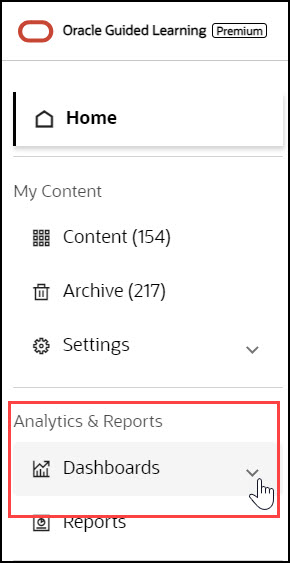
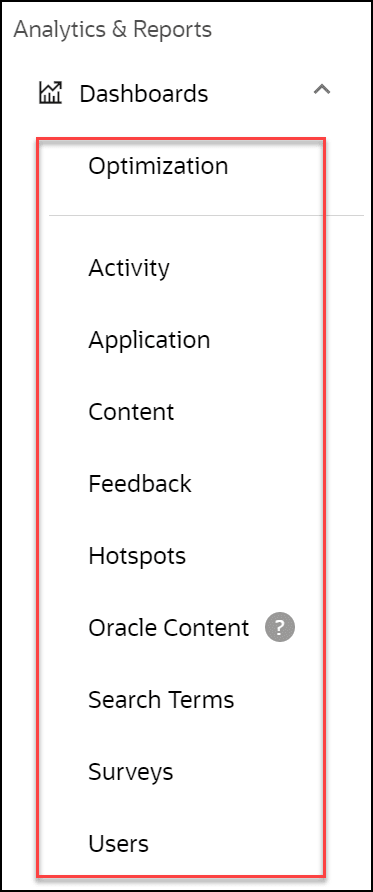
All the Analytics Dashboards are now displayed under the dropdown menu.
Overview of Analytics Dashboards
The Analytics Dashboards provide data on the consumption of OGL content for a specified account and for a designated time frame. There are various analytics dashboards available, each providing different analyses and visualizations of consumption data and host application usage.
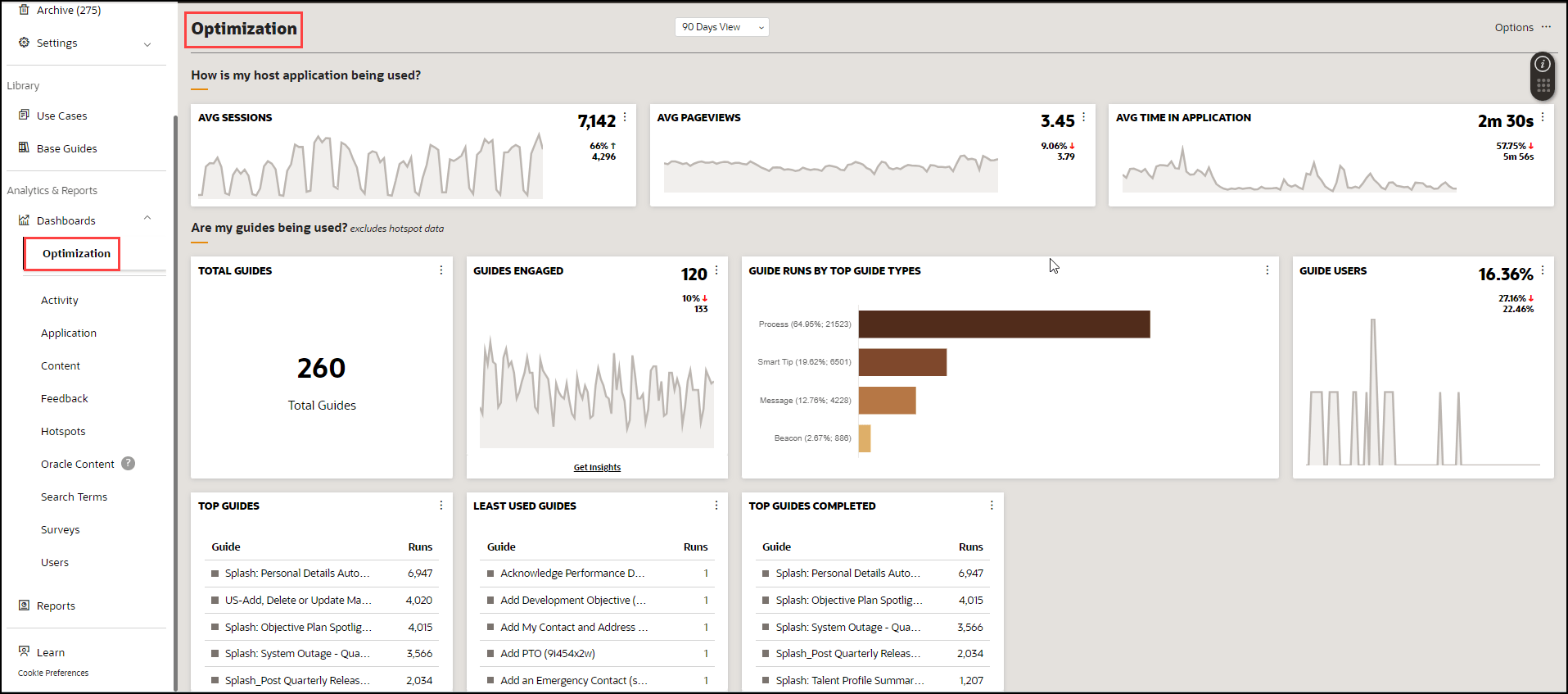
Example of the Optimization dashboard:
With Oracle Guided Learning Analytics, adminsitrators can easily filter and generate reports on OGL metric data, allowing you to monitor the usage and consumption of OGL content. OGL Analytics provides 9 standard dashboards with customizable filtering options and the ability to download data, where applicable. Each of the analytics dashboards are covered in more detail in this document.
- Optimization Dashboard: Highlights key daily/weekly measures organized by content health and the target application traffic.
- Activity Dashboard: Guide activity and the consumption of OGL content.
- Application Dashboard: View traffic on specific pages. An expanded set of filters is now provided along with three new Dashboards covering User, Content, and Application, in addition to the Activity Dashboard.
- Content Dashboard: How many of each type of guide are available in the Console.
- Feedback Dashboard: View and analyze user feedback on OGL content items.
- Hotspots: View analytics on Launchers and Hotspots.
- Oracle Content Dashboard: Adds a new dashboard to the OGL Analytics and Reports capabilities to provide guide activity data of Oracle Content.
- Search Terms Dashboard: View frequently searched terms and analyze ease of access to OGL content items.
- Surveys Dashboard: The Reports dashboard lets OGL administrators see survey results and download a report that includes end-user responses.
- Users Dashboard: Detail from a user perspective on Oracle Guided Learning activity.
Reports
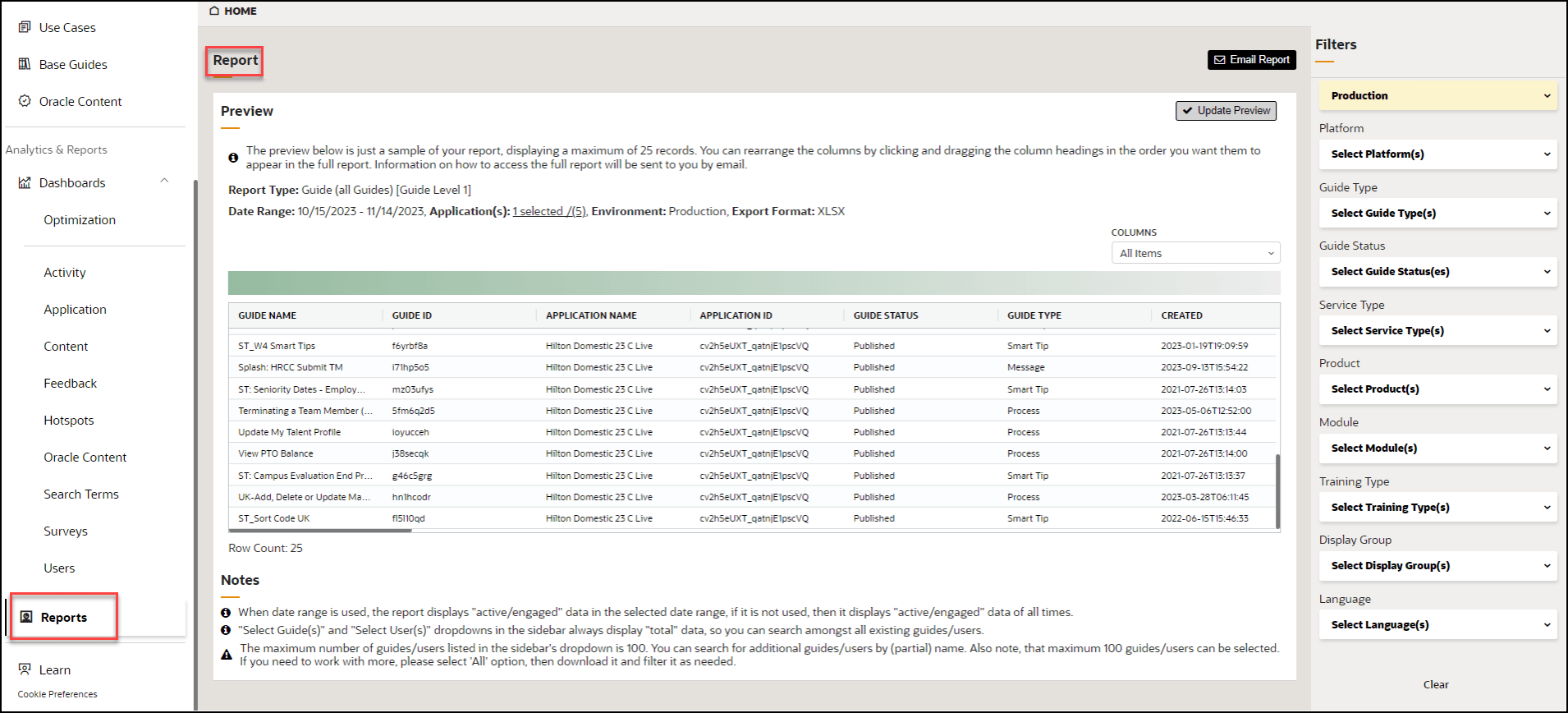
The Analytics Reports lets OGL administrators download a customized report that includes end-user responses and data captured by Surveys.
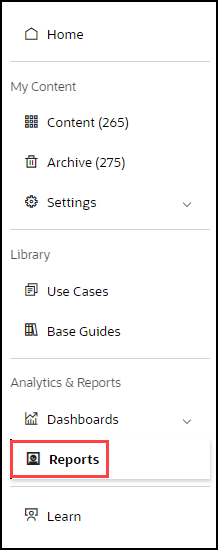
You can access the Reports from the main navigation menu.
Below is an example of the Reports interface.
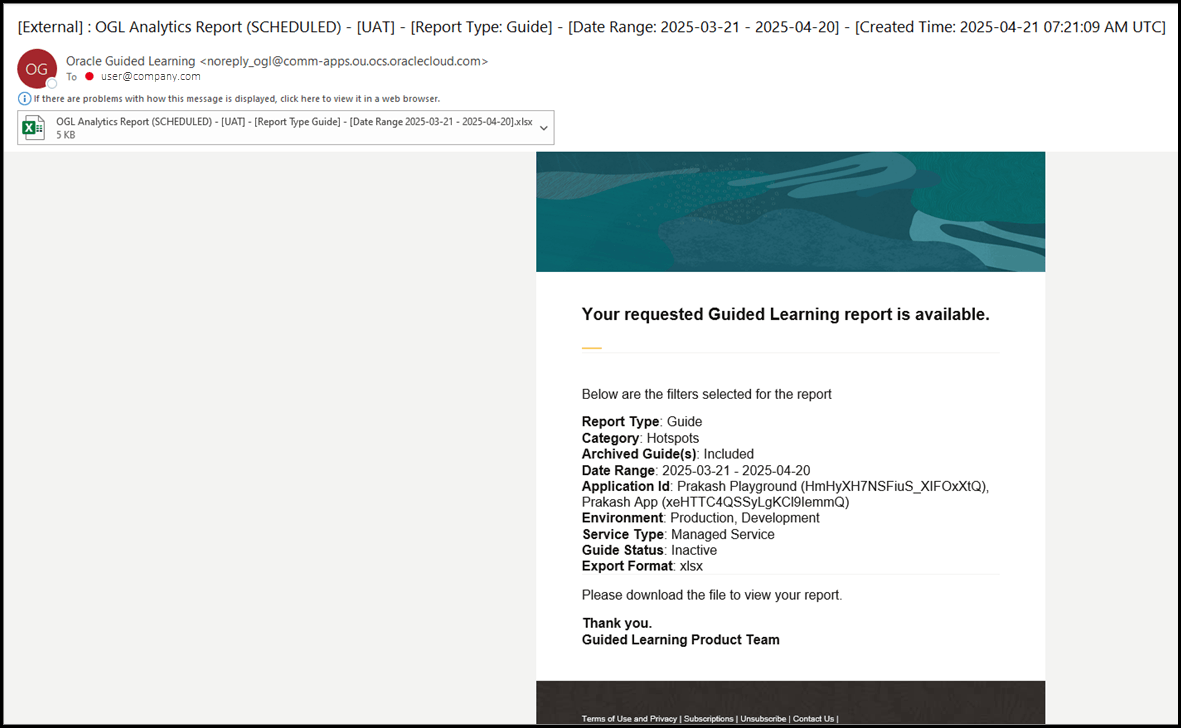
Analytics Email Report
To enhance the clarity and relevance of the Analytics Email Report, the following improvements were made:
- Refined the subject line to better reflect the report content.
- Added analytics filter details within the email body to provide clear context to recipients.
- Set the report file name to match the subject line for consistency.
- To resolve a data discrepancy between the manual and scheduled email reports, the database pull time for the scheduled report has been moved from 7:00 UTC to 20:00 UTC. This change allows sufficient time for the data to be updated in the analytics report.