Selecting Targets
Targets are HTML elements within a page to which guides can be anchored and can allow users to interact with, such as selecting or hovering over. Selecting target elements is a combination of art and science. Using the OGL Editor, you can select most targets by hovering over elements and either right-clicking (Control+click for Mac) or choosing the Select button.

You can select a target at any time by selecting Target.

Viewing Selected Targets
You can view the target selector to troubleshoot or see how OGL selected the target.
To update the selector:
- Select Change Tip Target.
- On the selector dialog, select the Edit icon.

- Update the selector.
- Select the check mark to save the new target.

Selectors
OGL supports a variety of jQuery and CSS selectors.
Examples:
- [id$="HRD_CAREERDEV_MANAGER::icon"]
- [id*="HRD_CAREERDEV_MANAGER::icon"]
- span:contains('Career Statement')
- label:contains('Goal Name')
- src:contains(‘qual_personstar_32.png’)
- button:contains("OK"):first
Note:
"OFS=Oracle Fusion Selectors" are more stable selectors found within Fusion applications. These selectors are less likely to change with Fusion releases. Wherever possible, it is recommended that you target OFS selectors to ensure that guides continue to function following each Fusion quarterly release.Redwood Selector Enhancement
Redwood selector logic is enhanced within the OGL Full Editor to improve accuracy and usability thus making selector handling more intuitive and aligned with how users interact with Redwood elements.
With this enhancement, you will find a new option in the Element Properties within the OGL Editor called Parent Redwood Element. This new setting, when enabled, will allow the parent Redwood element to be set as the default when any of its child elements are selected.
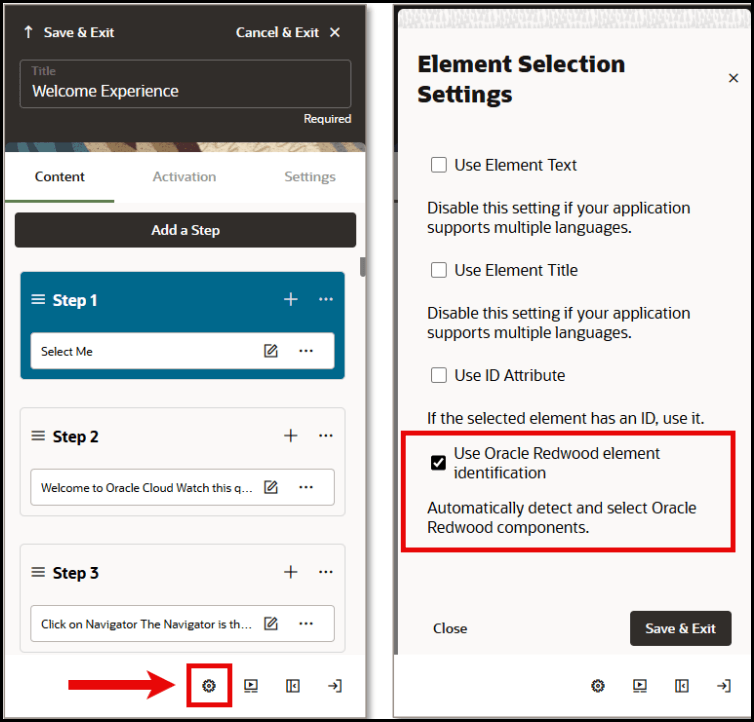
Note:
The parent oj-element will be selected when any of its inner ‘oj’ elements are chosen.Enhanced Scoring: The selector algorithm will be further refined to assign higher scores to text-based selectors, improving overall selection accuracy. These updates aim to make selector handling more intuitive and aligned with how users interact with Redwood elements on the Fusion UI.
