2 Upgrading OCCNE
Prerequisites
The customer central repository should be updated with the current OCCNE Images for 1.5.0 and any RPMs and binaries should be updated to the latest versions.
kubectl get pods --all-namespacesExample:
NAMESPACE      NAME                                     READY   STATUS    RESTARTS   AGE
cert-manager   cert-manager-77fb98dc45-7ch6b            1/1     Running     0        8d
kube-system    calico-kube-controllers-7df59b474d-r4f7z 1/1     Running     0        8d
kube-system    calico-node-6cvhp                        1/1     Running     1        8d
...
...
...
occne-infra    occne-elastic-elasticsearch-client-0     1/1     Running     0        6d8h
occne-infra    occne-elastic-elasticsearch-client-1     1/1     Running     0        6d8h
occne-infra    occne-elastic-elasticsearch-client-2     1/1     Running     0        6d8h

...
...
...
Pre-upgrade Procedures
- All NFs must be upgraded before OCCNE upgrade. Execute Installing Network Functions procedure for all NFs that have upgrades available. This procedure includes steps to update NF-specific alerts.
- The below procedure needs to be executed to track and save the
changes which can be reapplied after upgrade to keep the SNMP running after
upgrade:
- If trap receiver (snmp.destination) for
occne-snmp-notifier is modified after installation then the IP
details must be saved so that after upgrade it can be
reassigned.
$ kubectl get deployment occne-snmp-notifier -n occne-infra -o yamlSearch for
- --snmp.destination=<trap
										receiver ip address>:162
. Copy the IP and save it for future reference. - Execute the following command to determine whether
multiple SNMP notifiers are configured or
not:
$ kubectl get pods --all-namespaces | grep snmp occne-infra occne-snmp-notifier-1-f4d4876c7-hxnkb 1/1 Running 0 44h occne-infra occne-snmp-notifier-6b99997bfd-r59t7 1/1 Running 0 43h - If multiple SNMP notifiers are created then alert
manager configmap must be saved before upgrade, so that the config
can be reapplied after upgrade by following the post upgrade
steps:
$ kubectl get configmap occne-prometheus-alertmanager -n occne-infra -o yaml
apiVersion: v1
data:
  alertmanager.yml: |
    global: {}
    receivers:
    - name: default-receiver
      webhook_configs:
      - url: http://occne-snmp-notifier:9464/alerts
    - name: test-receiver-1
      webhook_configs:
      - url: http://occne-snmp-notifier-1:9465/alerts
    route:
      group_interval: 5m
      group_wait: 10s
      receiver: default-receiver
      repeat_interval: 3h
      routes:
      - receiver: default-receiver
        group_interval: 1m
        group_wait: 10s
        repeat_interval: 9y
        group_by: [instance, alertname, severity]
        continue: true
      - receiver: test-receiver-1
        group_interval: 1m
        group_wait: 10s
        repeat_interval: 9y
        group_by: [instance, alertname, severity]
        continue: true
kind: ConfigMap
- If trap receiver (snmp.destination) for
occne-snmp-notifier is modified after installation then the IP
details must be saved so that after upgrade it can be
reassigned.
- Go to Grafana GUI to backup
dashboard:
- Select Shared Dashboard option on the top-right side of the dashboard that needs to be saved.
- Click Export. Click Save to file to save the file in the local repository.
- Save all the dashboards as json files before upgrading OCCNE.
- Get the administrator password
from the Jenkins container to log into the Jenkins user interface running on
the Bastion Host.
- SSH to the Bastion host
and run following command to get the Jenkins docker container ID:
$ docker ps | grep 'jenkins' | awk '{print $1}' Example output- 19f6e8d5639d - Get the admin password
from the Jenkins container running as bash. Execute the following
command to run the container in bash mode:
$ docker exec -it <container id from above command> bash - Run the following command from the Jenkins
container while in bash mode. Once complete, capture the password
for later use with user-name: admin to log in to the Jenkins GUI.
$ cat /var/jenkins_home/secrets/initialAdminPassword Example output - e1b3bd78a88946f9a0a4c5bfb0e74015 - Execute the following ssh command from the
Jenkins container in bash mode after getting the bastion host ip
address:
Note: The Bare Metal user is admusr and the vCNE user is cloud-user.
ssh -t -t -i /var/occne/cluster/<cluster_name>/.ssh/occne_id_rsa <user>@<bastion_host_ip_address> - After executing the SSH
command the following prompt appears:
The authenticity of host can't be established. Are you sure you want to continue connecting (yes/no)Enter
yes. - Exit from bash mode of the Jenkins container (that is, enter exit at the command line).
- SSH to the Bastion host
and run following command to get the Jenkins docker container ID:
- Open the Jenkins GUI in a browser window using url, <bastion-host-ip>:8080. Login using the password from step 2c with admin user.
- Click New Item to create a job with an
appropriate name. Follow the steps below:
- Click New Item on the Jenkins home page.
- Add a name and select the Pipeline option for creating the job.
- Once the job is created and visible on the Jenkins home page, select Job. Select Configure.
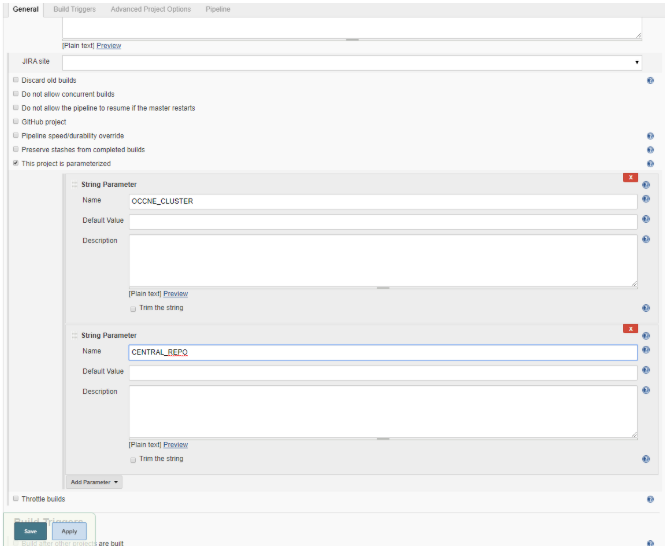
- Add parameters
OCCNE_CLUSTER and CENTRAL_REPO from configure
screen. Two String Parameter dialogs will appear, one for
OCCNE_CLUSTER and one for CENTRAL_REPO. Enter
values for the Default Value fields in the
OCCNE_CLUSTER dialog and CENTRAL_REPO dialog.
Figure 2-1 Jenkins UI
For openstack environment with certificate authentication only.
Add parameter ENCODED_CACERT as String Parameter and set default value for the Default Value field as base64 encoded string of the openstack certificate, use the link Base encode to generate base64 encoded string of openstack certificate.
- Copy the following
configuration to the pipeline script section in the Configure page
of the Jenkins job with substituting values for
upgrade-image-version, OCCNE_CLUSTER, CENTRAL_REPO, and
CENTRAL_REPO_DOCKER_PORT. All of these values should be known to the
user.
- For both bare metal and vCNE without openstack
certificate
authentication
node ('master') { sh "docker run -i --rm -v /var/occne/cluster/${OCCNE_CLUSTER}:/host -e ANSIBLE_NOCOLOR=1 ${CENTRAL_REPO}:<central_repo_docker_port>/occne/provision:<upgrade_image_version> cp deploy_upgrade/JenkinsFile /host/artifacts" load '/var/occne/cluster/<cluster-name>/artifacts/JenkinsFile'}Example:node ('master') { sh "docker run -i --rm -v /var/occne/cluster/${OCCNE_CLUSTER}:/host -e ANSIBLE_NOCOLOR=1 ${CENTRAL_REPO}:5000/occne/provision:1.5.0 cp deploy_upgrade/JenkinsFile /host/artifacts" load '/var/occne/cluster/delta/artifacts/JenkinsFile'} - For vCNE with openstack certificate
authentication
node ('master') { sh "docker run -i --rm -v /var/occne/cluster/${OCCNE_CLUSTER}:/host -e ANSIBLE_NOCOLOR=1 ${CENTRAL_REPO}:<central_repo_docker_port>/occne/provision:<upgrade_image_version> cp deploy_upgrade/JenkinsFile /host/artifacts" sh "docker run -i --rm -v /var/occne/cluster/${OCCNE_CLUSTER}:/host -e ANSIBLE_NOCOLOR=1 ${CENTRAL_REPO}:<central_repo_docker_port>/occne/provision:<upgrade_image_version> sed -i 's/\${env.openstack_domain_name}\\\\\\\\\\\\\"}/\${env.openstack_domain_name}\\\\\\\\\\\\\",\\\\\\\\\\\\\"openstack_cacert\\\\\\\\\\\\\":\\\\\\\\\\\\\"${ENCODED_CACERT}\\\\\\\\\\\\\"}/g' /host/artifacts/JenkinsFile" load '/var/occne/cluster/<cluster-name>/artifacts/JenkinsFile'}Example:node ('master') { sh "docker run -i --rm -v /var/occne/cluster/${OCCNE_CLUSTER}:/host -e ANSIBLE_NOCOLOR=1 ${CENTRAL_REPO}:5000/occne/provision:1.5.0 cp deploy_upgrade/JenkinsFile /host/artifacts" sh "docker run -i --rm -v /var/occne/cluster/${OCCNE_CLUSTER}:/host -e ANSIBLE_NOCOLOR=1 ${CENTRAL_REPO}:5000/occne/provision:1.5.0 sed -i 's/\${env.openstack_domain_name}\\\\\\\\\\\\\"}/\${env.openstack_domain_name}\\\\\\\\\\\\\",\\\\\\\\\\\\\"openstack_cacert\\\\\\\\\\\\\":\\\\\\\\\\\\\"${ENCODED_CACERT}\\\\\\\\\\\\\"}/g' /host/artifacts/JenkinsFile" load '/var/occne/cluster/delta/artifacts/JenkinsFile'}
- For both bare metal and vCNE without openstack
certificate
authentication
- Select Apply and Save.
Note:
Skip next step g for 1.5.0 tagged image upgrade. This should only be executed for rc builds (For example- upgrading from 1.4.0 to 1.5.0-rc.3 and not for upgrade from 1.4.0 to 1.5.0) - Execute following commands on Bastion
host:
docker run -i --rm -v /var/occne/cluster/${OCCNE_CLUSTER}:/host -e ANSIBLE_NOCOLOR=1 ${CENTRAL_REPO}:<central_repo_docker_port>/occne/provision:<upgrade_image_version> cp deploy_upgrade/JenkinsFile /host/artifacts
sed -i 's/1.5.0/1.5.0-<rc_version>/g' /var/occne/cluster/<cluster_name>/artifacts/JenkinsFile
Example-
sed -i 's/1.5.0/1.5.0-rc.3/g' /var/occne/cluster/<cluster_name>/artifacts/JenkinsFileRemove this line from jenkins pipeline configuration block that was added in step e in jenkins pipeline configuration, click Apply and Save:sh "docker run -i --rm -v /var/occne/cluster/${OCCNE_CLUSTER}:/host -e ANSIBLE_NOCOLOR=1 ${CENTRAL_REPO}:<central_repo_docker_port>/occne/provision:<upgrade_image_version> cp deploy_upgrade/JenkinsFile /host/artifacts" - Go back to the Job page and select Build with Parameters and then Build button for the new pipeline script to be enabled for the job, this job will be aborted.
- Select Build with Parameters option to see latest Jenkins file parameters in the .GUI.
Upgrade Procedure
- Click the job name created in the previous step. Select the Build with Parameters option on the left top corner panel in the Jenkins GUI.
- On selecting the Build with Parameters option, there will be a list of
parameters with a description describing which values need to be used for
the Bare-Metal upgrade vs the vCNE upgrade.
Note:
If the default values are not displayed, enter the values manually.- The openstack specific values can be obtained by using the openstack configuration show command on a shell that supports the openstack client (cli).
- The correct value for the OCCNE_CLUSTER (the
cluster name) can be obtained by entering the following command
on the Bastion Host: echo $OCCNE_CLUSTER.
Note: This value must be the exact cluster name used when the system was originally deployed.
- USER should be set to admusr for upgrading a bare-metal cluster and cloud-user for upgrading a vCNE cluster.
- HOSTIP should be the internal IP address of the Bastion Host.
- After entering correct values for parameters, select Build to start upgrade.
- Once the build has started, go to the job home page to see the live console for upgrade. This can be done in two ways: Either select console output or Open Blue Ocean (Recommended is blue ocean as it will show each stage of upgrade).
- Re-trigger the Jenkins build by repeating procedure from step
2, if build gets aborted with the below message (applicable only for bare
metal
upgrade).
Reboot is required to ensure that your system benefits from these updates. + echo 'Node being restarted due to updates, returns 255' Node being restarted due to updates, returns 255 + nohup sudo -b bash -c 'sleep 2; reboot' + echo 'restart queued' restart queued + exit 255 - Check the job progress from Blue Ocean link in the job to see each stage being executed, once upgrade is complete all the stages will be in Green.
- Before upgrading the Dbtier you need to execute below SQL
commands on any one of the sql
nodes:
#Login to any one of the sql node #Then login to the mysql prompt and execute below queries mysql> CREATE DATABASE replication_info; mysql> CREATE TABLE replication_info.DBTIER_MATE_SITE_INFO ( ParamKey VARCHAR(100), ParamValue VARCHAR(100) NOT NULL, CONSTRAINT DBTIER_MATE_SITE_INFO_pk PRIMARY KEY (ParamKey) ); mysql> CREATE TABLE replication_info.DBTIER_REPLICATION_CHANNEL_INFO ( channel_id INT NOT NULL, remote_signaling_ip VARCHAR(100) NOT NULL, role VARCHAR(100) NOT NULL, start_epoch BIGINT(20) DEFAULT NULL, CONSTRAINT DBTIER_REPLICATION_CHANNEL_INFO PRIMARY KEY (remote_signaling_ip)); - Login to any one of the DB Tier management node and in the mcm
prompt and execute below
commands:
set binlog-format:mysqld=row occnendbclustera; set log_bin:mysqld=/var/occnedb/binlogs occnendbclustera; set relay_log:mysqld=/var/occnedb/mysql/mysql-relay-bin occnendbclustera; set relay_log_index:mysqld=/var/occnedb/mysql/mysql-relay-bin.index occnendbclustera; set expire_logs_days:mysqld=10 occnendbclustera; set max_binlog_size:mysqld=1073741824 occnendbclustera; set auto-increment-increment:mysqld=2 occnendbclustera; set auto-increment-offset:mysqld=2 occnendbclustera; set ndb-log-update-as-write:mysqld=0 occnendbclustera; set skip-slave-start:mysqld=TRUE occnendbclustera; set ndb-log-apply-status:mysqld=TRUE occnendbclustera; - Retrieve the password for DB Tier SQL users "occneuser" and
"occnerepluser".
Execute below command on bastion host to get the password for "occneuser":
$ kubectl -n occne-infra exec -it $( kubectl -n occne-infra get pods | grep occne-db-monitor-svc | grep Running | awk -F " " '{print $1}') -- printenv | grep MYSQL_PASSWORD | awk -F "=" '{print $2}'XH5G99BAuRLbIf the password field received as blank then execute below commands on all DB Tier SQL nodes to reset the password for "occneuser".# Login to both Sql node and execute below commands (In the below example we have set the password for occneuser as NextGenCne) mysql> CREATE USER IF NOT EXISTS 'occneuser'@'%' IDENTIFIED BY '<OCCNEUSER_PASSWORD>'; mysql> ALTER USER 'occneuser'@'%' IDENTIFIED BY '<OCCNEUSER_PASSWORD>'; mysql> GRANT ALL PRIVILEGES ON *.* TO 'occneuser'@'%'; mysql> FLUSH PRIVILEGES;Execute below commands on bastion host to retrieve password for "occnerepluser".$ kubectl -n occne-infra exec -it $( kubectl -n occne-infra get pods | grep occne-db-replication-svc | grep Running | awk -F " " '{print $1}') -- printenv | grep MYSQL_REPLICATION_PASSWORD | awk -F "=" '{print $2}'RZjcwNem8PgSIf password field received as empty or "db-replication-svc" deployment is not there in the system then execute below commands on all DB Tier SQL nodes to reset password for "occnerepluser".# Login to both Sql node and execute below commands (In the below example we have set the password as NextGenCne). mysql> DROP USER 'occnerepluser'@'%'; mysql> GRANT REPLICATION SLAVE ON *.* TO 'occnerepluser'@'%' IDENTIFIED BY 'NextGenCne'; mysql> FLUSH PRIVILEGES; - Execute below commands on bastion host to upgrade dbtier services. First
remove the dbtier secrets and services by running below commands on bastion
host.
helm delete --purge occne-db-replication-svc
helm delete --purge occne-replication-secret
helm delete --purge occne-secret
helm delete --purge occne-db-monitor-svc
Install the dbtier services by running below command:CENTRAL_REPO=${CENTRAL_REPO} CENTRAL_REPO_IP=${CENTRAL_REPO_IP} PROV_SKIP_DEPLOY=1 OCCNE_SKIP_K8S=1 OCCNE_SKIP_CFG=1 OCCNE_SKIP_TEST=1 DB_SKIP_TEST=1 OCCNE_VERSION=1.5.0 DB_ARGS='--tags=createsecrets,install-dbtiersvc --skip-tags=db-connectivity-svc --extra-vars={"mysql_username_for_metrics":"occneuser","mysql_password_for_metrics":"<OCCNEUSER_PASSWORD>","mysql_username_for_replication":"occnerepluser","mysql_password_for_replication":"<OCCNEREPLUSER_PASSWORD>","mate_site_db_replication_ip":"<MATE_SITE_REPLICATION_SVC_IP>","occne_mysqlndb_cluster_id":<DB_TIER_CLUSTER_ID>}' /var/occne/cluster/${OCCNE_CLUSTER}/artifacts/pipeline.sh CENTRAL_REPO=${CENTRAL_REPO} CENTRAL_REPO_IP=${CENTRAL_REPO_IP} PROV_SKIP_DEPLOY=1 OCCNE_SKIP_K8S=1 OCCNE_SKIP_CFG=1 OCCNE_SKIP_TEST=1 DB_SKIP_TEST=1 OCCNE_VERSION=1.5.0 DB_ARGS='--tags=upgrade --extra-vars={"mysql_username_for_metrics":"occneuser","mysql_password_for_metrics":"<OCCNEUSER_PASSWORD>","mysql_username_for_replication":"occnerepluser","mysql_password_for_replication":"<OCCNEREPLUSER_PASSWORD>","mate_site_db_replication_ip":"<MATE_SITE_REPLICATION_SVC_IP>","occne_mysqlndb_cluster_id":<DB_TIER_CLUSTER_ID>}' /var/occne/cluster/${OCCNE_CLUSTER}/artifacts/pipeline.sh
Note:
While upgrading Site 1 please give empty string as value of "mate_site_db_replication_ip". "occne_mysqlndb_cluster_id" is the cluster_id given to the ndb cluster during installation time.Post-Upgrade Procedures
This section describes the post-upgrade procedure.
- The below procedure needs to be executed to revert back the changes so that SNMP
runs smoothly:
- Edit SNMP notifier to add (snmp.destination) IP
back:
$ kubectl edit deployment occne-snmp-notifier -n occne-infra Move cursor to the line: - --snmp.destination=127.0.0.1:162 Modify to the first trap receiver ip: - --snmp.destination=<trap receiver ip address>:162 The editor is vi, use the vi command :x or :wq to same the change and exit. - If multiple SNMP notifiers were created before upgrade then alert
manager configmap needs to be reloaded with previous
configuration:
$ kubectl edit configmap occne-prometheus-alertmanager -n occne-infra apiVersion: v1 data: alertmanager.yml: | global: {} receivers: - name: default-receiver webhook_configs: - url: http://occne-snmp-notifier:9464/alerts - name: test-receiver-1 webhook_configs: - url: http://occne-snmp-notifier-1:9465/alerts route: group_interval: 5m group_wait: 10s receiver: default-receiver repeat_interval: 3h routes: - receiver: default-receiver group_interval: 1m group_wait: 10s repeat_interval: 9y group_by: [instance, alertname, severity] continue: true - receiver: test-receiver-1 group_interval: 1m group_wait: 10s repeat_interval: 9y group_by: [instance, alertname, severity] continue: true - Restart Alert Manager pods for the configmap changes to take effect:
- Execute the below command to make sure both the Alert Manager
pods are
running:
$kubectl get pods -n occne-infra | grep alert occne-prometheus-alertmanager-0 2/2 Running 0 5h occne-prometheus-alertmanager-1 2/2 Running 0 5h - Execute the below command to delete the first Alert manager Pod.
The pod will be recreated automatically after
delete:
$kubectl delete pod occne-prometheus-alertmanager-0 -n occne-infra pod "occne-prometheus-alertmanager-0" deleted - Execute the below command to make sure the new Alert manager pod
is up and
running:
$ kubectl get pods -n occne-infra | grep alert occne-prometheus-alertmanager-0 2/2 Running 0 5h occne-prometheus-alertmanager-1 2/2 Running 0 50s - Execute the below command to delete the second Alert manager
Pod. The pod will be recreated automatically after
delete.
$kubectl delete pod occne-prometheus-alertmanager-1 -n occne-infra pod "occne-prometheus-alertmanager-1" deleted - Execute the below command to make sure the new Alert manager pod
is up and
running:
$ kubectl get pods -n occne-infra | grep alert
occne-prometheus-alertmanager-0  2/2     Running     0          5h
occne-prometheus-alertmanager-1  2/2     Running     0          50s
- Execute the below command to make sure both the Alert Manager
pods are
running:
- Edit SNMP notifier to add (snmp.destination) IP
back:
- Run command below and verify all the pods in namespace occne-infra are in
running status. All the pods from the list should have status as Running
and READY value set to
1/1.
kubectl get pods -n occne-infra Example: NAME READY STATUS RESTARTS AGE occne-elastic-elasticsearch-data-0 1/1 Running 0 2d1h - Load old Grafana dashboard.
- Click + icon on the left panel, click Import.
- Once in new panel, click upload.json file. Choose the dashboard file saved locally.
- Repeat same for all dashboards saved from old version.