4 Configuring Provisioning Gateway using CNC Console
This section describes how to configure parameters on Oracle Communications Cloud Native Core, Provisioning Gateway Guide using CNC Console.
4.1 Logging into CNC Console
- In the Windows system, open the hosts file in the notepad as an
Administrator and append the following set of lines at the end:
<CNCC Node IP>
                            cncc-iam-ingress-gateway.cncc.svc.cluster.local
<CNCC Node IP> cncc-core-ingress-gateway.cncc.svc.cluster.localExample:
10.75.212.88
                            cncc-iam-ingress-gateway.cncc.svc.cluster.local
10.75.212.88 cncc-core-ingress-gateway.cncc.svc.cluster.localNote:
The IP Address in the above lines may change when deployment cluster changes. - Save and close the notepad.
Note:
Before logging to CNC Console, it is important to create a CNC user. Using this user details, you can log in to the CNC Console application. For information on creating a CNC Console user, see Oracle Communications Cloud Native Configuration Console (CNC Console) User Guide.
CNC Console Log in
- Open any browser.
- Enter the URL http://<host name>:<port number>.
where, host name is cncc-iam-ingress-ip and port number is
cncc-iam-ingressport and press Enter. The following screen appears:
Figure 4-1 CNC Console Login Page
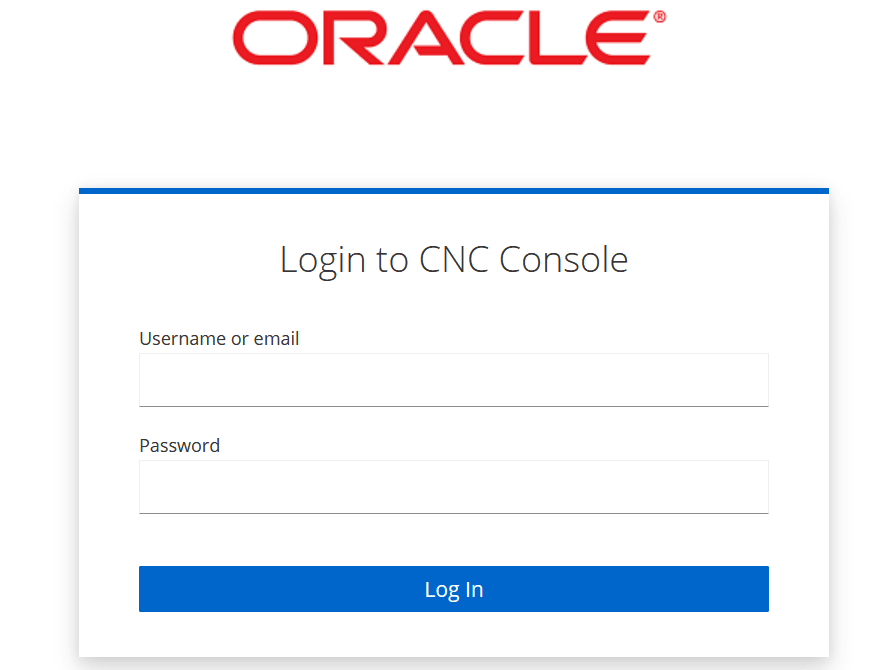
- Enter the Username and Password and click Log
In. The CNC Console Home page appears from where a user can select
different instances in the drop down, for example, Provisioning Gateway SLF,
or the Provisioning Gateway UDR instance.
Figure 4-2 CNC Console Home Page
 Provisioning Gateway in UDR mode, the users can configure following services:
- Configuration Export & Import
- Global Configurations
- Subscriber Entity Configuration (SEC)
- Logging Level
- Service Configurations
Provisioning Gateway in SLF mode, the users can configure following services:- Configuration Export & Import
- Global Configurations
- Logging Level
- Auditor Service Status
- Service Configurations
- Select the service to be used from the left navigation
pane:
Figure 4-3 CNC Console Home Page with Services

Note:
The same NF services appear in the left navigation pane for SLF instance excluding Subscriber Entity Configuration (SEC).
4.2 Configuration Export & Import
This section describes how to perform bulk export and bulk import of the Provisioning Gateway configuration data using CNC Console.
Figure 4-4 Configuration Export and Import
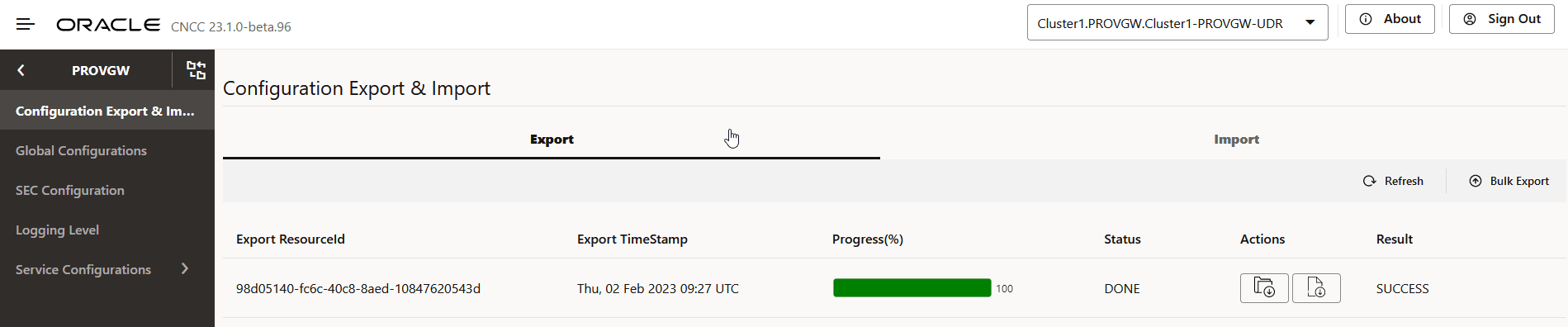
- Export the configuration data.
- Download the exported data.
- Import the data (zip file) that you have exported earlier.
- Generate report to view details of successful and failed configurations.
Exporting Configuration Data
- Click the Bulk Export button in the Export tab. The
Objects to be Exported dialog box appears.
Figure 4-5 Objects to be Exported Dialog Box
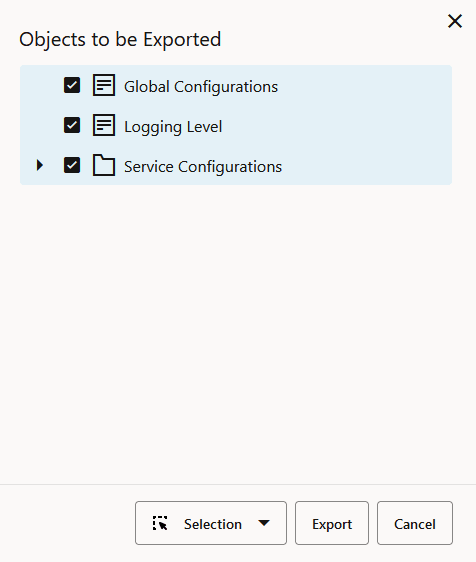
- Select the objects that you want to export. Click the Selection button to either 'Select All' or 'Deselect All' the objects.
- Click Export to export the selected objects data. The data in the Configuration Export & Import page is updated.
- Click Cancel to exit the dialog box.
Downloading Exported Configuration Data
- Click the Export Configuration Download icon available under the Actions column of the Export tab.
- The "Export Data downloaded Successfully" message appears and the zip file of the exported data is saved to your system. For example: exportedFiles_1.12.41_20210807133529.zip
Downloading Exported Configuration Data Report
- Click the Export Report Download icon available under the Actions column of the Export tab.
- The "Export status report downloaded successfully" message appears and the export report in the .txt file format is saved to your system. For example: exportReport_1.12.41_20210807134056.txt
Importing Configuration Data
- Navigate to the Import tab. The Configuration Export
& Import page appears as follows:
Figure 4-6 Importing Configuration Data

- Click the Import button. The Import Data dialog
box appears.
Figure 4-7 Import Data Dialog Box
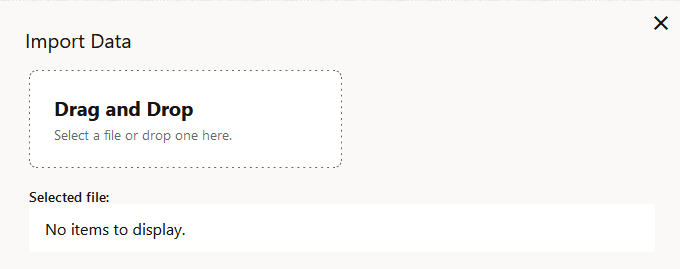
- Select the file that has configuration data and click
Import.
Note:
You can only import the configuration data that you had exported earlier. - The data in the Configuration Export & Import page is updated.
- Click Cancel to exit the dialog box.
Downloading Imported Configuration Data Report
- Click the Import Report Download icon available under Actions column of the Import tab.
- The "Import status report downloaded successfully" message appears and the import report in the .txt file format is saved to your system. For example: importReport_1.12.41_20210807134056.txt
4.3 Global Configurations
Figure 4-8 Global Configurations
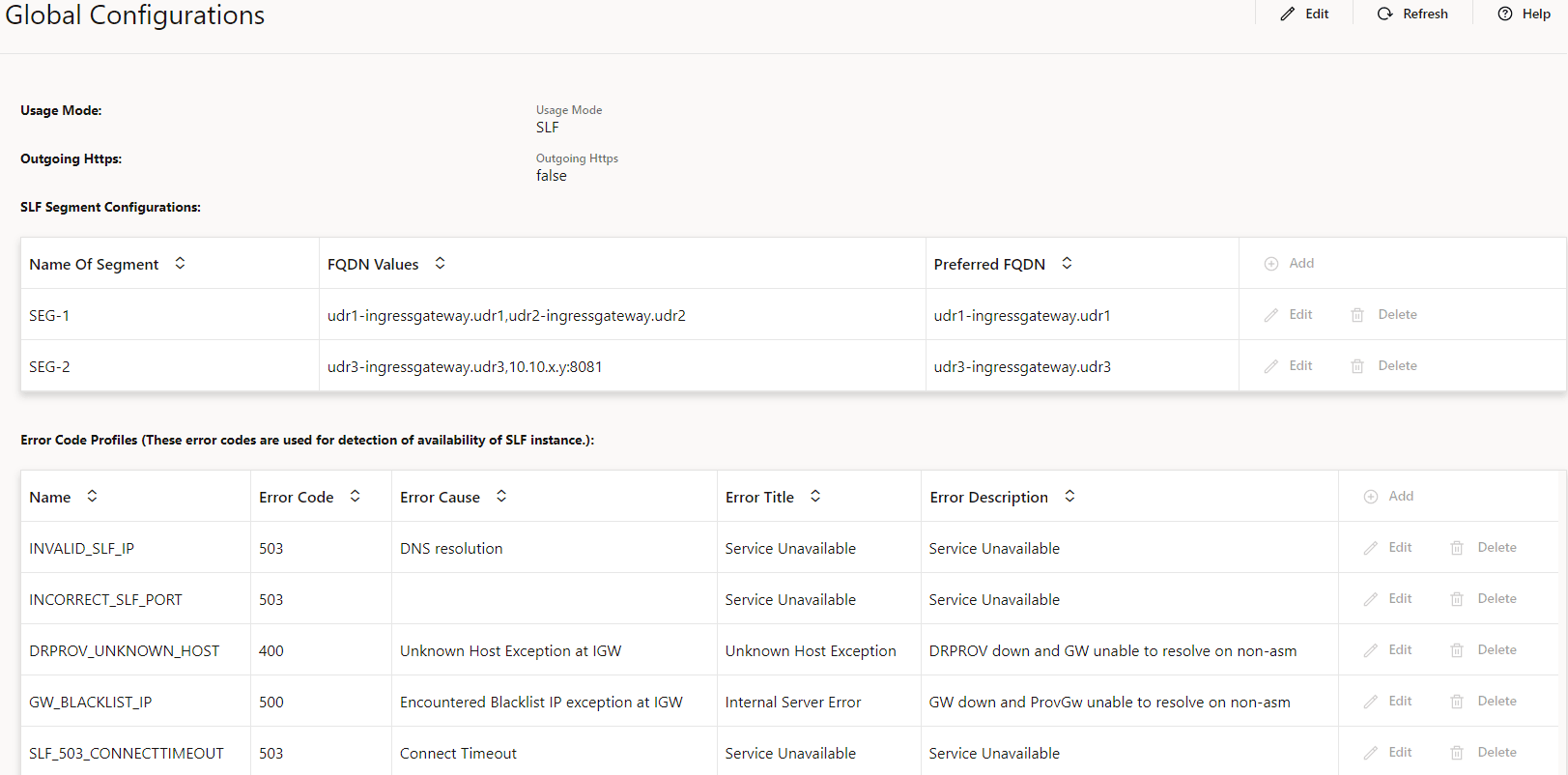
Table 4-1 Global Configurations Parameters
| Field Name | Default Value | Attribute | Description |
|---|---|---|---|
| Usage Mode | UDR | Read-only | Displays the name of the usage mode of provisioning gateway. The two usage mode are UDR and SLF. |
| Outgoing HTTPS | false | Editable | Enables HTTPS while sending requests to UDR. |
| SLF Segment Details | NA | Editable | It defines the connection details with UDR in SLF mode. Each segment can have multiple FQDNs. But only one FQDN is marked as preferred. |
| Error Code Profiles | NA | Editable | Its defines the switchover logic from preferred FQDN to non-preferred FQDN in any segment. |
Note:
These values are extracted from the database and on every Helm upgrade, users need to click the Refresh icon to see the latest values.4.4 Subscriber Entity Configuration (SEC)
Figure 4-9 Subscriber Entity Configuration
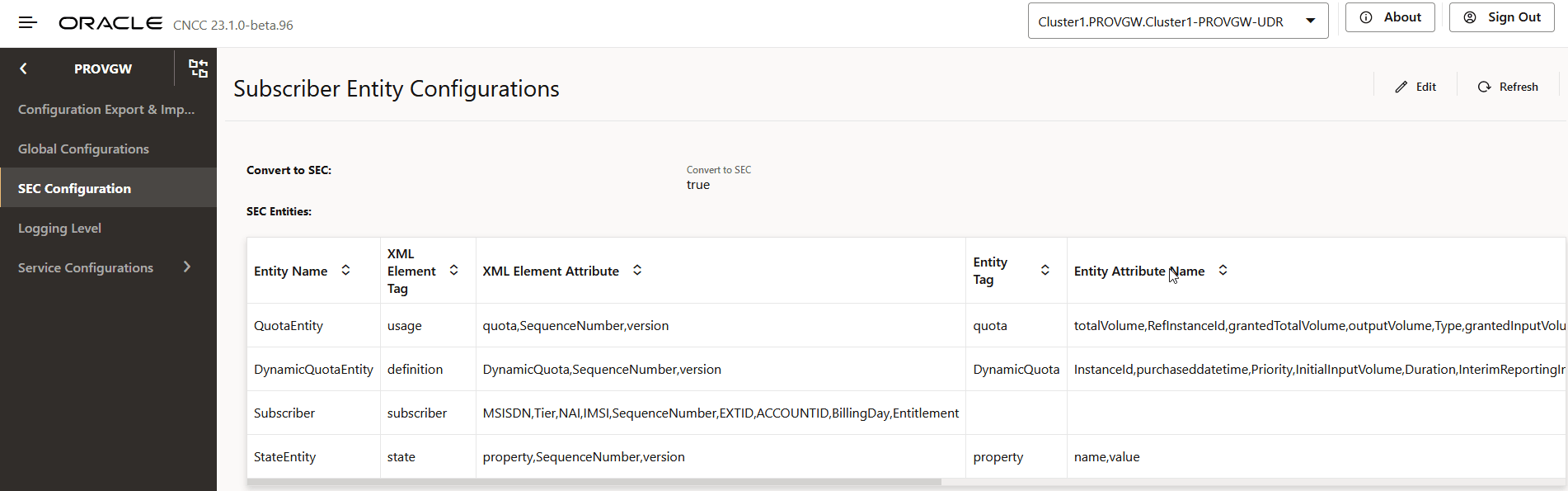
Table 4-2 The Subscriber Entity Configuration Parameter
| Field Name | Default Value | Attribute | Description |
|---|---|---|---|
| Convert to SEC | true | Editable |
Indicates the flag to enable or disable the SEC validation. The flag can be set to true or false. When set to true, the SEC validation is case insensitive and the request is converted to the SEC case format. When set to false, the SEC validation is case sensitive and the request is dropped immediately, if the case does not match. SEC validation will always be successful. |
Editing the Subscriber Entity Configuration (SEC) Details
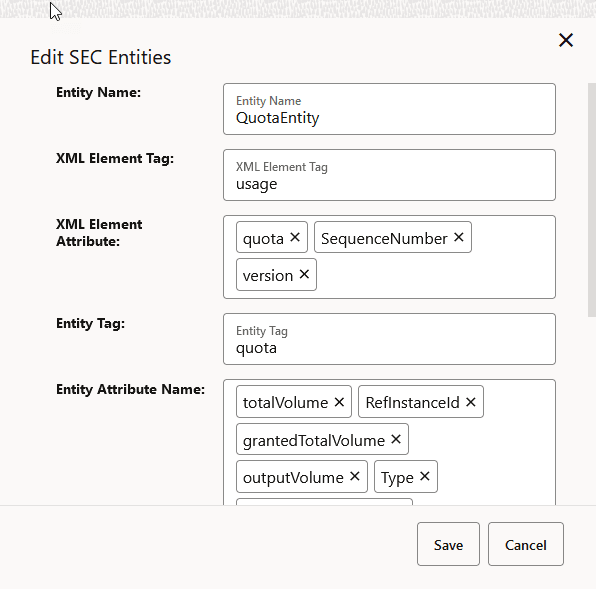
To edit the custom field in existing subscriber entity such as QuotaEntity. Click Edit. This enables the add, edit and delete options of each subscriber entity.
- Click Edit option corresponding to the entity you want to edit. The Edit SEC Entities page appears.
- Updated or remove the details as required and click Save.
- Click Cancel to access the Subscriber Entity Configuration page.
Figure 4-10 Edit Subscriber Entity

Figure 4-11 Edit SEC Entities
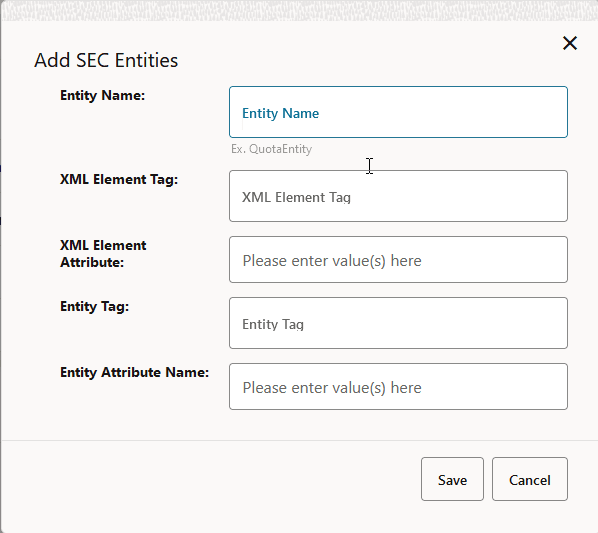
- Click Add. The Add SEC Entities page appears.
- Fill in the required details and click Save to add the subscriber entity.
- Click Cancel to exit the Add SEC Entities dialog box.
- Click Delete corresponding to the subscriber entity you want to delete.
- A confirmation message appears. Click OK to confirm the deletion of record.
- Click Cancel to exit the delete dialog box and access the Subscriber Entity Configuration page.
4.5 Logging Level Configuration
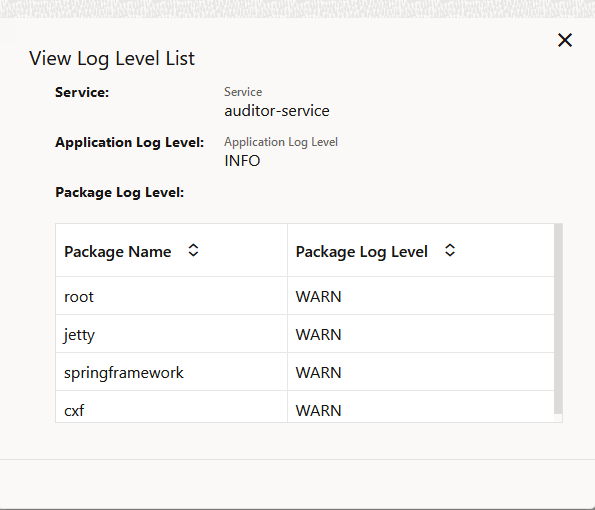
The Logging Level Configuration page allows its operators to view and edit the log level details at the application log level and package log level for each service. To access the Logging Level Configuration page, click PROVGW and then Logging Level in the left navigation pane of the CNC Console application.
- Service: Provisioning Gateway microservice name
- Application Log Level: This field shows the log level of the
microservice. Its possible values are:
- DEBUG
- ERROR
- INFO
- TRACE
- WARN
- View: Click View corresponding to each microservice to
View Log Level List detail.
Figure 4-12 Sample: View Log Level List - auditor-service
Editing Log Level Details
- Click Edit on the Logging Level Configuration page. The
Edit Log Level page appears.
Figure 4-13 Sample: Edit Log Level
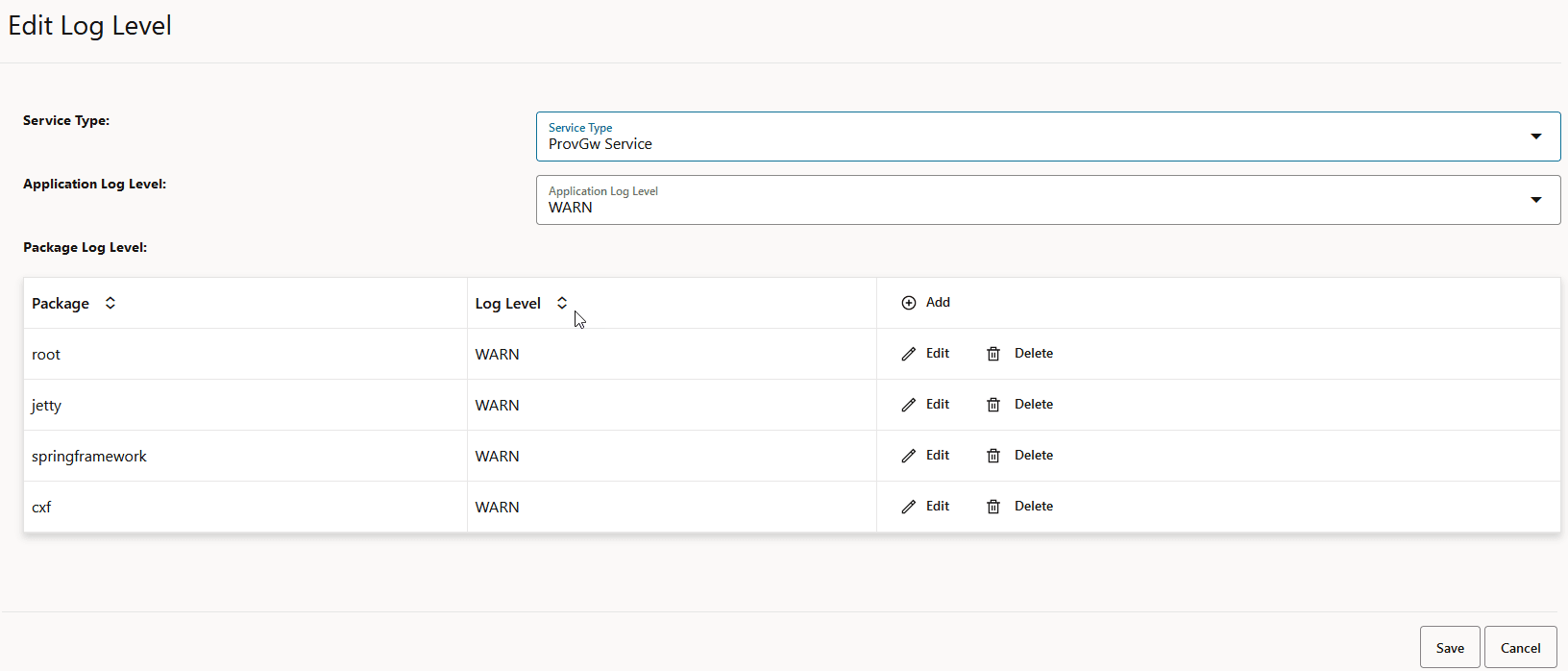
- Update the log level details as required. To add the Package
Log Level details:
- Click the Add button available in the Package
Log Level section. The Add Package Log Level dialog
box appears:
Figure 4-14 Add Package Log Level
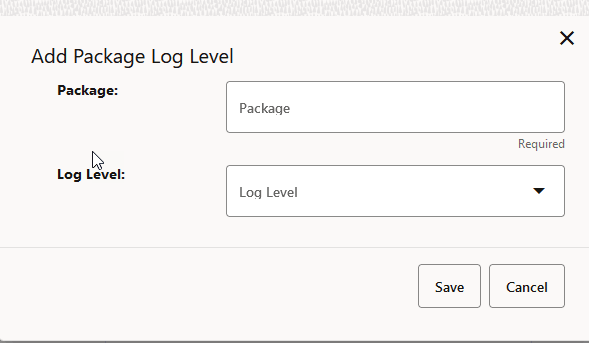
- Enter the Package name and select the Log
Level from the list. The Log Level options are:
- DEBUG
- ERROR
- INFO
- TRACE
- WARN
- Click Save to add the package log level details. [OR] Click Cancel to exit the Add Package Log Level dialog box.
- Click the Add button available in the Package
Log Level section. The Add Package Log Level dialog
box appears:
- Click Save. A confirmation message, "Save successfully." appears.
- If you do not want to modify any log level detail, click Cancel. The Logging Level Configuration page appears.
- Click Refresh to reload the Logging Level Configuration page.
4.6 Auditor Service Status
Figure 4-15 Auditor Service Status

- Audit Report ID: It is audit file name given at the start of the audit.
- Match Count: Total subscriber matched between two segment exported files.
- Mismatch Count: Total subscriber mismatched between two segment exported files.
- Total Audited Subscribers Segment1: Total audited records from the segment one exported files including processing failed records.
- Total Audited Subscribers Segment: Total audited records from the segment2 exported files including processing failed records.
- Progress: Show the percentage of audits completed.
- Start Time: Time at which audit started.
- End Time: Time at which audit ended.
- Status: Show the status of the audit. Possible values are as
follows:
- AUDIT_IN_PROGRESS
- AUDIT_COMPLETED
- AUDIT_FAILED
- AUDIT_PAUSED
4.7 Service Configurations
To configure Provisioning Gateway services using CNC Console, you can use Service Configurations. In the left navigation pane of the CNC Console application, click PROVGW and then Service Configurations.
Using Service Configurations, Provisioning Gateway in UDR mode users can configure ProvGw Service service
- Auditor Service
- ProvGw Service
4.7.1 ProvGw Service
Click PROVGWand then Service Configurations. From the Service Configurations menu, select ProvGw Service. The ProvGw Service Configurations page appears:
Figure 4-16 ProvGw Service Configurations

Table 4-3 ProvGw Service Configurations
| Field Name | Default Value | Attribute | Description |
|---|---|---|---|
| Tracing Enabled | False | Read-only |
Tracing is not enabled by default. Tracing addresses logging information in microservice based applications. |
| Retry Error Codes | 500, 503 | Editable | This field displays comma separated error codes. These error codes are eligible for retry notifications in case of failures. |
| Retry Count | 2 | Editable | Number of notification attempts to be done in case of notification failures. |
| Retry Interval | 2 | Editable | The retry interval for notifications in case of failure. It is measured in seconds. |
Editing ProvGw Service Configurations
- Click Edit. The ProvGw Service Configurations page appears.
- Update the configuration details as required and click Save. A confirmation message, "Save successfully." appears.
- If you do not want to modify any configuration, click Cancel. The ProvGw Service Configurations page appears.
- Click Refresh to reload the ProvGw Service Configurations page.
4.7.2 Auditor Service Configurations
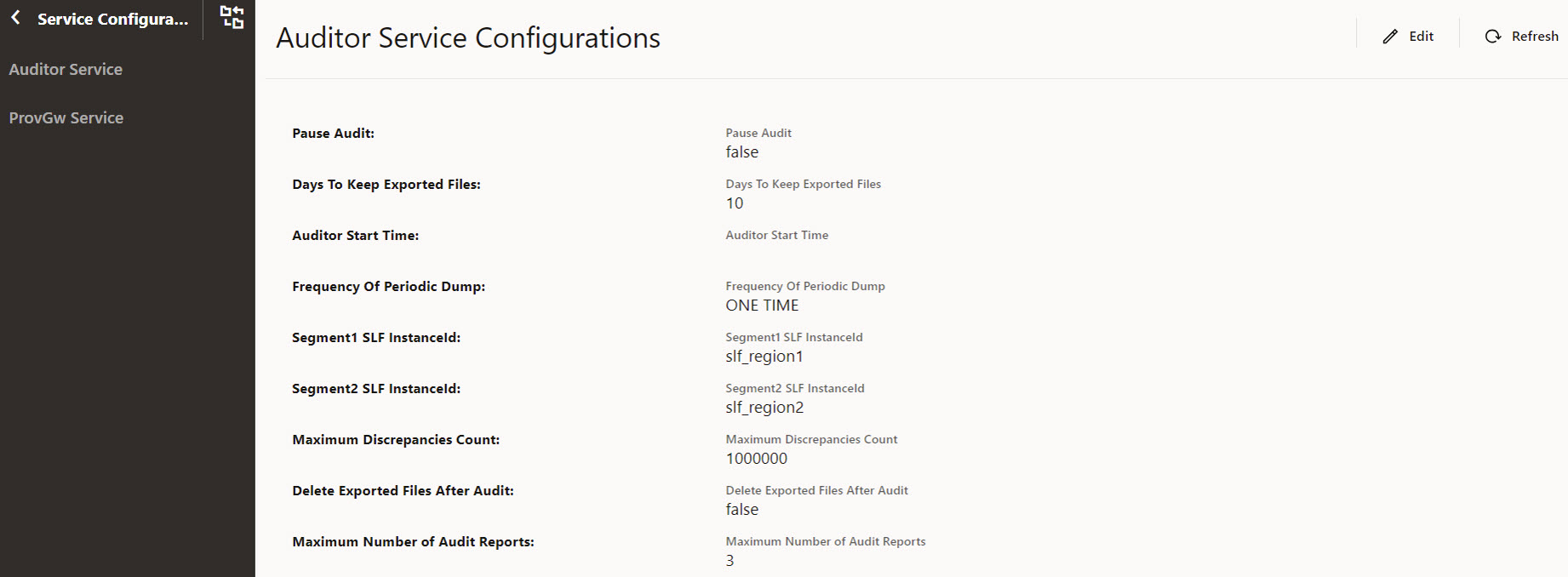
Table 4-4 Auditor Service Configurations
| Field Name | Default Value | Attribute | Description |
|---|---|---|---|
| Pause Audit | false | Editable | Enables to pause the in progress audit when the parameter is set to true. Set the parameter to false to resume the audit. |
| Days To Keep Exported Files | 1 | Editable | This parameter indicates that number of days the exported files is kept on the segment folders that are audit completed. If the number of days are older than the configured value, the files which are in AUDIT_COMPLETED status is deleted periodically. |
| Audit Start Time | - | editable | This parameters specifies the time when audit should
start in combination with frequencyOfPeriodicDump
parameter value.
|
| Frequency Of Periodic Dump | DAILY | editable |
This parameter indicates the frequency of audit
schedules. The allowed values are as follows:
|
| Segment1 SLF InstanceId | Segment1SLFInstanceId | editable | This parameter defines the SLF instance ID from the first segment. |
| Segment2 SLF InstanceId | Segment2SLFInstanceId | editable | This parameter defines the SLF instance ID from the second segment. |
| Maximum Discrepancies Count | 1000000 | editable | This parameter defines maximum allowed configured discrepancies between the both segment exported files. If the discrepancies found are more than the configured value during audit, then the audit will be failed and alert is raised. |
| Delete Exported Files After Audit | true | editable | If the parameter flag is set to true, the exported files is deleted immediately after the successful audit. |
| Maximum Number Audit Reports | 3 | editable | This parameter defines the maximum number of audit files to be retained in audit report folder. When the files count exceeds the configured limit, the older files are deleted from the PVC. |
Editing Auditor Service Configurations
- Click Edit. The Auditor Service Configurations page appears.
- Update the configuration details as required and click Save. A confirmation message, "Save successfully." appears.
- If you do not want to modify any configuration, click Cancel. The Auditor Service Configurations page appears.
- Click Refresh to reload the Auditor Service Configurations page.