1 Introducing Control Plans
About Control Plans
Introduction to Control Plans
A control plan is a service-logic flowchart that defines how to perform service-logic, based on factors such as the type of service, geographic location, time of day, and so on. You can use control plans for routing calls, subscriptions and activations, sending notifications, charging for a voice or a data session, providing IVR and self-care logic, and so on.
A control plan consists of a collection of connected feature nodes. A feature node is a functional component that defines a particular decision point or action that occurs in the service-logic. You build control plans by using the ACS Control Plan Editor (CPE) user interface (UI), which is part of the Advanced Control Services (ACS) UI. You build a control plan by adding the feature nodes that provide the decisions and actions you need, to a work space, called the control plan canvas. You then connect the feature nodes in the canvas to define the service-logic work flow.
Feature nodes provide service functions such as playing announcements, sending notifications, and branching based on session data. For example, for a voice call, a Day Of Week feature node allows you to specify routing and service logic based on which day of the week a call is made. You might use this feature node, for example, if you set up special rates for holidays.
Each feature node has one or more exits. Exits branch to other feature nodes in the service logic work flow. The branching allows you to specify different actions based on the session data.
Each feature node exit has a number, and a label that identifies the general reason that exit would be taken. For example, the Account Status feature node has three exits: one labeled Success, which indicates the account status message has been successfully relayed to the caller; one labeled Abandon, which indicates the caller has abandoned the call; and one labeled Unsupported, which indicates either an error, a failure, or that the domain being used does not support the feature node. The session data determines which of these exits is taken. The next feature node in the service logic performs an action that is related to the exit taken. For example, if the exit taken is Abandon, the next feature node in that branch might be Disconnect Call.
You can also include feature nodes in control plans that collect data on the operations performed during service-logic processing. For example, you can use the Event Counting feature node to record the number of calls that were routed to a free phone service number. This may help the customer decide the number of telephone lines and customer service operators needed to manage the volume of incoming calls.
Convergent Charging Controller comes with a wide variety of feature nodes that you can use. Each of the Convergent Charging Controller applications are packaged with a set of feature nodes that are specific to the application and that provide actions and decisions that are commonly used by the service that the application provides. For example, you can use the Charging Control Services (CCS) Friends and Family Configuration feature node to update friends and family lists for subscribers. For more information about the feature nodes available with Convergent Charging Controller and its applications, see Feature Nodes Reference Guide.
About Control Plan Structures and Data
A control plan consists of a control plan structure and control plan data. The structure is the service-logic flowchart (the collection of feature nodes in the control plan and the connections between them). The data is the feature node configuration data that you set after you add feature nodes to a control plan.
You can create multiple control plans that use the same control plan structure, but different feature node configuration data. You might do this when you want to use the same control plan structure for similar services, but base the routing on different session criteria for each service.
When you save a control plan, you specify a name for both the structure and the data. You can save both using the same name. If you want to reuse the control plan structure with a different set of data, then save the control plan structure and data using a different name for each. The system identifies a control plan by the name you give to the control plan data.
About Public Control Plan Structures
When you create a control plan, you can define its structure as public. A public control plan structure is available and can be used by all customers. Customers can use the public structure as the basis for creating their own private control plans.
You specify that a control plan structure is public when you save the control plan. You must have system administrator level privileges to save a control plan structure as public.
About Control Plan Templates
A control plan template is a template that you can use to create control plans. A control plan template is similar to a control plan structure, except that it does not have any associated configuration data. It consists of the group of unconfigured feature nodes, and the feature node connections that define the service-logic for any control plans that are based on the template. You might want to create a control plan template for a group of control plans that use the same control plan structure, but that require different control plan data.
You use the Numbers window in the ACS user interface to create control plan templates and to create control plans from control plan templates. For more information about creating and using control plan templates, see the ACS Numbers section in ACS User's Guide.
About Sub-control Plans
About Sub-control Plans
A sub-control plan is a control plan that is run within another control plan. You use sub-control plans to define common service-logic that you want to reuse. You can reuse a sub-control plan in multiple control plans. You can also add multiple sub-control plans to a control plan. When you compile the main control plan, the compiler creates a single run-time control plan that includes the service-logic from each sub-control plan.
You add a sub-control plan to a control plan by using a Load Sub Control Plan feature node. For information about the Load Sub Control Plan feature node, see Feature Nodes Reference Guide.
You can use any successfully compiled control plan as a sub-control plan, subject to the following restrictions:
- A control plan can include up to 127 sub-control plans.
- A sub-control plan can have a maximum of 20 End feature nodes.
- A sub-control plan may not itself contain sub-control plans.
You use the ACS UI to configure the maximum number of feature nodes that a customer can use in a single control plan. This maximum includes the feature nodes in sub-control plans. You cannot exceed the maximum allocation by using sub-control plans. For more information, see the Customer Resource Limits section of ACS User's Guide.
About Global Control Plans
What is a Global Control Plan?
A global control plan is a control plan that is associated with a specific service configured for use in Convergent Charging Controller, and applies to all customers who use that service. Global control plans enable you to apply global call-screening to calls for all customers. Global control plans are applied to calls before the customer's control plans are applied.
Global control plans are automatically assigned to the default operator customer, and can be owned only by the operator. You must have system administrator level privileges to save a control plan as a global control plan.
You specify whether a control plan is global when you save the control plan by
giving the control plan the name “Global Screening service_name”
where service_name is the name of the service to which it applies.
The service names are specified in the ServiceEntry
parameter for each Convergent Charging
Controller
application in the acs.conf configuration file.
For example, the acs.conf file has the following entry for the ACS service:
ServiceEntry (ACS,libacsService.sl)
The syntax of the ServiceEntry parameter may vary, but the service
name is always the first value within the parentheses. Therefore, to apply a
global control plan to this ACS service, you would name the global control
plan "Global Screening ACS".
If the service logic in a global control plan terminates a telephony call, the customer's control plan is never applied, because the global control plan is applied before the customer's control plan. Therefore, use caution when adding feature nodes that terminate calls to a global control plan.
Example of Using a Global Control Plan to Announce Promotions
An operator wishes to advertise the special offers available throughout the
year for a specific customer named Garden Center. The
operator can achieve this by creating a global control plan to play
promotions.
For example, if the operator creates a control plan called Global
Screening VPN_Originating that plays an announcement
advertising the garden center, then every control plan associated with
ServiceEntry (VPN_Originating,libvpnService.so)
will play the announcement. Callers will hear the announcement before being
routed according to customer Garden Center’s control plan.
Note: Because the global control plan is enabled at operator level and is invisible to the customer, it is not possible for the customer to choose whether or not the advertisement is heard by its callers. This gives the operator superior control over any selected call processing.
Example of Using a Global Control Plan to Restrict Calls
You can also use a global control plan to restrict certain calls at the operator level. For example, you may want to prevent prisoners from making calls to 0900 numbers. You restrict calls by using a Calling Party Category feature node in a global control plan to identify the category of the originating call. You create a restricted service for prisoners called, for example, ACS_Restricted. You associate the global control plan with the ACS_Restricted service by naming it "Global Screening ACS_Restricted".
About Managing Customer's Control Plans and Data
About Managing Customer's Control Plans and Data
As the operator, you can manage customers' control plans and data or allow one or more customers to manage their own control plans and data. You grant access to the ACS UI (and thus to the CPE) to those customers who are allowed to manage their own control plans and data. Customers whose control plans and data are managed by the operator may not access the ACS UI.
About Using the ACS Self Management Control Plan
The ACS Management control plan is a predefined control plan that is installed with ACS by default. This control plan enables operators to provide a dial-up service that customers can use to manage certain aspects of their control plans over the phone.
The operator enables the ACS Management control plan dial-up feature for a customer by connecting the ACS Management control plan to a service number. A service number is a number customers dial when they want to use the service, for example, to access and manage their control plans. The operator then allocates the service number to the customer. The customer dials this service number and uses a touch-tone phone to manage one or more of the following settings for their control plans:
- Activate a control plan
- Change the Switch feature node exit in an existing control plan. The Switch feature node acts as a switch in the control plan by routing all calls through the selected exit.
- Set the follow me number. The follow me number is the number to which calls will be routed if there is no answer from the dialed number.
For more information about the ACS self management control plan, see the discussion on dial-up control plan management in ACS User's Guide. For more information about control plan activation, see About Control Plan Activation .
About Customer Resources
About Feature Node Sets
A feature node set defines the set of feature nodes that a customer can use in his or her control plans. You create feature node sets and then assign them to the customers who will be using them. You create and assign feature node sets by using the ACS UI. Each customer's feature node set is then displayed in the customer's feature node palette in the CPE. You can assign a customer more than one feature node set.
Customers who manage their own control plans will see only the feature nodes and feature node sets that are assigned to them. An administrator who manages multiple customers can see the feature nodes and sets of each customer.
Note: To create and assign feature node sets you must have ACS system administrator privileges.
For more information about configuring and assigning feature node sets, see ACS User's Guide.
About Resource Sets
Feature node configurations frequently use sets of data, called resource sets, that define holidays, announcements, and geographic regions. These resource sets can be public or private. Private resource sets belong to a specific customer and can only be used by that customer. Public resource sets are available and can be used by all customers.
For example, you can create a public holiday set that defines all the public holidays for the year. This will enable all customers to use this set of public holidays in their control plans (for example, to route calls to a messaging service when their businesses are closed) rather than having to set up their own holiday resource sets.
While it is not necessary to configure public data sets, by so doing you may reduce the number of resource sets that need to be created. You can configure the following data sets as public data sets:
- Holiday Sets
- Geography Sets
- Announcements
You specify whether a data set is public when you save the data set. To save a data set as public, you must have system administrator level privileges.
For more information on configuring public and private data sets, see ACS Configuration section in ACS User's Guide.
About Customer Resource Limits
Customer resource limits define the maximum number of resources that customers may use, such as the number of control plans, feature nodes, holiday sets, announcement sets, and so on. Customer resource limits also define the feature sets the customer can use and which public resource sets the customer can use. Public resource sets include, public holiday sets, public geography sets, and public announcement sets.
When you create a customer, the system automatically sets the customer's resource limits to default values. You should edit a customer's resource limits to specify the required values and to define which public resource sets they can use.
For more information on customer resource limits and editing customer resources, see Customer Resource Limits section in ACS User's Guide. All public resource sets are assigned to managed customers by default.
Note: To configure customer resource limits, you should have ACS system administrator level privileges.
About Control Plan Import and Export
About Importing and Exporting Control Plans
You export a control plan to a file to save the control plan so that you can import it for a customer on another platform, or for another customer on the same platform.
You export and import control plans by using the Control Plan Editor (CPE). When you export a control plan, the CPE creates a .cpl text file. You can open and view a .cpl file using any plain text editor. A summary of the control plan is provided at the beginning of the file.
When you import a control plan for a customer, the customer's feature node set should include all the feature nodes in the imported control plan. Otherwise, the CPE displays a warning for each feature node that the customer does not have, informing you that the feature node is not available, and that the control plan may not be saved with that feature node in it.
You should save a control plan after importing it. Saving an imported control plan compiles the control plan and thus ensures that it is valid for the customer for whom it has been imported. For more information about validating control plans, see About Control Plan Validation .
About Database IDs in Feature Nodes
When you export a control plan, some of the exported feature node data may refer to specific database ID values. During the export process, most database IDs used in feature nodes are translated to a plain text name. When you import the control plan from one SMS to another, these names are associated with a new database ID within the database on the new platform. The CPE imports these feature nodes without reporting any issues.
However, some feature nodes store database IDs inside profile tag selector objects. The exported form of these feature nodes cannot be made platform independent. When you import a control plan into another platform, the CPE issues warnings about each problematic feature node in the control plan, identifying the feature nodes by number and name. You must resolve all issues with the feature nodes in the imported control plan before saving and compiling it.
About Control Plan Validation
About Validating Control Plans
When you save a control plan, it is automatically validated and compiled. Consequently, you must have a control plan that can be compiled before you can save it. To successfully compile a control plan, all the feature nodes in the control plan must contain valid configuration data and all the feature node exits must be connected. A control plan can be compiled with errors if it contains either unconnected exits or if a feature node in the control plan has been configured with invalid data.
Only successfully compiled control plans that do not contain errors may be assigned to a service, and used to provide service-logic. Successfully compiled control plans have the status "S".
When you save a control plan, the compiler compiles the control plan structure first, and then the control plan data. If the compiler finds any errors in the control plan structure, then the control plan data will not compile. You must fix the errors and try again.
About the Compiler Report
The compiler generates a report that displays any errors that are found, with the numbers of the feature nodes that caused the errors. The report may include any of the following types of error:
- System errors that you should report to the system administrator
- Informational messages that may be related to an error elsewhere in the report
- Configuration errors that may be fixable by editing the control plan
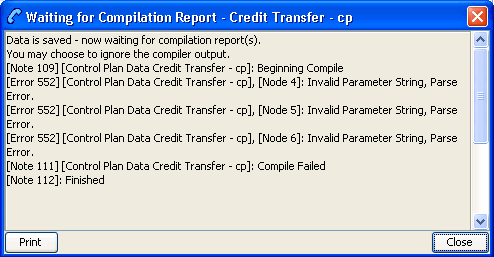
The following figure shows a compilation report for a control plan that has been created from an existing structure. The errors shown indicate that some of the feature nodes are configured incorrectly.
For a list of possible messages in the compiler report, see CPE Compiler Error Messages.
About Control Plan Activation
About Activating Control Plans
When you activate successfully compiled control plans, Convergent Charging Controller begins using them to process customers' service traffic. To activate a control plan you:
- Attach the control plan to the customer's ACS service number or CLI.
- Schedule when the control plan will become active.
You attach control plans to service numbers and CLIs, and schedule them, by using the ACS UI. For more information, see ACS User's Guide.
Activating New Control Plan Versions
When you update a control plan in the CPE, the CPE creates a new
version of the control plan. If the previous version is scheduled
for use with a service number or CLI, that service number or CLI
remains attached to the old version by default. You can configure
the CPE to update scheduled control plans to their new
version by setting the jnlp.acs.updateCPReferences
application property in the acsGui.bat/acsGui.sh
configuration file. Open the
/IN/html/smsGui.bat and
/IN/html/smsGui.sh file in a text editor.
When the jnlp.acs.updateCPReferences property is
set, you will be prompted to select the service numbers or CLIs
that you want to update to the new control plan version when you
save the control plan.
For more information, see ACS Technical Guide.
To specify which numbers should use the new control plan:
| Step | Action |
|---|---|
| 1 | In the prompt dialog box that appears after saving the control plan, tick the check boxes for the numbers you want to change to the new control plan. |
| 2 | Click Apply. |
Prerequisites to Creating Control Plans
Control Plan Prerequisites
Before you or your customers can create control plans, you must perform the following tasks in the ACS UI:
| Stage | Action |
|---|---|
| 1 | Set up the resources that will be used by customers, such as resource sets, termination numbers, event counters, and so on. |
| 2 | Set up customers and their administration users. |
| 3 | Assign resources to customers. |
For a detailed list of prerequisites, see the discussion on initial configuration in ACS User's Guide.