25 Time Feature Nodes
Available Feature Nodes
Time Feature Nodes List
This table lists the feature nodes available from the Time feature group in the Control Plan Editor.
| Node name | Node description |
|---|---|
| Day of Week |
Allows branching based on the day of the week on which the call is placed. Shortcut keys: Alt+W |
| Day of Year |
Allows control plan branches to be taken, based on the current day of the year. Shortcut keys: Alt+Y |
| Profile Date Compare | Compares the selected profile date with the current system date. |
| Profile Date Store | Takes the current system date and extends it by the date extension number configured in the node. The extended date is stored within the requested profile, for future use. If a date extension is not specified, then the current system date is stored. |
| Time of Day |
Allows branching based on the time of day that the call is placed. Shortcut keys: Alt+T |
Time Zones
Time zone list
The Time feature nodes use the timezone set in the feature node to determine when a call should be processed. You can also set the timezone in the Activate Control Plan feature node.
This table lists the available time zones:
| Time Zone | Description |
|---|---|
| SCP local time | The time according to the TZ variable on the SLC which handles the call. |
| Explicit Unix TZ |
The explicit time zone configured on the Geography tab
for the Tip: This time zone list is available in a separate drop down list when this option is selected. |
| GMT | Greenwich Mean Time time zone. |
| TZ of Service Number | Similar to Explicit Unix TZ, however the time zone is automatically selected based on the buffer containing the service number. |
| TZ of Logical CLI | Similar to Explicit Unix TZ, however the time zone is automatically selected based on the buffer containing the logical CLI number. |
| TZ of Network CLI | Similar to Explicit Unix TZ, however the time zone is automatically selected based on the buffer containing the network CLI number. |
To enable the correct working of the feature nodes requiring time zone information, you should ensure that the TIME_ZONE_GEOGRAPHY_SET geography set has been configured.
MoLI codes
The MoLI digits (Mobile Location Identification) can also be used in the same way as for geographic routing.
For example, if the MOLI prefix is "*" and "*034" in the TIME_ZONE_GEOGRAPHY_SET is associated with the time zone "Australia/Victoria" then mobile calls from Melbourne will use the appropriate time zone as long as "TZ of Network CLI" is selected.
Day of Week
Node description
The Day of Week node allows branching based on the day of the week on which the call is placed. This branching decision is made according to the data that is entered into the node through the Configure Day of Week Node edit screen.
To configure this node, the user adds a day of week range and maps that range to a specified exit. Calls made on any day of the week within the range are routed down that exit, to be processed according to the nodes that follow.
Node icon

If the CPE has been configured to use the static panel CPE palette style, the CPE displays the icon shown below to represent the feature node.

Restrictions
A control plan may contain as many Day of Week nodes as required. There are no restrictions on where they are placed, as long as all entry and exit points are connected to other nodes.
Node exits
The Day of Week node has one entry and may have 2 through 7 exits. Each exit is mapped to a day of week range, and must be connected to an appropriate node. You can configure the number of exits within this range as required, using the Edit Node Exits option on the shortcut menu. See Editing node exits.
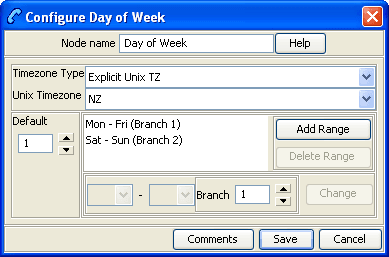
Configuring the node
Follow these steps to configure the day of week node.
| Step | Action |
|---|---|
| 1 | Edit the node exits to add up to another five exits as required to accommodate the dates you are planning to configure. See Editing node exits for details. |
| 2 |
From the Timezone Type field, select the timezone to use. If you select Note: The GMT+ and GMT- time zone names adhere to POSIX Unix conventions, which use positive (+) signs for West of Greenwich and negative (-) signs for East of Greenwich. For example, GMT+4 corresponds to 4 hours behind GMT. For more time zone information, see Time Zones. |
| 3 | Select the Default branch in the box on the left of the screen. Any calls made on a day not specified in an allocated range route down the default branch. |
| 4 | Map the required day of week ranges to the appropriate exits, as detailed below. |
| 5 |
Once all the data is correct, click Save. The Save button will not be available if a range has not been accepted, or if the ranges overlap. |
Adding a branch/range mapping
Follow these steps to map a day of week range to an exit, using the Configure Day of Week screen.
| Step | Action |
|---|---|
| 1 |
Click Add Range. To the left of the Branch field, the drop-down lists will be populated. |
| 2 |
Select the day required in each list, to show the first and last day in the range. A range of:
Note that the range may not overlap any existing range. The ranges specified do not need to include all possibilities. Any calls made on a day not specified in an allocated range routes down the default branch. |
| 3 |
Select the branch that is to be mapped to the specified range. Calls made within that range are routed down the exit selected in the branch list. It is possible to have several ranges routing down the same branch or to have branches that no calls will ever take. |
| 4 |
Click Change. Result: The branch/range mapping will appear in the display field. To delete a mapping, select the entry and click Delete Range. |
Day of Year
Node description
This node allows control plan branches to be taken based on the current day of the year.
Dates may be specified as individual days or as named holidays, as set in the Holidays tab on the ACS Configuration screen. Multiple dates and ranges of dates can be specified for each branch from the node.
To configure this node, the user adds a day of year range and maps that range to a specified exit. Calls made on any day of the year within the range are routed down that exit, to be processed according to the nodes that follow.
For more information about configuring holiday sets, see ACS User's Guide.
Node icon

If the CPE has been configured to use the static panel CPE palette style, the CPE displays the icon shown below to represent the feature node.

Node exits
The Day of Year node has one entry and may have 2 through 20 exits. Although this node accepts up to 20 exits, it is recommended that this number is restricted to a maximum of 10, due to the width restraints of the node. The default number of exits is 2.
There are three types of exit:
- A specific date or date range (which can be mapped to any free branch)
- A default branch (if the current date is not specified in any of the dates or date ranges, this branch will be followed)
- Any holiday in set (if it matches any of the dates in the chosen set that have not been specifically assigned a branch, this branch will be followed)
You cannot map two dates or date ranges to the same branch. Ensure you do not specify the same day twice (either in a holiday set or on a specified branch), as your control plan data will not compile successfully.
If you do not want to use the Any Holidays branch, set it to the same exit as the default.
You can configure the number of exits within this range as required, using the Edit Node Exits option on the shortcut menu. See Editing node exits.
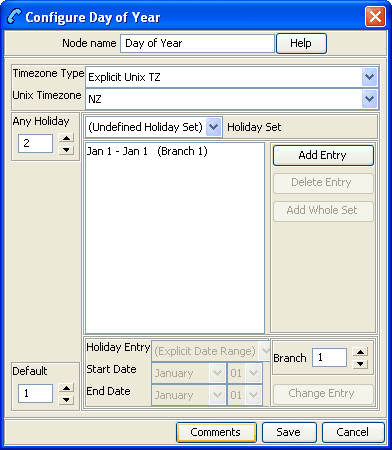
Adding a branch/range mapping
Dates may be entered in this node in two forms, as one of the following:
- Holiday entries as entered in a specified holiday set
- Explicit date ranges
If a date is included as a holiday set, but is not specifically assigned a branch, the call is routed down the Any Holiday exit.
For calls where there is no match found to any specified date, the call is routed down the default exit.
Configuring the node
Follow these steps to configure the day of year node.
| Step | Action |
|---|---|
| 1 | Edit the node exits to add up to another eighteen exits as required to accommodate the dates you are planning to configure. See Editing node exits for details. |
| 2 |
From the Timezone Type box, select the timezone you want to use. If you select the Explicit Unix TZ option, you must choose a specific region from the Unix Timezone box. For more Time zone information, see Time Zones. |
| 3 | Specify the exit for dates which match a date within the specified Holiday Set, but do not match a date entry with a specific branch assigned to it. |
| 4 |
Enter the holiday details by either:
More information about entering dates is provided on the next two pages. |
| 5 | Select the Default branch in the box on the left of the screen. Any calls made on a day not specified in an allocated range route down the default branch. |
| 6 |
Once all the data is correct, click Save. Note: The Save button will not be available if a range has not been accepted, or if the ranges overlap. |
Adding holiday set entries
Follow these steps to add holiday set entries, using the Configure Day of Year Node screen.
| Step | Action |
|---|---|
| 1 | Select the holiday set required from the drop-down box. |
| 2 |
If the selected holiday set has:
Result: The chosen entries will be added to the display list. |
| 3 | In the list box below the display area, select the holiday entry that is required. |
| 4 | In the Branch field, select the branch the specified days should route to. |
| 5 |
Click Change. Result: The selected default entry in the display area will be changed to the holiday entry and branch selected. |
| 6 | Repeat steps 3 and 4 until all the holiday entries have been mapped to different branches. (They must be mapped to different branches or the control plan will not compile.) |
| 7 | Click Save. |
Adding explicit date ranges
Follow these steps to add explicit date ranges, using the Configure Day of Year Node screen.
| Step | Action |
|---|---|
| 1 |
Click Add Entry. Result: A default entry will be added to the display list, as a selected entry. |
| 2 |
Select the (Explicit Date Range) option in the Holiday Entry selection box. Result: The Start and End Date fields will become available. |
| 3 |
Select the date range required. Note: The date ranges are inclusive. For example, a date range of January 1 to January 12 will route calls made on 1, 2, 3, 4, 5, 6, 7, 8, 9, 10, 11 and 12 January down the selected branch. To specify a single date, set both the Start and End Date fields to the same day. |
| 4 | Select the branch to be taken by calls within that range. |
| 5 |
Click Change Entry. Result: The selected default entry in the display area will be changed to the explicit date range and branch selected. |
| 6 | Select a holiday data set. This information will not be used, but is required for the Control Plan data to compile correctly. |
| 7 | Click Save. |
Profile Date Compare
Node description
The Profile Date Compare node compares the selected Profile Date with the current system date, and branches according to the following rules:
- the stored date is in the past (stored date is less than current date),
- the stored date is in the future (stored date is greater than current date),
- the stored date is today's date (stored date equals current date).
Node icon
If the CPE has been configured to use the static panel CPE palette style, the CPE displays the icon shown below to represent the feature node.

Node exits
This node has one entry and five exits. The number of exits cannot be changed.
| Exit | Cause | Description |
| 1 | Failure | There was an internal error. |
| 2 | Not Found | The selected Profile Date could not be found. |
| 3 | Past | The selected Profile Date is earlier than the current system date. |
| 4 | Today | The selected Profile Date is the same as the current system date. |
| 5 | Future | The selected Profile Date is later than the current system date. |
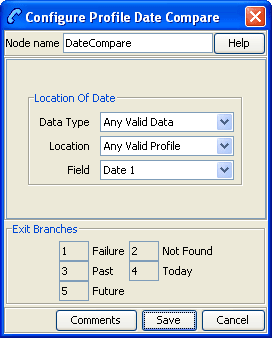
Configuring the node
Follow these steps to edit the Profile Date Compare node.
| Step | Action |
|---|---|
| 1 | From the drop down lists in the Location of Date area, select the profile Data Type, Location and Field that holds the stored Profile Date you want to be compared against the current system date. |
| 2 | Click Save. |
Note: The list of data types is fixed at installation time for each feature node or screen.
Further reference:
- For information about profile blocks (data type, location, and field) and how to use them, see Profile Blocks and Tags.
The primary tag lists are configured in the SMS > Services > ACS Service > Configuration > Profile Tag Details and Profile Tag Mapping tabs (see ACS User's Guide, Profile Tag Details for more information).
Profile Date Store
Node description
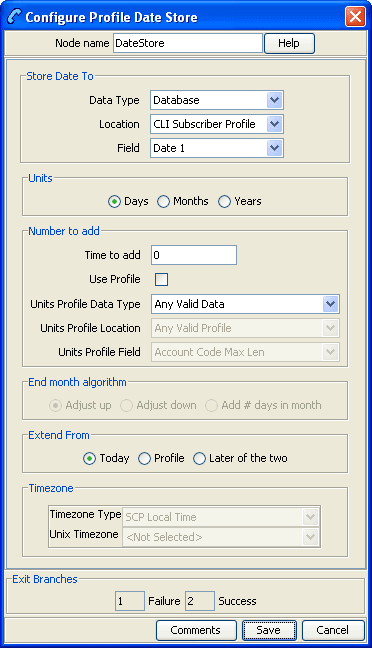
The Profile Date Store feature node stores a date extension number depending on the type of extension selected. The extended date is stored within the requested profile, for future use.
The stored date is either:
- The current system date plus the date extension (not specified = current system date).
- The date retrieved from the store location plus the date extension.
- The best date of either the first two options.
Note: Only whole days may be stored.
Node icon

If the CPE has been configured to use the static panel CPE palette style, the CPE displays the icon shown below to represent the feature node.

Node exits
The Profile Date Store feature node has one entry and two exits. The number of exits cannot be changed.
| Exit | Cause | Description |
|---|---|---|
| 1 | Failure |
The date could not be stored for one or more of the following reasons:
|
| 2 | Success | The date has been stored to the selected profile date for the selected profile. |
Configuring the node
Follow these steps to edit the Profile Date Store feature node.
| Step | Action | ||||||
|---|---|---|---|---|---|---|---|
| 1 |
From the drop down lists in the Store Date To area, select the Data Type, Location and Field where you want to retrieve and/or store the Profile Date. Note: The available profile data is the same for all service providers on the system. |
||||||
| 2 | In the Units area select whether to add Days, Months or Years to the stored date. | ||||||
| 3 |
In the Number to add area, configure the number of units of the selected type to add to the stored date. Do one of the following:
The feature node checks the extended date to ensure that it is not greater than the maximum Unix time defined for the system. Note: If you do not specify a value here, then a value of zero is assumed. |
||||||
| 4 |
If you chose Months in the Units area, then in the End month algorithm area select the required option for adjusting end of month dates.
For further clarification, see Adding months example. |
||||||
| 5 |
Select the type of extension required from the Extend From options.
|
||||||
| 6 | In the Timezone area select the required time zone from the drop down lists. | ||||||
| 7 | Click Save. |
Note: The list of data types is fixed at installation time for each feature node or screen.
Further reference:
- For information about profile blocks (data type, location, and field) and how to use them, see Profile Blocks and Tags.
The primary tag lists are configured in the SMS > Services > ACS Service > Configuration > Profile Tag Details and Profile Tag Mapping tabs (see ACS User's Guide, Profile Tag Details for more information).
Time of Day
Node description
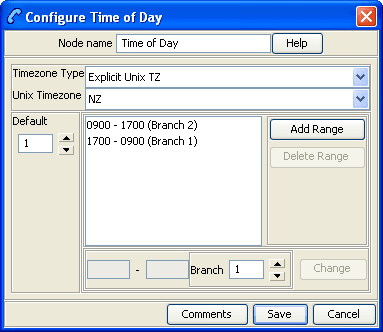
The Time of Day node allows branching based on the time of day that the call is placed. The branching decision is made according to the data that is entered into the node.
Node icon

If the CPE has been configured to use the static panel CPE palette style, the CPE displays the icon shown below to represent the feature node.

Node exits
This node has one entry and may have 2 through 20 exits. You can configure the number of exits within this range as required, using the Edit Node Exits option on the shortcut menu. See Editing node exits.
Configuring the node
Follow these steps to add a time range to the node data.
| Step | Action |
|---|---|
| 1 |
From the Timezone Type drop down list, select the timezone to use. If you select For more time zone information, see Time Zones . |
| 2 | From the Default field, select the branch calls that do not match a time of day range should be routed to. |
| 3 | Click Add Range and make the changes necessary to the time range given, then choose the branch down which calls made in this time range are to route. |
| 4 | Enter the time range in the boxes to the left of the Branch field and click Change. |
| 5 | To add another range, repeat steps 3 and 4. |
| 6 | Click Save. |