3 Monitoring and Managing
This chapter gives some hints and tips for system administrators to manage the Convergent Charging Controller product.
Monitoring and Managing Overview
For system administrators new to the Convergent Charging Controller solution, the monitoring and managing of the solution can seem a little daunting due to the large number of different processes and potentially complex interactions with different network types and services.
Like anything though, the more you use it and the more familiar it becomes and the easier it gets.
The aim of this chapter is to introduce some common tools and aids to help administrators become more comfortable in monitoring the solution without getting involved with the technical detail of each component and its operation.
Software Version Levels
The Convergent Charging Controller base components, or applications, and Convergent Charging Controller application patches are installed on the system using the operating system commands.
Running Processes
In the UNIX world a running application, or program, is referred to as a process.
Basically a process is the active instance of the running program that the operating system is allocating system resources to, allowing it to run instructions.
In the UNIX environment the ps command (see man ps)
is used to generate a snapshot report of the current status of
process(es) and hence how you can tell that an application is
running.
Complex environments
In a complex environment, where multiple running processes making up an application suite, the trick is knowing which processes to identify.
To do this you would need to distinguish each Convergent Charging Controller daemon that is configured to run in the SLEE configuration file (SLEE.cfg) and the following:
- For Solaris:
/etc/inittab file
- For Linux:
Run the following command:
systemctl startservicewhere
serviceis the name of the service.
The use of start-up scripts can further complicate this task, requiring each script to be checked for the processable binary file name.
To simplify this task the Convergent Charging Controller support tools package provides a utility called pslist that, among other things, will identify and quickly verify the status of the Convergent Charging Controller processes running on the platform.
pslist command
The pslist command uses a process list configuration (.plc) file containing regular expressions of the relevant Convergent Charging Controller processes that are matched against the ps -ef command output. Enter:
$ pslist Response:
------------------------ Tue Nov 23 01:03:46 GMT 2010 --------------------------
C APP  USER       PID PPID  STIME COMMAND
1 ACS  acs_oper  1004    1 04-Oct /IN/service_packages/ACS/bin/acsCompilerDaemon
1 ACS  acs_oper  1008    1 04-Oct IN/service_packages/ACS/bin/acsProfileCompiler
1 ACS  acs_oper  7553    1 28-Oct rvice_packages/ACS/bin/acsStatisticsDBInserter
1 OSD  acs_oper  1047    1 04-Oct IN/service_packages/OSD/bin/osdWsdlRegenerator
1 CCS  ccs_oper  1011    1 04-Oct /IN/service_packages/CCS/bin/ccsCDRLoader
1 CCS  ccs_oper  1033
1 04-Oct N/service_packages/CCS/bin/ccsCDRFileGenerator
2 CCS  ccs_oper  1406 1043 04-Oct /IN/service_packages/CCS/bin/ccsProfileDaemon
1 CCS  ccs_oper 20252    1 28-Oct /IN/service_packages/CCS/bin/ccsBeOrb
1 CCS  ccs_oper  9413    1 04-Oct /IN/service_packages/CCS/bin/ccsChangeDaemon
1 EFM  smf_oper   995    1 04-Oct /IN/service_packages/EFM/bin/smsAlarmManager
1 PI   smf_oper  1080    1 04-Oct /IN/service_packages/PI/bin/PImanager
6 PI   smf_oper  1319 1080 04-Oct PIprocess
1 PI   smf_oper  9186 1080 04-Oct PIbeClient
2 SMS  smf_oper  6173    1 26-Oct /IN/service_packages/SMS/bin/smsMaster
1 SMS  smf_oper   943    1 04-Oct /IN/service_packages/SMS/bin/smsNamingServer
1 SMS  smf_oper   944    1 04-Oct /IN/service_packages/SMS/bin/smsReportsDaemon
1 SMS  smf_oper   946    1 04-Oct IN/service_packages/SMS/bin/smsReportScheduler
1 SMS  smf_oper   947    1 04-Oct /IN/service_packages/SMS/bin/smsAlarmDaemon
1 SMS  smf_oper   948    1 04-Oct /IN/service_packages/SMS/bin/smsStatsThreshold
1 SMS  smf_oper   949
1 04-Oct /IN/service_packages/SMS/bin/smsTaskAgent
1 SMS  smf_oper   969    1 04-Oct /IN/service_packages/SMS/bin/smsTrigDaemon
2 SMS  smf_oper   979    1 04-Oct /IN/service_packages/SMS/bin/smsConfigDaemon
1 SMS  smf_oper   980    1 04-Oct /IN/service_packages/SMS/bin/smsStatsDaemonRep
total processes found = 31 [ 31 expected ]
================================= run-level 3 ==================================
Note:
The listed output is from a SMS platform and is grouped by user and application components.Default plc file
When a UNIX user first runs the pslist command without command line options it will automatically generate a default .plc file by scanning the /etc/inittab and /IN/service_packages/SLEE/etc/SLEE.cfg file, if existing.
The user's default .plc file can be viewed with the pslist -v command line option. Enter:
$ pslist –v Response:
[ /IN/service_packages/ACS/tmp/ps_processes.telco-p-slc01.plc ]
############################################################################
# pslist: default process list configuration (plc) file used to match and  #
# display running processes.                                               #
# File creation time: Tue Nov 23 01:58:39 GMT 2010                         #
# Lines beginning with a hash (#) character are ignored.                   #
# $1="grouped-apps name (max 5-char)" $2="regex of process" [$3+=comments] #
############################################################################
ACS   acs_oper.*\/IN\/service_packages\/ACS\/bin\/acsStatsMaster               inittab
ACS   acs_oper.*\/IN\/service_packages\/ACS\/bin\/cmnPushFiles                 inittab
SMS   smf_oper.*\/IN\/service_packages\/SMS\/bin\/cmnPushFiles                 inittab
SMS   smf_oper.*\/IN\/service_packages\/SMS\/bin\/smsAlarmDaemon               inittab
SMS   smf_oper.*\/IN\/service_packages\/SMS\/bin\/smsConfigDaemon$             inittab
SMS   smf_oper.*\/IN\/service_packages\/SMS\/bin\/smsStatsDaemon               inittab
SMS   smf_oper.*\/IN\/service_packages\/SMS\/bin\/updateLoader                 inittab
SMS   smf_oper.*bin\/(smsC|c)+ompareResync(Client|Recv)+     inittab: Update Loader child
process
UIS   uis_oper.*\/IN\/service_packages\/UIS\/bin\/UssdMfileD                   inittab
UIS   uis_oper.*\/IN\/service_packages\/UIS\/bin\/cmnPushFiles                 inittab
XMS   smf_oper.*\/IN\/service_packages\/XMS\/bin\/oraPStoreCleaner             inittab
SLEE  .*_oper.*\/IN\/service_packages\/ACS\/bin\/acsStatsLocalSLEE
SLEE  .*_oper.*\/IN\/service_packages\/ACS\/bin\/slee_acs
SLEE  .*_oper.*\/IN\/service_packages\/E2BE\/bin\/BeClient
SLEE  .*_oper.*\/IN\/service_packages\/SLEE\/bin\/\/watchdog
SLEE  .*_oper.*\/IN\/service_packages\/SLEE\/bin\/alarmIF
SLEE  .*_oper.*\/IN\/service_packages\/SLEE\/bin\/replicationIF
SLEE  .*_oper.*\/IN\/service_packages\/SLEE\/bin\/timerIF
SLEE  .*_oper.*\/IN\/service_packages\/SLEE\/bin\/xmlTcapInterface
ps_processes.telco-p-slc01.plc: END
[Press space to continue, q to quit, h for help]
SLEE against Service Daemons
There is an important distinction to make for the processes that are managed by either the service daemon or SLEE.
Turn on and off the process /etc/inittab file by doing the following:
For Solaris:
init qFor Linux:
/IN/bin/OUI_systemctl.sh When started, the SLEE creates a common backbone that ties a group of applications together.
Note:
You can individually configure the processes to run except for SLEE managed processes.pslist SLEE only example
The following pslist example is taken on a VWS and shows running SLEE processes, but no running init managed processes. Enter:
$ pslist Response:
------------------------ Tue Nov 23 02:48:46 GMT 2010 --------------------------
C APP  USER       PID PPID    STIME COMMAND
1 SLEE ebe_oper 16139    1 02:23:25 /IN/service_packages/SLEE/bin/timerIF
16 SLEE ebe_oper 16143    1 02:23:25 /IN/service_packages/E2BE/bin/beVWARS
1 SLEE ebe_oper 16156    1 02:23:25 /IN/service_packages/E2BE/bin/beSync
1 SLEE ebe_oper 16157    1 02:23:25 /IN/service_packages/E2BE/bin/beServer
4 SLEE ebe_oper 16166    1 02:23:25 /IN/service_packages/E2BE/bin/beGroveller
1 SLEE ebe_oper 16178    1 02:23:26 /IN/service_packages/SLEE/bin/replicationIF
1 SLEE ebe_oper 16179    1 02:23:26 /IN/service_packages/DAP/bin/dapIF
1 SLEE ebe_oper 16182    1 02:23:26 /service_packages/E2BE/bin/beEventStorageIF
1 SLEE ebe_oper 16183    1 02:23:26 /service_packages/E2BE/bin/beServiceTrigger
1 SLEE ebe_oper 16184    1 02:23:26 ervice_packages/CCS/bin/ccsSLEEChangeDaemon
1 SLEE ebe_oper 16185    1 02:23:26 /IN/service_packages/SLEE/bin//watchdog
0 CCS  Did not match regex: /ccs_oper.*.\/bin\/updateLoader( |$)+/
0 CCS  Did not match regex: /ccs_oper.*\/IN\/service_packages\/CCS\/bin\/ccsMFileCompiler(
|$)+/
0 CCS  Did not match regex: /ccs_oper.*bin\/(smsC|c)+ompareResync(Client|Recv)+( |$)+/
0 CCS  Did not match regex: /ccs_oper.*cmnPushFiles( |$)+/
0 E2BE Did not match regex: /ebe_oper.*\/IN\/service_packages\/E2BE\/bin\/beCDRMover( |$)+/
0 E2BE Did not match regex: /ebe_oper.*cmnPushFiles( |$)+/
0 SMS  Did not match regex: /smf_oper.*\/IN\/service_packages\/SMS\/bin\/smsAlarmDaemon( |$)+/
0 SMS  Did not match regex: /smf_oper.*\/IN\/service_packages\/SMS\/bin\/smsConfigDaemon$/
0 SMS  Did not match regex: /smf_oper.*\/IN\/service_packages\/SMS\/bin\/smsStatsDaemon( |$)+/
total processes found = 29 [ 38 expected, 9 not found ]
================================= run-level 2 ==================================
Note:
The count column (C) is 0 for the processes that were not matched and the total processes found output highlights that the expected number of processes were not matched. In this case there is a clue on the bottom line as to why the init managed processes are not running.Expected against Not Found processes
It is worthwhile noting that the expected and not found counts are only an estimate of the number of processes missing.
Some processes may spawn multiple child processes that may have the same process name (for example, PI processes on the SMS) making it impossible to accurately predict how many processes are expected or not found.
Recreate default plc file
If changes are made to the platform and the running services then it may be necessary to re-create the default .plc file.
You can do this using the pslist -d option.
Warning: Only processes that are configured to
run will be added to the default
.plc
file. For
example, if a /etc/inittab process is commented
out, or set to off, then when the pslist-d command is run the
commented entry will not be added to the list.
Another option is to become root user and run pslist -xy to
delete all user's default .plc file. The next time a user runs the
pslist command, it will automatically re-create a default
.plc
file.
pslist syntax
To see a full list of supported command line options, with a
brief description, use pslist -h (help) option or
man pslist for full documentation on pslist usage.
Syntax:
pslist -[acCehiqrRstvxyz] [-d (esg|slee|init)] [-S SLEE config] [-f .plc file] [-u
user] [-k (1|9|15)] [-l (1|2)] [regex (app-name|process name)]
pslist parameters
This table gives a brief description of the supported options.
| Parameter | Description |
|---|---|
| -d |
Creates the default process list configuration [~ user /tmp/ps_processes. hostname .plc] file. Valid hostname arguments are:
|
| -r | Displays system resource use information (for example. %cpu, %memory). |
| -s | Scans the SLEE config file and prints the status of the matched process(es). |
| -i | Scans /etc/inittab file for start-up scripts and prints the status of the matched process(es). |
| -e | Scans both the defined SLEE config file and the /etc/inittab file and prints the status of the matched process(es). |
| -c | Clustered SMS option that creates a temporary .plc file to list cluster managed processes (requires scstat command). |
| -f |
Specify a process list configuration (.plc) file different to the default one. [~ user /tmp/ps_processes. hostname .plc]. |
| -S | Specify a different SLEE config file. |
| -u | Specify a different user as the process owner (can be regex). |
| -C | The output in the COMMAND column is not trimmed so the full command line is displayed. |
| -a | Displays the command line arguments of matched process(es) (SunOS only). |
| -q | No output in quiet mode. The exit value is the count of the matched processes (up to a maximum of 99). |
| -t | Displays a process tree of PPID and COMMAND (SunOS only). |
| -v | View the process list configuration (.plc) file. |
| -x | Ask to remove any default process list configuration files (ps_processes. hostname .plc) found in the /tmp, ~ user /tmp, and ~<*_oper>/tmp directories. |
| -k |
Ask if one of the following kill signals should be sent to all matched processes. Valid arguments are: 1 SIGHUP 9 SIGKILL 15 SIGTERM |
| -y | Specify yes. Use with -x to confirm remove, or -k option to confirm kill. |
| -l | Adds an entry to the system log with the expected and actual process count info. |
| -z |
Creates a softlink for the shorter "pslist" command in directory /usr/local/bin. Note: Users must have that directory set in their PATH environment variable for it to work. |
| -R | Displays pslist revision info. |
| -h | Displays the above usage text. |
Creating own plc file
As can be seen, there are multiple command line options and the more experienced administrator may like to make their own .plc file (-f option) with an alias command to list other important processes.
For example, you could create a command to list the Oracle database processes on the VWS.
$ cat <<EOF >ora.plc
ORA ora_.*E2BE
ORA oracleE2BE
core db processes
shadow process
EOF
$ alias psdb='pslist -f ora.plc $*' # note: add this line to your user
~/.profile.
$ psdb -r ------------------------ Tue Nov 23 21:28:57 GMT 2010 --------------------------
APP USER
PID PPID S %CPU %MEM     VSZ     RSS  TIME     ELAPSED COMMAND
ORA oracle   744    1 S  0.0 51.3 4319336 4091784 30:40 50-07:34:48 ora_pmon_E2BE
ORA oracle   746    1 S  0.0 51.2 4317864 4090304 02:13 50-07:34:48 ora_psp0_E2BE
ORA oracle   748    1 S  0.0 51.2 4317864 4090528 02:41 50-07:34:48 ora_mman_E2BE
ORA oracle   750    1 S  0.0 51.3 4323928 4095976 05:02 50-07:34:48 ora_dbw0_E2BE
ORA oracle   752    1 S  0.0 51.2 4330840 4091264 03:47 50-07:34:48 ora_lgwr_E2BE
ORA oracle   754    1 S  0.0 51.2 4319928 4091472 45:09 50-07:34:48 ora_ckpt_E2BE
ORA oracle   756    1 S  0.0 51.3 4318952 4092184 04:40 50-07:34:48 ora_smon_E2BE
ORA oracle   758    1 S  0.0 51.2 4317928 4090904 00:03 50-07:34:48 ora_reco_E2BE
ORA oracle   760    1 S  0.0 51.3 4319720 4092048 04:59 50-07:34:48 ora_mmon_E2BE
ORA oracle   762    1 S  0.0 51.2 4317928 4090744 02:32 50-07:34:48 ora_mmnl_E2BE
ORA oracle 16159    1 S  0.0 46.1 4317920 3681768 00:00    19:05:33 oracleE2BE
ORA oracle 16161    1 S  0.0 46.1 4317920 3681768 00:00    19:05:33 oracleE2BE
ORA oracle 16163    1 S  0.0 46.1 4317920 3681768 00:00    19:05:32 oracleE2BE
ORA oracle 16168    1 S  0.0 46.1 4317920 3681768 00:00    19:05:32 oracleE2BE
ORA oracle 16170    1 S  0.0 46.1 4317920 3681768 00:00    19:05:32 oracleE2BE
ORA oracle 16172    1 S  0.0 46.1 4317920 3681768 00:00    19:05:32 oracleE2BE
ORA oracle 16175    1 S  0.0 46.1 4317920 3681768 00:00    19:05:32 oracleE2BE
ORA oracle 16177    1 S  0.0 46.1 4317920 3681768 00:00    19:05:32 oracleE2BE
ORA oracle 16181
1 S  0.0 46.1 4317920 3681768 00:00    19:05:32 oracleE2BE
ORA oracle 16189    1 S  0.0 46.1 4317920 3681768 00:00    19:05:32 oracleE2BE
ORA oracle 16191    1 S  0.0 46.1 4317920 3681768 00:00    19:05:32 oracleE2BE
ORA oracle 16193    1 S  0.0 46.1 4317920 3681768 00:00    19:05:32 oracleE2BE
ORA oracle 16195    1 S  0.0 46.1 4317920 3681768 00:00    19:05:32 oracleE2BE
ORA oracle 16197    1 S  0.0 46.1 4317920 3681768 00:00    19:05:32 oracleE2BE
ORA oracle 16199    1 S  0.0 46.1 4317920 3681704 00:00
19:05:31 oracleE2BE
ORA oracle 16201    1 S  0.0 46.1 4317920 3681704 00:00    19:05:31 oracleE2BE
ORA oracle 16203    1 S  0.0 46.1 4317984 3681832 00:00    19:05:31 oracleE2BE
ORA oracle 16205    1 S  0.0 46.1 4317920 3681768 00:00    19:05:31 oracleE2BE
ORA oracle 16207    1 S  0.0 46.1 4317920 3681768 00:00    19:05:31 oracleE2BE
ORA oracle 16209    1 S  0.0 46.1 4317920 3681704 00:00    19:05:31 oracleE2BE
ORA oracle 16212    1 S  0.0 46.1 4317920 3681704 00:00    19:05:31 oracleE2BE
ORA oracle 16214
1 S  0.0 46.1 4317920 3681704 00:00    19:05:31 oracleE2BE
ORA oracle 16216    1 S  0.0 46.1 4317920 3681768 00:00    19:05:31 oracleE2BE
ORA oracle 16218    1 S  0.0 46.1 4317920 3681704 00:01    19:05:31 oracleE2BE
ORA oracle 16222    1 S  0.0 46.1 4317920 3681832 00:00    19:05:31 oracleE2BE
total processes found = 35
================================= run-level 2 ==================================
General comment
Generally speaking, pslist is the only command you need to remember when checking for the Convergent Charging Controller processes configured to run on any platform and it is a good place to start when investigating or troubleshooting issues.
Note: The slee-ctrl status and resource commands respectively call the pslist -s and pslist -sr commands to generate output.
SLEE Resource Usage
SLEE resources are created at run time and are used during service control for passing information between SLEE interfaces and applications.
These are internal values that have no specific meaning to the rest of the network and are entirely local to the running SLEE.
The Convergent Charging
Controller SLEE provides an
application called check that can monitor and report on current
SLEE resource usage. See SLEE Technical Guide for more information on this
utility.
SLEE resources
There are three main types of internal SLEE resources;
- Dialogs - exist for the duration of the call.
- Events - these are transient and are deleted upon delivery to the relevant SLEE entity.
- Calls
If you have a networking background then you may notice a similarity to to the SS7 model here. In fact, at a high level, the SLC SLEE considers everything that hits the platform as a Call instance, be it a voice or data call, SMS, or some sort of business process logic.
Like the SS7 model, a call instance has a source and destination address for a communication channel or dialog to pass data or events back and forth.
For example, a new service request hits a SLEE interface generating a new call instance.
The SLEE Interface will create a dialog to the relevant SLEE application and the call context data is put into an event and sent (through the dialog) to the SLEE application for processing.
The SLEE application can create new dialogs to other SLEE interfaces or applications for the call instance.
Resource snapshot
The following is an example of typical SLEE resource usage snapshots taken on a SLC at one second intervals.
/IN/service_packages/SLEE/bin$ check 1 5
22:24:02    Dialogs  Apps    AppIns        Servs        Events   Calls
            [70000]  [10]     [101]         [10]       [190242] [25000]
22:24:02    61753     9        90            0          196170    21874
22:24:03    61797     9        90            0          196164    21892
22:24:04    61845     9        90            0          196164    21900
22:24:05    61841     9        90            0          196170    21900
22:24:06    61886     9        90            0          196192    21909
Notes:
- The dialog, events, and calls values changing.
- The output values, in square brackets, on the second row, indicates the maximum SLEE resource values allocated on SLEE start-up.
- You should note that the events value appears to be lower than the first output value. This is a known issue due to the fact Events can be configured to pre-allocated sizes with different values (SLEE.cfg) causing the check output value to be miscalculated. This issue can safely be ignored.
SLEE health
The SLC SLEE resource usage in a healthy, well-functioning, network will fluctuate up and down during the course of a day as the call rates and call mix changes.
Note: The SLEE SLC config includes a concept of the max call rate. This is the maximum call activity that can be supported and is used as an input in SLEE.cfg to size resource requirements.
During high or peak call volume, more SLEE resources are used (that is, lower SLEE resource values), but will return back towards their maximum values at low call volume times, such as early morning.
The configured amount of SLEE resource is a lot higher than necessary for normal operation to allow the SLC to cope for a period of time with abnormal network behaviour and/or software bugs which can prevent the SLEE resources from being freed up correctly (this situation is often referred to as a call leak).
Normal check output
So what is normal for the SLC check output?
There is no simple answer as every network is different. What is normal for your network can only be found by monitoring the SLC SLEE resource usage over a period of time, taking regular SLEE resource snapshots to create a normal historical trend.
Once a normal pattern of SLEE resource usage has been established, over weeks and months, then anything outside of this normal trend may indicate an issue with either; the Convergent Charging Controller software, or, more often than not, the connecting SS7 network itself.
Experience has shown that this usually occurs due to routing failure and/or congestion within the SS7 network elements. The Convergent Charging Controller term we use for leaked voice calls is an AWOL (absent without leave) call.
AWOL calls
An AWOL voice call usually occurs when the SLC does not receive an applyChargingReport (ACR) from the SS7 network and therefore does not know whether the call has ended or not. This will tie up the SLEE resource because, as far as the SLC is concerned, the call never ends.
The CAP (CAMEL Application Part) signalling standard does not cover the scenario of stale calls on the SLC where the SLC does not receive a response from the SS7 network for an in progress call.
It can be argued that when a response from the Network does not arrive, after a certain amount of time since the last response, that the SLC could assume it will never receive any more responses and should therefore abort the call, thereby freeing up the SLEE resource.
Another consideration is that most billing reservations have a defined length of validity and call flow transactions within the SS7 network need to be within this time limit also.
As a defense mechanism to this type of stale call scenario, the Convergent Charging Controller solution has an optional AWOL setting that allows the SLC to clear out stale calls once they pass a configurable period of time. This allows the finite SLEE resources on the SLC to be freed up, if abnormal SS7 network behaviour occurs.
Note: The timeout parameters in the MAP (Mobile Application Part) signaling protocol, used for Short Message Service (SMS), allows the SLC to clear out stale transactions.
Scarce SLEE resources
As a rule of thumb, the following values should indicate a problem condition that may require urgent investigation:
- Serious - should be investigated:
SLEE dialogs or calls are less than 25% of their maximum value.
- Critical - must be urgently investigated:
SLEE dialogs or calls are less than 10% of their maximum value.SLEE events are around 50% of their maximum value.
Note: New calls can still be made if there are available dialog and calls resources that are greater than 0. The only time new calls cannot be made is when the free dialogs and/or calls are completely exhausted. At this stage the best cause of action is a quick SLEE restart, to reset the SLEE resources, allowing new calls to be made. If the situation reoccurs after a SLEE restart, review the setting of max call rate if significant additional traffic has been cut over.
Warning messages
The Convergent Charging Controller SLEE will generate one warning event, in the /var/adm/messages log file, for each SLEE resource that breaks a threshold of 80% of its maximum value, similar to this example:
Sep 12 01:36:37 telco-p-slc01 watchdog: [ID 953149 user.warning] watchdog(18965)
WARNING: 20006 Call Instances Locked breaches 80% of total available instances
(25000)
If SLEE resources should become exhausted then the /var/adm/messages log file will start spewing out entries, similar to the following notice message, for each failed call attempt:
Sep 17 03:22:59 telco-p-slc01 xmsTrigger: [ID 167701 user.notice] xmsTrigger(18957)
NOTICE SleeInterfaceAPI=8006 sleeInterfaceAPI.cc@248: Overload: SLEE is out of call
instances
Resource leak
If a SLEE resource leak is caught early then it will be the rate of the call leak that determines the true severity of the issue.
A slow leak of days, weeks, or months may be acceptable with general platform maintenance clearing leak calls during SLEE restarts.
A rapid SLEE resource loss over hours, minutes or seconds (depending on current call rates) requires instant action and investigation.
Good call tracing in the signaling network is vital in tracking down where in the network the issue is originating.
Monitoring SLEE resources
The Convergent Charging Controller Support Tools package provides the check-SLEE.sh script that, among other things, can be used for generating a timestamped log file of SLEE resource usage.
It is designed to run from the SLC acs_oper user's crontab file. If the following entry does not exist, add it with the crontab command, as below:
acs_oper@telco-p-slc01$ crontab -e
...skipped...
# the following entry is logging internal SLEE resource usage
* * * * * ( . /IN/service_packages/ACS/.profile ;
/IN/service_packages/SUPPORT/bin/check-SLEE.sh ) >>
/IN/service_packages/SUPPORT/tmp/check-SLEE.log 2>&1
Tip: One minute snapshot intervals are recommended (as highlighted).
check-SLEE.sh output
This example output is generally what you will see on a well-functioning healthy network with SLEE resources adjusting up and down by small margins over the course of a minute.
The output of the check-SLEE.sh script is written to the check-Time_Dialogs_Events_Calls_CAPS.log file in the /IN/service_packages/SUPPORT/tmp directory. You can view this log with ckslee command as follows:
$ ckslee
Date-Time Diags Events Calls[Change]      CAPS
20101125-03:43:00 86889 253630 43287[+0.04%]        5
20101125-03:44:01 86904 253630 43300[+0.05%]        5
20101125-03:45:00 86905 253631 43283[-0.07%]        5
20101125-03:46:00 86911 253627 43297[+0.06%]        6
20101125-03:47:00 86924 253632 43296[-0.00%]        5
20101125-03:48:00 86870 253629 43264[-0.13%]        5
20101125-03:49:00 86926 253631 43296[+0.13%]        5
20101125-03:50:00 86945 253630 43306[+0.04%]        4
20101125-03:51:00 86908 253627 43293[-0.05%]        4
20101125-03:52:00 86938 253628 43302[+0.04%]        5
Notes:
The [Change] value is a measure percentage difference between the previous Calls value and is useful in highlighting a sudden change resource usage.
The CAPS (Call attempts per second) column is an extra, but requires the SIGTRAN stack(s) to be configured to output their average CAPS rate. If they are not configured, this column will show N/A. See Convergent Charging Controller SIGTRAN Technical Guide and the monitorperiod, rejectlevel, reportperiod, and displaymonitors parameters to enable CAPS reporting.
check-SLEE.sh archiving
Problems with SLEE resources will usually be found when the solution is first installed, or when the underlying signaling network has changes made to it.
This is when having a historical log of SLEE resource usage over time is a great tool in determining the trend, or a trigger point to an issue occurring.
To archive the check-Time_Dialogs_Events_Calls_CAPS.log file, add the following line to the /IN/service_packages/ACS/etc/logjob.conf file.
log /IN/service_packages/SUPPORT/tmp/check-Time_Dialogs_Events_Calls_CAPS.log age
240 size 1M arcdir /IN/service_packages/SUPPORT/tmp/archive
check-SLEE.sh usage
The head of the check-SLEE.sh script is extensively commented and explains some other ways the check-SLEE.sh script can be used, such as automatic SLEErestarts if SLEE resources go below a defined threshold.
VWS SLEE resources
As all the VWS processes are SLEE Interfaces, the SLEEresource usage pattern is different to the SLC.
On SLEE start-up, dialogs are created between the different SLEE interfaces for events to be passed back and forth. However the operations on the VWS are purely transactional and the concept of a call instance is not necessary. Therefore only the events value ever changes, with the dialogs and calls values remaining static as shown here:
$ slee-ctrl check 1 5
SLEE Control: v,1.0.10: script v,1.19: functions v,1.46: pslist v,1.118

[ebe_oper] slee-ctrl> check 1 5
SLEE: Using shared memory offset: 0xc0000000
03:05:06        Dialogs  Apps    AppIns     Servs      Events   Calls
               [1000]    [10]     [100]      [10]      [71250]  [500]
03:05:06        964       10       100        10        71252   500
03:05:07        964       10       100        10        71253   500
03:05:08        964       10       100        10        71255   500
03:05:09        964       10       100        10        71254   500
03:05:10        964       10       100        10        71255   500
Note:
You can use the slee-ctrl command to call the check program. Unless advised to, the monitoring of VWS SLEE resource usage is of little benefit.Rolling Snoop Archives
The Convergent Charging Controller solution sits between the SS7 signaling network and LAN with Network Connectivity Agents (NCA) providing interfaces into the SLEE to interpret, convert and retransmit various network protocols, such as SIGTRAN (SS7 over IP), DIAMETER, SOAP/XML, SMPP and internal messaging protocols.
Being able to capture the reality of what is actually being sent over the wire is a vital tool when analyzing NCA related issues to help identify the source of the problem, be it local or remote.
Running the tshark/snoop utility allows you to trace and capture incoming and outgoing traffic passing through a server's Network Interface Card (NIC) Devices.
To aid in the tracing of network devices and the retention of their snoop capture files the Support Tools package provides, what has become known as, the rolling snoop scripts.
The Linux operating systems applies tcpdump command to trace the traffic passing through server’s NIC devices.
Scripts
You can find the latest version of the rolling snoop scripts in the latest Support Tools package which are installed in the /IN/service_packages/SUPPORT/bin directory.
The rolling-snoop.sh and start-rolling-snoop.sh scripts are heavily commented and it is advisable to read these to get a better understanding of the scripts and their configuration.
For ease of use and convenience it is recommended that the start-rolling-snoop.sh and stop-rolling-snoop.sh wrapper scripts are used to control the rolling-snoop.sh script even though it may be run independently.
rolling-snoop.sh
The script that runs the snoop command.
Responsible for checking disk space, and archiving capture files before exiting.
The command line arguments allow you to specify a capture file name prefix and the
ability to pass in valid snoop command line expressions to filter packets on, such as IP
traffic that is either; sctp or tcp protocol, on port x or host y (use $ man
snoop for more details of valid expressions).
Usage:
rolling-snoop.sh [capture file prefix:]network_card_interface_device_name
[snoop options]
For example:
rolling-snoop.sh e1000g2
rolling-snoop.sh uas01-sig-pri:e1000g2 sctp port 14000
rolling-snoop.sh usms2-chrg-sec:nxge1 -c 1000000 tcp port 3989
rolling-snoop.sh usms01a-mgmt-pi:e1000g0 not icmp port 2999 or port 3000
Note:
Must be run as root super-user.start-rolling-snoop.sh
This is a wrapper script where you configure all the network devices you want to snoop, which are then passed as command line parameters to the rolling-snoop.sh script.
Each configured NIC will start a rolling-snoop.sh script, which in turn starts and controls the the snoop command. The example section below is where you define the network device(s) to trace.
/IN/service_packages/SUPPORT/bin$ vi  start-rolling-snoop.sh
...skipped...
cat << CONFIG_END |sed '/^ *#/d; s/^ *//; s/\(.*\)\(#.*\)/\1/; /^ *$/d' > $TEMP_FILE
### CONFIGURE NETWORK DEVICES HERE ###
# configuration examples below:
# e1000g1 # comments ignored after hash
# ${HOST}-sig-pri:e1000g1
# ${HOST}-sig-sec:nxge1 $PACK_COUNT sctp port 14000
# uas01-chrg-pri:e1000g0 -c 250000 tcp host charging-gw port 3989
CONFIG_END
...
stop-rolling-snoop.sh
When the stop-rolling-snoop.sh is run, all snoop processes are terminated (independently started snoop commands will also be terminated), quickly followed by the termination of the rolling-snoop.sh scripts.
It is the stopping of the rolling-snoop.sh script that manages the archiving of the current capture files. So by regularly stopping and starting the rolling-snoop.sh script, we can easily create an archived repository of snooped traffic.
snoop_archiver.sh
This is a wrapper script to run the start-rolling-snoop.sh and stop-rolling-snoop.sh scripts and manage the removal of old archived capture files.
This script can be configured, as an hourly root crontab job, thereby creating an archive repository of capture files in hourly timestamped directories.
Here is an example snoop_archiver.sh script:
/IN/service_packages/SUPPORT/bin$ cat snoop_archiver.sh
#!/bin/ksh
#######################################################################
# Revision: : snoop_archiver.sh,v 1.4 2010/01/05 01:55:10 gcato Exp $
#
# script to regularly archive rolling snoops files
# see rolling_snoop.sh KEEP_SECONDS variable to define archiving frequency
# (usually 60 minutes intervals)
#
# run from root crontab
# 59 * * * * /IN/service_packages/SUPPORT/bin/snoop_archiver.sh >/dev/null 2>&1
#
#######################################################################
# how long to keep archived snoop files before deleting
KEEP_DAYS=3
# snoops archive directory
SNOOP_DIR=/IN/service_packages/SUPPORT/snoops/archive
# snoop directory suffix (usually TZ variable value)
SUFFIX=GMT
# stop all snoops (this will automatically archive the files)
/IN/service_packages/SUPPORT/bin/stop-rolling-snoop.sh
sleep 1
# restart the rolling snoops
/IN/service_packages/SUPPORT/bin/start-rolling-snoop.sh
# delete old archived snoop dirs
find ${SNOOP_DIR} -type d -name \*${SUFFIX} -mtime +${KEEP_DAYS} |xargs rm -rf
# compress snoop files
find ${SNOOP_DIR}/*${SUFFIX}/ \( -name \*snoop -a ! -name \*gz \) |xargs nice gzip 2>/dev/null
Default directory
The default output directory is /IN/service_packages/SUPPORT/snoops/(current|archive). The current directory contains the capture files currently being written to and archive directory contains time-stamped directories with the saved capture files.
Rolling Snoop Risks
When running rolling snoop there are potential problems inherent with any data capture tool. This topic covers the major "look out for" issues.
Missing packets
Watch out for the routing of packets through secondary, or fail-over, NIC devices, which are configured in a multipathing group. You will need to snoop both network interfaces to capture all incoming and outgoing traffic.
# man ifconfig
...skipped...
MULTIPATHING GROUPS
Physical interfaces that share the same IP broadcast domain
can be collected into a multipathing group using the group
keyword. Interfaces assigned to the same multipathing group
are  treated  as  equivalent  and outgoing traffic is spread
across the interfaces on a per-IP-destination basis.  In
addition, individual interfaces in a multipathing group are
monitored for failures; the addresses associated with failed
interfaces  are automatically transferred to other function-
ing interfaces within the group.
For more details on IP multipathing, see in.mpathd(1M) and
...<snip>...
Basically, just because a packet came in on a network interface does not mean it will go out on the same interface. To find multipathed interfaces use the ifconfig -a command to find the network interfaces that are configured with the same groupname (if any).
Some monitoring and testing will usually show you which interfaces you need to monitor to catch all the traffic you want.
The crontab configured start and stop time will also have a small window of missed packets.
Disk space
The rolling-snoop.sh script has a MAX_DISK_PERCENTAGE variable (default 75%) and will not run if the output capture file disk partition exceeds this disk space usage threshold (only checked on start-up and subsequent stop/start of snoop command).
This is to prevent the capture files from taking too much disk space and affecting the Event Data Records and process log files from being created.
Warning Change with extreme caution.
If there is limited disk space then you can either; reduce the KEEP_DAYS variable in the snoop_archiver.sh script, or soft-link the /IN/service_packages/SUPPORT/snoop directory to a disk with spare capacity. For example:
# mkdir /volA/snoops
# rm -r /IN/service_packages/SUPPORT/snoop
# ln -s /volA/snoops /IN/service_packages/SUPPORT/snoops
Capture file size
The snoop command does not have a max duration option.
Do not confuse the KEEP_SECONDS variable in the rolling-snoop.sh script with how long the snoop command actually runs for.
The MAX_PACKET_COUNT variable (default 100000 packets), also configured in the rolling-snoop.sh script, sets the limit to how big a capture file will grow to before a new capture file is started. If there is a lot of traffic on an interface, you may want to decrease this value to keep the capture file to a manageable size.
It is recommended that this is set inside the configurable section of the start-rolling-snoop.sh by defining a -c option. Further filtering options, on a per device level, can also help keep the capture file size manageable (read the script's comments for more details).
Depending on the amount of IP traffic, you may want to increase or decrease the frequency that the snoop_archiver.sh runs in the crontab.
If increasing the frequency to greater than 60 minutes then you must also increase the KEEP_SECONDS variable (default 3600) in the rolling-snoop.sh script, otherwise when rolling-snoop.sh is stopped, capture files older than 60 minutes will be rolled over.
Warning: Not setting, or setting the MAX_PACKET_COUNT variable to a huge value, increases the potential for a snoop capture file to completely fill up the used space of the output disk partition to 100%.
Using External Tools for Monitoring
This topic describes how to monitor Oracle Communications Convergent Charging Controller (CCC) using external monitoring tools. You can configure them to provide a real-time operational view of CCC and also helps you monitor the status of all the three components (SMS, SLC, and VWS).
In this topic, open source tools such as Pushgateway, Prometheus, and Grafana are used as an example. However, it is not restricted to only these tools. You can use any third party tool that supports the metric output.
Prometheus collects and stores the metric data in time-series database and Grafana is used for graphical visualizations.
Prometheus collects the following application metrics:
- CPU Utilization
- Memory Utilization
- SLEE Resource Usage
- Process-wise Memory Utilization
Architecture Diagram
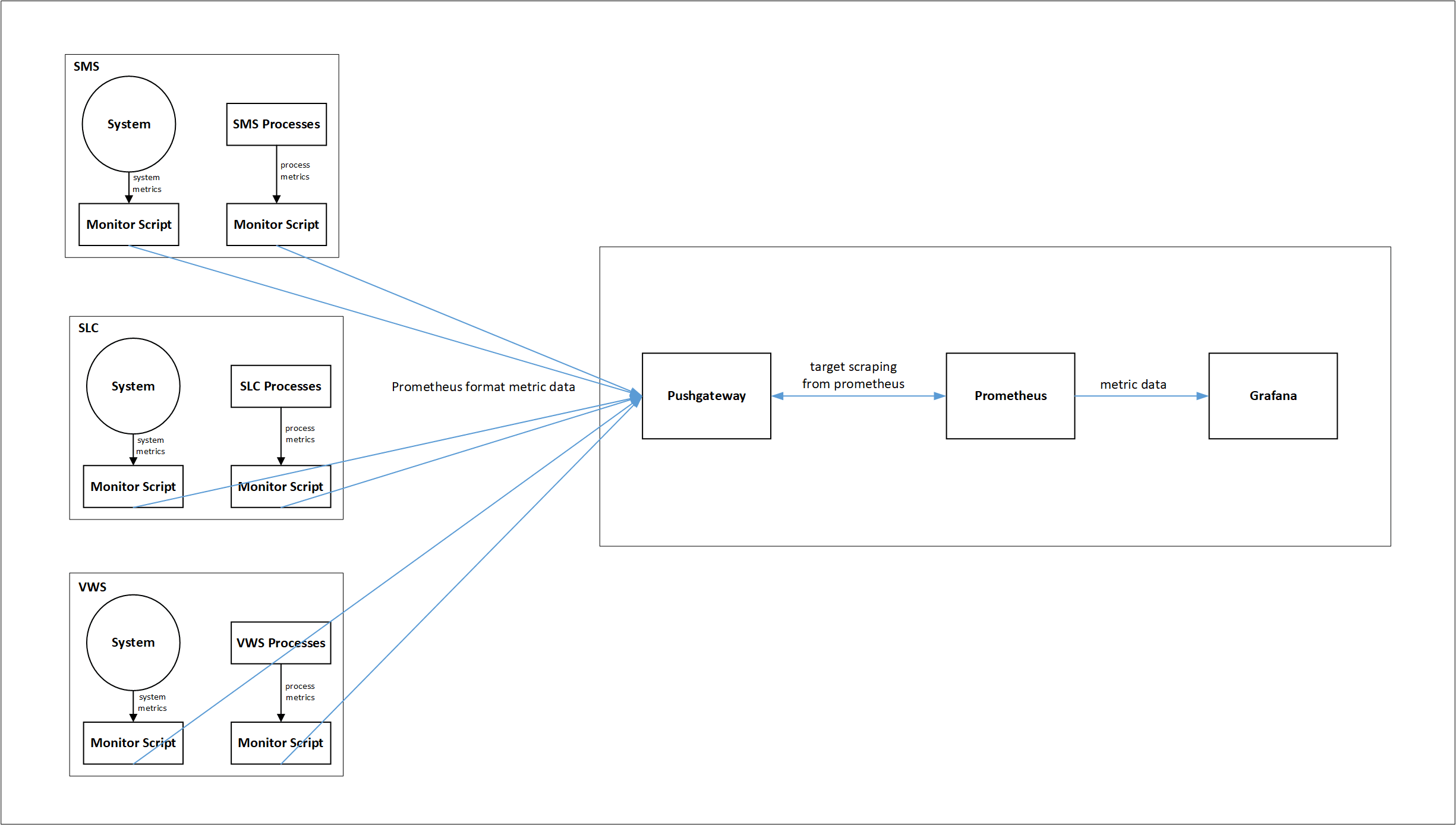
The functions of the various components are described below:
- Monitoring Scripts: Collect metrics, transform, and post to Pushgateway.
- Pushgateway: Serves as scraping target to Prometheus.
- Prometheus: Stores the metric data in time-series database.
- Grafana: Uses Prometheus data for graphical visualization and alerts.
Monitoring Scripts
For collecting metric data, transforming them into Prometheus format, and posting them to Pushgateway, the following scripts are used:
- start_system_monitor.py
- stop_system_monitor.py
- start_service_monitor.py
- stop_service_monitor.py
- start_memory_monitor.py
- stop_memory_monitor.py
- start_SLEE_resource_monitor.py
- stop_SLEE_resource_monitor.py
All the monitoring scripts are available in /IN/service_packages/MONITORING/bin directory.
Use the following command to run start scripts in background, in all the three application nodes (SMS, SLC, and VWS):
nohup <start_script_name> &
start_system_monitor.py
This script collects overall CPU and memory usage metric.
The Prometheus format metric generated with this script is as follows:
[<metric_name>{resource="CPU Usage"} <value is percentage>\n','<metric_name>{resource="Total Physical Memory"}<value in megabytes>\n','<metric_name>{resource="Free Memory"} <value in megabytes>\n']Example
['ocncc_SLC_system_details{resource="CPU Usage"} 72.7\n',
'ocncc_SLC_system_details{resource="Total Physical Memory"} 14761\n',
'ocncc_SLC_system_details{resource="Free Memory"} 12786\n']
stop_system_monitor.py
This script is used to stop the system monitoring. The start_system_monitor.py script writes its pid into a file at /IN/service_packages/MONITORING/tmp, which is used by this script to stop the start_system_monitor.py script.
start_service_monitor.py
This script collects the details about running smf_oper processes in the node.
The Prometheus format metric generated with this script is as follows:
['<metric_name>{process=<process1>} <number of instances of process1 currently
running>\n', '<metric_name>{process=<process2>} <number of instances of process1
currently running>\n', ..... \n']
Example
['ocncc_SLC_service_status{process="slee_acs"} 0\n',
'ocncc_SLC_service_status{process="xmsTrigger"} 0\n',
'ocncc_SLC_service_status{process="diameterControlAgent"} 0\n',
'ocncc_SLC_service_status{process="diameterBeClient"} 0\n',
'ocncc_SLC_service_status{process="capgw"} 0\n',
'ocncc_SLC_service_status{process="ussdgw"} 0\n']
stop_service_monitor.py
This script is used to stop the service monitoring. The start_service_monitor.py script writes its pid into a file at /IN/service_packages/MONITORING/tmp, which is used by this script to stop the start_service_monitor.py script.
start_memory_monitor.py
This script collects the memory usage of smf_oper processes in the node.
The Prometheus format metric generated with this script is as follows:
['<metric_name>{process=<process1>, } <process1 memory usage in
kilobytes>\n','<metric_name>{process=<processX>, } <processX memory usage in
kilobytes>\n', ..... ]
When no processes are running, then the Prometheus format metric generated is as follows:
['<metric_name>{process="Service Down"} 0\n'] Example
['ocncc_SLC_service_memory_usage{process="slee_acs.14179"} 201044\n',
'ocncc_SLC_service_memory_usage{process="ussdgw.14182"} 35044\n',
'ocncc_SLC_service_memory_usage{process="capgw.14184"} 20592\n',
'ocncc_SLC_service_memory_usage{process="xmsTrigger.14196"} 58184\n',
'ocncc_SLC_service_memory_usage{process="diameterControlAgent.14213"} 23052\n',
'ocncc_SLC_service_memory_usage{process="diameterBeClient.14218"} 20724\n']
stop_memory_monitor.py
This script is used to stop the memory monitoring. The start_memory_monitor.py script writes its pid into a file at /IN/service_packages/MONITORING/tmp, which is used by this script to stop the start_memory_monitor.py script.
start_SLEE_resource_monitor.py
This script collects the following SLEE resources in the system:
- Max Dialogs
- Used Dialogs
- Max Events
- Used Events
- Max Calls
- Used Calls
The Prometheus format metric generated with this script is as following:
['<metric_name>{resource="Max Dialogs", } <number of total dialogs at max>\n',
'<metric_name>{resource="Used Dialogs", } <number of dialogs in use currently>\n',
'<metric_name>{resource="Max Events", } <number of total events at max>\n',
'<metric_name>{resource="Used Events", } <number of events in use currently>\n',
'<metric_name>{resource="Max Calls", } <number of total calls at max>\n',
'<metric_name>{resource="Used Calls", } <number of calls in use currently>\n']
Example
['ocncc_SLC_resources{resource="Max Dialogs", } 70000\n',
'ocncc_SLC_resources{resource="Used Dialogs", } 0\n',
'ocncc_SLC_resources{resource="Max Events", } 196208\n',
'ocncc_SLC_resources{resource="Used Events", } 22\n',
'ocncc_SLC_resources{resource="Max Calls", } 25000\n',
'ocncc_SLC_resources{resource="Used Calls", } 0\n']
stop_SLEE_resource_monitor.py
This script is used to stop the resource monitoring. The start_SLEE_resource_monitor.py script writes its pid into a file at /IN/service_packages/MONITORING/tmp, which is used by this script to stop the start_SLEE_resource_monitor.py script.
Note:
All the monitoring scripts support the syntax and semantics of python 3.Configuring Monitoring Scripts
You can configure the properties of monitoring scripts through configurations.yml file. Keep this file in /IN/service_packages/MONITORING/etc directory. Sample configuration files are provided in the same directory. Configuration file entries follow the standard YAML notations.
The following parameters are configured through configurations.yml file:
Note:
All the parameters are mandatory.pushgateway: This section is used to specify the server details hosting the Pushgateway.
- host: Fully qualified Pushgateway hostname
- port: Listening port for the Pushgateway server.
- protocol: Protocol used for communication with Pushgateway server (http/https).
prometheus: This section provides the details of the metric that would be sent out. It has the following four sub-sections:
- service_monitoring: CCC processes metric detail. This section describes the properties of metric that is used to determine which how many instances of the monitored services (processes) are running in the system.
- memory_monitoring: CCC process memory metric detail. Configure the properties of the metric which tells about the memory usage of individual CCC processes.
- system_monitoring: CCC node CPU and physical memory usage metric detail.
- SLEE_resource_monitoring: CCC SLEE resource usage. This is only used in SLC and VWS nodes.
All the above sub-sections have the following parameters:
- ocncc_status_metric_name: Unique metric name. Metric names across all the nodes must be different.
- scrape_interval: Metric collection interval in seconds.
- logging: Whether to log metric collection output
- 0 - Disable logging
- 1 - Enable logging
Log files are available at /IN/service_packages/MONITORING/tmp directory.
ocncc-services: This section lists the CCC processes to be monitored. It is used by the following sub-sections:
- service_monitoring
- memory_monitoring
Setting up Pushgateway
Pushgateway serves as the target for Prometheus to scrape from. It listens on http port. All the monitor scripts push the metric data to Pushgateway.
Installing Pushgateway
To download Pushgateway, visit https://prometheus.io/download/#pushgateway.
Note: Pushgateway can also be set-up as a service or init job to run during the system start. By default, Pushgateway listens on http 9091 port.
Integrating Pushgateway with Monitoring Scripts
For integrating the monitoring scripts to send the metric data to Pushgateway, configure Pushgateway hostname & port details under pushgateway section in configuration.yml file.
Setting up Prometheus
To download Prometheus, visit https://prometheus.io/download/
For instructions on how to install Prometheus, visit Prometheus website.
Note: Sample prometheus.yml config file is available in SMS node at /IN/service_packages/MONITORING/etc/Prometheus-Grafana-Samples directory.
Accessing Prometheus Web UI
You can access the Prometheus UI on 9090 (default port) of the Prometheus server.
http://<prometheus-ip>:9090/graph
Checking Targets in Prometheus UI
To check targets, access Prometheus UI and click Status > Targets.
It shows the targets it is scraping on (based on scrape_configs in prometheus.yml file).
Setting up Grafana
To download and install Grafana, visit https://grafana.com/.
Configuring Grafana
Default configurations are enough for basic use. However, if you need to change any specific parameter, refer the configuration details at https://grafana.com/docs/grafana/latest/administration/configuration/.
Accessing Grafana Web UI
You can access Grafana web UI using the following URL:
where hostname is the name of the host where Grafana is running.
By default Grafana listens on port 3000. Details about the default credentials are available in official Grafana documentation.
Creating Data Source
For instructions on creating data source, visit https://grafana.com/.
Creating Dashboards
You can configure Grafana dashboards to visualize and monitor the metrics from the data source. For instructions on creating dashboards, visit https://grafana.com/.
Note: Sample JSON files for dashboards are available in SMS node at /IN/service_packages/MONITORING/etc/Prometheus-Grafana-Samples directory.
You can import and edit it as per the requirement.
Configuring Alerts in Grafana
You can configure alerts in Grafana for all the metrics being exported from CCC.
For information about creating alerts, visit https://grafana.com/docs/grafana/latest/alerting/.
Monitoring SIGTRAN Traffic with Prometheus and Grafana
You can monitor SIGTRAN traffic in real time using Prometheus and Grafana. Dashboards display current CAP messages, transactions per second (TPS), and transaction latency, providing operational health and performance tracking.
The SIGTRAN application collects metrics and pushes them to a configured Prometheus PushGateway endpoint.
Prometheus scrapes this data at regular intervals, and Grafana visualizes these metrics. Metrics remain available even if the application or node restarts.
The following metrics are collected:
Table 3-1 Collected Metrics
| Name | Type | Description | Labels | Details/Buckets |
|---|---|---|---|---|
| <moduleName>_caps_total | Counter | Total number of calls received. | direction="ingress", event="CAPs", node,
process |
Increments on each CAP event |
| <moduleName>_tps_total | Counter | Total number of transactions received. | direction="ingress", event="TPS", node,
process |
Increments on each TPS event |
| <moduleName>_milliseconds | Histogram | End-to-end latency of CAP transactions | direction="ingress", event="latency", node,
process |
Buckets: "1,5,10,20,50,100,200,500,1000,2000,5000" milliseconds |
How to Enable Monitoring
Note:
It is assumed that the Pushgateway host and port are already configured.- Open the ESERV config file used in m3ua process for editing
- In the METRICS section, add or update a block for your
subsystem (e.g., M3UA). Set all the required parameters as shown in the
example below.
``` METRICS = { pushGatewayHost = "YOUR_PUSHGATEWAY_HOSTNAME" # Required: Hostname or IP for PushGateway pushGatewayPort = "9091" # Required: PushGateway port M3UA = { moduleName = "sigtran" # Required: Metric name prefix pushGatewayJob = "sigtran_metrics" # Required: Job label/group in Prometheus nodeLabel = "slc" # Required: Node/site/instance identifier label processLabel = "m3ua_if" # Required: Process/service identifier label enableMetrics = "true" # Set "true" to enable monitoring for this process/subsystem (default: false) latencyBuckets = "150,200,500" # Optional: Histogram buckets in ms (default: 1,5,10,20,50,100,200,500,1000,2000,5000) pushInterval = 1000 # Optional: Push interval in ms (default: 5000) } } ``` - Save the configuration file.
- Restart your application or the relevant subsystem for changes to take effect.
How to Disable Metric Collection
- Set enableMetrics = "false", or
- Omit the enableMetrics parameter entirely.
No metrics will be collected or pushed for that subsystem. The application log confirms metric reporting is disabled.
Parameter Requirements and Effects
- Metrics will only be collected and pushed if:
- enableMetrics is set to true, and
- All other required parameters (pushGatewayHost, pushGatewayPort, moduleName, pushGatewayJob, nodeLabel, processLabel) are present and valid.
- If any required parameter is missing/invalid, or if enableMetrics is set to false or omitted, no metrics will be collected or pushed for that process/subsystem; the application logs will state the reason.
- Optional parameters (latencyBuckets, pushInterval) will use default values if not specified.
- After making configuration changes, restart the application/process to apply the new monitoring settings.
Troubleshooting
- Confirm all required parameters are set and correct.
- Ensure the PushGateway is reachable from the application node.
- Check application logs for any warnings or errors about metrics export or configuration.
Example Dashboard Queries
- Total CAPs:
sum(sigtran_caps_total{direction="ingress"})
- Total TPS:
sum(sigtran_tps_total{direction="ingress"})
- 99th percentile Latency:
histogram_quantile(0.99, sum(rate(sigtran_latency_milliseconds_bucket[5m])) by (le))
- 1-min average Latency:
rate(sigtran_latency_milliseconds_sum[1m]) / rate(sigtran_latency_milliseconds_count[1m])
Using External Tools for Logging
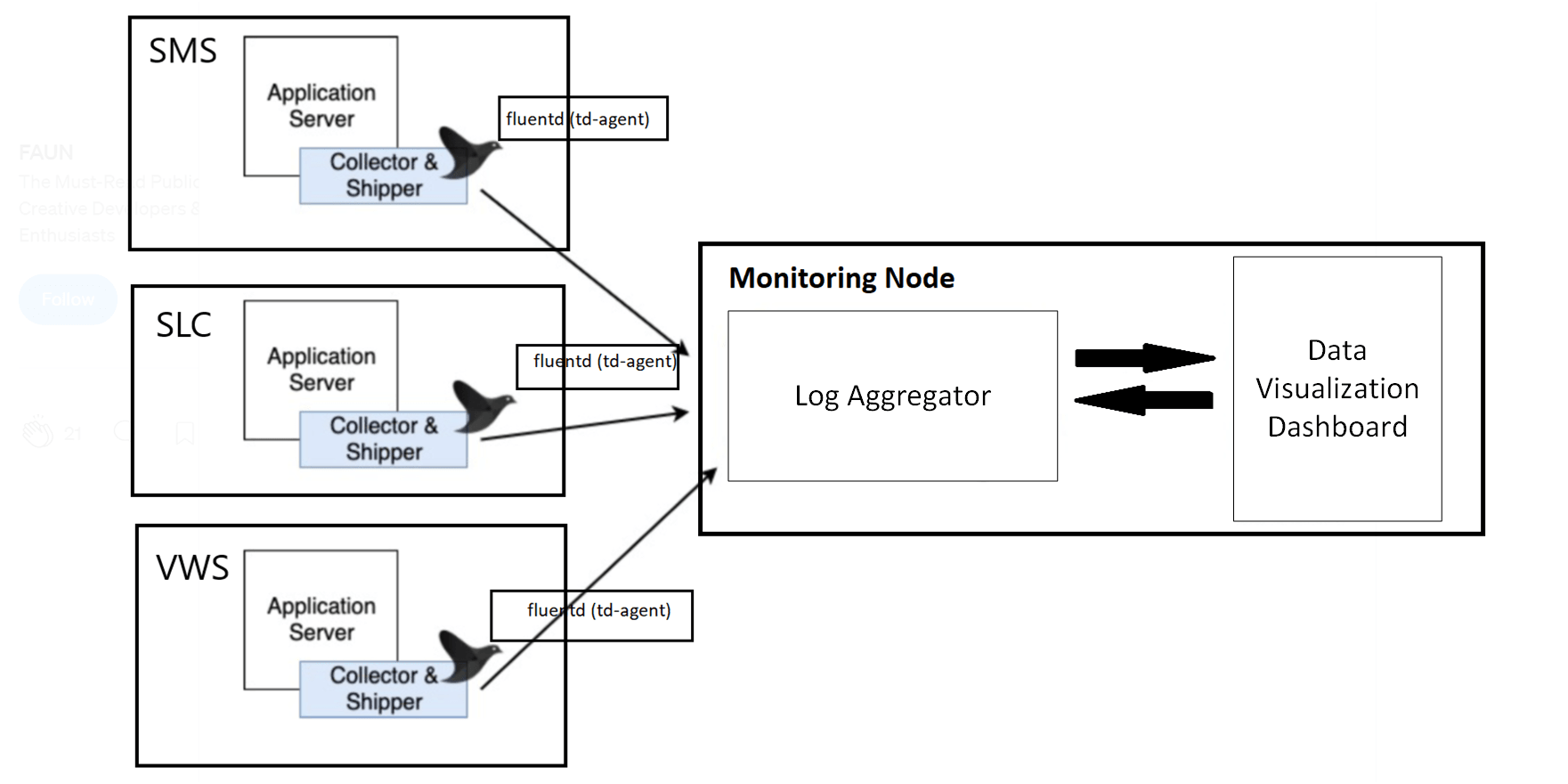
You can use log aggregators and data visualization dashboards for logging services in Convergent Charging Controller (CCC). For example, you can use open source tool such as Fluentd for collecting, transforming and shipping log data to the log aggregator. Fluentd is a data collector on the nodes to tail the log files, filter and transform the log data, and deliver it to the log aggregator, where it is indexed and stored. You can use any log aggregator and visualization dashboard to monitor logs.
This setup helps you to have a real-time operational view of CCC. You can integrate this with the application to visualize all the application logs through the data visualization dashboard. You can also configure it to notify or trigger alerts whenever a specified error message occurs in the logs.
Installing Fluentd
If you are using Fluentd as the data collector, perform the following steps after the installation:
- Install fluent-plugin-concat for merging multiple logstash. To
install the plugin, run the following
command:
/usr/sbin/td-agent-gem install fluent-plugin-concat - To add td-agent to esg group, run the following command as a root
user:
usermod -G esg td-agent - To check if td-agent is part of esg, run the following command:
id td-agent - Create three different index for three machines (SMS, SLC, and VWS) to display the logs in
their respective index. To create a new index, run the following commands (where the log
aggregator and the data visualization tools are running):
curl -XPUT http://localhost:9200/sms_index curl -XGET http://localhost:9200/sms_index curl -XPUT http://localhost:9200/slc_index curl -XGET http://localhost:9200/slc_index curl -XPUT http://localhost:9200/vws_index curl -XGET http://localhost:9200/vws_index - To delete your index, run the following command:
curl -XDELETE http://localhost:9200/sms_index - To display the index in a more structured view, run the following command:
curl -XGET http://localhost:9200/sms_index?pretty - Edit the /etc/td-agent/td-agent.conf file to define the required
Fluentd plugins and patterns, so that Fluentd collects the logs from the source path and
ships it to the log aggregator.
Sample td-agent.conf file path in SMS: /IN/service_packages/MONITORING/etc/
Note:
After editing td-agent.conf file, restart td-agent.service for the changes to take effect.