Appendix
Server Status Indicators LEDs
These sections describe Oracle Communications Server E6-2L status indicators (LEDs) located on the front and back panels, including indicators located on components and ports.
System-Level Status Indicators
System-level status indicators (LEDs) are located on both the server front panel and the back panel. For the location of the status indicators, see Front Panel Components and Back Panel Components. The following table describes these indicators.
Table A-1 System-Level Status Indicators
| Status Indicator Name | Icon | Color | State and Meaning |
|---|---|---|---|
| Locate Button/LED |  Front and back panel |
White | Indicates the location of the server. OFF – Server is operating normally. FAST BLINK (250 ms) – Use Oracle ILOM to activate this LED indicator to enable you to locate a particular system quickly and easily. Pressing the Locate button toggles the LED indicator fast blink on or off. |
| ServiceFault-Service Required |  Front and back panel |
Amber | Indicates the fault state of the server. OFF – The server is operating normally. STEADY ON – A fault is present on the server. This LED indicator lights whenever a fault indicator lights for a replaceable component on the server. Note: When this LED indicator is lit, a system console message might appear that includes a recommended service action. |
| OK
System OK |
 Front and back panel |
Green | Indicates the operational state of the chassis. OFF – AC power is not present or the Oracle ILOM boot is not complete. STANDBY BLINK (on for 100 ms, off for 2900 ms) – Standby power is on, but the chassis power is off and the Oracle ILOM SP is running. SLOW BLINK (1000 ms) – Startup sequence was initiated on the host. This pattern begins soon after you power on the server. This status indicates either: power-on self-test (POST) code checkpoint tests are running on the server host system, or the host is transitioning from the powered-on state to the standby state on shutdown. STEADY ON – The server is powered on, and all host POST code checkpoint tests are complete. The server is in one of the following states: the server host is booting the operating system (OS), or the server host is running the OS. |
| SP OK |  Front panel |
Green | Indicates the state of the service processor. OFF – Service processor (SP) is not running. SLOW BLINK – SP is booting. STEADY ON – SP is fully operational. |
| Top Fan |  Front panel |
Amber | Indicates that one or more of the internal fan modules failed. OFF – Indicates steady state; no service is required. STEADY ON – Indicates service required. |
| Rear Power Supply Fault |  Front panel |
Amber | Indicates that one of the server power supplies failed. PS0 and PS1 are located on the server back panel. OFF – Indicates steady state; no service is required. STEADY ON – Indicates service required; service the power supply. |
| Temp-Fault
System Over Temperature Warning |
 Front panel |
Amber | Indicates a warning for an overtemperature condition. OFF – Normal operation; no service is required. STEADY ON – The system is experiencing an overtemperature warning condition. Note: This is a warning indication, not a fatal overtemperature. Failure to correct this might result in the system overheating and shutting down unexpectedly. |
| DO NOT SERVICE |  Front panel |
White | Indicates that the system is not ready to service. OFF – Normal operation. STEADY ON – The system is not ready for service. Note: The DO NOT SERVICE indicator is application specific. This indicator is only illuminated on demand by the Host application. |
Power Supply Status Indicators
There are two status indicators (LEDs) on each power supply. Power supply status indicators are visible from the back of the server.
Table A-2 Power Supply Status Indicators
| Status Indicator Name | Icon | Color | State and Meaning |
|---|---|---|---|
| AC OK/ DC OK | |
Green | OFF – No AC power is present. SLOW BLINK – Normal operation. Input power is within specification. DC output voltage is not enabled. STEADY ON – Normal operation. Input AC power and DC output voltage are within specification. |
| Fault-Service Required | |
Amber | OFF – Normal operation. No service action is required. STEADY ON – The power supply (PS) detected a PS fan failure, PS overtemperature, PS overcurrent, or PS overvoltage or undervoltage. |
Fan Module Status Indicators
Each fan module has one status indicator (LED). Fan LEDs are located on the chassis fan tray adjacent to and aligned with the fan modules, and are visible when the server top cover is removed.
Table A-3 Fan Module Status Indicators
| Status Indicator Name | Icon | Color | State and Meaning |
|---|---|---|---|
| Fan Module Fault | |
Amber | OFF – The fan module is correctly installed and operating within specification. STEADY ON – The fan module is faulty. The front TOP FAN LED and the front and back panel Fault-Service Required LEDs are also lit if the system detects a fan module fault. |
Storage Drive Status Indicators
There are three status indicators (LEDs) on each drive.
Table A-4 Storage Drive Status Indicators
| Status Indicator Name | Icon | Color | State and Meaning |
|---|---|---|---|
| OK/Activity | |
Green | OFF – Power is off or installed drive is not recognized by the system. STEADY ON – The drive is engaged and is receiving power. RANDOM BLINK – There is disk activity. Status indicator LED blinks on and off to indicate activity. |
| Fault-Service Required | |
Amber | OFF – The storage drive is operating normally. STEADY ON – The system detected a fault with the storage drive. |
| OK to Remove |  |
Blue | STEADY ON – The storage drive can be removed safely during a hot-plug operation. OFF – The storage drive is not prepared for removal. |
Network Management Port Status Indicators
The server has one 100/1000BASE-T Ethernet management domain interface, labeled NET MGT. There are two status indicators (LEDs) on this port. NET MGT indicators are visible from the back of the server.
Table A-5 Network Management Port Status Indicators
| Status Indicator Name | Location | Color | State and Meaning |
|---|---|---|---|
| Activity | Top left | Green | ON – Link up. OFF – No link or down link. BLINKING – Packet activity. |
| Link speed | Top right | Green | ON – 1000BASE-T link. OFF – 100BASE-T link. |
Ethernet Port Status Indicators
The server has one Ethernet port labeled 1GbE (NET 0). Two NET 0 status indicators (LEDs) are visible from the back of the server.
See 100/1000BASE-T Gigabit Ethernet port.
Table A-6 Ethernet Port Status Indicators
| Status Indicator Name | Location | Color | State and Meaning |
|---|---|---|---|
| Activity | Bottom left | Green | ON – Link up. OFF– No activity. BLINKING – Packet activity. |
| Link speed | Bottom right | Bi-colored: Amber/Green | OFF – 100BASE-T link (if link up).Green ON – 1000BASE-T link. |
Motherboard Status Indicators
The motherboard contains the following status indicators (LEDs).
Table A-7 Motherboard Status Indicators
| Status Indicator | Description |
|---|---|
| DIMM Fault Status Indicators | Each of the 24 DIMM slots on the motherboard has an amber fault status indicator (LED) associated with it. If Oracle ILOM determines that a DIMM is faulty, pressing the Fault Remind button on the motherboard I/O card signals the service processor to light the fault LED associated with the failed DIMM. See Replace DIMMs. |
| Processor Fault Status Indicators | The motherboard includes a fault status indicator (LED) adjacent to each of the two processor sockets. These LEDs indicate when a processor fails. Pressing the Fault Remind button on the motherboard I/O card signals the service processor to light the fault status indicators associated with the failed processors. See Replace Processors. |
| Fault Remind Status Indicator | This status indicator (LED) is located next to the Fault Remind button and is powered from the super capacitor that powers the fault LEDs on the motherboard. This LED lights to indicate that the fault remind circuitry is working properly in cases where no components failed and, as a result, none of the component fault LEDs illuminate. See Use the Server Fault Remind Button. |
| STBY PWRGD Status Indicator | This green status indicator (LED) is labeled STBY PWRGD and is located on the motherboard near the back of the server. STBY PWRGD LED lights to inform a service technician that the motherboard is receiving Standby power from at least one of the power supplies. This LED helps prevent service actions on the server internal components while the AC power cords are installed and power is being supplied to the server. |
Mellanox ConnectX-6 Dx SmartNIC Status Indicators
The Mellanox ConnectX-6 Dx Dual Port RoCE SmartNIC status indicators are defined as follows:
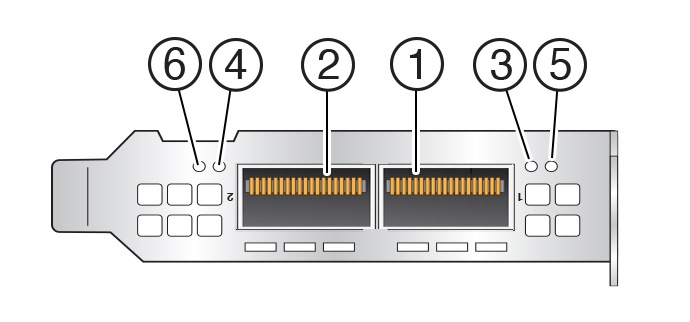
| Callout | Description |
|---|---|
| 1 | Port 1 |
| 2 | Port 2 |
| 3 | Port 1 status indicator: OFF = Link has not been established SOLID GREEN = Valid link has been established BLINKING GREEN = Link activity BLINKING AMBER = 1 Hz blink indicates a beacon command is being run to locate the adapter card; 4 Hz blink indicates a problem with the physical link |
| 4 | Port 2 status indicator:OFF = Link has not been established SOLID GREEN = Valid link has been established BLINKING GREEN = Link activity BLINKING AMBER = 1 Hz blink indicates a beacon command is being run to locate the adapter card; 4 Hz blink indicates a problem with the physical link |
| 5 & 6 | Not used. |
Boot Process and Normal Operating State Indicators
A normal server boot process involves two indicators, the service processor SP OK LED indicator and the System OK LED indicator.
When AC power is connected to the server, the server boots into standby power mode:
-
The SP OK LED blinks slowly (0.5 seconds on, 0.5 seconds off) while the SP is starting, and the System OK LED remains off until the SP is ready.
-
After a few minutes, the main System OK LED slowly flashes the standby blink pattern (0.1 seconds on, 2.9 seconds off), indicating that the SP (and Oracle ILOM) is ready for use. In Standby power mode, the server is not initialized or fully powered on at this point.
When powering on the server (either by the On/Standby button or Oracle ILOM), the server boots to full power mode:
-
The System OK LED blinks slowly (0.5 seconds on, 0.5 seconds off), and the SP OK LED remains lit (no blinking).
-
When the server successfully boots, the System OK LED remains lit. When the System OK LED and the SP OK LED indicators remain lit, the server is in Main power mode.
The green System OK LED indicator and the green SP OK indicator remain lit (no blinking) when the server is in a normal operating state.
System Specifications
These sections describe specifications for Oracle Communications Server E6-2L.
Server Physical Specifications
The following table lists physical specifications for Oracle Communications Server E6-2L.
Table B-1 Physical Specifications
| Dimension | Server Specification | Measurements |
|---|---|---|
| Height | 2-rack unit (2U) nominal | 86.9 mm (3.42 inches) |
| Width | Server chassis | 445 mm (17.52 inches) |
| Depth | Maximum overall | 756 mm (29.76 inches) |
| Weight | Fully populated server | 34 kg (76 lbs) |
Dimensions do not include PSU handles.
Electrical Requirements
The server uses high-line AC power. The server can operate effectively over a range of voltages and frequencies.
The following table contains the power supply specifications for Oracle Communications Server E6-2L.
The power dissipation numbers listed in the following table are the maximum rated power numbers for the power supply used in the server. The numbers are not a rating of the actual power consumption of the server. For up-to-date information about server power consumption, go to Oracle Power Calculator .
Table B-2 Electrical Requirements
| Parameter | Specification |
|---|---|
| Electrical ratings | 200-240V~, 10A, 50/60Hz (x2) |
| Voltage (nominal) | 200-240 VAC |
| Input current (maximum) | 10.0A at 200-240 VAC |
| Frequency (nominal) | 50/60 Hz (47-63 Hz range) |
| Maximum power consumption | 1400W at AC 200V-240V |
| Maximum heat output | 11,600 BTU/Hr |
Table B-3 Power Supply Specifications
| Parameter | Power Supply Specification |
|---|---|
| Oracle Communications Server E6-2L | Two hot-swappable and highly-redundant 1400W A271 or A271A power supplies (PS0 and PS1)Note: The A271 and A271A power supplies are functionally identical. Either are supported in the system. |
| A271 Power Supply | A271 - Delta Electronics, Model AWF2DC1400W, Input rated 200 - 240 V~, 10A Max, 50/60 Hz. Output: V1 rated 12.1 Vdc, 116A Max., Vsb rated 12.1 Vdc, 3A Max, 1400W maximum |
| A271A Power Supply | A271A - Flextronics, Model SUN-S-1400ADU00, Input rated 200 - 240 V~, 10A Max, 50/60 Hz. Output: V1 rated 12.1 Vdc, 116A Max., Vsb rated 12.1 Vdc, 3A Max, 1400W maximum |
To protect your server from such disturbances, use a dedicated power distribution system, power-conditioning equipment, and lightning arresters or power cables for protection from electrical storms.
See the following additional power specifications.
Facility Power Guidelines
Electrical work and installations must comply with applicable local, state, or national electrical codes. To determine the type of power that is supplied to the building, contact your facilities manager or qualified electrician.
To prevent failures:
-
Design the input power sources to ensure adequate power is provided to the power distribution units (PDUs).
-
Use dedicated AC breaker panels for all power circuits that supply power to the PDU.
-
When planning for power distribution requirements, balance the power load between available AC supply branch circuits.
-
In the United States and Canada, ensure that the current load of the overall system AC input does not exceed 80 percent of the branch circuit AC current rating.
PDU power cords for Oracle racks are 4 meters (13.12 feet) long, and 1 to 1.5 meters (3.3 to 4.9 feet) of the cord might be routed in the rack cabinet. The installation site AC power receptacle must be within 2 meters (6.6 feet) of the rack.
Grounding Guidelines
Use the following guidelines for grounding the server:
-
The rack must use grounding type power cords. For example, Oracle Communications Server E6-2L uses three-wire, grounding-type power cords.
-
Always connect the grounding-type power cords to grounded power outlets.
-
Because different grounding methods are used, depending on location, verify the grounding type. For the correct grounding method, refer to local electrical codes.
-
Ensure that a facility administrator or qualified electrical engineer verifies the grounding method for the building and performs the grounding work.
Circuit Breaker and UPS Guidelines
To prevent failures:
-
Ensure that the design of your power system provides adequate power to the server.
-
Use dedicated AC breaker panels for all power circuits that supply power to the server.
-
Ensure that electrical work and installations comply with applicable local, state, or national electrical codes.
-
Ensure that the electrical circuits are grounded to Earth.
-
Provide a stable power source, such as an uninterruptable power supply (UPS) to reduce the possibility of component failures. If computer equipment is subjected to repeated power interruptions and fluctuations, then it is susceptible to a higher rate of component failure.
Environmental Requirements
The following table describes environmental specifications for Oracle Communications Server E6-2L.
Table B-4 Environmental Requirements
| Specification | Operating | Nonoperating |
|---|---|---|
| Ambient temperature (does not apply to removable media) | Maximum range: 5°C to 35°C (41°F to 95°F) up to 900 meters (2,953 feet)Optimal: 21°C to 23°C (69.8°F to 73.4°F)Maximum ambient operating temperature is derated by 1 degree C per 300 meters of elevation above 900 meters, to a maximum altitude of 3,000 meters. | –40°C to 68°C (–40°F to 154°F) |
| Relative humidity | 10% to 90% noncondensing, short term –5°C to 55°C (23°F to 113°F)5% to 90% noncondensing, with a maximum of 0.024 kg of water per kg of dry air (0.053 lbs water/2.205 lbs dry air) | Maximum wet bulb of 93% noncondensing 35°C (95°F) |
| Altitude | Up to 3,000 meters (9,840 feet)In China markets, regulations might limit installations to a maximum altitude of 2,000 meters (6,562 feet). | Maximum 12,000 meters (39,370 feet) |
| Acoustic noise | Fan speed % Pulse Width Modulation (PWM) Acoustic noise emission declaration based on the measured Sound Power LWAd (1Bel = 10 dB)4-Drive Sound Power (Bels)50% PWM: 8.4, 60% PWM: 8.8, 70% PWM: 9.1,80% PWM: 9.6, 90% PWM: 9.8 100% PWM: 10.112-drive Sound Power (Bels)40% PWM: 7.9, 50% PWM: 8.58, 60% PWM: 8.96,70% PWM: 9.3, 80% PWM: 9.5 | Not applicable |
| Vibration | 0.15 G (z-axis)0.10 G (x-, y-axes), 5-500Hz swept sineIEC 60068-2-6 Test FC | 0.5 G (z-axis),0.25 G (x-, y-axes), 5-500Hz swept sineIEC 60068-2-6 Test FC |
| Shock | 3.5 G, 11 ms half-sineIEC 60068-2-27 Test Ea | Roll-off: 1.25-inch roll-off free fall, front to back rolling directions Threshold: 13-mm threshold height at 0.65 m/s impact velocityETE-1010-02 Rev A |
Humidity Guidelines
The server ambient relative humidity range of 45 to 50 percent is acceptable for safe data processing operations and is the recommended optimal range. Foot 1An ambient relative humidity optimal range of 45 to 50 percent can:
-
Help protect computer systems from corrosion problems associated with high humidity levels.
-
Provide the greatest operating time buffer in the event of air conditioner control failure.
-
Help to avoid failures or temporary malfunctions caused by intermittent interference from static discharges that might occur when relative humidity is too low. Electrostatic discharge (ESD) is easily generated and not easily dissipated in areas where the relative humidity level is below 35 percent. ESD risk becomes critical when relative humidity levels drop below 30 percent.
Temperature Guidelines
An ambient temperature range of 21° to 23° Celsius (70° to 74° Fahrenheit) is optimal for server reliability and operator comfort. Most computer equipment can operate in a wide temperature range, but approximately 22° Celsius (72° Fahrenheit) is recommended because it is easier to maintain safe humidity levels. Operating in this temperature range provides a safety buffer in the event that the air conditioning system is not running for a period of time.
Ventilation and Cooling Requirements
Always provide adequate space in front of and behind the rack to allow for proper ventilation of rackmounted servers. Do not obstruct the front or back of the rack with equipment or objects that might prevent air from flowing through the rack. Rackmountable servers and equipment, including Oracle Communications Server E6-2L, draw cool air in through the front of the rack and release warm air out the back of the rack. There is no airflow requirement for the left and right sides due to front-to-back cooling.
If the rack is not completely filled with components, then cover the empty sections with filler panels. Gaps between components can adversely affect airflow and cooling in the rack.
The servers function while installed in a natural convection airflow. Follow these environmental specifications for optimal ventilation:
-
Ensure that air intake is in the front of the system, and the air outlet is in the back. Take care to prevent recirculation of exhaust air in a rack or cabinet.
-
Allow a minimum clearance of 123.2 cm (48.5 inches) in the front of the system, and 91.4 cm (36 inches) in the back.
-
Ensure that airflow is unobstructed through the chassis. Oracle Communications Server E6-2L uses internal fans that can achieve between 130 CFM to 160 CFM (depending on configuration), within the specified range of operating conditions.
-
Ensure that ventilation openings, such as cabinet doors for both the inlet and exhaust of the server, are unobstructed. For example, Oracle Rack Cabinet 1242 is optimized for cooling. Both the front and back doors have 80 percent perforations that provide a high level of airflow through the rack.
-
Ensure that the front and back clearances between the cabinet doors is a minimum of 2.5 cm (1 inch) at the front of the server and 8 cm (3.15 inches) at the back of the server when mounted. To improve cooling performance, these clearance values are based on the inlet and exhaust impedance (available open area) and assume a uniform distribution of the open area across the inlet and exhaust areas. The combination of inlet and exhaust restrictions, such as cabinet doors and the distance of the server from the doors, can affect the cooling performance of the server. You must evaluate these restrictions. Server placement is particularly important for high-temperature environments
-
Manage cables to minimize interference with the server exhaust vent.
Agency Compliance
Oracle Communications Server E6-2L complies with the following specifications.
Table B-5 Agency Compliance
| Category | Relevant Standards |
|---|---|
| Regulations | Product Safety: UL/CSA 60950-1, EN 60950-1, IEC 60950-1 CB Scheme with all country differences Product Safety: UL/CSA 62368-1, EN 62368-1, IEC 62368-1 CB Scheme with all country differences EMCEMC: Emissions: FCC 47 CFR 15, ICES-003, EN55022, EN55032, KN32, EN61000-3-2, EN61000-3-3Immunity: EN 55024, KN35 |
| Certifications | North America Safety (NRTL)(CE) European UnionInternational CB SchemeBIS (India)BSMI (Taiwan)CCC (PRC)EAC (EAEU including Russia)KC (Korea)RCM (Australia)VCCI (Japan)UKCA (United Kingdom) |
| European Union Directives | 2014/35/EU Low Voltage Directive2014/30/EU EMC Directive2011/65/EU RoHS Directive2012/19/EU WEEE Directive2009/125/EC Ecodesign Energy Related Products Directive |
Footnote 2
All standards and certifications referenced are to the latest official version. For additional detail, contact your sales representative.
Footnote 3
Other country regulations/certifications may apply.
Footnote 4
Regulatory and certification compliance were obtained for the shelf-level systems only.
Refer to safety information in Oracle Server Safety and Compliance Guide and in Important Safety Information for Oracle's Hardware Systems.
960GB NVMe M.2 Solid State Drive Specification
This section provides the specification for 960GB NVMe M.2 Solid State Drives.
The following tables list 960GB NVMe M.2 Solid State Drive specifications for Oracle Server E6-2L.
-
960GB, M.2, NVMe Solid State Drive 8212586 Specification
-
960GB, M.2, NVMe Solid State Drive 8213400 Specification
960GB M.2, NVMe Solid State Drive 8212586 Specification
NVMe Storage Drive 8212586 specifications are listed in the following table.
Table B-6 960GB, M.2, NVMe Solid State Drive 8212586 Specification
| Specification | Value |
|---|---|
| Device name | Product Identifier SAMSUNG MZ1L2960HCJR-00A07Oracle Part Number raw: 8213397 generic: 8212582 assy: 8221518Device Identification:PCIe Vendor ID : 0x144dPCIe Device ID : 0xa80aPCIe Subsystem VID 0x144dPCIe Subsystem ID: 0xaa89 |
| Manufacturing name | Samsung PM9A3 960 GB NVMe Solid-State Drive |
| Form factors | M.2 22110 |
| PCIe interface | PCIe Gen4 Interface, Single port x4 lanes |
| NAND | Samsung V6 128L TLC V-NANDdie size: 32GiB4 ODP packages2 planesPage Size: 16KBNumber of dies 32 NAND dies (32 * 32GiB = 1024 GiB) |
| Flash Controller | Samsung Elpis controller8 NAND ChannelsDRAM DDR4 – up to 3200MbpsNAND channel Toggle 4.0 - 1200Mbps |
| Features | TCG-OPAL 2.0 |
| Product Compliance | NVM Express Specification Rev. 1.4PCI Express Base Specification Rev. 4Enterprise SSD Form Factor Version 1.0aNVMe-MI Rev 1.1 (excluding VPD data) |
| Certifications and declarations | cUL-us, CE, TUV, CB, BSMI, KC, VCCI RCM, FCC, IC |
Table B-7 Drive Usage Information
| Usage | Description |
|---|---|
| Operating temperature (composite device temperature reported via SMART) | 0 to 70 degrees Celsius |
| Non-Operating temperature | -40 to 85 degrees Celsius |
| Maximum temperature (SMART trip) | Warning at 77 degrees Celsius (composite), thermal throttling when approaching critical 85 degrees Celsius. Thermal Shutdown at 93 degrees Celsius |
| Other environmental factors | Conforms to IEC standards |
| Error rates | Uncorrectable Bit Error Rate (UBER): 1 sector per 10^17 bits read |
| Data retention | 3 months powered off at 40 degrees Celsius at end of rated endurance |
| Endurance | Drive Writes Per Day (DWPD) for 5 years: 1 (@ 960 GB)1 PBW (at 4KB Random Write) 1.75 PWB |
Table B-8 Drive Reliability
| Attribute | Value |
|---|---|
| Component Design Life (Useful life) | 5 years |
| MTBF | 2,000,000 hours |
| Expected AFR (Annualized Failure Rate) | 0.44% for normal 24x7 operating conditions |
Table B-9 Drive Capacity and Performance
| Attribute | Value |
|---|---|
| Capacity, formatted | 960 GB Capacity format : 960197124096 bytesSector Size (LBA size): 512 bytes per sectorTotal Addressable LBAs : 1,875,385,008Max User Capacity is 960 GB |
| Capacity, raw NAND | 1024 GiB |
| Random 4 KB Read | IOPs - QD32, 4 thread - 550k IOPSLatency - QD=1 , 1 thread, 75us (typ) |
| Random 4 KB Write | IOPS - QD32, 4 thread - 60k IOPSLatency - QD=1 , 1 thread, 30us (typ) |
| Sequential Read | 128KB, QD 32, 1 Thread : 3.5 GB/s |
| Sequential Write | 128KB, QD 32, 1 Thread : 1.4 GB/s |
| Interface data transfer rate | Interface Data Rate: PCIe Gen4Data Transfer Rate 16 GT/secInterface drivers/receivers M.2: 1x4 lanes |
Table B-10 Drive Electrical Specifications
| Attribute | Value |
|---|---|
| Power On to Ready (no rebuild, no pending sanitize action) | 5 seconds (CSTS.Ready =1 ; may not be ready for IO) |
| Supply Voltage / Tolerance | 3.3 V +5%/-5%DC – 100Khz 300 mVp-p max100Khz-20Mhz 50 mVp-p maxmin Off time 10 ms |
| Inrush Current | 3.3 V, 1.0 A |
| Power Consumption | < 8.2 WActive Read: 7.5 WActive Write: 6.5 WIdle < 5 W (in power-saving idle mode which is activated in case of no host command for 10seconds) |
| Power Requirements | Refer to vendor product specification. |
Table B-11 Drive Physical Characteristics
| Attribute | Value |
|---|---|
| Height | 3.80 mm +/-0.18 mm |
| Width | 22.00 mm +/-0.15 mm |
| Length | 110.00 +/- 0.15 mm Max |
| Mass | Up to 20 g |
Table B-12 Solid-State Drive Characteristics
| Attribute | Value |
|---|---|
| NAND Technology | Samsung V6 128L TLC V-NAND |
| Over Provisioning | 13% (to raw) at 960GB |
| Number of NAND Channels | 8 |
| NAND Die Count | 128 |
| NAND Transfer Rate | Toggle 4.0 - 1200 Mbps |
| Sectors per page | 32 |
| Page size | 16 KB + 2048 B |
| Pages per Erase Block | 3096 Pages/Blocks |
| Number of Blocks per Plane | 340 |
| Number of Planes per die | 2 |
| Erase Block Size | 48 MB |
| TREAD (typ) | 41 us |
| TPROG (typ) | 0.7 ms |
| Program/Erase Cycles | 7K |
Table B-13 Drive Characteristics
| Attribute | Value |
|---|---|
| Minimum operating system versions | Refer to the server product notes for minimum operating system versions, hardware, firmware, and software compatibility. |
| Life monitoring capability | Provides alerts for proactive replacement of the drive before the endurance is depleted. Provides endurance remaining in NVMe SMART logs. SSD supports the standard method defined by NVMe for Solid State Drive to report NAND wear through the “Get Log” command SMART/Health Information Percentage Used field. The units are whole percentage of wear. Percentage Used: Contains a vendor specific estimate of the percentage of NVM subsystem life used based on the actual usage and the manufacturer’s prediction of NVM life. A value of 100 indicates that the estimated endurance of the NVM in the NVM subsystem has been consumed, but may not indicate an NVM subsystem failure. The value is allowed to exceed 100. Percentages greater than 254 are represented as 255. This value is updated once per power-on hour (when the controller is not in a sleep state). Refer to the JEDEC JESD218A standard for SSD device life and endurance measurement techniques. |
| End-to-End data path protection | Device does not support Metadata formats – only supports 512B and 4KB LBA formats |
| Enhanced power-loss data protection | Energy storage components complete buffered writes to the persistent flash storage in case of a sudden power loss. |
| Power loss protection capacitor self-test | Supports testing of the power loss capacitor. Power is monitored using SMART (Self-Monitoring, Analysis, and Reporting Technology) attribute critical warning. |
| Out-of-Band Management (SMBUS) | Managed through the SMBUS. Provides out-of-band management by means of SMBUS interface. SMBUS access includes temperature sensor via MI basic but excludes the VPD page which is blank at FFs as the device does not support a VPD write protection scheme. |
| Hot-plug Support | Device advanced power loss protection provides robust data integrity. During IOs, the storage drive integrated monitoring enables the integrity of already committed data on the media and commits acknowledged writes to the media. |
960GB M.2, NVMe Solid State Drive 8213400 Specification
NVMe Storage Drive 8213400 specifications are listed in the following table.
Table B-14 960GB, M.2, NVMe Solid State Drive 8213400 Specification
| Specification | Value |
|---|---|
| Device name | Product Identifier Micron_7450_MTFDKBG960TFROracle Part Number raw: 8213398 generic: 8212582 assy: 8221518Device Identification:PCIe Vendor ID : 0x1344PCIe Device ID : 0x51C3PCIe Subsystem VID 0x1344PCIe Subsystem ID: 0x2100 |
| Manufacturing name | Micron 7450 PRO 960GB NVMe Solid-State Drive |
| Form factors | M.2 22x110 M key |
| PCIe interface | PCIe Gen4 Interface, Single port x4 lanes |
| NAND | Micron 5th Gen 176L 3DNAND TLC (2ndnode RG)die size: 64GiB4 QDP packages4 planes Page Size: 16KBNumber of dies 16 NAND dies (16 * 64GiB = 1024 GiB) |
| Flash Controller | Micron Tomcat controller8 NAND Channels DRAM DDR4 – up to 3200MbpsNAND channel ONFI 4.2 |
| Features | Supports UEFI boot |
| Product Compliance | NVM Express Specification Rev. 1.4bPCI Express Base Specification Rev. 4Enterprise SSD Form Factor Version 1.0aNVMe-MI Rev 1.1b |
| Certifications and declarations | cUL-us, CE, TUV, CB, BSMI, KC, VCCI RCM, FCC, IC |
Table B-15 Drive Usage Information
| Usage | Description |
|---|---|
| Operating temperature (composite device temperature reported via SMART) | 0 to 70 degrees Celsius |
| Non-Operating temperature | -40 to 85 degrees Celsius |
| Maximum temperature (SMART trip) | Warning at 77 degrees Celsius (composite), thermal throttling when approaching critical 85 degrees Celsius.Thermal Shutdown at 93 degrees Celsius |
| Other environmental factors | Conforms to IEC standards |
| Error rates | Uncorrectable Bit Error Rate (UBER): 1 sector per 10^17 bits read |
| Data retention | 3 months powered off at 40 degrees Celsius at end of rated endurance |
| Endurance | Drive Writes Per Day (DWPD) for 5 years: 1 (@ 960 GB)PBW (at 4KB RW) 1.7 PWB |
Table B-16 Drive Reliability
| Attribute | Value |
|---|---|
| Component Design Life (Useful life) | 5 years |
| MTBF | 2,000,000 hours |
| Expected AFR (Annualized Failure Rate) | 0.44% for normal 24x7 operating conditions |
Table B-17 Drive Capacity and Performance
| Attribute | Value |
|---|---|
| Capacity, formatted | 960GB Capacity format : 960197124096 bytes Sector Size (LBA size): 512 bytes per sector Total Addressable LBAs : 1,875,385,008Max User Capacity is 960GB |
| Capacity, raw NAND | 1024 GiB |
| Random 4 KB Read | IOPs - 4k, 256 OIO - 520k IOPSLatency - QD=1 , 1 thread, 80us (typ) |
| Random 4 KB Write | IOPS - 4k, 128 OIO - 82k IOPSLatency - QD=1 , 1 thread, 15us (typ) |
| Sequential Read | 128KB, QD 32, 1 Thread : 5.0 GB/s |
| Sequential Write | 128KB, QD 32, 1 Thread : 1.4 GB/s |
| Interface data transfer rate | Interface Data Rate: PCIe Gen4Data Transfer Rate 16 GT/sec Interface drivers/receivers M.2: 1x4 lanes |
Table B-18 Drive Electrical Specifications
| Attribute | Value |
|---|---|
| Power On to Ready | 20 seconds (CSTS.Ready =1 ; may not be ready for IO) |
| Supply Voltage / Tolerance | 3.3 V +5%/-5%DC – 100Khz 300 mVp-p max100Khz-20Mhz 50 mVp-p maxmin Off time 1s |
| Inrush Current | 3.3 V, 2.5 A |
| Power Consumption | < 8.2 WActive Read: 7 WActive Write: 5.7 WIdle < 2.9 W |
| Power Requirements | Refer to vendor product specification. |
Table B-19 Drive Physical Characteristics
| Attribute | Value |
|---|---|
| Height | 3.80 mm +/-0.18 mm |
| Width | 22.00 mm +/-0.15 mm |
| Length | 110.00 +/- 0.15 mm Max |
| Mass | Up to 14 g |
Table B-20 Solid-State Drive Characteristics
| Attribute | Value |
|---|---|
| NAND Technology | Micron 5th Gen 176L 3DNAND TLC (2ndnode RG) |
| Over Provisioning | 13% (to raw) at 960GB |
| Number of NAND Channels | 8 |
| NAND Die Count | 16 |
| NAND Transfer Rate | ONFI 4.2 |
| Sectors per page | 32 |
| Page size | 16 KB + 2048 B |
| Pages per Erase Block | 2112 Pages/Blocks |
| Number of Blocks per Plane | 552 |
| Number of Planes per die | 4 |
| Erase Block Size | 33 MB |
| TREAD (typ) | TBA us |
| TPROG (typ) | TBA ms |
| Program/Erase Cycles | 10K |
Table B-21 Drive Characteristics
| Attribute | Value |
|---|---|
| Minimum operating system versions | Refer to the server product notes for minimum operating system versions, hardware, firmware, and software compatibility. |
| Life monitoring capability | Provides alerts for proactive replacement of the drive before the endurance is depleted. Provides endurance remaining in NVMe SMART logs. SSD supports the standard method defined by NVMe for Solid State Drive to report NAND wear through the “Get Log” command SMART/Health Information Percentage Used field. The units are whole percentage of wear. Percentage Used: Contains a vendor specific estimate of the percentage of NVM subsystem life used based on the actual usage and the manufacturer’s prediction of NVM life. A value of 100 indicates that the estimated endurance of the NVM in the NVM subsystem has been consumed, but may not indicate an NVM subsystem failure. The value is allowed to exceed 100. Percentages greater than 254 are represented as 255. This value is updated once per power-on hour (when the controller is not in a sleep state). Refer to the JEDEC JESD218A standard for SSD device life and endurance measurement techniques. |
| End-to-End data path protection | Device does not support Metadata formats – only supports 512B and 4KB LBA formats. |
| Enhanced power-loss data protection | Energy storage components complete buffered writes to the persistent flash storage in case of a sudden power loss. |
| Power loss protection capacitor self-test | Supports testing of the power loss capacitor. Power is monitored using SMART (Self-Monitoring, Analysis, and Reporting Technology) attribute critical warning. |
| Out-of-Band Management (SMBUS) | Managed through the SMBUS. Provides out-of-band management by means of SMBUS interface. SMBUS access includes temperature sensor via MI basic. |
| Hot-plug Support | Device advanced power loss protection provides robust data integrity. During IOs, the storage drive integrated monitoring enables the integrity of already committed data on the media and commits acknowledged writes to the media. M.2 FF does not support hot-plug. |
480GB NVMe M.2 Solid State Drive Specification
This section provides the specification for 480GB NVMe M.2 Solid State Drives.
The following tables list 480GB NVMe M.2 Solid State Drive specifications for Oracle Server E6-2L.
-
480GB, M.2, NVMe Solid State Drive 8214990 Specification
-
480GB, M.2, NVMe Solid State Drive 8214991 Specification
480GB M.2, NVMe Solid State Drive 8214990 Specification
NVMe Storage Drive 8214990 specifications are listed in the following table.
Table B-22 480GB, M.2, NVMe Solid State Drive 8214990 Specification
| Specification | Value |
|---|---|
| Device name | Product Identifier: MICRON_7450_MTFDKBA480TFROracle Part Number: 8214990Device Identification:PCIe Vendor ID: 0x1344PCIe Device ID: 0x51C3Subsystem PCIe Vendor ID: 0x1344Subsystem ID 0x1100 |
| Manufacturing name | Micron 7450 480GB M.2 NVMe Solid State Drive |
| Form factors | M.2 2280 M key |
| PCIe interface | PCIe Gen4 Interface, single port, x4 lanes |
| Features | NVMe PCIe Gen4 InterfaceNVMe-MI (MCTP)VPD per NVMe-MI Ver 1.0a specification |
| Product Compliance | NVM Express Specification Rev. 1.4.bPCI Express Base Specification Rev. 4.0Enterprise SSD Form Factor Version 1.0aNVMe-MI Rev 1.1b |
| Product ecological compliance | RoHS |
| Certifications and declarations | cUL-us, CE, TUV-GS, CB, CE, BSMI, KCC, Morocco, VCCI, RCM, FCC, IC |
Table B-23 Drive Usage Information
| Usage | Description |
|---|---|
| Operating temperature (composite device temperature reported via SMART) | 0 to 70 degrees Celsius |
| Non-Operating temperature | -40 to 85 degrees Celsius |
| Maximum temperature (SMART trip) | Warning at 77 degrees Celsius (composite), thermal throttling when approaching critical 85 degrees Celsius. Thermal Shutdown at 93 degrees Celsius |
| Error rates | Uncorrectable Bit Error Rate (UBER): 1 sector per 10^17 bits read |
| Data retention | 3 months powered off at 40 degrees Celsius at end of rated endurance |
| Endurance | Drive Writes Per Day (DWPD) for 5 years:1 PBW (at 4KB Random Write) 0.8 PBRefer to the JEDEC JESD218A standard for SSD device life and endurance measurement techniques. |
Table B-24 Drive Reliability
| Attribute | Value |
|---|---|
| Component Design Life (Useful life) | 5 years |
| MTBF | 2,000,000 hours |
| Expected AFR (Annualized Failure Rate) | 0.44% for normal 24x7 operating conditions |
Table B-25 Drive Capacity and Performance
| Attribute | Value |
|---|---|
| Capacity, formatted | Default Formatted Capacity: 480,103,981,056 bytes Sector Size (LBA size): 512 bytes per sector |
| Capacity, unformatted | Unformatted Capacity (Total User Addressable LBA): 937,703,088 (max 480 GB) |
| Capacity, raw NAND | 512 GiB |
| Random 4 KB Read | Random 4KB Read - 280k IOPsTypical 4 KB Random Read QD=1, Worker=1: 80us |
| Random 4 KB Write | Random 4 KB Write 40K IOPsTypical 4 KB Random Write QD=1, Worker=1: 15us |
| Sequential Read | 128 KB, QD 128, Worker=1: 5.0 GB/s |
| Sequential Write | 128 KB, QD 128, Worker=1: 0.7 GB/s |
| Interface data transfer rate | Interface Data Rate: PCIe Gen 4Data Transfer Rate 16 GT/secInterface drivers/receivers SFF: 1x4 lanes |
Table B-26 Drive Electrical Specifications
| Attribute | Value |
|---|---|
| Power On to Ready | 20 seconds (CSTS.Ready=1 ; may not be ready for IO) |
| Supply Voltage / Tolerance | 3.3 V +5%/-5% |
| Inrush Current | 3.3 V, 2.5 A |
| Power Consumption | Active Read: 7 WActive Write: 5.7 WIdle < 2.9 W |
| Power Requirements | Refer to vendor product specification. |
Table B-27 Drive Physical Characteristics
| Attribute | Value |
|---|---|
| Height | 3.80 mm +/-0.18 mm |
| Width | 22.00 mm +/-0.15 mm |
| Length | 80.00 mm +/- 0.15 mm |
| Mass | Up to 11 g |
Table B-28 Drive Characteristics
| Attribute | Value |
|---|---|
| Minimum operating system versions | Refer to the server product notes for minimum operating system versions, hardware, firmware, and software compatibility. |
| Life monitoring capability | Provides alerts for proactive replacement of the drive before the endurance is depleted. Provides endurance remaining in NVMe SMART logs. SSD supports the standard method defined by NVMe for Solid State Drive to report NAND wear through the “Get Log” command SMART/Health Information Percentage Used field. The units are whole percentage of wear. Percentage Used: Contains a vendor specific estimate of the percentage of NVM subsystem life used based on the actual usage and the manufacturer’s prediction of NVM life. A value of 100 indicates that the estimated endurance of the NVM in the NVM subsystem has been consumed, but may not indicate an NVM subsystem failure. The value is allowed to exceed 100. Percentages greater than 254 are represented as 255. This value is updated once per power-on hour (when the controller is not in a sleep state).Refer to the JEDEC JESD218A standard for SSD device life and endurance measurement techniques. |
| Enhanced power-loss data protection | Energy storage components complete buffered writes to the persistent flash storage in case of a sudden power loss. |
| Power loss protection capacitor self-test | Supports testing of the power loss capacitor. Power is monitored using SMART (Self-Monitoring, Analysis, and Reporting Technology) attribute critical warning. |
| Out-of-Band Management (SMBUS) | Managed through the SMBUS. Provides out-of-band management by means of SMBUS interface. SMBUS access includes NVMe-MI, the VPD page and temperature sensor. |
| Management utilities | For more information about management utilities, refer to the server documentation. |
480GB M.2, NVMe Solid State Drive 8214991 Specification
NVMe Storage Drive 8214991 specifications are listed in the following table.
Table B-29 480GB, M.2, NVMe Solid State Drive 8214991 Specification
| Specification | Value |
|---|---|
| Device name | Product Identifier: SAMSUNG MZVL2480HBJD-00A07Oracle Part Number: 8214991Device Identification:PCIe Vendor ID: 0x144DPCIe Device ID: 0xA80ASubsystem PCIe Vendor ID: 0x144DSubsystem ID 0xA81C |
| Manufacturing name | Samsung PM9A3 480GB M.2 NVMe Solid-State Drive |
| Form factors | M.2 2280 M key |
| PCIe interface | PCIe Gen4 Interface, Single port x4 lanes |
| Features | NVMe PCIe Gen4 InterfaceNVMe-MIVPD is blank “FFs” as supplied TCG Opal 2.0 compliant |
| Product Compliance | NVM Express Specification Rev. 1.4PCI Express Base Specification Rev. 4.0Enterprise SSD Form Factor Version 1.0aNVMe-MI Rev 1.1 (excluding VPD data) |
| Product ecological compliance | RoHS |
| Certifications and declarations | cUL, CE, TUV-GS, CB, BSMI, KC, VCCI, Morocco, RCM, FCC, IC |
Table B-30 Drive Usage Information
| Attribute | Value |
|---|---|
| Operating temperature (Composite, as reported via SMART) | 0 to 70 degrees Celsius |
| Non-Operating temperature | -40 to 85 degrees Celsius |
| Maximum temperature (SMART trip) | Warning at 77 degrees Celsius (composite). Thermal throttling in stages until critical 85 degrees Celsius. Thermal Shutdown at 99 degrees Celsius. |
| Error rates | Uncorrectable Bit Error Rate (UBER): 1 sector per 10^17 bits read |
| Data retention | 3 months powered off at 40 degrees Celsius at end of rated endurance |
| Endurance | Drive Writes Per Day (DWPD) for 5 years: 1PBW (at 4KB Random Write): 0.8 PBRefer to the JEDEC JESD218A standard for SSD device life and endurance measurement techniques. |
Table B-31 Drive Reliability
| Attribute | Value |
|---|---|
| Component Design Life (Useful life) | 5 years |
| MTBF | 2,000,000 hours |
| Expected AFR (Annualized Failure Rate) | 0.44% for normal 24x7 operating conditions |
Table B-32 Drive Capacity and Performance
| Attribute | Value |
|---|---|
| Capacity, formatted | Default Formatted Capacity: 480,103,981,056 bytesSector Size (LBA size): 512 bytes per sector |
| Capacity, unformatted | Unformatted Capacity (Total User Addressable LBA): 937,703,088 (max 480 GB) |
| Capacity, raw NAND | 512 GiB |
| Random 4 KB Read | 4 KB Random Read - 130K IOPS (up to)Latency - QD=1, 1 thread, 75us (Typical) |
| Random 4 KB Write | 4 KB Random Write - 20K IOPS (up to)Latency - QD=1, 1 thread, 50us (Typical) |
| Sequential Read | 128 KB, QD 64, 1 thread: 1.5 GB/s (up to) |
| Sequential Write | 128 KB, QD 64, 1 thread: 400 MB/s (up to) |
| Interface data transfer rate | Interface Data Rate: PCIe Gen 4Data Transfer Rate 16 GT/secInterface drivers/receivers SFF: 1x4 lanes |
Table B-33 Drive Electrical Specifications
| Attribute | Value |
|---|---|
| Power On to Ready | 5 seconds (CSTS. Ready =1; may not be ready for IO) |
| Supply Voltage / Tolerance | 3.3 V +5%/-5% |
| Inrush Current | 3.3 V, 1.0 A |
| Power Consumption | < 8.2 WActive Read: 3.6 WActive Write: 3.4 WIdle < 2.5 W |
| Power Requirements | Refer to vendor product specification. |
Table B-34 Drive Physical Characteristics
| Attribute | Value |
|---|---|
| Height | 3.80 mm +/-0.18 mm |
| Width | 22.00 mm +/-0.15 mm |
| Length | 80.00 mm +/-0.15 mm |
| Mass | 15 g Max |
Table B-35 Drive Characteristics
| Attribute | Value |
|---|---|
| Minimum operating system versions | Refer to the server product notes for minimum operating system versions, hardware, firmware, and software compatibility. |
| Life monitoring capability | Provides alerts for proactive replacement of the drive before the endurance is depleted. Provides endurance remaining in NVMe SMART logs. SSD supports the standard method defined by NVMe for Solid State Drive to report NAND wear through the “Get Log” command SMART/Health Information Percentage Used field. The units are whole percentage of wear. Percentage Used: Contains a vendor specific estimate of the percentage of NVM subsystem life used based on the actual usage and the manufacturer’s prediction of NVM life. A value of 100 indicates that the estimated endurance of the NVM in the NVM subsystem has been consumed, but may not indicate an NVM subsystem failure. The value is allowed to exceed 100. Percentages greater than 254 are represented as 255. This value is updated once per power-on hour (when the controller is not in a sleep state).Refer to the JEDEC JESD218A standard for SSD device life and endurance measurement techniques. |
| Enhanced power-loss data protection | Energy storage components complete buffered writes to the persistent flash storage in case of a sudden power loss. |
| Power loss protection capacitor self-test | Supports testing of the power loss capacitor. Power is monitored using SMART (Self-Monitoring, Analysis, and Reporting Technology) attribute critical warning. |
| Out-of-Band Management (SMBUS) | Managed through the SMBUS. Provides out-of-band management by means of SMBUS interface. SMBUS access includes NVMe-MI, the VPD page and temperature sensor. On this device the VPD is supplied as blank “FFs”. |
| Management utilities | For more information about management utilities, refer to the server documentation. |
22TB Hard Disk Drive Specification
This section provides the specification for 22TB Hard Disk Drives.
The following tables list 22TB Hard Disk Drive (HDD) specifications.
Table B-36 22TB HDD Power Requirements
| Condition | +5 VDC (+/-5%) | +12 VDC (+/-5%) |
|---|---|---|
| Motor start (Surge current 20 sec) Amp. peak | 0.94 A | 2.00 A |
| Idle power (Average) | 0.41 A | 0.33 A |
| Maximum peak operational power | 1.09 A | 2.00 A (10.0 W max workload) |
Table B-37 22TB HDD Drive Physical Characteristics
| Attribute | Value |
|---|---|
| Height | 26.1 mm, 1.03 in. |
| Width | 101.6 +/-0.25 mm, 4.00 +/-0.006 in. |
| Depth | 147 mm, 5.787 +/-0.006 in. |
| Weight | Up to 0.670 kg, 23.6336 oz |
Table B-38 22TB HDD Drive Usage
| Usage | Description |
|---|---|
| Useful life | 5 years Minimum |
| Expected annualized failure rate (AFR) for normal 24/7 operating conditions | 0.35% |
| Operating temperature (Case) | 0 to 50 degrees Celsius Note - Derating of AFR applies above 40 degrees Celsius. |
| Maximum temperature | 60 degrees Celsius (maximum sustained temperature)Note - Drive may be rendered unusable above 65 degrees Celsius. |
| Other environmental factors | Conforms to IEC standards |
Table B-39 22TB HDD Drive Capacity and Performance
| Attribute | Value |
|---|---|
| Capacity, formatted | 22,000,969,973,760 bytes (512 bytes per sector) |
| Average latency | 4.16 msec (7,200 rpm) |
| Seek times (read/write) | Typical |
| Single track seek | 0.25/0.35 msec |
| Average seek | 6.79/7.82 msec |
| Maximum seek | 13.63/14.68 msec |
| Random 2 KB reads per sec | Typical |
| Queue=1, 100% Volume (RR) | 87 IOPS |
| Queue=32, 100% Volume (RR) | 210 IOPS |
| HDA data transfer rate | Typical |
| Sustained sequential read | 257 MiB/s (OD) / 151 MiB/s (ID) |
| Interface data transfer rate | 12 Gbps/6 Gbps/3 Gbps/1.5 Gbps (auto negotiation, dual port, full duplex) SAS-3 |
| Maximum instantaneous data transfer rate | 1200 Mbytes per sec (12 Gbps mode) |
| Power On to Ready | 25 sec (typical) |
| Spin down | 30 sec (typical) |
Note - Most computer equipment can operate in a wide range (20 to 80 percent).
Server Installation Information
Receiving and Unpacking Requirements
When the server is unloaded at your site:
-
Leave the server in its shipping carton until it arrives at its installation location.
-
Use a separate area to remove the packaging material to reduce particle contamination before the server is taken to the data center.
-
Ensure that there is enough clearance and clear pathways to move the server from the unpacking area to the installation location.
-
Ensure that the entire access route to the installation location is free of raised-pattern flooring that causes vibration.
Maintenance Space Requirements
The maintenance area for the rackmounted Oracle Communications Server E6-2L must have the required access space. The following table lists the maintenance access requirements for the server when it is installed in a rack.
Table C-1 Maintenance Space Requirements
| Location | Maintenance Access Requirement |
|---|---|
| Back of the server | 91.4 cm (36 inches) |
| Area above the rack | 91.4 cm (36 inches) |
| Front of the server | 123.2 cm (48.5 inches) |
Rack Space Requirements
Oracle Communications Server E6-2L is a 2U server. For physical dimensions, see Server Physical Specifications.
You can install the server into a four-post rack cabinet that conforms to ANSI/EIA 310-D-1992 or IEC 60297 standards, such as Oracle Rack Cabinet 1242. See Rack Compatibility.
The minimum ceiling height for the cabinet is 230 cm (90 inches), measured from the true floor or raised floor, whichever is higher. An additional 91.4 cm (36 inches) of ceiling height is required for top clearance. The space above the cabinet and its surroundings must not restrict the movement of cool air between the air conditioner and the cabinet, or the movement of hot air coming out of the top of the cabinet.
Rack Compatibility
The rack into which you install Oracle Communications Server E6-2L must meet the requirements listed in the following table. Oracle Rack Cabinet 1242 and Sun Rack II are compatible with Oracle Server E6-2L. For information about the racks, see Rackmount the Server.
Table C-2 Rack Compatibility
| Item | Requirement |
|---|---|
| Structure | Four-post rack: (mounting at both front and back) Supported rack types: square hole (9.5 mm) and round hole (M6 or 1/4-20 threaded only). Two-post racks are not compatible. |
| Rack horizontal opening and unit vertical pitch | Conforms to ANSI/EIA 310-D-1992 or IEC 60297 standards. |
| Distance between front and back mounting planes | Minimum 61 cm and maximum 91.5 cm (24 inches to 36 inches). |
| Clearance depth in front of front mounting plane | Distance to front cabinet door is at least 2.54 cm (1 inch). |
| Clearance depth behind front mounting plane | Distance to back cabinet door is at least 90 cm (35.43 inches) with the cable management arm, or 80 cm (31.5 inches) without the cable management arm. |
| Clearance width between front and back mounting planes | Distance between structural supports and cable troughs is at least 45.6 cm (18 inches). |
| Minimum clearance for service access | Clearance, front of server: 123.2 cm (48.5 inches)Clearance, back of server: 91.4 cm (36 inches) |
The following table contains Oracle Rack Cabinet 1242 rack specifications:
Table C-3 Oracle Rack Cabinet 1242 Rack Specifications
| Requirement | Specification |
|---|---|
| Usable rack units | 42 |
| Height | 199.9 cm (78.74 inches) |
| Width (with side panels) | 60 cm (23.62 inches) |
| Maximum dynamic load | 1005 kg (2215 lbs) |
The following table contains Sun Rack II Model 1242 and Sun Rack II Model 1042 rack specifications:
Table C-4 Sun Rack II Model 1242 and Sun Rack II Model 1042 Rack Specifications
| Requirement | Specification |
|---|---|
| Usable rack units | 42 |
| Height | 199.8 cm (78.66 inches) |
| Width (with side panels) | 60 cm (23.62 inches) |
| Depth Model 1242 | 120 cm (47.24 inches) |
| Depth Model 1042 | 105.8 cm (41.66 inches) |
| Weight Model 1242 | 150.6 kg (332 lbs) |
| Weight Model 1042 | 123.4 kg (272 lbs) |
| Maximum dynamic load | 1005 kg (2215 lbs) |
Depth is measured from front door handle to back door handle.
Installation Procedure
This topic provides an overview of the Oracle Communications Server E6-2L installation procedure. Review the entire installation procedure and find links to more information about each step.
The following list summarizes the tasks that you must perform to properly install Oracle Server E6-2L.
-
Review Known Issues for any late-breaking information about the server. Refer to Oracle AMD-Based Cloud Servers Product Notes.
-
Confirm Installation Prerequisites. Prepare to install the server.
-
Install the server into a rack. Rackmount the Server. To rackmount the server, secure the rack to the floor, stabilize the rack, and install the mounting brackets and slide rails. Install the server hardware.
-
Connect to the system. Attach cables and power cords to the server.
-
Power on the server.
-
Connect to Oracle Integrated Lights Out Manager (ILOM).
-
Install the operating system.
Installation Prerequisites
Prepare to install the server. Before you start the Rackmount Procedures or Reinstall the Server Into the Rack, ensure that the following tasks are complete.
-
Review the server:
-
Features
-
Components
-
Specifications
-
Site Planning Checklists
-
Management
-
Confirm that your site meets the required electrical and environmental requirements. See Site Planning Checklists.
-
Familiarize yourself with safety precautions and electrostatic discharge (ESD).
-
Before installing the server, read the safety information in Oracle Server Safety and Compliance Guide and in Important Safety Information for Oracle's Hardware Systems.
-
Assemble the required tools and equipment for installation.
-
Confirm that you received all the items you ordered. See Shipping Inventory.
-
Install any separately shipped optional components.
Safety Precautions
This section describes safety precautions you must follow when installing the server into a rack.

Communicate instructions: When performing a two-person procedure, communicate your intentions clearly to the other person before, during, and after each step to minimize confusion.
Elevated operating ambient temperature: If you install the server in a closed or multi-unit rack assembly, the operating ambient temperature of the rack environment might be higher than the room ambient temperature. Install the equipment in an environment compatible with the maximum ambient temperature (Tma) specified for the server. For server environmental requirements, see Environmental Requirements.
Reduced airflow: Install the equipment in a rack so that it does not compromise the amount of airflow required for safe operation of the equipment.
Mechanical loading: Mount the equipment in the rack so that it does not cause a hazardous condition due to uneven mechanical loading.
Circuit overloading: Consider the connection of the equipment to the supply circuit and the effect that overloading the circuits might have on over-current protection and supply wiring. Also consider the equipment nameplate power ratings used when you address this concern.
Reliable earthing: Maintain reliable earthing of rackmounted equipment. Pay attention to supply connections other than direct connections to the branch circuit (for example, use of power strips).
Mounted equipment: Do not use slide-rail-mounted equipment as a shelf or a workspace.
ESD Precautions
Electronic equipment is susceptible to damage by static electricity. To prevent electrostatic discharge (ESD) when you install or service the server:
-
Use a grounded antistatic wrist strap, foot strap, or equivalent safety equipment.
-
Place components on an antistatic surface, such as an antistatic discharge mat or an antistatic bag.
-
Wear an antistatic grounding wrist strap connected to a metal surface on the chassis when you work on system components.
Before installing the server, read the safety information in Oracle Server Safety and Compliance Guide and in Important Safety Information for Oracle's Hardware Systems.
Tools and Equipment For Installation
To install and maintain the server, you must have the following service tools:
-
Phillips (+) No. 1, No. 2
-
Torx (6 Lobe) T15, T20, T25, T30
-
Antistatic wrist strap
-
Antistatic mat
You must provide a system console device, such as a laptop (running terminal emulation software), workstation, or terminal server.
Shipping Inventory
Inspect the shipping cartons for evidence of physical damage. If a shipping carton appears damaged, request that the carrier agent be present when the carton is opened. Keep all contents and packing material for the agent inspection.
The carton contains these components:
-
Power cords, packaged separately with the country kit
-
Rackmount kit, containing rack rails, mounting brackets, screws, and the Rackmounting Template
-
Legal and safety documents
Rackmount the Server
To rackmount the server, secure the rack to the floor, stabilize the rack, and install the mounting brackets and slide rails. Then, install the server into the rack.
Rack Mount Instructions
A) Elevated Operating Ambient - If installed in a closed or multi-unit rack assembly, the operating ambient temperature of the rack environment may be greater than room ambient. Therefore, consideration should be given to installing the equipment in an environment compatible with the maximum ambient temperature (Tma) specified by the manufacturer.
B) Reduced Air Flow - Installation of the equipment in a rack should be such that the amount of air flow required for safe operation of the equipment is not compromised.
C) Mechanical Loading - Mounting of the equipment in the rack should be such that a hazardous condition is not achieved due to uneven mechanical loading.
D) Circuit Overloading - Consideration should be given to the connection of the equipment to the supply circuit and the effect that overloading of the circuits might have on overcurrent protection and supply wiring. Appropriate consideration of equipment nameplate ratings should be used when addressing this concern.
E) Reliable Earthing - Reliable earthing of rack-mounted equipment should be maintained. Particular attention should be given to supply connections other than direct connections to the branch circuit (e.g. use of power strips).
Equipment is intended for installation in Restricted Access Area
Rackmount Kit Contents
The following figure shows the Rackmount Kit contents. For additional instructions on how
to install your server in a four-post rack using the slide-rail and cable management arm
options, refer to the Rackmounting Template.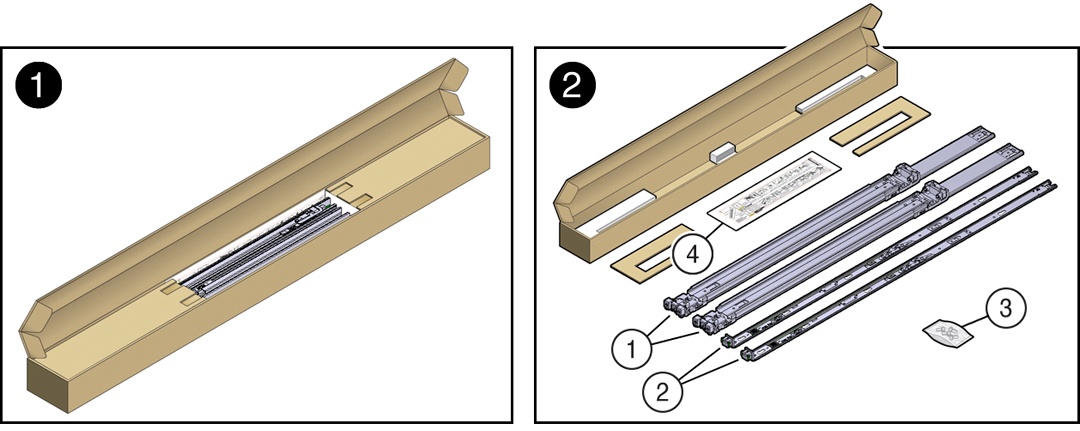
| Call Out | Description |
|---|---|
| 1 | Slide-rails |
| 2 | Mounting brackets |
| 3 | Four M4 x 5 fine-pitch mounting bracket securing screws (optional) |
| 4 | Rackmounting Template |
Stabilize the Rack
Refer to your rack documentation for detailed instructions for the following steps.
-
Open and remove the front and back doors from the rack cabinet, only if they impinge on the mounting bay.
-
To prevent the rack cabinet from tipping during the installation, fully extend the rack cabinet anti-tilt bar, which is located at the bottom front of the rack cabinet.
-
If the rack includes leveling feet beneath the rack cabinet to prevent the rack from rolling, extend these leveling feet fully downward and lock to the floor.
Related Rack Documentation
Install Mounting Brackets on the Server
To install the mounting brackets on the sides of the server:
-
Position a mounting bracket against the chassis so that the slide-rail lock is at the server front, and the five keyhole openings on the mounting bracket are aligned with the five locating pins on the side of the chassis.
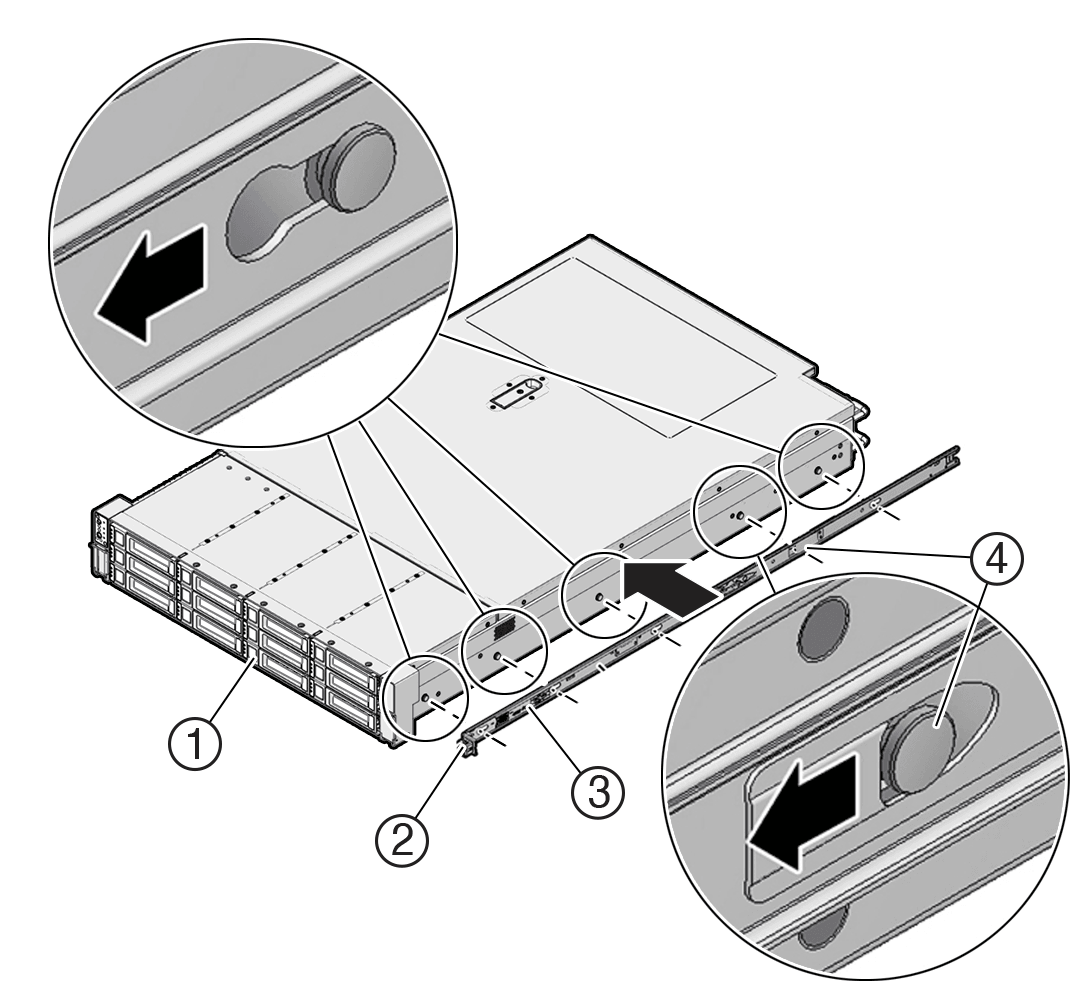
Call Out Description 1 Chassis front 2 Slide-rail lock 3 Mounting bracket 4 Mounting bracket clip -
When the heads of the five chassis locating pins protrude through the five keyhole openings in the mounting bracket, pull the mounting bracket toward the front of the chassis until the mounting bracket clip locks into place with an audible click.
-
Verify that the back locating pin is engaged with the mounting bracket clip.
-
Repeat Step 1 through Step 3 to install the other mounting bracket on the other side of the server.
Mark the Rackmount Location
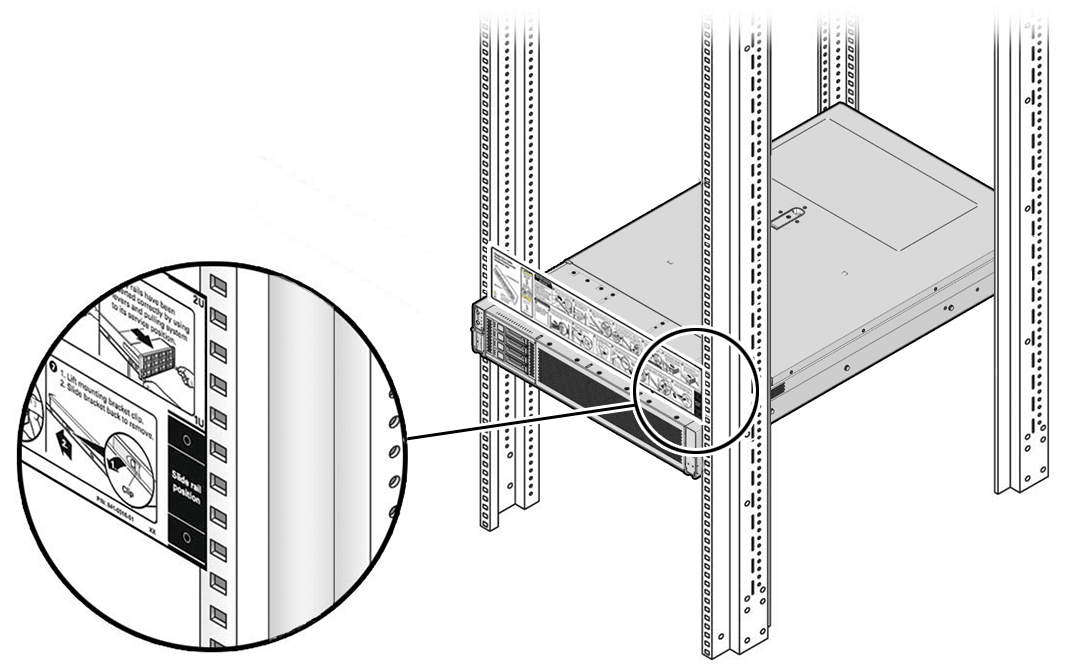
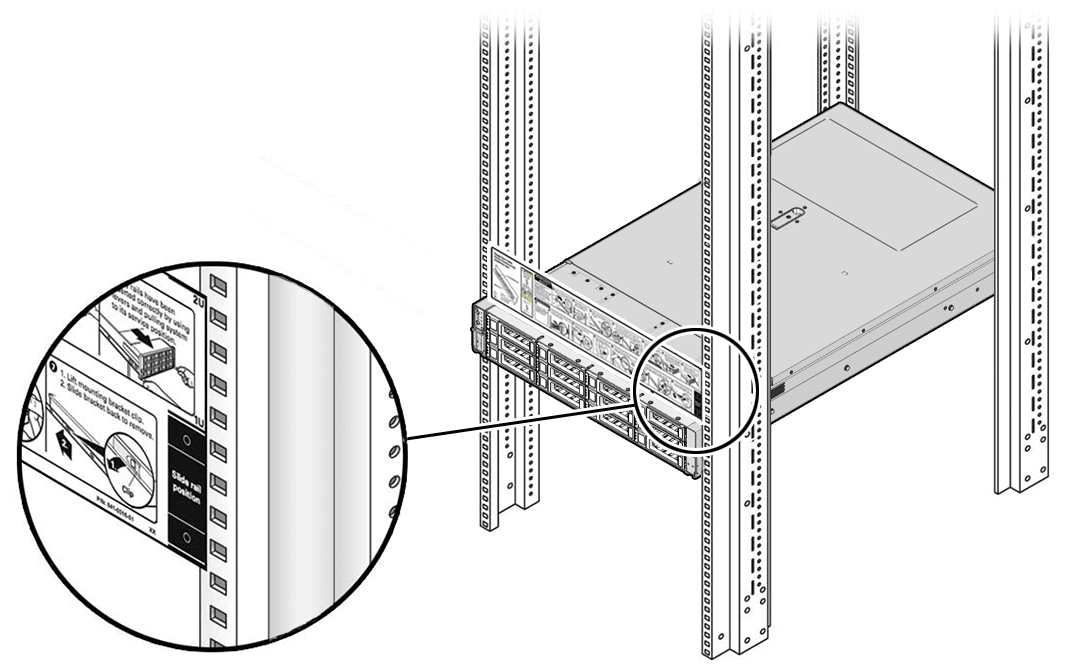
Identify the location in the rack where you want to place the server. Oracle Server E6-2L requires two rack units (2U). Use the Rackmounting Template to identify the correct mounting holes for the slide-rails.
-
Ensure that there is at least two rack units (2U) of vertical space in the rack cabinet to install the server. See Rack Compatibility.
-
Place the Rackmounting Template against the front rails, and measure up from the bottom of the Rackmounting Template. The bottom edge of the Rackmounting Template card corresponds to the bottom edge of the server.
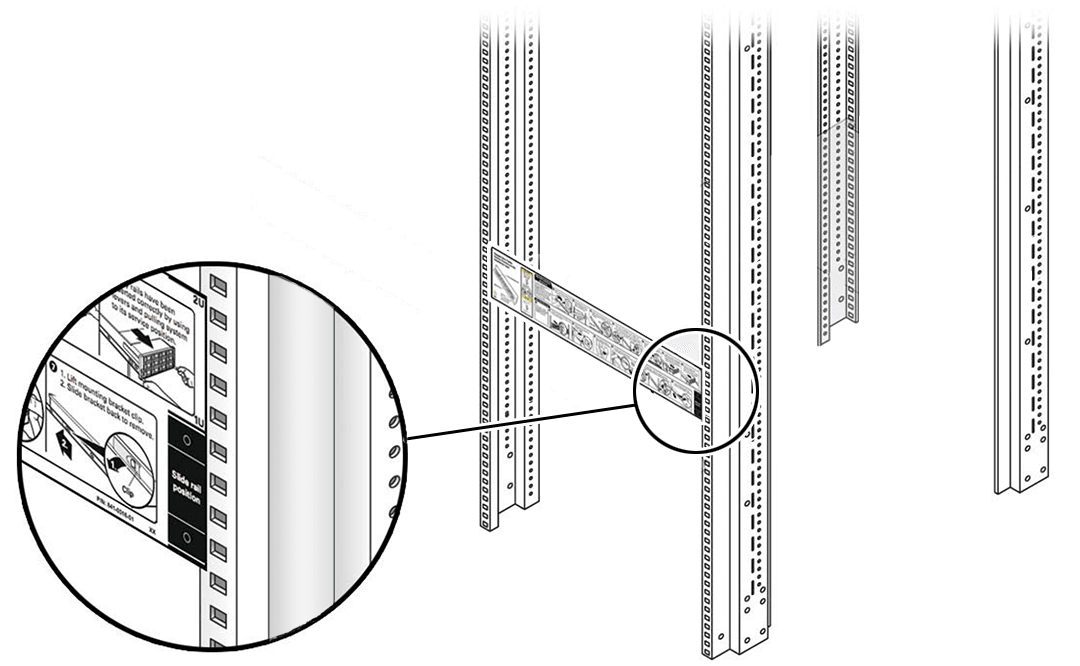
-
Mark the mounting holes for the front slide-rails.
-
Mark the mounting holes for the back slide-rails.
Install AC Power Cables and Slide-Rails
-
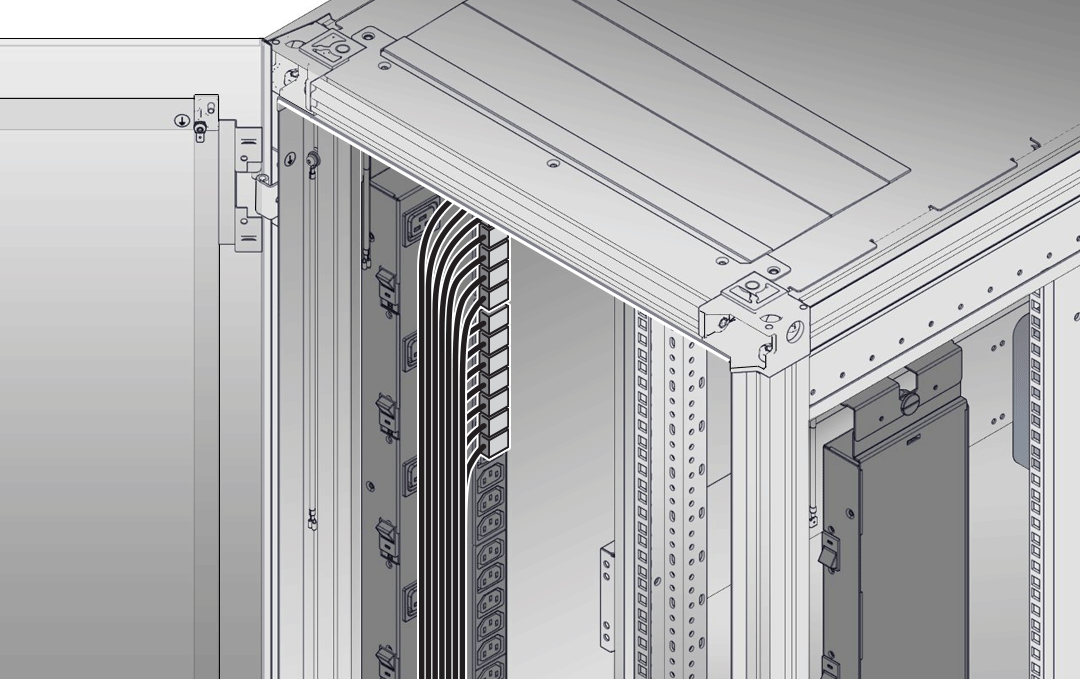
Before you install the slide-rails into the rack, install server right-angle AC power cables into the left-side and right-side PDU electrical sockets. Use part number 7079727 - Pwrcord, Jmpr, Bulk, SR2, 2m, C14RA, 10A, C13, 2-meter, right-angle AC power cable for this procedure.
-
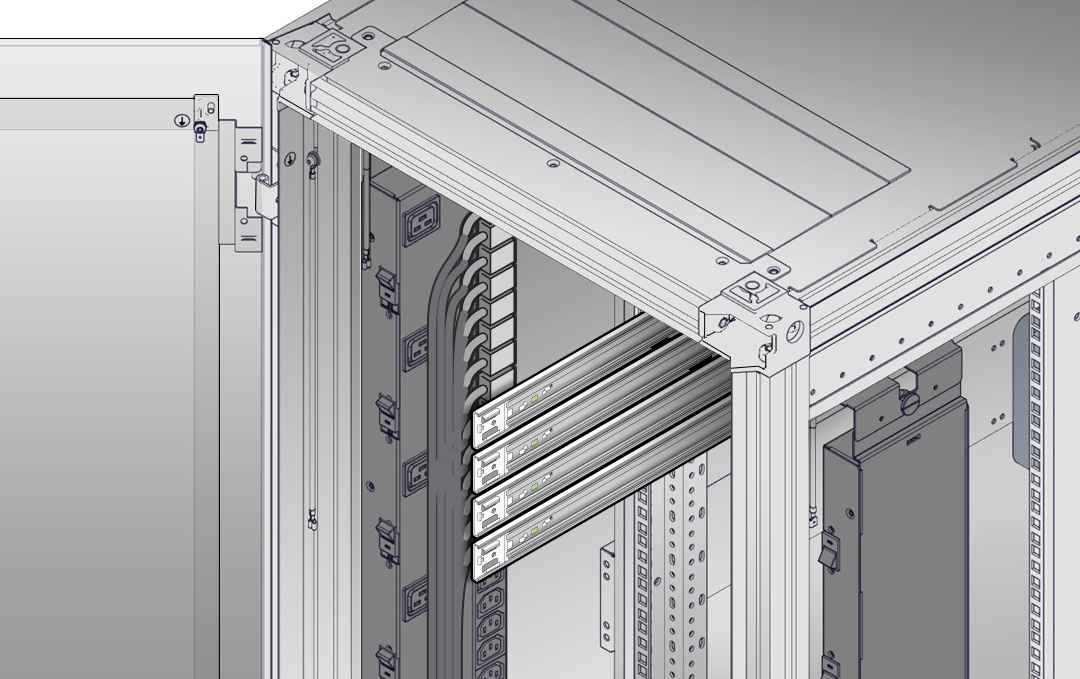
Install the slide-rails into the rack. See Attach the Slide-Rails.
Attach the Slide-Rails
Use this procedure to attach slide-rail assemblies to the rack.
Before you install the slide-rails, be sure to install the server right-angle AC power cables (part number 7079727 - Pwrcord, Jmpr, Bulk, SR2, 2m, C14RA, 10A, C13). In the 1000 mm rack, the standard rail kit slide-rails obstruct access to the front of the 15kVA, 22kVA, and 24kVA Power Distribution Unit (PDU) electrical sockets. If you use the standard AC power cables, first plug them in, and then install the slide-rails into the rack. After you install the slide-rails, you cannot disconnect or remove the standard AC power cables from the PDU but you can remove them from the system.
-
Orient the slide-rail assembly so that the ball-bearing track is forward and locked in place.
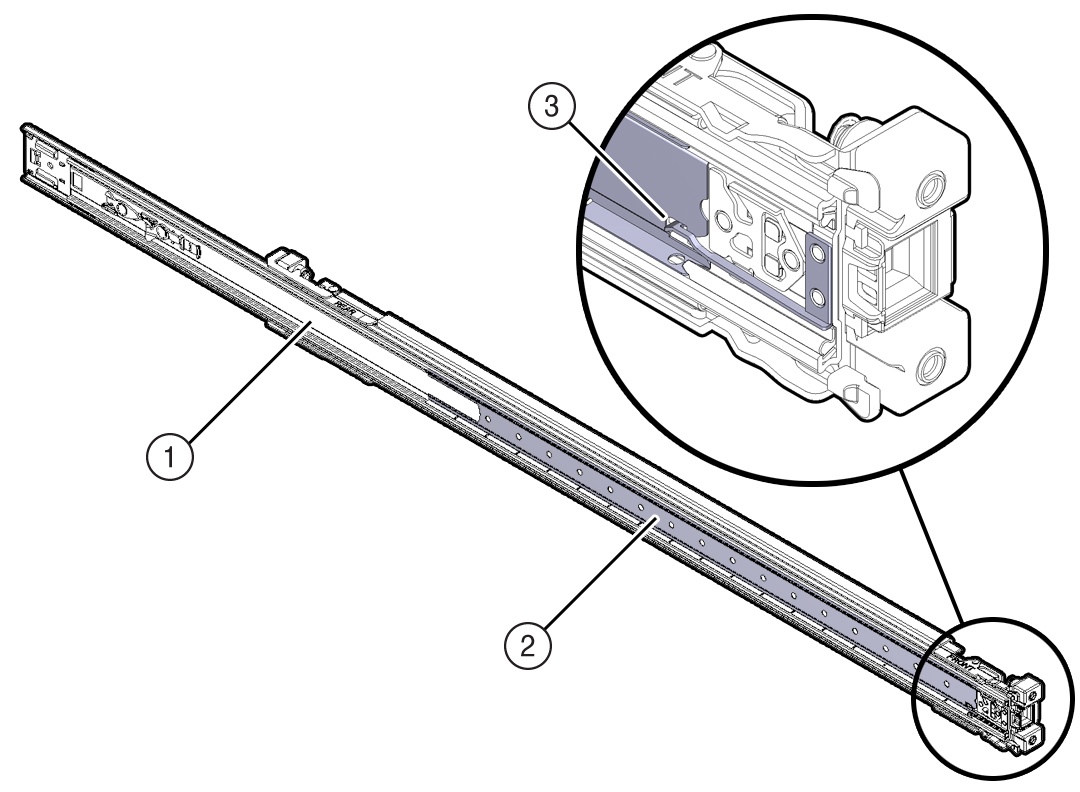
Call Out Description 1 Slide-rail 2 Ball-bearing track 3 Ball-bearing locking mechanism -
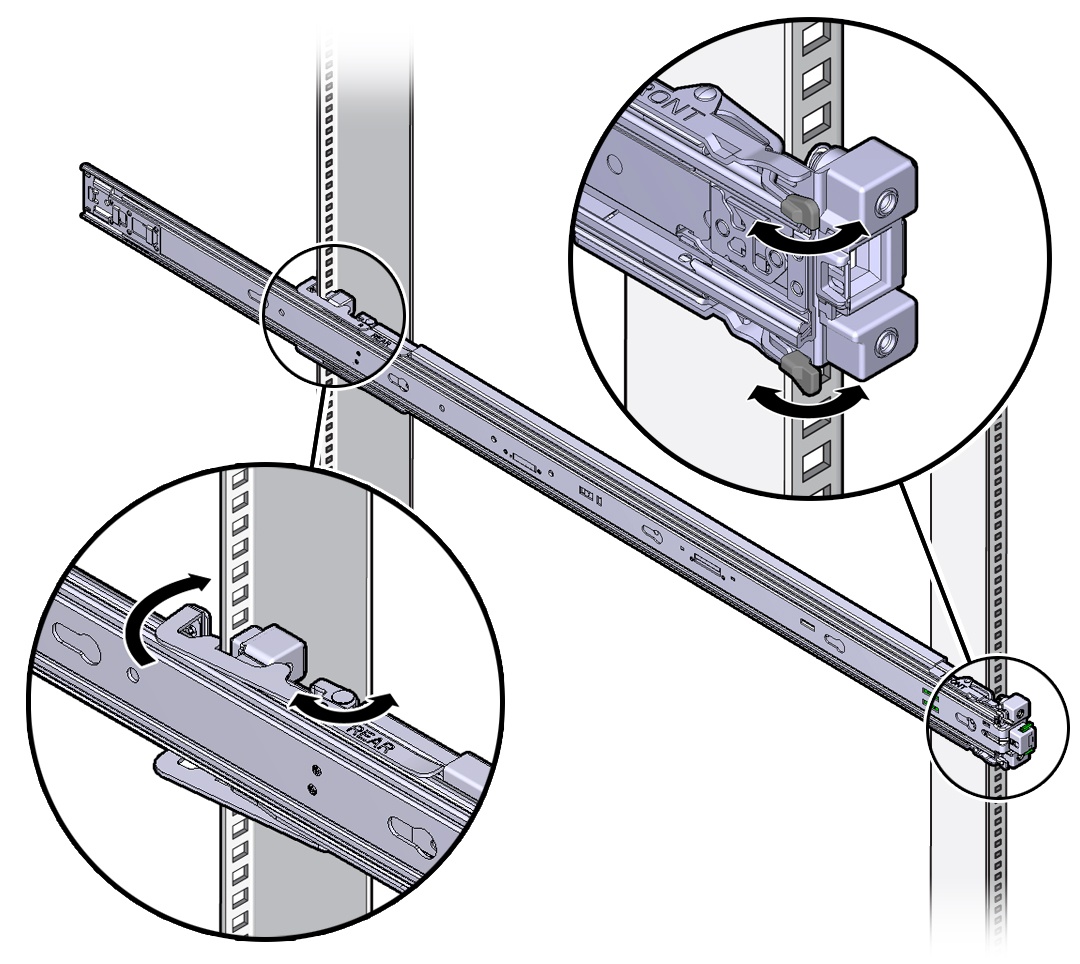
Starting with either the left or right side of the rack, align the back of the slide-rail assembly against the inside of the back rack rail, and push until the assembly locks into place with an audible click.
-
Align the front of the slide-rail assembly against the outside of the front rack rail, and push until the assembly locks into place with an audible click.
-
Repeat Step 1 through Step 3 to attach the slide-rail assembly to the other side of the rack.
Install the Server Into the Slide-Rail Assemblies
Use this procedure to install the server chassis with mounting brackets into the slide-rail assemblies that are mounted to the rack.
Always load equipment into a rack from the bottom up so that the rack does not become top-heavy and tip over. Extend the rack anti-tilt bar to prevent the rack from tipping during equipment installation.
-
Push the slide-rails as far as possible into the slide-rail assemblies in the rack.
-
Position the server so that the back ends of the mounting brackets are aligned with the slide-rail assemblies that are mounted in the rack.
-
Insert the mounting brackets into the slide-rails, and then push the server into the rack until the mounting brackets are flush with the slide-rail stops (approximately 30 cm or 12 inches).
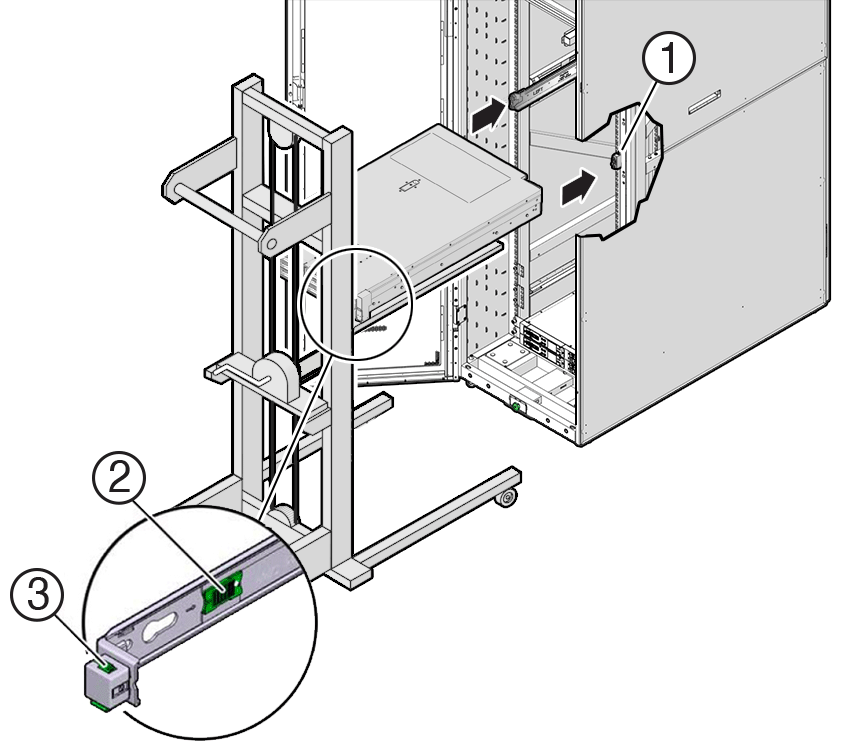
Call Outs Description 1 Inserting mounting bracket into slide-rail 2 Slide-rail release button 3 Slide-rail lock -
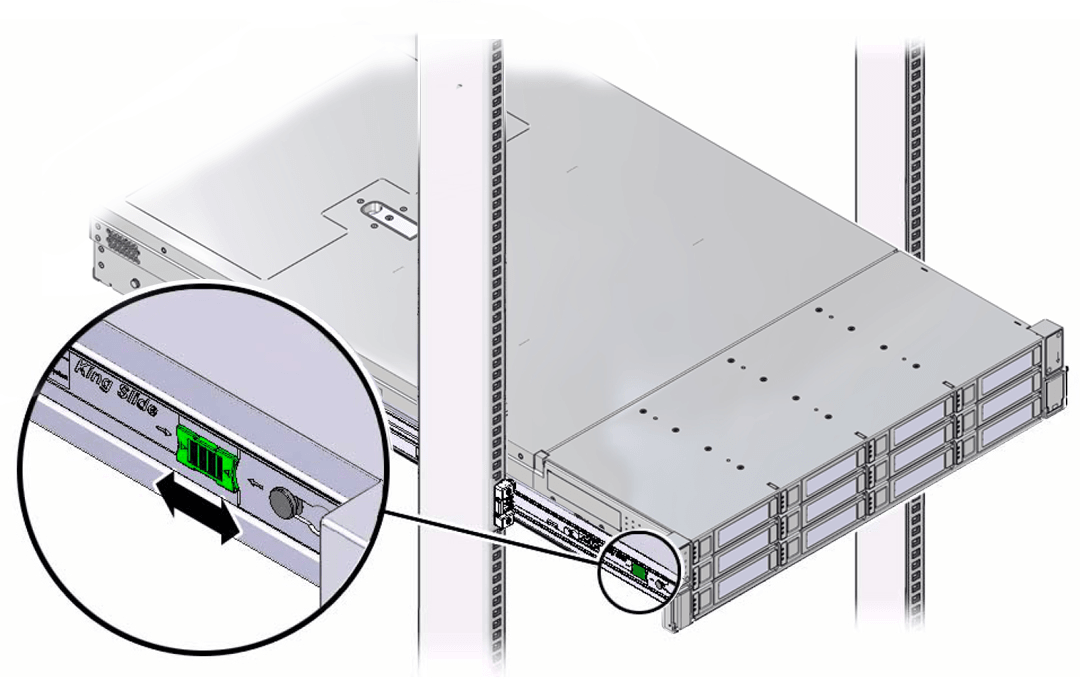
Simultaneously push and hold the green slide-rail release buttons on each mounting bracket while you push the server into the rack. Continue pushing the server into the rack until the slide-rail locks (on the front of the mounting brackets) engage the slide-rail assemblies with an audible click.
Caution:
Before you install the optional cable management arm verify that the server is securely mounted in the rack and that the slide-rail locks are engaged with the mounting brackets.
Install the Cable Management Arm (Optional)
Follow this procedure to install the cable management arm (CMA), which you can use to manage cables connected to the back of the server.
Before you install the CMA, ensure that the right-angle AC power cables are long enough to connect to the rackmounted servers when routed through the CMA.
-
Unpack the CMA, which contains the following components.
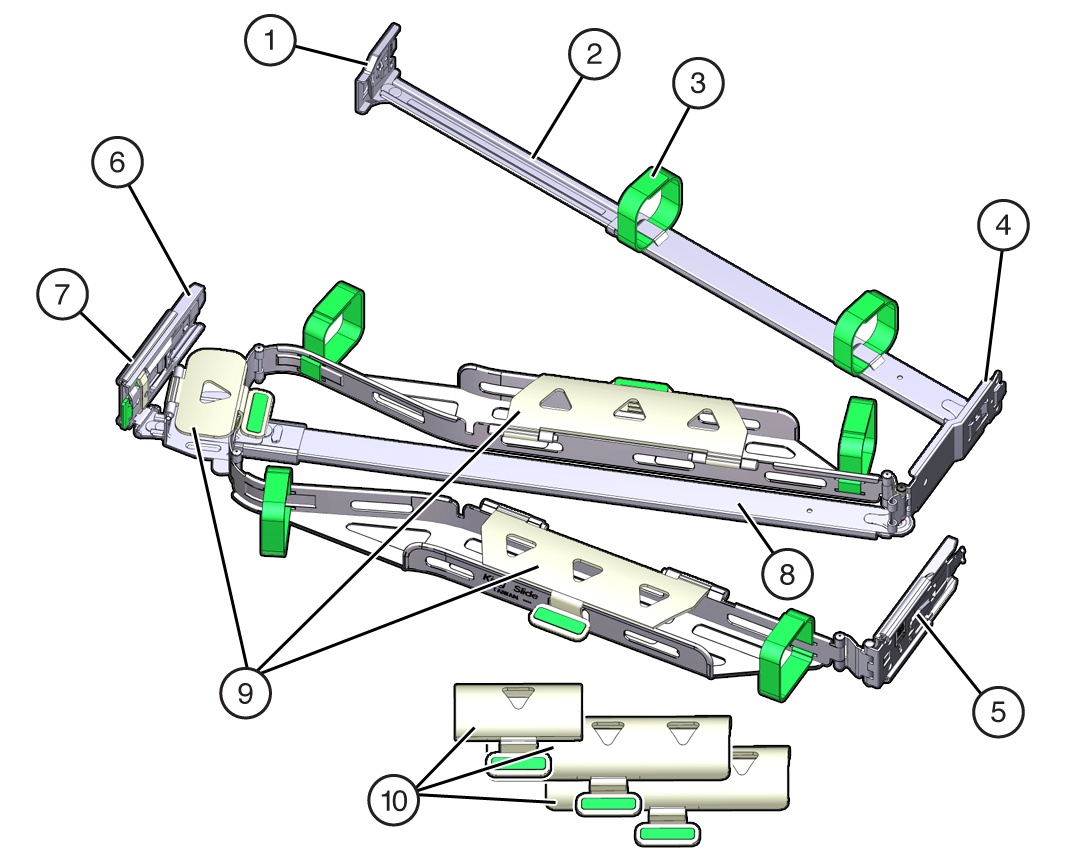
Call Out Description 1 Connector A 2 Front slide bar 3 Velcro straps (6) 4 Connector B 5 Connector C 6 Connector D 7 Slide-rail latching bracket (used with connector D) 8 Back slide bar 9 Server flat cable covers 10 Server round cable covers (optional) -
Prepare the CMA for installation.
-
Ensure that you install the flat cable covers for your server on the CMA.
-
Ensure that the six Velcro straps are threaded into the CMA. Ensure that the two Velcro straps located on the front slide bar are threaded through the opening in the top of the slide bar, as shown in the illustration in Step 1. This prevents the Velcro straps from interfering with the expansion and contraction of the slide bar when the server is extended out of the rack and returned to the rack.
-
To make it easier to install the CMA, extend the server approximately 13 cm (5 inches) out of the front of the rack.
-
Take the CMA to the back of the equipment rack, and ensure that you have adequate room to work at the back of the server. References to "left" or "right" in this procedure assume that you are facing the back of the equipment rack. Throughout this installation procedure, support the CMA and do not allow it to hang under its own weight until it is secured at all four attachment points
-
To install CMA connector A into the left slide-rail:
-
Insert CMA connector A into the front slot on the left slide-rail until it locks into place with an audible click [1 and 2]. The connector A tab (callout 1) goes into the slide-rail front slot (callout 2).
-
Gently tug on the left side of the front slide bar to verify that connector A is properly seated.
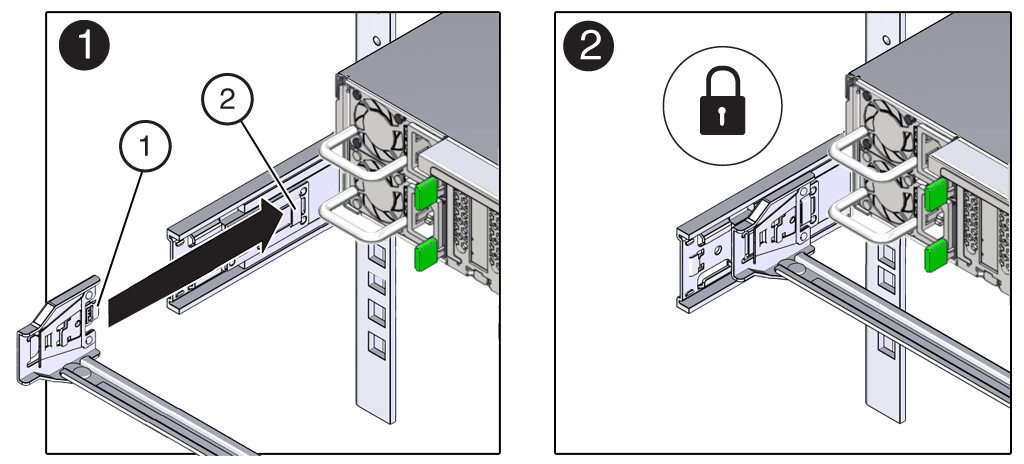
Call Out Description 1 Connector A tab 2 Left slide-rail front slot -
To install CMA connector B into the right slide-rail:
-
Insert CMA connector B into the front slot on the right slide-rail until it locks into place with an audible click [1 and 2]. The connector B tab (callout 1) goes into the slide-rail front slot (callout 2).
-
Gently tug on the right side of the front slide bar to verify that connector B is properly seated.
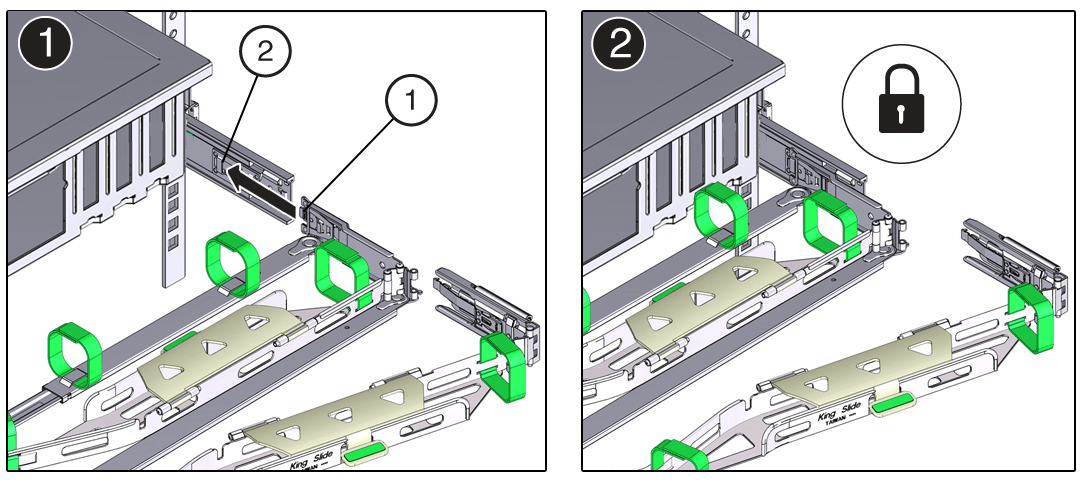
Call Out Description 1 Connector B tab 2 Right slide-rail front slot -
To install CMA connector C into the right slide-rail:
-
Align connector C with the slide-rail so that the locking spring (callout 1) is positioned inside (server side) of the right slide-rail [1].
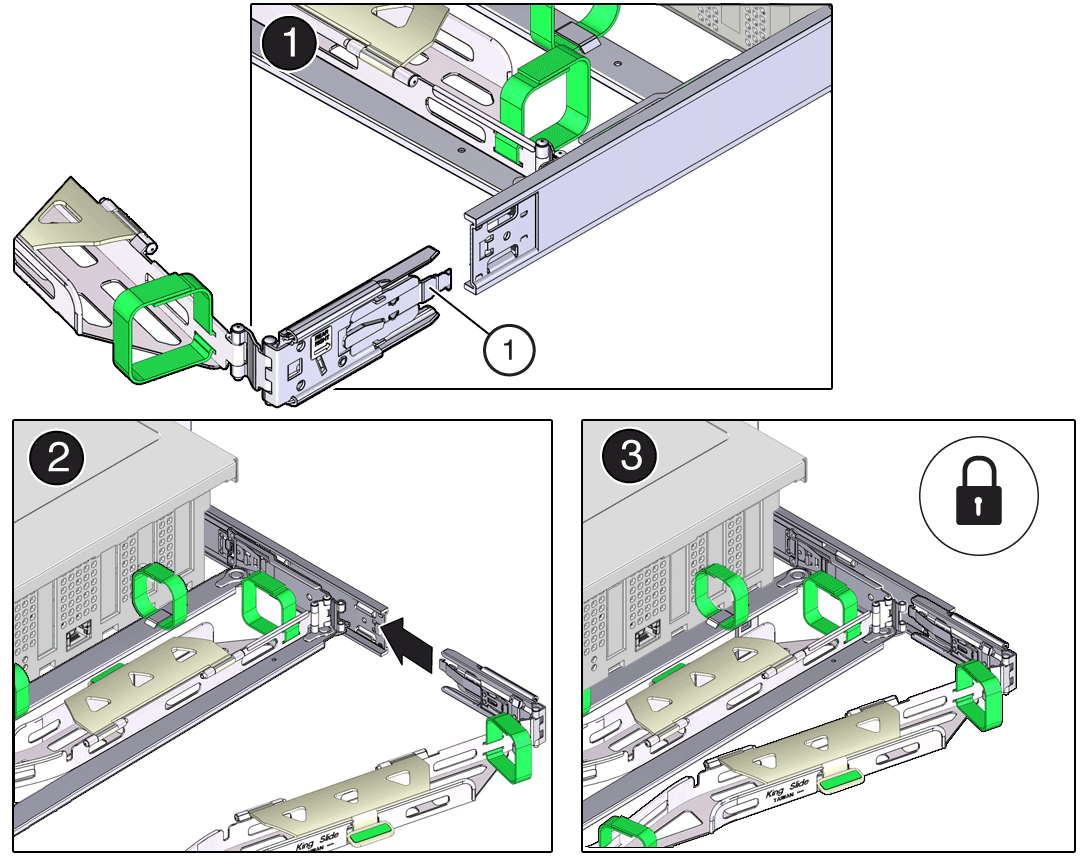
Call Out Description 1 Connector C locking spring -
Insert connector C into the right slide-rail until it locks into place with an audible click [2 and 3].
-
Gently tug on the right side of the CMA back slide bar to verify that connector C is properly seated.
-
To prepare CMA connector D for installation, remove the tape that secures the slide-rail latching bracket to connector D, and ensure that the latching bracket is properly aligned with connector D [1 and 2]. The CMA is shipped with the slide-rail latching bracket taped to connector D. You must remove the tape before you install this connector.
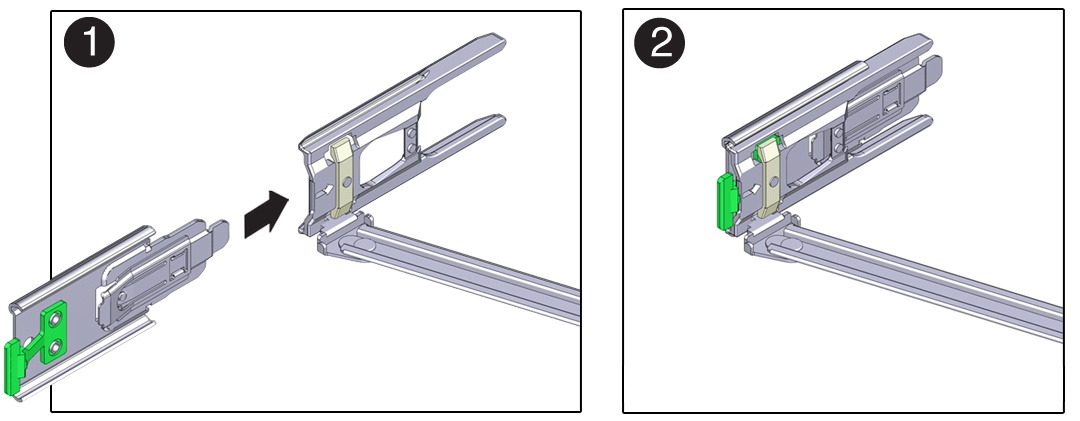
-
To install CMA connector D into the left slide-rail:
-
While holding the slide-rail latching bracket in place, insert connector D and its associated slide-rail latching bracket into the left slide-rail until connector D locks into place with an audible click [1 and 2]. When inserting connector D into the slide-rail, the preferred and easier method is to install connector D and the latching bracket as one assembly into the slide-rail.
-
Gently tug on the left side of the CMA back slide bar to verify that connector D is properly seated. The slide-rail latching bracket has a green release tab. Use the tab to release and remove the latching bracket so that you can remove connector D.
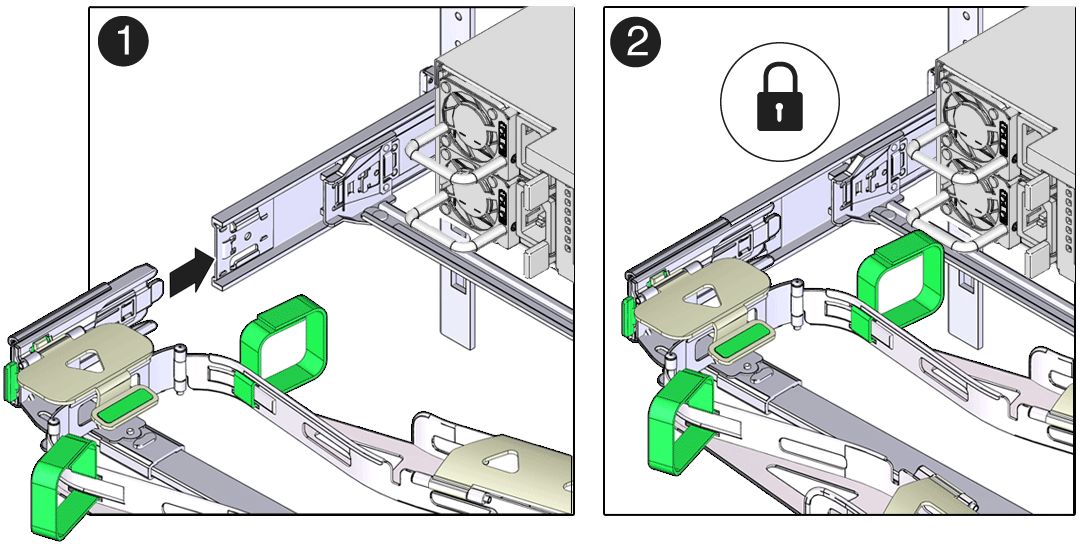
-
Gently tug on the four CMA connection points to ensure that the CMA connectors are fully seated before you allow the CMA to hang by its own weight.
-
To verify that the slide-rails and the CMA are operating properly before routing cables through the CMA:
-
Ensure that the rack anti-tilt bar is extended to prevent the rack from tipping forward when the server is extended. For instructions to stabilize the rack, see Stabilize the Rack.
-
Slowly pull the server out of the rack until the slide-rails rach their stops.
-
Inspect the attached cables for any binding or kinks.
-
Verify that the CMA extends fully with the slide-rails.
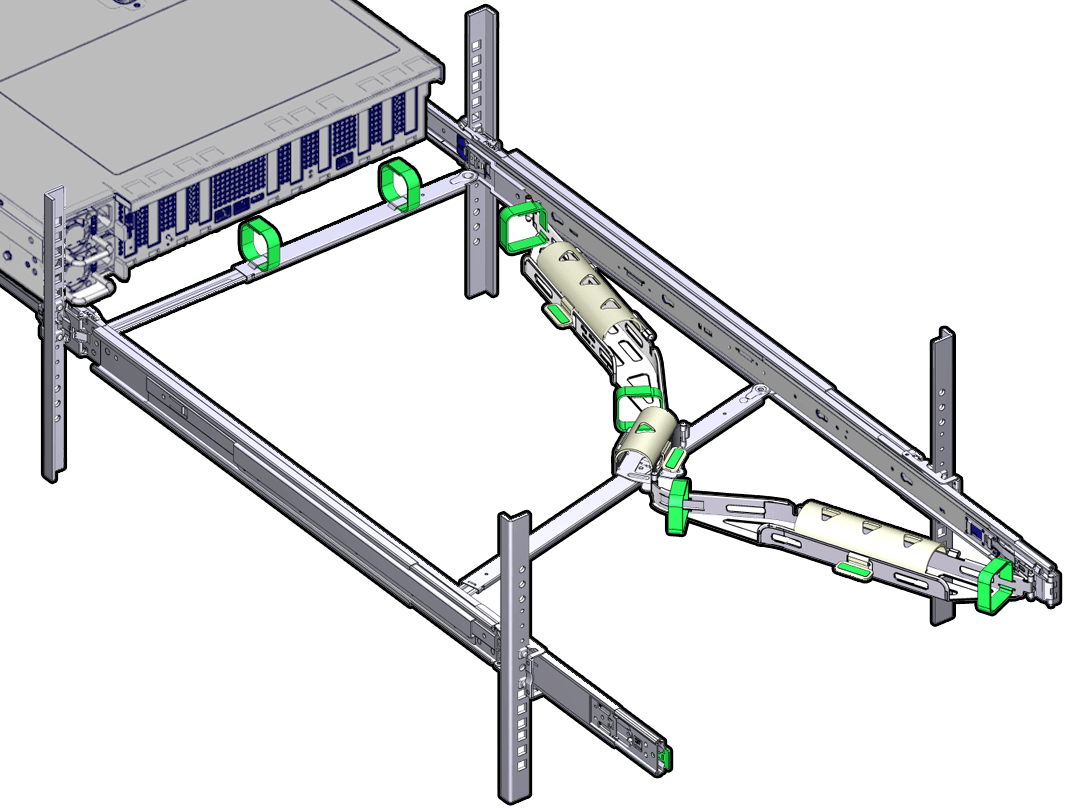
-
To return the server to the rack:
-
Simultaneously pull and hold the two green release tabs (one on each side of the server) toward the front of the server while you push the server into the rack. As you push the server into the rack, verify that the CMA retracts without binding.
-
To pull the green release tabs, place your finger in the center of each tab, not on the end, and apply pressure as you pull the tab toward the front of the server.
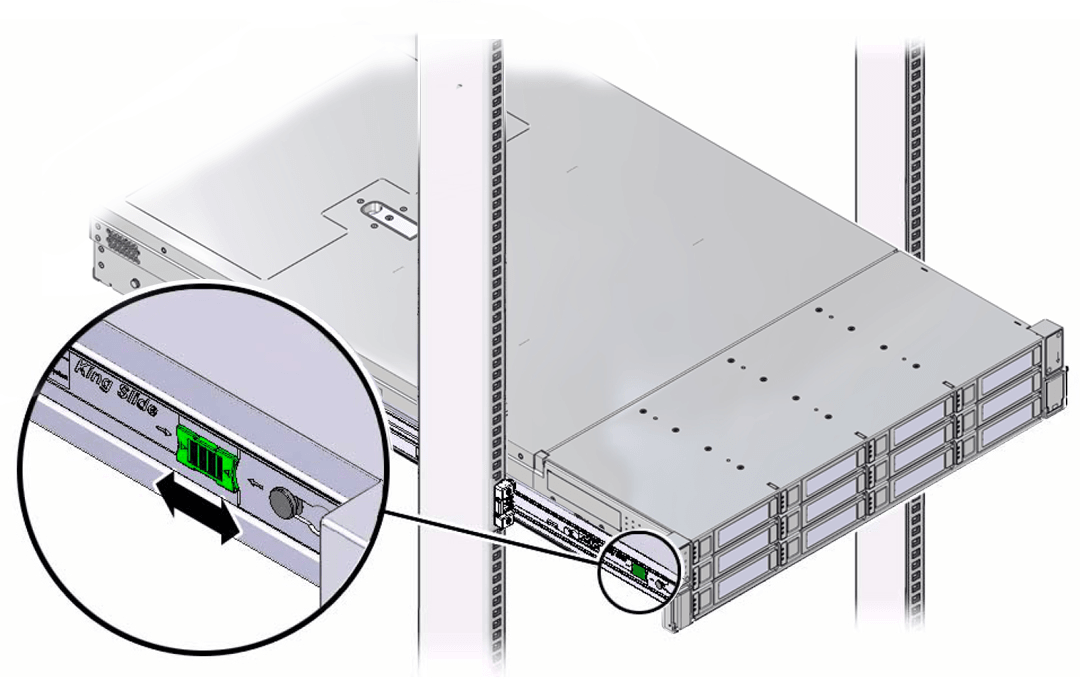
-
Continue pushing the server into the rack until the slide-rail locks (on the front of the server) engage the slide-rail assemblies. You hear a click when the server is in the normal rack position.
-
Connect cables to the server, as required. See Reconnect Power and Data Cables.
-
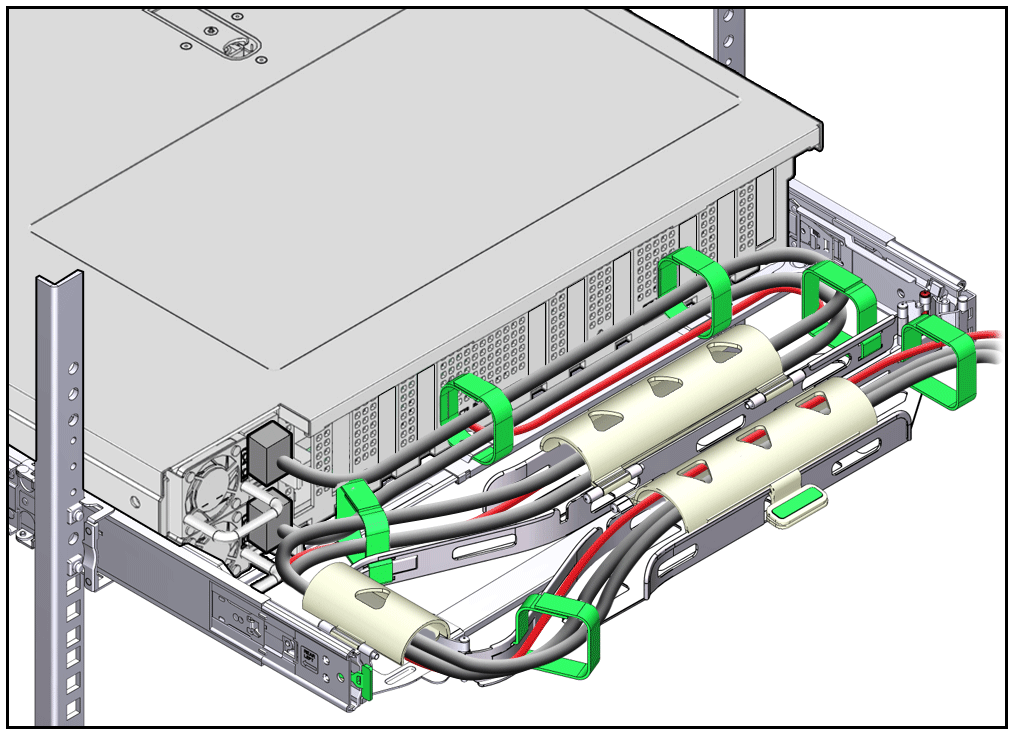
Open the CMA cable covers, route the server cables through the CMA cable troughs (in the order specified in the following steps), close the cable covers, and secure the cables with the six Velcro straps.
-
First through the front-most cable trough.
-
Then through the small cable trough.
-
Then through the back-most cable trough.
-
Ensure that the secured cables do not extend above the top or below the bottom of the server to which they are attached. Otherwise, the cables might snag on other equipment installed in the rack when the server is extended from the rack or returned to the rack.
-
If necessary, bundle the cables with additional Velcro straps to ensure that they stay clear of other equipment. If you need to install additional Velcro straps, wrap the straps around the cables only, not around any of the CMA components. Otherwise, expansion and contraction of the CMA slide bars might be hindered when the server is extended from the rack and returned to the rack.
Remove the Cable Management Arm
Follow this procedure to remove the cable management arm (CMA).
Before you begin this procedure, refer to the illustration provided in Step 1 in the procedure Install the Cable Management Arm to identify CMA connectors A, B, C, and D. Disconnect the CMA connectors in the reverse order in which you installed them, that is, disconnect connector D first, followed by C, B, and A.
Throughout this procedure, after you disconnect any of the CMA four connectors, do not allow the CMA to hang under its own weight.
References to “left” or “right” in this procedure assume that you are facing the back of the equipment rack.
-
To prevent the rack from tipping forward when the server is extended, ensure that the rack anti-tilt bar is extended. For instructions to stabilize the rack, see Stabilize the Rack.
-
To make it easier to remove the CMA, extend the server approximately 13 cm (5 inches) out of the front of the rack.
-
To remove the cables from the CMA:
-
Disconnect all cables from the back of the server.
-
If applicable, remove any additional Velcro straps that were installed to bundle the cables.
-
Unwrap the six Velcro straps that are securing the cables.
-
Open the three cable covers to the fully opened position.
-
Remove the cables from the CMA and set them aside.
-
To disconnect connector D:
-
Press the green release tab (callout 1) on the slide-rail latching bracket toward the left and slide the connector D out of the left slide-rail [1 and 2]. When you slide connector D out of the left slide-rail, the slide-rail latching bracket portion of the connector remains in place. You disconnect connector D in the next step. After you disconnect connector D, do not allow the CMA to hang under its own weight. Throughout the remainder of this procedure, the CMA must be supported until all the remaining connectors are disconnected and the CMA can be placed on a flat surface.
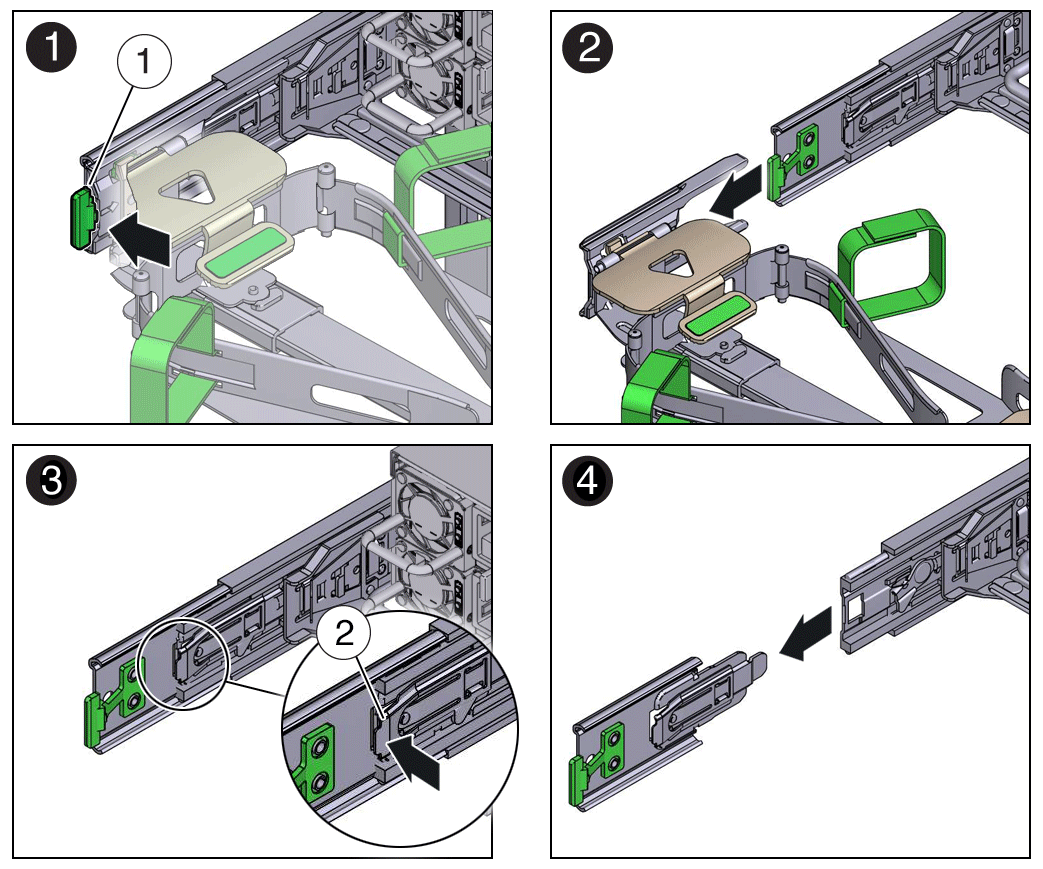
Call Out Description 1 Connector D release tab (green) 2 Slide-rail latching bracket release tab (labeled PUSH) -
Use your right hand to support the CMA and use your left thumb to push in (toward the left) on the slide-rail latching bracket release tab labeled PUSH (callout 2), and pull the latching bracket out of the left slide-rail and put it aside [3 and 4].
-
To disconnect connector C:
-
Place your left arm under the CMA to support it.
-
Use your right thumb to push in (toward the right) on the connector C release tab labeled PUSH (callout 1), and pull connector C out of the right slide-rail [1 and 2].
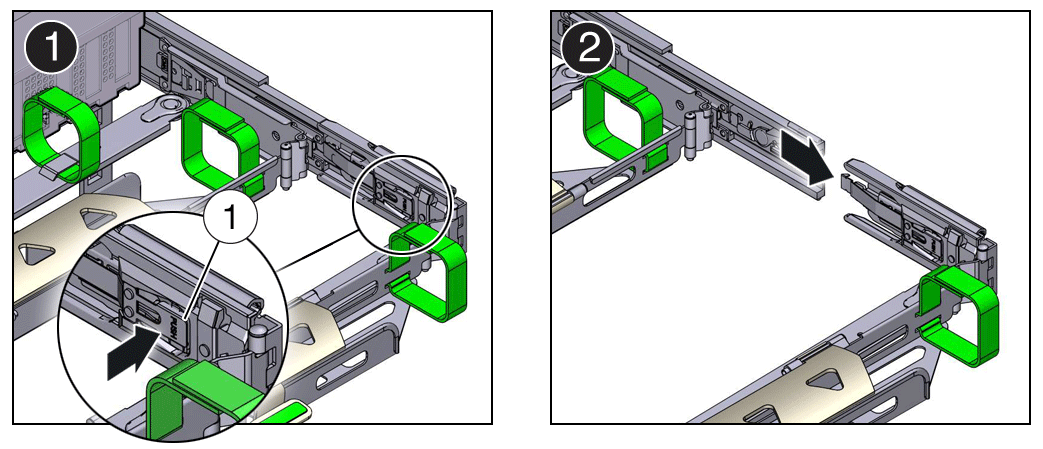
Call Out Description 1 Connector C release tab (labeled PUSH) -
To disconnect connector B:
-
Place your right arm under the CMA to support it and grasp the back end of connector B with your right hand.
-
Use your left thumb to pull the connector B release lever to the left, away from the right slide-rail (callout 1), and use your right hand to pull the connector out of the slide-rail [1 and 2].
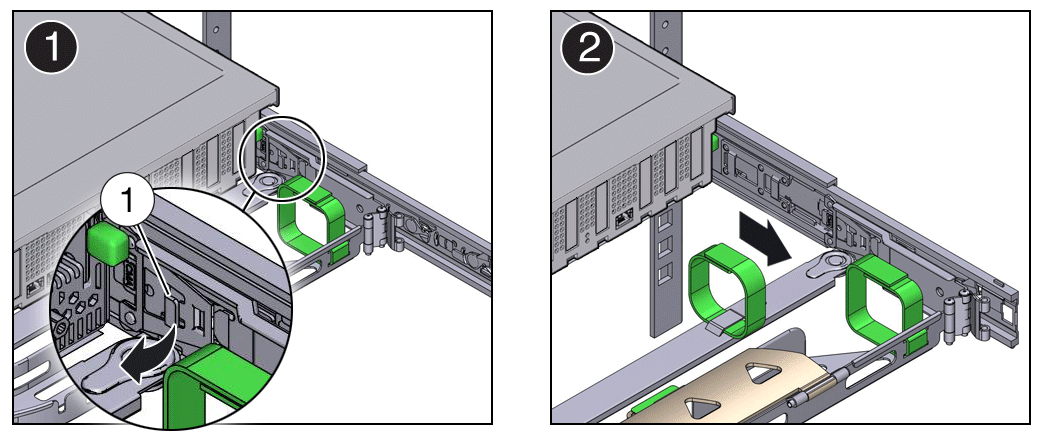
Call Out Description 1 Connector B release lever -
To disconnect connector A:
-
Place your left arm under the CMA to support it and grasp the back end of connector A with your left hand.
-
Use your right thumb to pull the connector A release lever to the right, away from the left slide-rail (callout 1), and use your left hand to pull the connector out of the slide-rail [1 and 2].
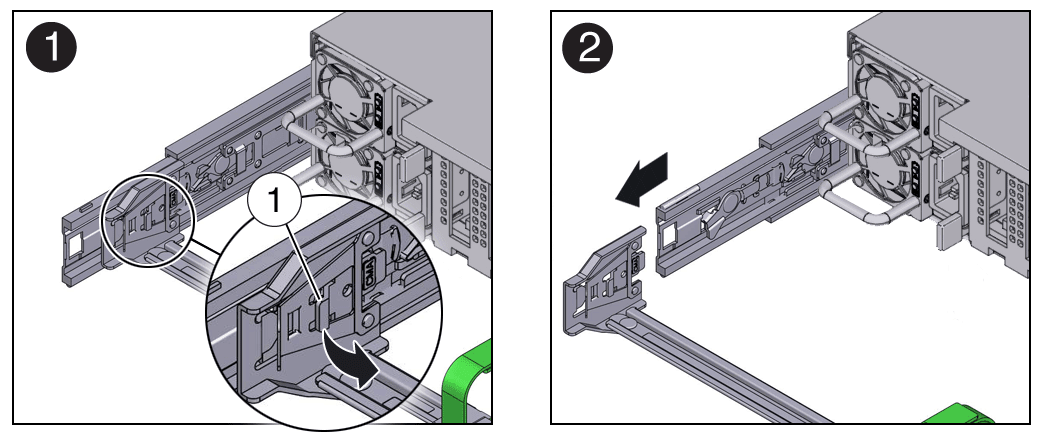
Call Out Description 1 Connector A release lever -
Remove the CMA from the rack and place it on a flat surface.
-
Go to the front of the server and push it back into the rack.
Operating System Installation Process
Each operating system has specific steps to follow to complete the installation. Refer to the OS documentation. The general process for all operating system installations is as follows.
-
Review the server Known Issues.
-
Confirm the server supported operating system version.
-
Install the server hardware.
-
Connect to the system.
-
Select the installation method.
-
Select the installation target.
-
Install the operating system.
-
Configure the operating system.
Configure NVMe RAID Using BRU
BRU on Oracle AMD Platforms
On Oracle Communications Server E6-2L, BRU is employed in "Native" mode, which is based on Linux RAID metadata version 1.2. Oracle AMD platforms do not support IMSM (Intel© Matrix Storage Manager) containers and metadata, which are Intel VROC features.
Enable/Disable BRU
By default, BRU is disabled in UEFI. There is no BRU enable/disable switch in the UEFI menus. BRU is enabled by modifying the UEFI configuration in Oracle ILOM 'expert mode'. You must stop the system to perform this procedure.
BRU (Boot RAID on UEFI) enables Oracle Communications Server E6-2L to boot from NVMe RAID1 devices. BRU replaces the boot device discovery functionality provided by Intel© VROC (Virtual RAID on CPU). Note that BRU is not a feature-for-feature replacement of VROC. BRU does not provide RAID device configuration and management capability. The RAID1 boot devices used by BRU are created with Linux mdadm utility. The underlying RAID functionality is managed with Linux mdadm utility and md driver.
The Configure NVMe RAID1 Boot Devices procedure configures a RAID1 volume so that you can install Oracle Linux. Boot RAID on UEFI (BRU), implements a UEFI driver that identifies a bootable NVMe M.2 RAID1 volume in the UEFI environment. On Oracle Communications Server E6-2L, BRU uses native Linux RAID1 metadata (version 1.2) and is fully compatible with mdadm utilities in Linux.
Please note that Windows© and VMware© do not support booting from BRU devices. This procedure applies only to Oracle Communications Server E6-2L with Oracle Linux and installed NVMe M.2 SSD boot devices.
Microsoft Windows, VMware ESXi, and Oracle Solaris do not support BRU on Oracle Server E6-2L.
- Access the host console locally or through Oracle ILOM. For instructions, see Access Oracle ILOM.
- Create a RAID1 with Oracle Linux
mdadm. Assuming the system has two NVMe M.2 drives containing namespace of the same size (for information about creating NVMe namespaces, see "man -s 1 nvme").-
Type:
# nvme
              list
Node SN Model Namespace Usage Format FW Rev ------------ -------------- -------------------------- --------- ----------------- ------- -------- /dev/nvme0n1 S435NF0KA01142 SAMSUNG MZ1LB960HAJQ-00007 1 960.20GB/960.20GB 512B+0B EDA7202Q /dev/nvme0n1 S435NF0KA01137 SAMSUNG MZ1LB960HAJQ-00007 1 960.20GB/960.20GB 512B+0B EDA7202Q # - Create a RAID1 from the namespaces, specifying metadata version 1.2
# mdadm --create /dev/md0 --level=1 --raid-devices 2 /dev/nvme0n1 /dev/nvme1n1 --metadata=1.2 - Shutdown the Oracle Linux OS. Use the recommended Oracle Linux OS shutdown
command.
# /etc/shutdown - Stop the system. -> stop /SYS Are you sure you want to stop /SYS (y/n)? y Stopping /SYS ->
- Enable BRU. See "Enabling BRU" steps.
-
- Enable expert_mode in the SP Shell:
-> set /System/BIOS/Config
            expert_mode=enabled
Set 'expert_mode' to 'enabled'-> - Dump uefi configuration file to remote system:
-> dump
            -destination scp://username@remote_host.us.foo.com/var/tmp/ueficfg.xml /System/BIOS/Config
Enter remote user password: ********Dump successful.-> - On the remote host, use a text editor to modify
ueficfg.xml; find the 'Block RAID in UEFI' heading, change the Block_RAID_in_UEFI value from 'Disable' to 'Enable'.-
Change this <Block_RAID_in_UEFI> <Block_RAID_in_UEFI>Disable</Block_RAID_in_UEFI> </Block_RAID_in_UEFI> To this: <Block_RAID_in_UEFI> <Block_RAID_in_UEFI>Enable</Block_RAID_in_UEFI> </Block_RAID_in_UEFI>
-
Save the file.
-
- From the SP. reload the modified UEFI configuration file:
-> load
            -source
scp://username@remote_host.us.foo.com/var/tmp/ueficfg.xml /System/BIOS/ConfigEnter remote user password: ********Load successful.-> - Disable ILOM expert mode.
-> set /System/BIOS/Config
            expert_mode=disabled
Set 'expert_mode' to 'disabled'-> - Restart the system -> start /SYS Are you sure you want to start /SYS (y/n)? y Starting /SYS -> The power-on self-test (POST) sequence begins.
- This completes the RAID configuration. You can now install an operating system on the volume that you created.
nvme list
Site Planning Checklists
This topic provides checklists for site preparation.
Review the server site requirements, specifications, and components. Complete the following checklists to ensure that your site meets the physical, electrical, and environmental requirements of Oracle Communications Server E6-2L before you receive the server.
Review the following facility requirements before you install the server.
Table D-1 Data Center Room Considerations
| Data Center Room Considerations | Yes | No | N/A | Comment |
|---|---|---|---|---|
| Has the access route been checked for clearances of the packaged equipment? | ||||
| Do all the doors and entryways conform to the width and height requirements for transportation, including the width of the unpacked unit? | ||||
| Are there any ramps, stairs, or thresholds that are in the moving path for the new hardware? | ||||
| Have you confirmed that the access route is free of any obstacles that would expose the device to shock? | ||||
| If there are stairs, then is a loading elevator accessible for moving the equipment? | ||||
| Has the rack location been allocated? | ||||
| Is there a vacant space in the rack for the new server? | ||||
| Does the floor layout meet the equipment maintenance access requirements? | ||||
| Have cabinet stabilization measures been implemented? | ||||
| Will the hardware location require any non-standard cable lengths? | ||||
| Is the floor to ceiling height a minimum of 2914 mm or 2.9 m (9.6 feet)? |
Complete the following checklist to ensure that the data center environment requirements are met for the server.
Table D-2 Data Center Environment Checklist
| Data Center Environmental Considerations | Yes | No | N/A | Comment |
|---|---|---|---|---|
| Does the computer room air handling meet temperature and humidity requirements? | ||||
| Does the installation floor layout satisfy the ventilation requirements? | ||||
| Will the equipment be positioned so that the exhaust air of one rack does not enter the air intake of another rack? | ||||
| Are the perforated floor tiles each rated at 400 CFM or greater? | ||||
| Do the data center air conditioners provide sufficient front to back airflow? | ||||
| Is airflow adequate to prevent hot spots? | ||||
| Can the data center continuously satisfy environmental requirements? | ||||
| Can more vented floor tiles be obtained if required? |
Complete the following checklist to ensure that the facility power requirements are met for the data center where the server is installed.
Table D-3 Facility Power Checklist
| Facility Power Considerations | Yes | No | N/A | Comment |
|---|---|---|---|---|
| Do you know the required operating voltage and electric current level of the server and peripherals? | ||||
| Are enough power outlets provided within 2 meters (6.5 feet) for each rack? | ||||
| Do the power outlets have appropriate socket receptacles? | ||||
| Will optional ground cables be attached to the rack? | ||||
| Are the circuit breakers for the equipment suitable for voltage and current-carrying capacities? | ||||
| Does the power frequency meet the equipment specifications? | ||||
| Will system power be delivered from two separate power grids? | ||||
| Is there a UPS to power the equipment? | ||||
| Do you have the minimum required power sources to support the power load for the new hardware? Use kilowatt (kW)/kilovolt (kVA) to express power load. |
Complete the following checklist before you install the server into a rack.
Table D-4 Rackmount Checklist
| Rackmount Considerations | Yes | No | N/A | Comment |
|---|---|---|---|---|
| Is the distance between the front and back mounting planes between a minimum of 610 mm and a maximum 915 mm (24 inches to 36 inches)? | ||||
| Is the minimum clearance for service:Front of server:123.2 cm (48.5 inches)Back of server:91.4 cm (36 inches) | ||||
| Is the rack a four-post rack (mounting at both front and back)?Two-post racks are not compatible. | ||||
| Do the horizontal opening and unit vertical pitch of the rack conform to ANSI/EIA 310-D-1992 or IEC 60297 standards? | ||||
| Does the rack have RETMA rail support? | ||||
| Does the rack support Oracle cable management arms (CMAs)? | ||||
| Does the rack support installation of Oracle vented and solid filler panels? | ||||
| Is there sufficient space for cable harnesses and the power distribution units (PDUs) in the rack, if required? | ||||
| Can a label with the server serial number be printed and attached to the target rack? | ||||
| Did you label the network cables that will connect to the server? | ||||
| Does the rack support installation of standard Oracle PDUs?If not, then complete this checklist. | ||||
| Can the customer provide an equivalent pair of PDUs? | ||||
| Can the customer provide two PDUs with capacity of 110kVA per PDU? | ||||
| Can the customer provide a single PDU and its circuits to support the power requirements in case a PDU fails? | ||||
| Can the customer ensure that power loads are evenly distributed across all circuits of a single PDU? |
Complete the following checklist to ensure that the safety requirements are met for the data center where the server will be installed.
Table D-5 Safety Checklist Considerations
| Safety Checklist Considerations | Yes | No | N/A | Comment |
|---|---|---|---|---|
| Is there a fire protection system in the data center room? | ||||
| Is the computer room adequately equipped to extinguish a fire? | ||||
| Is antistatic flooring installed? | ||||
| Is the floor below the raised floor free of obstacles and blockage? |
Complete the following checklist if you are planning to use Oracle Auto Service Request with the server.
Table D-6 Auto Service Request Considerations
| Auto Service Request Considerations | Yes | No | N/A | Comment |
|---|---|---|---|---|
| Do you have a My Oracle Support Online Account to register Auto Service Request? | ||||
| Do you have your My Oracle Support Customer Support Identifier (CSI) number? | ||||
| Do you have the host name and IP address for the server that will have Auto Service Request Manager? | ||||
| Will the system need a proxy server? If so, what is the host name and IP address for the proxy server? | ||||
| Do you have the Technical Contact information for Auto Service Request? This information must include the first name, last name, and e-mail address of the contact. |
Complete the following checklist to ensure that the logistics requirements are met for the data center where the server will be installed.
Table D-7 Logistics Checklist Considerations
| Logistics Checklist Considerations | Yes | No | N/A | Comment |
|---|---|---|---|---|
| Do you have contact information for the data center personnel? | ||||
| Is there security or access control for the data center? | ||||
| Are there any security background checks or security clearances required for vendor personnel to access the data center? If yes, then do you have a recommended agency? | ||||
| Are there any additional security access issues? | ||||
| Is computer room access available for installation personnel? | ||||
| Are laptops, cell phones, and cameras allowed in the data center? | ||||
| Does the building have a delivery dock? | ||||
| Is there a delivery/unpacking/staging area, and is it protected from environmental elements? | ||||
| Is the unpacking area air-conditioned to avoid thermal shock for various hardware components? | ||||
| Will sufficient moving personnel be available to install the hardware? | ||||
| Are you prepared for uncrating and trash removal? | ||||
| Are there any restrictions on delivery truck length, width, or height? | ||||
| Are cardboard boxes and other packing material allowed in the computer room? | ||||
| Is there a time constraint on dock access? If yes, then provide time constraints. | ||||
| Is a tail lift required of the delivery carrier to unload the equipment at the delivery dock? | ||||
| Will any of the following items be required to place equipment in the computer room?Stair walkersLiftersRampsSteel platesFloor covers | ||||
| Does the delivery carrier require any special equipment, such as non-floor damaging rollers, transport dollies, pallet jacks, or fork lifts? |
Server Components
These sections describe Oracle Communications Server E6-2L component names, status, and indicator states. The tables in this section identify the system components and describe the naming conventions applied to the components of Oracle Communications Server E6-2L. Each section corresponds to an IPMI entity ID and lists sensors, indicators, and replaceable units related to that entity.
The tables contain the following fields:
-
Component Name – Shows the user-visible component name used in management interfaces to refer to a specific sensor, indicator, or replaceable unit. The IPMI name is a shortened form of the component name, and is indicated by the boldface portion of the component name.
-
IPMI Type – Indicates the type of sensor, indicator, or replaceable unit represented.
-
Description – Describes the particular component name reference.
-
Values – Defines the states of the sensor, indicator, or replaceable unit entity, and any specific units or values that are expected, if applicable.
System Chassis Components
The following table lists the system chassis components.
Table E-1 System Chassis Components
| Component Name (Oracle ILOM CLI Targets) | IPMI Type | Description | Values (if applicable) |
|---|---|---|---|
| /SYS | FRU | Product information only | |
| /SYS/UUID | FRU | Unique system ID | Derived from host MAC address. Used for PXE boot and licensing. |
| /SYS/ACPI | State sensor | Advanced Configuration and Power Interface | 01h-ACPI_ON_WORKING20h-ACPI_SOFT_OFF |
| /SYS/VPS | Threshold sensor | Virtual power consumption sensor | Watts |
| /SYS/VPS_CPUS | Threshold sensor | Virtual power sensor - CPU power consumption | Watts |
| /SYS/VPS_MEMORY | Threshold sensor | Virtual power sensor - memory power consumption | Watts |
| /SYS/VPS_FANS | Threshold sensor | Virtual power sensor - fan power consumption | Watts |
| /SYS/T_AMB | Threshold sensor | Ambient temperature on system motherboard | Degrees Celsius |
| /SYS/TEMP_FAULT | Indicator | Temperature Fault LED | Color: Amber Location: Front panel Off: Normal On: Chassis overtemp fault |
| /SYS/OK | Indicator | System OK LED | Color: Green Location: Front and back panels Off: Power is off. Standby blink: Host is off, awaiting Power On. Slow blink: Startup sequence initiated on host. On: Host is booting OS or running the OS. |
| /SYS/SERVICE | Indicator | Fault-Service Required LED | Color: Amber Location: Front and back panels Off: Normal On: Server requires service. |
| /SYS/LOCATE | Indicator | Locate Button/LED | Color: White Location: Front and back panels Off: Normal Fast blink: Locate function is activated; self-extinguishes after 30 minutes. |
| /SYS/PS_FAULT | Indicator | Rear Power Supply Fault LED | Color: Amber Location: Front panel Off: Normal On: General power supply fault |
| /SYS/FAN_FAULT | Indicator | Top Fan Fault LED | Color: Amber Location: Front panel Off: Normal On: General fan fault |
| /SYS/DO_NOT_SERVICE | Indicator | Do Not Service LED Color: White Location: Front panel Off: Normal On: Do not service this cell |
Power Unit Components
The following table lists the power unit components.
Table E-2 Power Unit Components
| Component Name (Oracle ILOM CLI Targets) | IPMI Type | Description | Values (if applicable) |
|---|---|---|---|
| /SYS/PDB | FRU | Power distribution board FRU | |
| /SYS/PS[0-1] | FRU | Power supply FRU | |
| /SYS/PS[0-1]/PRSNT | Discrete sensor | Power supply is present. (Hidden) | 01h-ENTITY_ABSENT02h-ENTITY_PRESENT |
| /SYS/PS[0-1]/STATE | State sensor | Power supply state sensor Multistate, power supply sensor type, per IPMI | Presence detected Failure detected Predictive failure Power supply input lost Power supply input lost or out-of-range Power supply input out-of-range Configuration error |
| /SYS/PS[0-1]/P_IN | Threshold sensor | Input power draw | Watts |
| /SYS/PS[0-1]/P_OUT | Threshold sensor | Output power | Watts |
| /SYS/PS[0-1]/V_IN | Threshold sensor | Power supply input voltage | Volts |
| /SYS/PS[0-1]/V_12V | Threshold sensor | Power supply 12V output voltage | Volts |
| /SYS/PS[0-1]/V_12V_STBY | Threshold sensor | Power supply 12V standby output voltage | Volts |
| /SYS/PS[0-1]/T_IN | Threshold sensor | PSU input temperature | Degrees Celsius |
| /SYS/PS[0-1]/T_OUT | Threshold sensor | PSU output temperature | Degrees Celsius |
Cooling Unit Components
The system has six 60-mm fan modules with two fans in each module. The following table lists the system cooling unit components.
Table E-3 Cooling Unit Components
| Component Name (Oracle ILOM CLI Targets) | IPMI Type | Description | Values (if applicable) |
|---|---|---|---|
| /SYS/MB/FM[0-5] | FRU | Fan module FRU | |
| /SYS/MB/FM[0-5]/F[0-x] | FRU | Individual fan | |
| /SYS/MB/FM[0-5] /PRSNT | Discrete sensor | Fan module is present. | 01h-ENTITY_ABSENT02h-ENTITY_PRESENT |
| /SYS/MB/FM[0-5] /F]0-x]/TACH | Threshold sensor | Fan module fan speed | RPM |
| /SYS/MB/FM[0-5] /SERVICE | Indicator | Fan Fault-Service Required LED |
Color: Amber Location: Motherboard Off: Normal On: Fan module was diagnosed as faulty. |
Disk Backplane Components
The following table lists the disk backplane (DBP) components.
Table E-4 Disk Backplane Components
| Component Name (Oracle ILOM CLI Targets) | IPMI Type | Description | Values (if applicable) |
|---|---|---|---|
| /SYS/DBP | FRU | Disk backplane FRU | |
| /SYS/DBP/PRSNT | Discrete sensor | Disk backplane presence (Hidden) | 01h-ENTITY_ABSENT02h-ENTITY_PRESENT |
| /SYS/DBP/HDD[0-x] | FRU | Hard disk drives (HDD) | |
| /SYS/DBP/HDD[0-x]/PRSNT | Discrete sensor | Hard disk drive presence(Hidden) | 01h-ENTITY_ABSENT02h-ENTITY_PRESENT |
| /SYS/DBP/HDD[0-x]/STATE | State sensor | Hard disk drive state | 01h-FAULT_STATUS02h-IDENTITY04h-INSTALLED20h-SLOT_POWER_OFF |
| /SYS/DBP/HDD[0-x]/SERVICE | Indicator | Fault-Service Required LED | Color: AmberLocation: HDDOff: NormalOn: HDD was diagnosed as failed |
| /SYS/DBP/HDD[0-x]/OK2RM | Indicator | Hard disk drive OK to remove | Color: BlueLocation: HDDOff: NormalOn: HDD is OK to remove |
| /SYS/DBP/HDD[0-x]/NVME | FRU | NVMe drive FRU | |
| /SYS/DBP/HDD[0-x]/NVME/PRSNT | Discrete sensor | NVMe device presence | 01h-ENTITY_ABSENT02h-ENTITY_PRESENT |
| /SYS/VREG_DBP_ERR | Discrete sensor | Disk backplane voltage regulator-down (VRD) error (Hidden) | 01h-DEASSERTED02h-ASSERTED |
| /SYS/VREG_USB_ERR | Discrete sensor | Universal Serial Bus (USB) VRD error (Hidden) | 01h-DEASSERTED02h-ASSERTED |
Drive Components
The following table lists the hard disk drive (HDD) and solid state drive (SSD) components.
Table E-5 Drive Components
| Component Name (Oracle ILOM CLI Targets) | IPMI Type | Description | Values (if applicable) |
|---|---|---|---|
| /SYS/DBP/HDD[0-x] | FRU | Hard disk drive FRU | From host |
| /SYS/DBP/HDD[0-x]/PRSNT | Discrete sensor | Hard disk drive presence | 01h-ENTITY_ABSENT02h-ENTITY_PRESENT |
| /SYS/DBP/HDD[0-x]/STATE | Discrete sensor | Writable multistate, slot/connector sensor type, per IPMI | 01h-FAULT_STATUS02h-IDENTITY04h-INSTALLED20h-SLOT_POWER_OFF |
| /SYS/DBP/HDD[0-x]/SERVICE | Indicator | Hard disk drive Fault-Service Required LED | Color: Amber Location: HDD Off: Normal On: Hard disk drive was diagnosed as faulty. |
| /SYS/DBP/HDD[0-x]/OK2RM | Indicator | Hard disk drive OK to Remove LED | Color: Blue Location: HDD Off: Normal On: Drive is ready to remove. |
| /SYS/DBP/HDD[0-3]/NVME | FRU | NVMe drive FRU | |
| /SYS/DBP/HDD[0-3]/NVME/PRSNT | Discrete sensor | NVMe device presence | 01h-ENTITY_ABSENT02h-ENTITY_PRESENT |
| /SYS/MB/SSDR[0-1] | FRU | Internal M.2 SSD riser (2) FRU | |
| /SYS/MB/SSDR[0-1]/PRSNT | Discrete sensor | Solid-state drive (SSD) riser presence (2 risers) | 01h-ENTITY_ABSENT02h-ENTITY_PRESENT |
| /SYS/MB/SSDR[0-1]/SSD[0-1] | FRU | Internal SSD drive FRU | |
| /SYS/MB/SSDR[0-1]/SSD[0-1]/PRSNT | Discrete sensor | SSD drive presence (1 SSD per riser on 2U) (Hidden) | 01h-ENTITY_ABSENT02h-ENTITY_PRESENT |
| /SYS/MB/SSDR[0-1]/SSD[0-1]/STATE | State sensor | SSD drive state | 04h-INSTALLED20h-SLOT POWER OFF |
| /SYS/MB/SSDR[0-1]/SSD[0-1]/NVME | FRU | Internal SSD that is NVM Express FRU | |
| /SYS/MB/SSDR[0-1]/SSD[0-1]/NVME/PRSNT | Discrete sensor | Indicates the SSD is PCIe (NVMExpress) | 01h-ENTITY_ABSENT02h-ENTITY_PRESENT |
Processor Components
The following table lists the processor (CPU) components.
Table E-6 Processor Components
| Component Name (Oracle ILOM CLI Targets) | IPMI Type | Description | Values (if applicable) |
|---|---|---|---|
| /SYS/MB/P[0-x] | FRU | Host CPU FRU | |
| /SYS/MB/P[0-1]/PRSNT | Discrete sensor | Host CPU is present. | 01h-ENTITY_PRESENT02h-ENTITY_ABSENT |
| /SYS/MB/P[0-x]/SERVICE | Indicator | Host CPU Fault-Service Required LED | Color: Amber Location: Motherboard Off: Normal On: Processor was diagnosed as faulty. |
Memory Device Components
The following table lists the memory device components.
Table E-7 Memory Device Components
| Component Name (Oracle ILOM CLI Targets) | IPMI Type | Description | Values (if applicable) |
|---|---|---|---|
| /SYS/MB/P[0-x]/D[0-11] | FRU | Host CPU DIMM FRU | |
| /SYS/MB/P[0-1]/D[0-11]/PRSNT | Discrete sensor | Host CPU DIMM is present. | 01h-ENTITY_ABSENT02h-ENTITY_PRESENT |
| /SYS/MB/P[0-x]/D[0-1]/SERVICE | Indicator | Host CPU DIMM Fault-Service Required LED | Color: Amber Location: Motherboard Off: Normal On: DIMM was diagnosed as faulty. |
| /SYS/MB/P[0-1]/D[0-11]/TEMP | Discrete sensor | Host CPU DIMM temperature sensor (Hidden) |
System Motherboard Components
The following table lists the system motherboard components.
Table E-8 System Motherboard Components
| Component Name (Oracle ILOM CLI Targets) | IPMI Type | Description | Values (if applicable) |
|---|---|---|---|
| /SYS/MB | FRU | General host system motherboard FRU | |
| /SYS/MB/NET[0] | FRU | Host Ethernet FRU | |
| /SYS/MB/PCIE[1-9] | FRU | PCIe slot | |
| /SYS/MB/PCIE[1-9]/PRSNT | Discrete Sensor | PCIe slot is occupied. | 01h-ENTITY_ABSENT02h-ENTITY_PRESENT |
| /SYS/MB/PCIE[1-9]/P_ENABLE_STATE | Indicator | PCIe slot power indicator | 01h-ENTITY_ABSENT02h-ENTITY_PRESENT |
| /SYS/MB/RISER[2-6] | FRU | PCIe Riser card FRU at Slot 2 and Slot 6 (Database Full Height card configuration) | |
| /SYS/MB/RISER[2-6]/PRSNT | Discrete Sensor | PCIe Riser Card at Slot 2 or Slot 6 is present | 01h-ENTITY_ABSENT02h-ENTITY_PRESENT |
| /SYS/MB/RISER2/PCIE[2, 6] | FRU | PCIE Slot on RISER2Slot 2 - x16 CEM slotSlot 4 - x1 CEM slot for SMART NIC | |
| /SYS//SYS/MB/RISER2/PCIE[2,4]/PRSNT | Discrete Sensor | Option card inserted into PCIe Slots on Riser 2 | 01h-ENTITY_ABSENT02h-ENTITY_PRESENT |
| /SYS//SYS/MB/RISER2/PCIE[2,4]/P_ENABLE_STATE | State Sensor | PCIe slots on Riser 2 Power Enable State | 02h-SLOT POWER ENABLED01h-SLOT POWER DISABLED |
| /SYS//SYS/MB/RISER6/PCIE[6,8]/PRSNT | Discrete Sensor | Option card inserted into PCIe Slots on Riser 6 | 01h-ENTITY_ABSENT02h-ENTITY_PRESENT |
| /SYS//SYS/MB/RISER6/PCIE[6,8]/P_ENABLE_STATE | State Sensor | PCIe slots on Riser 6 Power Enable State | 02h-SLOT POWER ENABLED01h-SLOT POWER DISABLED |
| /SYS/MB/ROT | FRU | Root of Trust FRUOptional card is present in slot 1 (only supported slot) | |
| /SYS//SYS/MB/ROT/PRSNT | Discrete Sensor | Root of Trust is Present | 01h-ENTITY_ABSENT02h-ENTITY_PRESENT |
| /SYS/MB/T_IN_ZONE[0-3] | Threshold sensor | Cooling zone input temperature sensor | Degrees Celsius |
| /SYS/MB/T_OUT_ZONE[0-3] | Threshold sensor | Cooling zone output temperature sensor | Degrees Celsius |
| /SYS/SP | FRU | Service processor FRU | |
| /SYS/SP/OK | Indicator | SP OK LEDColor: GreenLocation: Front panelOn: SP is operating.Off: SP requires service. | |
| /SYS/SP/NET[0-1] | FRU | SP Ethernet FRU |
System Firmware Components
The following table lists the system firmware components.
Table E-9 System Firmware Components
| Component Name (Oracle ILOM CLI Targets) | IPMI Type | Description |
|---|---|---|
| /SYS/MB/BIOS | FRU | BIOS FRU |
| /SYS/MB/CPLD | FRU | Motherboard complex programmable logic device (CPLD)/field programmable gate array (FPGA) firmware version |
BIOS Setup Utility Menu Options
Main Menu
| Main Menu Option | Description |
|---|---|
| BIOS Information | |
| BIOS Vendor | American Megatrends |
| Core Version | Core version number for a specific release. Format is XX.YY, where: XX - Core major release. YY - Core minor release. Example: 5.27 |
| Compliancy | Compliancy version number for a specific release. Format is UEFI version number and Platform Initialization (PI) version number. Example: UEFI 2.8; PI 1.7 |
| Project Version | BIOS project version number for a specific release. Example: 8400 17.00 x64 |
| Build Date and Time | The date and time the build for the BIOS version was created. |
| Memory Information | |
| Total Memory | Total amount of memory in megabytes. Example: 65536 MB |
| System Date | Allows you to change the current system date. Example: Tue 11/08/2022 |
| System Time | Allows you to change the current system time. Example: 13:38:27 |
Advanced Menu
This section includes screens of the Advanced menu in the BIOS Setup Utility for Oracle Server E6-2L.
Force APCB Update
| Force APCB Update Option | Description |
|---|---|
| Force APCB Update | Allows you to force an APCB update. By default, the option is disabled. |
Trusted Computing 2.0 Options
The Trusted Computing 2.0 options are available only when you enable the Security TPM Device Support option.
| Setup Option | Description |
|---|---|
| TPM 2.0 Device Found | |
| Firmware Version | Displays the firmware version for the TPM (Trusted Platform Module) device. |
| Vendor | Displays the firmware vendor for the TPM device. |
| Security TPM Device Support | Enable (default) or disable Trusted Platform Module (TPM) support. If disabled, the OS will not show TPM. Reset of the platform is required. |
| Active PCR banks | Displays active Platform Configuration Register (PCR) banks. |
| Available PCR banks | Displays available Platform PCR banks. |
| SHA256 Bank | Displays if the SHA256 PCR bank is enabled (default) or disabled. |
| Pending Operation | Schedule an operation for the security device. Note: Your computer reboots during restart to change the state of a security device. None (default), TPM Clear |
| Platform Hierarchy | Enable (default) or disable platform hierarchy. |
| Storage Hierarchy | Enable (default) or disable storage hierarchy. |
| Endorsement Hierarchy | Enable (default) or disable endorsement hierarchy. |
PSP Firmware Versions
| PSP Firmware Versions Option | Description |
|---|---|
| ABL Version | Displays the AMD Boot Loader (ABL) version number. |
| PSP Bootloader Version | Displays the Platform Security Processor (PSP) bootloader version. |
| PSP Bootloader 2 Version | Displays the PSP bootloader 2 version. |
| PSP TEE Version | Displays the PSP TEE version. |
| SMU FW Version | Displays the AMD System Management Unit firmware version (SMU FW). The SMU is a microcontroller in the AMD EPYC processor that handles real-time events such as power management. |
| SEV FW Version | Displays the AMD Secure Encrypted Virtualization firmware version (SEV FW). |
| PHY FW Version | Displays the physical layer firmware (PHY FW) version. |
| MPIO FW Version | Displays the mass production I/O firmware (MPIO FW) version. |
| TF MPDMA FW Version | Displays the TF Microprocessor Direct Memory Access (MPDMA) firmware (FW) version. |
| PM MPDMA FW Version | Displays the PM MPDMA firmware (FW) version. |
| GMI FW Version | Displays the Global Memory Interconnect (GMI) firmware (FW) version. |
| RIB FW Version | Displays the RIB firmware (FW) version. |
| SEC FW Version | Displays the SEC firmware (FW) version. |
| PMU FW Version | Displays the PMU firmware (FW) version. |
| EMCR FW Version | Displays the EMCR firmware (FW) version. |
AMD CBS
| AMD CBS Option | Description |
|---|---|
| AMD CBS Revision Number | Displays the AMD CBS revision number. |
| CPU Common Options | |
| Performance | |
| OC Mode | With Force APCB Update enabled, allows you to customize overclock mode with Normal Operation or Customized settings. |
| CCD/Core/Thread Enablement | |
| CCD Control | With Force APCB Update enabled, allows you to select the number of active charge couple devices (CCDs). After you use this option to remove any CCDs, run a power cycle so that the settings you select in the future take effect. Default is Auto. |
| Core Control | With Force APCB Update enabled, allows you to select the number of cores you want to use. After you use this option to remove any cores, run a power cycle so that the settings you select in the future take effect. Default is Auto. |
| SMT Control | With Force APCB Update enabled, you can disable symmetric multithreading (SMT). To re-enable SMT, select Enable and run a power cycle. Select Auto, based on the BIOS PCD (PcdAmdSmtMode) default setting. S3 is not supported on systems where SMT is disabled. |
| Prefetcher Settings | |
| L1 Stream HW Prefetcher | With Force APCB Update enabled, allows you to enable (default) or disable the L1 Stream HW Prefetcher. Default is Auto. |
| L2 Stream HW Prefetcher | With Force APCB Update enabled, allows you to enable (default) or disable the L2 Stream HW Prefetcher. Default is Auto. |
| Platform First Error Handling | With Force APCB Update enabled, allows you to enable (default) or disable platform first error handling, cloak invidual banks, and mask deferred error interrupts from each bank. |
| Core Performance Boost | With Force APCB Update enabled, allows you to disable core performance boost. Default is Auto. |
| Global C-State Control | With Force APCB Update enabled, allows you to enable or disable the IO based C-state generation and DF c-states. Default is Auto. |
| SEV-ES ASID Space Limit | With Force APCB Update enabled, allows you to set space limits for Secure Encrypted Virtualization-Encrypted State address space identifier (SEV-ES ASID). SEV-ES and AMD Secure Nested Paging (SNP) guests must use ASIDs in the range 1 through 1086. For all ASIDs to support SEV-ES or SNP guests, set the value to 1007. The default is 1 which sets the space limits for all SEV guests and no SEV-ES or SNP guests. |
| SEV Control | With Force APCB Update enabled, allows you to enable (default) or disable SEV. To re-enable SEV, after you select Enable, run a power cycle. |
| SNP Memory (RMP Table) Coverage | With Force APCB Update enabled, allows you to enable, disable, or customize the entire system memory. Default is Auto. |
| SMEE | With Force APCB Update enabled, allows you to enable or disable secure memory encryption enable (SMEE). Enabling both SMEE and Multi-Key Secure Memory Encryption (SME-MK) is not supported. Default is Auto. |
| Enhanced REP MOVSB/STOSB (ESRM) | With Force APCB Update enabled, allows you to enable (default) or disable memory security for Enterprise Security Management (ESRM). Default is 1. You can set the option to zero for analysis purposes, providing that the OS supports the option. |
| DF Common Options | |
| Memory Addressing | |
| NUMA Nodes Per Socket | With Force APCB Update enabled, allows you to specify the number of non-uniform memory access (NUMA) nodes per socket. Default is Auto. NPS1 specified one NUMA node per socket. NPS0 specified one NUMA node per system and attempts to interleave the two sockets together. |
| Memory Interleaving | With Force APCB Update enabled, allows you to disable or enable memory interleaving. NUMA nodes per socket are recognized regardless of this setting. Default is Auto. |
| 1TB Remap | With Force APCB Update enabled, allows you to reamap DRAM out of the space below the 1TB bounday. Remapping depends on the DRAM configuration, NUMA node per socket (NPS), and interleaving selection, and might not always be possible. Default is Auto. |
| DRAM Map Intervention | With Force APCB Update enabled, allows you to invert the map so that the highest memory channels are assigned to the lowest addresses in the system. Default is Auto. |
| Location of Private Memory Regions | With Force APCB Update enabled, allows you to control whether the private memory regions (PSP, SMU and CC6) are at the top of DRAM, at the top of the 1st DRAM pair, or distributed. The Distributed option requires memory on all dies. The location of the private memory regions is always at the top of DRAM if some dies do not have memory, regardless of the setting. The Consolidate option for the first DRAM pair is only valid for non-interleaved memory. Default is Auto. |
| Link | With Force APCB Update enabled, allows you to specify the maximum frequency for the inter-chip global memory interconnect (XGMI) PState in a 4-link or 3-link topology. Default is Auto. |
| UMC Common Options | |
| DDR Controller Configuration | |
| DDR Power Options | |
| Sub Urgent Refresh Lower Bound | With Force APCB Update enabled, allows you to specify the stored refresh limit required to enter sub-urgent refresh mode. The minimum limit is 1 and the maximum limit is 6. Default is 1. |
| Urgent Refresh Limit | With Force APCB Update enabled, allows you to specify the stored refresh limit required to enter urgent refresh mode. The minimum limit is 1 and the maximum limit is 6. Default is 4. |
| DRAM Refresh Rate | With Force APCB Update enabled, allows you to specify the DRAM refresh rate to 3.9 usec (default) or 1.95 usec. |
| Self-Refresh Exit Staggering | With Force APCB Update enabled, allows you to specify the amount to stagger the self-refresh exit. Tcksrx += (Trfc/n * (UMC_Number % 3)) To disable staggering, select n=1. Default is n=9. |
| Double Data Rate Self-Testing Memory Built-in Self Test (DDR MBIST) Options | |
| DDR Healing BIST Options | With Force APCB Update enabled, allows you to enable or disable (default) running a full memory content test and is separate and distinct from the MBIST test of Interface and Data Eye. The PMU Mem BIST option uses PMU firmware to test the memory on all channels simultaneously. Failing memory is repaired using soft or hard PPR, depending on the PPR configuration. The Self-Healing Mem BIST option runs the JEDEC DRAM self healing test, if the device and DIMM support the self-healing. The DRAM does a hard repair for any failing memory. The Power Management Unit (PMU) and Self-Healing Mem BIST option runs the PMU Mem BIST and then the Self-Healing Mem BIST tests sequentially. |
| DDR Healing BIST Execution Mode | With Force APCB Update enabled, enables a memory content test. |
| PMU Mem BIST Algorithm | With Force APCB Update enabled, allows you to select PMU Mem BIST algorithms. |
| DDR Healing BIST Repair Type | With Force APCB Update enabled, for DRAM errors found in the BIOS memory BIST, select the repair type: Soft, Hard, or Test only. Do not attempt to repair. |
| Double Data Rate Row Address Strobe (DDR RAS) | |
| Disable Memory Error Injection | With Force APCB Update enabled, allows you to specify the Unified Management Console (UMC) error injection configuration where writes are disabled. Default is Auto. |
| DDR Security | |
| TSME | With Force APCB Update enabled, allows you to enable or disable transparent SME. Default is Auto. |
| SME-MK | With Force APCB Update enabled, allows you to enable or disable (default) SME-MK encryption mode. Enabling both SMEE and SME-MK is not supported. |
| Non-blocking Input Output (NBIO) Options | |
| IOMMU | With Force APCB Update enabled, allows you to enable or disable I/O Memory Management Unit (IOMMU). Default is Auto. |
| ACS Enable | With Force APCB Update enabled, allows you to enable or disable Access Control Services (ACS). You must enable Advanced Error Reporting (AER) for ACS to work. Default is Auto. |
| PCIe ARI Support | With Force APCB Update enabled, allows you to enable (default) or disable Alternative Routing-ID Interpretation (ARI). |
| System Management Unit (SMU) Common Options | |
| Thermal Design Power (TDP) Control | With Force APCB Update enabled, allows you to use the fused Thermal Design Power TDP (Auto) or set customized TDP (Manual). Default is Manual. |
| TDP | With Force APCB Update enabled, allows you to set TDP in decimal format. The minimum value is 0 and the maximum value is 4294967295. Default is 400. |
| Package Power Tracking (PPT) Control | With Force APCB Update enabled, allows you to use the fused PPT (Auto) or set customized PPT (Manual. Default is Manual. |
| PPT | With Force APCB Update enabled, allows you to set PPT in decimal format. The minimum value is 0 and the maximum value is 4294967295. Default is 400. |
| Determinism Control | With Force APCB Update enabled, allows you to use the default performance determinism settings (Auto) or set custom performance determinism settings (Manual). Default is Manual. |
| Determinism Enable | With Force APCB Update enabled, allows you to specify Power (default) or Performance for determinism control. |
| xGMI Link Width Control | With Force APCB Update enabled, allows you to use the default xGMI link width controller settings (Auto) or set custom xGMI link width controller settings (Manual). Default is Manual. |
| xGMI Force Link Width Control | With Force APCB Update enabled, you can specify not forcing the xGMI to a fixed width (Unforce) or force the xGMI link to a specified width. Default is Force. |
| xGMI Force Link Width | With Force APCB Update enabled, you can set the xGMI force link width at 2 (x16), 1 (x8), or 0 (x4). Default is 2. |
| xGMI Max Link Width Control | With Force APCB Update enabled, you can use the default xGMI maximum supported link width (Auto) or set a custom xGMI maximum link width (Manual). Default is Manual. |
| xGMI Max Link Width | With Force APCB Update enabled, you can select 0 to set the maximum xGMI link width to x8 or select 1 (default) to set the maximum xGMI link width to x16. |
| Algorithm Performance Boost Disable (APBDIS) | With Force APCB Update enabled, you can select 0 to set mission mode and not use APBDIS or select 1 (default) to use APBDIS. |
| DfPstate | With Force APCB Update enabled, when you use APBDIS, you can set the Data Fabric P-State (DfPstate) index from 0-4. Default is 0. |
| NBIO RAS Common Options | |
| PCI AER Reporting Mechanism | With Force APCB Update enabled, allows you to select the method of reporting AER errors from PCI Express. Firmware First allows BIOS to handle errors first through the generation of a system management interrupt (SMI). Otherwise OS First (default) allows the OS to handle the errors first through the generation of a system control interrupt (SCI). |
| Enable AER Cap | With Force APCB Update enabled, enable or disable Advanced Error Reporting capability. Default is Auto. |
| SEV-SNP Support | With Force APCB Update enabled, enable or disable (default) support for Secure Encrypted Virtualization and Secure Nested Paging. |
| SoC Miscellaneous Control | |
| ABL Console Out Control | With Force APCB Update enabled, enable or disable the ConsoleOut Function for ABL. Default is Auto. |
| ABL Basic Console Out Control | With Force APCB Update enabled, enable or disable the Basic ConsoleOut Function for ABL. Default is Auto. |
| ABL PMU Message Control | With Force APCB Update enabled, enable or disable PMU message for ABL. Default is Auto. |
Serial Port Console Redirection
| Serial Port Console Redirection Option | Description |
|---|---|
| COM0 Console Redirection Settings | |
| Console Redirection EMS | Enable or disable (default) console redirection EMS. |
| Console Redirection | Enable (default) or disable console redirection. |
| Terminal Type | VT100, VT100Plus (default), VT-UFT8, ANSI |
| Bits Per Second | 9600, 19200, 38400, 57600, 115200 (default) |
| Data Bits | 7, 8 (default) |
| Parity | None (default), Even, Odd, Mark, Space |
| Stop Bits | 1 (default), 2 |
| Flow Control | None (default), Hardware, Request to Send or Clear to Send (RTS/CTS) |
PCI Subsystem Settings
| PCI Subsystem Settings | Description |
|---|---|
| PCI Driver Version | Version number of the PCI driver. Example: A5.01.28 |
| PCI Devices Common Settings | Caution: If you change the PCI devices common settings, there might be unwanted results, such as the system might freeze. |
| PCI Latency Timer | Specify a PCI Bus Clock value (32 (default) 64, 96, 128, 160, 192, 224, 248) to use for the PCI Latency Timer Register. |
| PCI-X Latency Timer | Specify a PCI Bus Clock value (32, 64 (default), 96, 128, 160, 192, 224, 248) to use for the PCI-X Latency Timer Register. |
| VGA Palette Snoop | Enable or disable (default) the PCI cards to snoop on the video card palettes and register snooping. |
| PERR# Generation | Enable or disable (default) the PCI device to generate PERR#. |
| SERR# Generation | Enable or disable (default) the PCI device to generate SERR#. |
| Above 4G Decoding | Enable (default) above 4G decoding only if the system supports 64 bit PCI decoding or disable the option. |
| SR-IOV Support | Enable (default) or disable Single Root I/O Virtualization (SR-IOV) to configure devices into multiple virtual devices that can be used on virtual OS installations. If supported by the hardware and set to enabled, all devices on the system that are SR-IOV capable are configured to support SR-IOV and I/O resources are allocated to the device as normal. If set to disabled, I/O resources are not allocated to the device. |
| BME DMA Mitigation | Enable or disable (default) Bus Master Attribute (BME) Direct Memory Access (DMA) that is disabled after PCI enumeration for PCI bridges, after SMM is locked. |
| PCI Express Settings | |
| PCI Express Device Register Settings | |
| Relaxed Ordering | Enable (default) or disable PCI Express device relaxed ordering. |
| Extended Tag | Enable to allow device to use the 8-bit tag field as a requester or disable (default) the option. |
| No Snoop | Enable (default) the PCI Express device no snoop option or disable the option. |
| Maximum Payload | Select the maxium payload for a PCI Express device or select Auto (default) to allow BIOS to select the value. |
| Maximum Read Request | Select the maximum read request size for a PCI Express device or select Auto (default) to allow BIOS to select the value. |
| PCI Express Link Register Settings | |
| ASPM Support | By default, the Active State Power Management (ASPM) option is disabled. Select Auto to allows BIOS to configure ASPM. Select Force L0s to force all links to the L0s state. Warning: Enabling ASPM might cause some PCIe devices to fail. |
| Extended Synch | By the default, the option is disabled. Enabling Extended Synch allows the generation of extended synchronization patterns. |
| Link Training Retry | Specifies the number of retry attempts (2, 3, or 5) that the software makes to retrain the link, if a previous attempt was unsuccessful. Default is 5. |
| Link Training Retry Timeout | Specifies the number of microseconds the software waits before polling the Link Training bit in the Link Status register. The values are 10-10000 uS. Default is 1000. |
| Unpopulated Links | To save power, the software disables the unpopulated PCIe links if you select Disable Link. Default is Keep Link ON. |
| PCI Express GEN 2 Settings | |
| PCI Express GEN 2 Device Register Settings | |
| Completion Timeout | In device functions that support completion timeout, allows the system software to change the Completion Timeout value. Default is 50 us to 50 ms. You can select Shorter or Longer to change the timeout length of time or disable the timeout. |
| ARI Forwarding | If Alternative Routing ID Interpretation (ARI) Forwarding is supported by the hardware and enabled, the Downstream Port disables its Device Number field of 0 enforcement, when turning a Type1 Configuration Request into a Type0 Configuration Request. Enabling ARI Forwarding allows access to Extended Functions in an ARI Device immediately below the port. Default is Disabled. |
| AtomicOp Requester Enable | If supported by hardware and enabled, Atomic Operation (AtomicOp) Requester initiates AtomicOp Requests only if the Bus Master Enable bit is in the Command Register Set. Default is Disabled. |
| AtomicOp Egress Blocking | If supported by hardware and enabled, outbound AtomicOp Requests through the Egress Ports are blocked. Default is Disabled. |
| IDO Request Enable | If supported by hardware and enabled, allows you to set the number of ID-Based Ordering (IDO) bit (Attribute 2) requests to be initiated. Default is Disabled. |
| IDO Completion Enable | If supported by hardware and enabled, allows you to enable ID-Based Ordering (IDO) Completion bit. Default is Disabled. |
| LTR Mechanism Enable | If supported by hardware and enabled, allows you to enable the Latency Tolerance Reporting (LTR) Mechanism. Default is Disabled. |
| End-End TLP Prefix Blocking | If supported by hardware and enabled, allows you to block forwarding of Traffic Light Protocols (TLPs) that contain End-End TLP Prefixes. Default is Disabled. |
| PCI Express GEN2 Link Register Settings | |
| Target Link Speed | If supported by hardware and you select Force to X.X (2.5, 5.0, 9.0, 16.0, or 32.0) GT/s for downstream ports, you set an upper limit on the link operational speed by restricting the values advertised by the upstream component in its training sequences. Auto (default) uses hardware initialized data. |
| Clock Power Management | If supported by hardware and enabled, the device uses the CLKREQ# signal for power management of the link clock, with the protocol defined in the form factor specification. Default is Disabled. |
| Compliance SOS | If supported by hardware and enabled, forces Link Training and Status State Machine (LTSSM) to send Sealed Key Protection (SKP) Ordered Sets between sequences when sending Compliance Pattern or Modified Compliance Pattern. Default is Disabled. |
| Hardware Autonomous Width | If supported by hardware and disabled, the hardware cannot change the link width except for width size reduction to correct an unstable link operation. Default is Disabled. |
| Hardware Autonomous Speed | If supported by hardware and disabled, the hardware cannot change the link speed except for speed rate reduction to correct an unstable link operation. Default is Disabled. |
| PCI Hot-Plug Settings | |
| BIOS Hot-Plug Support | Allows BIOS build in Hot-Plug support, if the operating system does not support PCI Express and Standard Hot-Plug Controller (SHPC) hot-plug natively. Default is Enabled. |
| PCI Buses Padding | Pads the PCI buses behind the bridge for hot-plug. Select 1-5. Default is 1. |
| I/O Resources Padding | Pads the I/O resources behind the bridge for hot-plug. Select 4 K, 8 K, 16 K, or 32 K. Default is 4K. |
| MMIO 32 Bit Resources Padding | Pads the PCI Memory-Mapped IO (MMIO) 32-bit resources behind the bridge for hot-plug. Default is 16 M. |
| PFMMIO 32 Bit Resources Padding | Pads the PFMMIO 32-bit prefetchable resources behind the bridge for hot-plug. Default is 16 M. |
| PFMMIO 64 Bit Resources Padding | Pads the PFMMIO 64-bit prefetchable resources behind the bridge for hot-plug. Default is disabled. |
NVMe Configuration
| NVMe Configuration Option | Description |
|---|---|
| NVMe Configuration | Displays the model number, size, vendor ID, device ID, and namespace for the NVMe controller. |
| Self Test Option | Allows you to change the type of self test, Short (default) or Extended, change the self test action, Controller Only Test (default) or Controller and Namespace, and run a self test based on the option and action you selected. |
Network Stack Configuration
| Network Stack Option | Description |
|---|---|
| Network Stack | Enables (default) the UEFI network stack and prevents users from performing single-user network boots and network installations. If disabled, the host does not use the network interface. |
| IPv4 PXE Support | Enables (default) IPv4 PXE Boot support. If disabled, the IPv4 PXE Boot Option is not supported. |
| IPv4 HTTP Support | Enables IPv4 HTTP Boot support. If disabled (default), the IPv4 HTTP Boot Option is not supported. |
| IPv6 PXE Support | Enables IPv6 PXE Boot support. If disabled (default), the IPv6 PXE Boot Option is not supported. |
| IPv6 HTTP Support | Enables IPv6 HTTP Boot support. If disabled (default), the IPv6 HTTP Boot Option is not supported. |
| PXE Boot Wait Time | Specifies the wait time to press the ESC key to abort the PXE boot. Default is 0. |
| Media Detect Count | Specifies the number of times the presence of physical storage devices are verified on a system reset or power cycle. Default is 1. |
SATA Configuration
| SATA Configuration Option | Description |
|---|---|
| SATA Controller | Displays the SATA controller BUS device and function, and installed media devices. |
CPU Configuration
| CPU Configuration Option | Description |
|---|---|
| SVM Mode | Enable (default) or disable CPU virtualization. |
| Node Information | Displays the information for each node in the CPU. |
| AMD | Displays the CPU ID. Example: 100-000000894-04 |
| Cores | Displays the number of cores. Example: 96 |
| Threads | Displays the number of threads. Example: 192 |
| Processor Family | Displays the processor family for the CPU. Example: 19h |
| Processor Model | Displays the processor model for the CPU. Example: 10h-1Fh |
| Microcode Patch Level | Displays the microcode patch level. Example: A101010 |
| Cache Per Core | Displays the amount of cache per core for the L1 Instruction Cache, L1 Data Cache, L2 Cache, and L3 Cache Per Socket. |
Disk Freeze Lock Settings
| Disk Freeze Lock Settings Option | Description |
|---|---|
| Disk Freeze Lock Settings | |
| Disk Freeze Lock | Enables or disables (default) disk freeze lock, which prevents disks from being sanitized. Disk types include NVMe and M.2. |
USB Ports
| USB Ports Option | Description |
|---|---|
| External USB Port | Enables or disables (default) the external USB port. |
IO Menu
This section includes screens of the IO menu in the BIOS Setup Utility for Oracle Server E6-2L.
Internal Devices
| Internal Devices Option | Description |
|---|---|
| NET0 | Displays and provides options to change the internal device settings. |
| PCI-E UEFI Driver Enable | Enable (default) or disable PCI-E UEFI Driver. If set to enabled, UEFI Driver for the card executes as normal. If set to disabled, UEFI Driver for the card is not copied into memory and the execution of the UEFI Driver is inhibited. |
Add-in Cards
| Add-in Cards Option | Description |
|---|---|
| Slot 1-9 | Displays and provides options to change the settings of the devices in PCIe slots. |
| PCIe UEFI Driver Enable | Enable (default) or disable PCI-E UEFI Driver. If set to enabled, UEFI Driver for the card executes as normal. If set to disabled, UEFI Driver for the card is not copied into memory and the execution of the UEFI Driver is inhibited. |
| Slot 100-103 | Displays and provides options to change the settings of the devices in NVMe slots. |
PCIe Connector Special Configuration
| PCIe Connector | Description |
|---|---|
| Slot 1-9 PCIe Connector Configuration | Specify the connector to control PCIe bifurcation and hotplug. |
Security Menu
| Security Menu Option | Description |
|---|---|
| System Mode | Secure Boot is activated when Platform Key (PK) is enrolled, System mode is User (default) or Deployed, and the Compatibility Support Module (CSM) function is disabled. |
| Attempt Secure Boot | When enabled (default), Secure Boot is activated when Platform Key (PK) is enrolled, System mode is User or Deployed, and the Compatibility Support Module (CSM) function is disabled. |
| Secure Boot Mode | Specifies Standard or Custom (default) Secure Boot mode. In Custom mode, you can configure secure boot policy variables by a physically present user without full authentication. |
| Restore Factory Keys | Forces system to User mode. Installs factory default Secure Boot key databases. |
| Reset to Setup Mode | Removes all secure boot key databases from NVRAM. |
| Enter Audit Mode | Resets the system to Audit Mode workflow and erases the PK variable. |
| Enter Deployed Mode | Transitions between Deployment and User modes. |
| Key Management | Allows expert users to change Secure Boot Policy variables without variable authentication. |
| Factory Key Provision | Enables (default) provisioning factory default Secure Boot keys after the platform reset and while the system is in Setup Mode. |
| Restore Factory Keys | Forces the system to User mode. Installs factory default Secure Boot key databases. |
| Enroll EFI Image | Enrolls an EFI image to run in Secure Boot mode. Enroll SHA256 Hash certificate of a PE image into Authorized Signature Database. |
| Export Secure Boot Variables | Select a file system to copy the NVRAM content of Secure Boot variables to files in a root folder on a file system device. |
| Secure Boot Variable | Size | Keys | Key Source | Displays the size, platform keys, key exchange keys, and signatures. |
Boot Menu
| Boot Menu Option | Description |
|---|---|
| Boot EFI Shell | Disable (default) or enable to add the EFI Shell to the Boot Priority List. |
| Retry Boot List | Disable or enable (default) automatic retries of the Boot List when all devices fail. |
| Network Boot Retry | If enabled (default), BIOS automatically retries the PXE list present in the system when all PXE attempts have failed. If set to disabled, the system halts and displays the error message “Network Boot Failed” when all PXE boots fail. If set to Boot List, fails over to the main Boot Options Priority list. |
| Persistent Boot Support | Disable (default) reverts to the default boot handing for the next boot. |
| Boot Option Priorities | Displays and sets the system boot order. |
Exit Menu
| Save and Exit Option | Description |
|---|---|
| Save Changes and Exit | Save changes and exit the BIOS Setup Utility. |
| Discard Changes and Exit | Exit the BIOS Setup Utility without saving changes. |
| Discard Changes | Discard any changes made to the setup options. |
| Restore Defaults | Restore and load the optimal default values for all of the setup options. |