18 Set Up BIOS Configuration Parameters
This section provides an overview of BIOS configuration management, UEFI BIOS, and the BIOS Setup Utility.
BIOS configuration parameters on an Oracle x86 server are manageable from the BIOS Setup Utility and Oracle Integrated Lights Out Manager (ILOM). Refer to Oracle ILOM Documentation.
Access the BIOS Setup Utility
The BIOS Setup Utility allows you to view product information, and to configure, enable, and disable, or manage system components.
BIOS Key Mappings
When viewing the BIOS output from a terminal using the serial console redirection feature, some terminals do not support function keys. BIOS supports the mapping of function keys to Control key sequences when serial redirection is enabled. The following table provides a description of the function key to Control key sequence mappings.
| Function Key | Control Key Sequence | BIOS Setup Function |
|---|---|---|
| F1 | Ctrl+Q | Activate the Setup Utility Help menu. |
| F2 | Ctrl+E | Enter BIOS Setup Utility while the system is performing power-on self-test (POST). |
| F8 | Ctrl+P | Activate the BIOS Boot Menu. |
| F10 | Ctrl+S | Save and Exit changes. |
| F12 | Ctrl+N | Activate Network boot. |
Access BIOS Setup Utility Menus
You can access the BIOS Setup Utility screens from the following interfaces:
- Use a terminal (or terminal emulator connected to a computer) through the serial port on the back panel of the server.
- Connect to the server using the Oracle ILOM Remote System Console Plus application.
- Reset or power on the server. For example, to reset the server:
- From the local server, press the On/Standby button on the front panel of the server to power off the server, and then press the On/Standby button again to power on the server.
- Oracle ILOM CLI: type reset /System
- Oracle ILOM web interface: click Host Management → Power Control and select Reset from the Select Action list. Click Save and click OK.
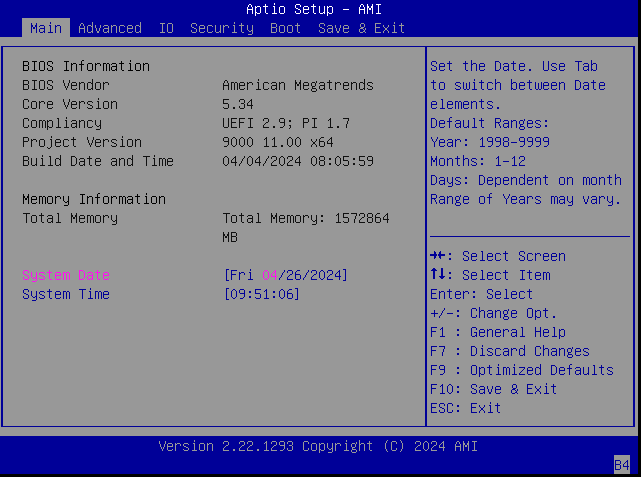
- After the server resets, to enter the BIOS Setup Utility, press the F2 key (Ctrl+E from a serial connection) when prompted and while the BIOS is running the power-on self-tests (POST). The BIOS Setup Utility Main Menu screen appears.
Use UEFI BIOS
The Oracle server has a Unified Extensible Firmware Interface (UEFI)-compatible BIOS, which runs with all operating systems that are supported on the server. The BIOS firmware controls the system from power-on until an operating system is booted and allows you to configure, enable, disable, or manage system components.
Configuration Utilities for Add-In Cards
In UEFI BIOS, the configuration screens for the add-in cards appear as menu items in the BIOS Advanced Menu as part of the standard BIOS Setup Utility screens. For example, if the Oracle Storage 12 Gb SAS PCIe RAID HBA, Internal card is installed in the server, the configuration utility for the HBA appears as a menu selection.
Configure and Manage BIOS Using Oracle ILOM
Oracle Integrated Lights Out Manager (ILOM) includes BIOS configuration and management tools. You can perform the following BIOS configuration tasks using Oracle ILOM:
- View the BIOS configuration synchronization status and synchronize the configuration parameters
- Reset the factory defaults for the service processor (SP) and Oracle ILOM BIOS
- Back up or restore the BIOS configuration
- Enable UEFI diagnostics to run at system boot
UEFI Secure Boot
The Oracle server UEFI BIOS supports UEFI Secure Boot. UEFI Secure Boot defines how platform firmware can authenticate a digitally signed UEFI image, such as an operating system loader or a UEFI driver.
When enabled, UEFI Secure Boot provides a policy-based invocation of various UEFI executable images, using cryptographic signatures to identify the software publishers. UEFI Secure Boot also requires all third-party UEFI drivers and operating system boot loaders to be signed by Microsoft or with Key Exchange Key (KEK) by using BIOS setup.
UEFI Secure Boot is disabled by default.
Common BIOS Setup Utility Tasks
This section presents the procedures for some of the BIOS setup tasks that you typically perform when setting up and managing the server.
Verify BIOS Factory Default Settings
In the BIOS Setup Utility, you can return the BIOS settings to the optimal factory default values, as well as view and edit settings as needed. Any changes that you make in the BIOS Setup Utility (using the F2 key) persist until the next time you change the settings.
- Ensure that a console connection is established to the server.
- Reset or power on the server. For example, to reset the server:
- From the local server, press the On/Standby button on the front panel of the server to power off the server, and then press the On/Standby button again to power on the server.
- Oracle ILOM CLI: type reset /System
- Oracle ILOM web interface: click Host Management → Power Control and select Reset from the Select Action list. Click Save and click OK.
- After the server resets and begins the initialization process, when prompted, press the F2 key to access the BIOS Setup Utility.
- To ensure that the factory defaults are set, do the following:
- Press the F9 key to automatically load the optimal factory default settings.
- To confirm, highlight OK, and press Enter.
- Press the F10 key to save the changes and exit the BIOS Setup Utility.
Select a Temporary Boot Device
- Reset or power on the server. For example, to reset the server:
- From the local server, press the On/Standby button on the front panel of the server to power off the server, and then press the On/Standby button again to power on the server.
- Oracle ILOM CLI: type reset /System
- Oracle ILOM web interface: click Host Management → Power Control and select Reset from the Select Action list. Click Save and click OK
- After the server resets and begins the initialization process, press the F8 key (or Ctrl+P from a serial connection) when prompted, while the UEFI BIOS is running the power-on self-test (POST) to access the boot device menu.
- In the Please Select Boot Device dialog box, select the boot device according to the operating system you are running, and press Enter. The boot device you select is in effect only for the current system boot. The permanent boot device specified using the F2 key is in effect after booting from the temporary boot device.
- Follow the onscreen instructions to install the operating system or boot from the selected boot device.
Configure TPM Support
The Trusted Platform Module (TPM) feature set is enabled by default. If you want to disable it, or to enable it after it has been disabled, perform the procedure in this section.
TPM enables you to administer the TPM security hardware in your server. For additional information about implementing this feature, refer to the Windows Trusted Platform Module Management documentation provided by your operating system or third-party software vendor.
If you intend to use the TPM, configure the server to support TPM, which is enabled by default on the Oracle server.
- Access the BIOS Setup Utility menus.
- On the Advanced screen, select Trusted Computing 2.0.
- On the Trusted Computing 2.0 Configuration screen, select Security TPM Device Support and press Enter. Do one of the following:
- Select `Disable` to disable Security TPM Device Support.
- Select `Enable` to enable Security TPM Device Support.
- On the updated Trusted Computing 2.0 Configuration screen, press the F10 key to save the changes and exit the BIOS Setup Utility.
Configure UEFI Driver Settings
- Access the BIOS Setup Utility menus.
- In the BIOS Setup Utility menus, navigate to the IO menu.
- On the IO screen, select either Internal Devices or Add In Cards and press Enter to display the internal device or add-in card slot for which you want to enable or disable the PCI-E UEFI Driver.
- On the Internal Devices screen, select the internal device or add in card slot that you want to configure.
- On the PCI-E UEFI Driver Enable screen, select PCI-E UEFI Driver Enable and press Enter. Do one of the following:
- Select `Enabled` to enable the PCI-E UEFI Driver setting.
- Select `Disabled` to disable the PCI-E UEFI Driver setting.
- Press the F10 key to save the changes and exit the BIOS Setup Utility.
Configure Slot PCIe Connector
Configure the UEFI BIOS for 2x4 bifurcation on Oracle F640 Flash Card v3.
- Access the BIOS Setup Utility menus.
- In the BIOS Setup Utility menus, navigate to the IO menu.
- On the IO screen, select PCIe Connector Special Configuration, and press Enter to display the PCIe Connector Configuration Settings slots.
- Specify the connector to control PCIe bifurcation and hotplug. On the PCIe Connector Special Configuration screen, select the Slot 1-9 PCIe Connector Configuration you want to configure and press Enter. Special configure this slot's connector PCIe SLOT Connector Configuration
- On the `Menu to Control PCIE connector Bifurcation and Hotplug` pop-up screen for that slot, select one of the following and press Enter.
- Select `No Special connector configuration` for this slot's PCIe connector.
- Select `x16 Bifurcation` to enable x16 bifurcation special configuration in this slot's PCIe connector.
- Select `x8x8 Bifurcation` to enable x8x8 bifurcation special configuration in this slot's PCIe connector.
- Select `x4x4x4x4 Bifurcation` to enable x4x4x4x4 bifurcation special configuration in this slot's PCIe connector.
- Select `Hotplug_Enabled` to enable PCIe card hotplug in this slot's PCIe connector.
- Select `Hotplug_Disabled` to disable PCIe card hotplug in this slot's PCIe connector.
- Select `x4x4 HP ENABLED Aura-9` to enable x4x4 HP ENABLED Oracle Flash Accelerator F640 PCIe Card v3 special configure this slot's PCIe connector.
- Select `x4x4x4x4 HP ENABLED Aura-9` to enable x4x4x4x4 HP ENABLED Oracle Flash Accelerator F640 PCIe Card v3 special configure this slot's connector.
- Press the F10 key to save the changes and exit the BIOS Setup Utility.
Configure UEFI Secure Boot
- Access the BIOS Setup Utility menus.
- On the Main screen, select Security and press Enter.
- On the Security Settings screen, select Secure Boot and press Enter.
- On the Secure Boot screen, select ...