Sign in to the Web GUI
You can sign in to the Communications Broker as a User or an as Administrator, depending on your permissions.
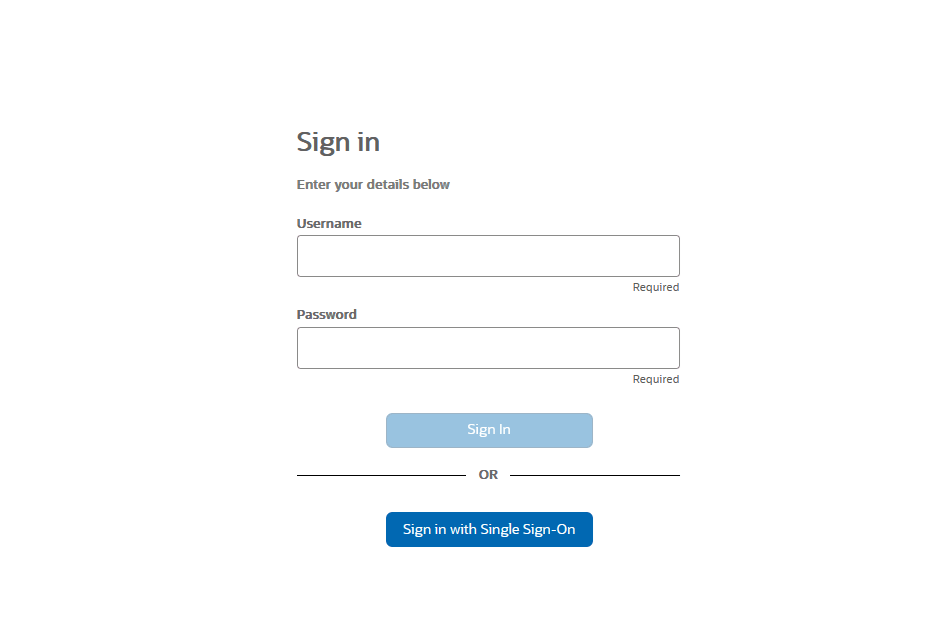
You can sign in to the Web GUI using any one option:
- Sign In — Uses local, RADIUS, or TACACS+ credentials
- Sign in with Single Sign-On (SSO) when it is configured on the system. SSO login uses external Identity Provider (IdP) authentication.
You need your User name, Password, and optionally your passcode to sign in. The system requires your passcode when two factor authentication is enabled. If your system Administrator configured the optional sign in page message, the system displays the message after you enter your credentials. After reading the message, click Close, and the system displays the GUI. The first time you sign in, the GUI displays the Configuration Assistant.
- Start the GUI with either the HTTP or HTTPS sign in.
http://<YourEcbManagementInterfaceIpAddress> previously configured.
https://<YourEcbManagementInterfaceIpAddress> previously configured.
Note:
- Whether you sign in using HTTP or HTTPS depends on the settings for your deployment.
- Start the GUI using either HTTP or HTTPS; however, SSO is supported only over HTTPS.
Figure 4-1 Sign in Screen
Login Banner
After a successful user authentication and authorization, Communications Broker displays the login banner.
The Login Banner displays:
- Last login: Date and time that the current user last successfully logged-in.
- System last accessed: Date and time and user name of the last user who successfully logged-in.
- Unsuccessful login attempts: Date and time of the last five unsuccessful login attempts by the current user.
- Confirm reading: Needs confirmation from the current user. On clicking Confirm, the current user can completes login, and the audit-log activity for this user session is started. If the current user clicks Cancel, the current user is logged out of the Communications Broker , and an audit-log entry is created.