Create an Edge Configuration Template
Use this procedure to create a user-defined edge configuration template from an existing template version.
Before You Begin
Identify the source template and version that you want to copy.
- Open the Edge Configurations Template page.
- Select the row for the template that you want to copy.
- Click Create Template.
- In the drawer, select the source version.
- Enter a template name.
- (Optional) Enter a description.
- Click Create.
Oracle ECP adds the new template to the list.
Edit a Draft Template Version
Use this procedure to open a draft template version in the configuration editor and update its configuration blocks.
Each configuration block groups the related settings for one area of edge node behavior. In this procedure, you use your knowledge of the edge node requirements to set the required values across the configuration blocks. Each configuration block groups related settings for one area of edge node behavior. This guide describes those settings in the relevant feature topics. Use this procedure to set the values that your edge node requires across the configuration blocks.
- A header area with template and version information, status, and actions.
- A left pane that lists the configuration blocks.
- A right pane that displays the settings for the selected block.
Each configuration block contains the related settings for one area of edge node behavior. This guide describes those settings in the relevant feature topics. Use the configuration blocks to set the values that your edge node requires.
This is the main working stage in the lifecycle. You move through the configuration blocks, review the current values, and update the settings that belong in the next revision.
- Open the Edge Configuration Templates page.
- Click the template name.
- Select the draft version that you want to edit.
- In the left pane, select the configuration block that you want to review, and then review its corresponding settings in the right pane.
- Click Update to update the settings that you want to change.
- Repeat these steps for each configuration block that you want to update.
Publish a Draft Template Version
Use this procedure to publish a draft template version after you finish your configuration changes.
Publish a draft template when you finish setting the values in the configuration blocks and want a stable version that you can apply to edge nodes. Publishing creates a read-only version that you can use for deployment while preserving the draft-to-published revision history.
Before You Begin
Confirm that you completed the required updates in the draft version.
Publishing marks the end of the editing stage in the lifecycle. After you publish the draft, Oracle ECP makes that version read-only and eligible for apply operations.
- Open the required draft template version.
- Review the updated configuration blocks.
- Click Publish Draft.
- Confirm the action if Oracle ECP prompts you.
Oracle ECP publishes the version and makes it read-only.
What to Do Next
- Apply the published version when you are ready.
- If you need more changes later, create a new draft from the published version.
Apply a Configuration Template to Edge Nodes
Use this procedure to apply a published template version to one or more compatible edge nodes.
Apply a configuration template when you want compatible edge nodes to use the same validated set of configuration values. This helps you deploy a consistent configuration to one edge node or to multiple edge nodes without setting each value separately on each node.
- Confirm that the template version is published.
- Confirm that the selected edge nodes are compatible with the template.
- Confirm that the selected edge nodes are in the Connected connectivity state and the Active lifecycle state.
Apply is the deployment stage in the lifecycle. On the Inventory page, the Apply Configuration action appears above the table when you select one or more edge nodes. Oracle ECP filters available templates by hardware and platform compatibility. Oracle ECP does not let you apply a draft version.
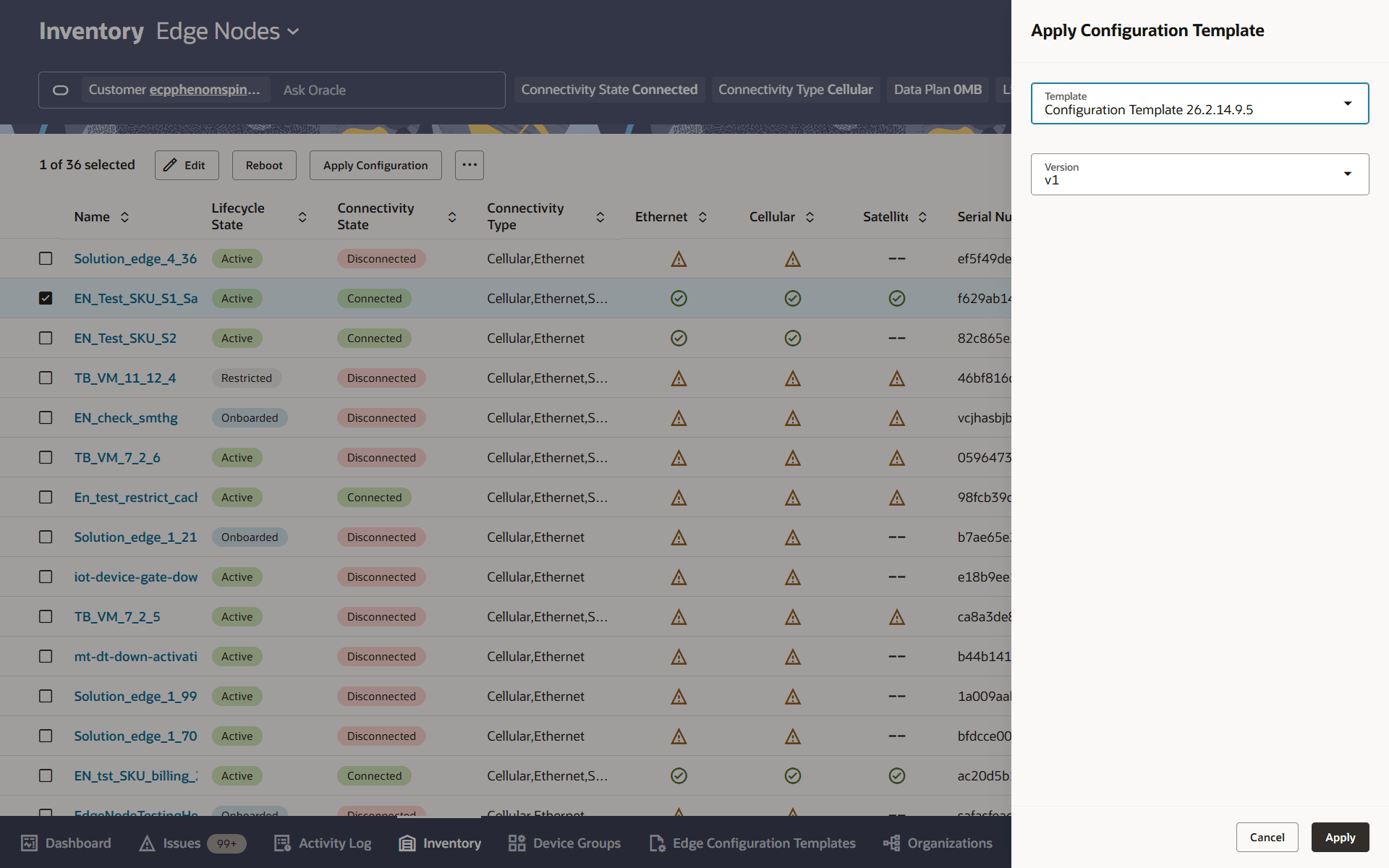
The Apply Configuration Template drawer includes the Template field and, after you select a template, the Version field.
Oracle ECP applies configuration templates only to eligible edge nodes. An eligible edge node must be in the Connected connectivity state and the Active lifecycle state.
Figure 14-2 Select Edge Node for Configuration Apply
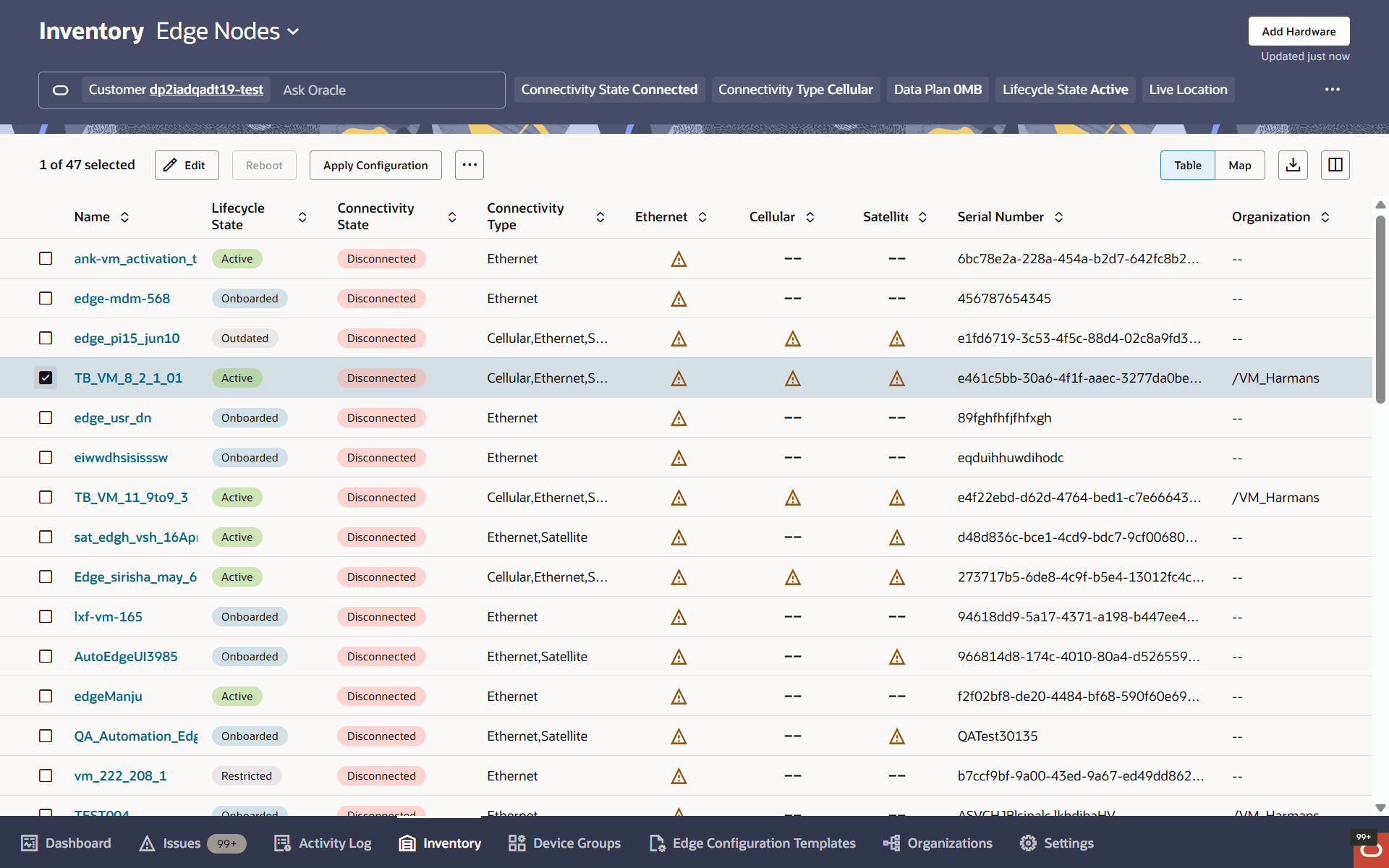
Figure 14-3 Apply Configuration Template Drawer
- In the Inventory page, select Edge Nodes from the context chooser.
- Select one or more compatible edge nodes.
- Click Apply Configuration.
- In the Apply Configuration Template drawer, review any eligibility message or connectivity warning.
- In the Template dropdown, select the template that you want to apply.
- In Version, select the published version.
- Click Apply.
Oracle ECP submits the request and displays a confirmation message.
What to Do Next
Review the activity log to monitor the apply operation.
After the request completes successfully, Oracle ECP shows the applied template association in the left panel or Edge Node Details page and in the Edge details drawer of a single edge configuration editor. You can also review the same association from View Edge Nodes in the template editor.
Return to the template later if you need to review assignments or create another draft.
Review Configuration Update Progress
Use this procedure to review the progress of a template apply or single-edge configuration update.
Configuration apply runs in the background after you submit the request. Oracle ECP creates an activity log entry so you can monitor the request and confirm whether it completes successfully or fails.
When you apply a template, the activity log summary identifies the template, the template version, and the target edge node. If you apply the template to multiple edge nodes, Oracle ECP shows the number of target edge nodes instead of listing one edge node name.
When you update one edge node directly, the activity log uses a single-edge summary for that edge node instead of a template-and-version summary.
While a configuration update is in progress, Oracle ECP does not allow another configuration update for the same edge node. During this time, you cannot make changes from the existing network settings area or from Edit Configurations for that edge node.
Figure 14-4 Activity Log page for configuration requests
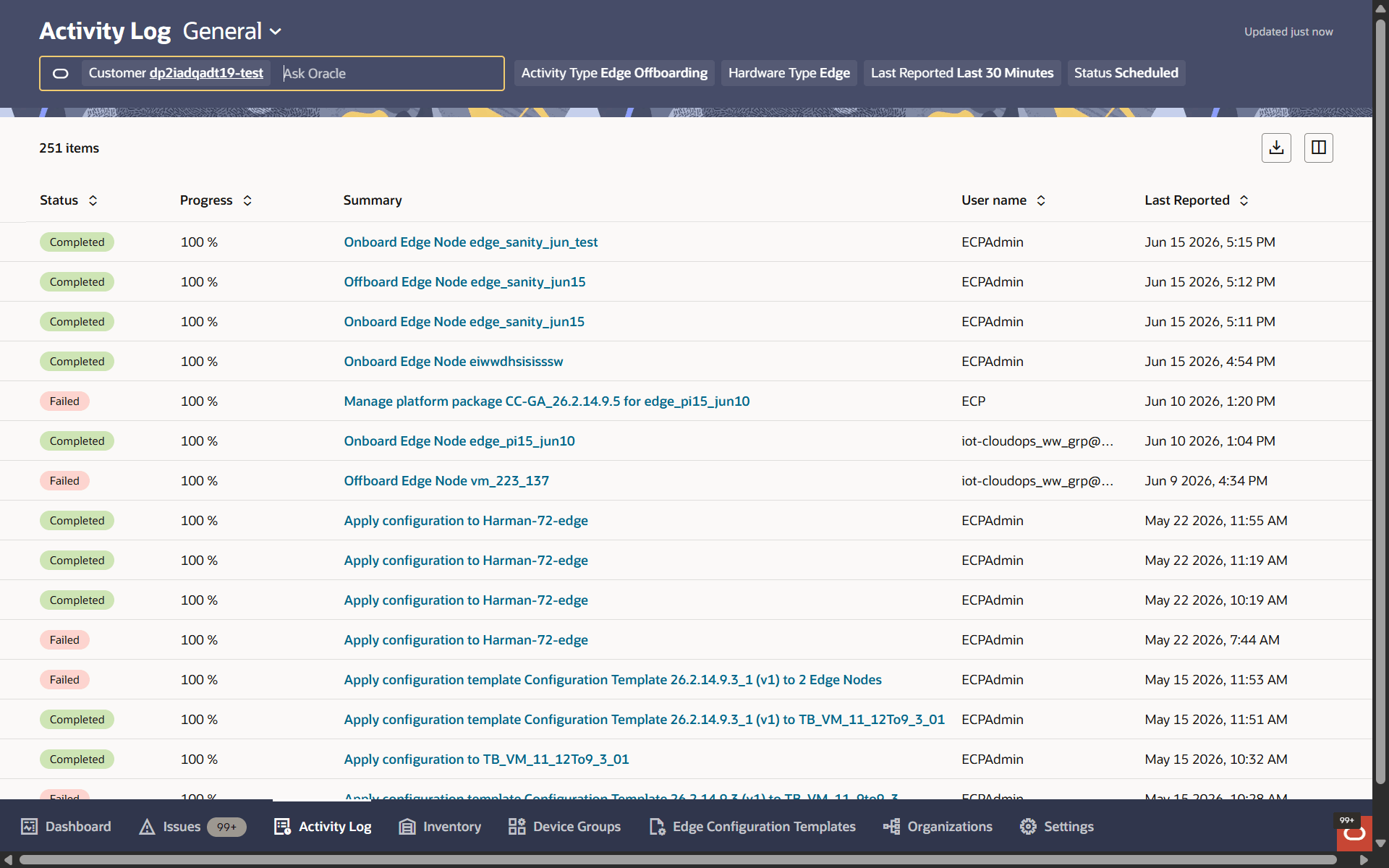
- Go to Activity Log and select General in the context chooser.
- In the Summary column, click the summary link for the configuration request. These fields show the overall state of the configuration request and the time range for the operation.
- On the request details page, review the Status, Start Time, and End Time values. Select the edge node row that you want to review.
- Click View Process.
- In the Apply Configuration pane, review the status for Validate configuration, Download configuration, and Apply configuration. These stages show the progress of the configuration request at the task level.
- Optional: Click See Details to review additional request information.
- Confirm whether the request completed successfully or failed.
Oracle ECP displays the current request state and the task-level progress for the configuration update.
Review an Applied Template on an Edge Node
Use this procedure to confirm that Oracle ECP applied the template to the required edge node.
The More Information drawer provides additional details for the edge node, such as Status, Details, Satellite, and Authentication.
Oracle ECP shows the current template association for the selected edge node.
View Edge Nodes Assigned to a Template Version
Use this procedure to review the edge nodes that currently use a published template version.
Confirm that the template version is published.
- Open the required published template version.
- Click View Edge Nodes.
- Review the list of assigned edge nodes.
Update Configuration on a Single Edge Node
Use this procedure to update configuration directly on one edge node.
Confirm that no other configuration update is currently in progress for the edge node.
As an alternative to navigating the edge node tabs and drawers, you can use the Configuration Editor UI to access and edit the full range of configuration values for one edge node. Use this path when you want to review or change settings across multiple configuration blocks in one place.
The single-edge configuration editor reflects the current configuration running on the selected edge node. Unlike template configuration, single-edge configuration is specific to one edge node.
Figure 14-5 Open the Single-Edge Configuration Editor
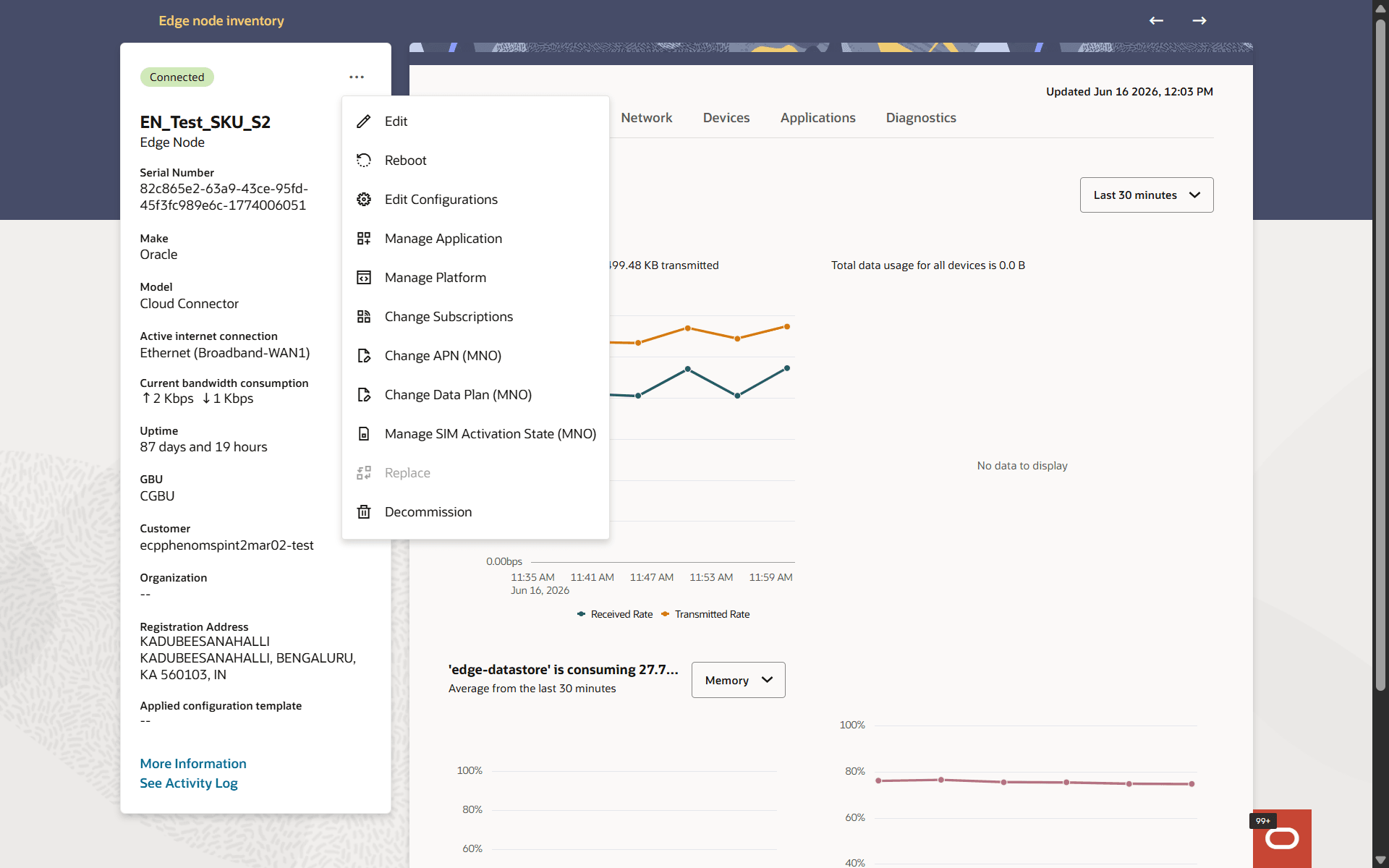
Oracle ECP submits the change as an asynchronous configuration apply request for the selected edge node.
If the edge node was previously associated with a template version, Oracle ECP removes that association after the request completes successfully.
About Running and Draft Configurations
The configuration editor provides Running and Draft versions of an edge node configuration.
Use the configuration editor to view the configuration that is running on an edge node and to prepare configuration changes before you apply them to the edge node.
Running is the current configuration on the edge node. The Running version is read-only. You can select a configuration block and review its values, but you cannot change them.
Draft is an editable copy of the Running configuration. Create a Draft when you want to prepare changes without immediately changing the configuration on the edge node.
The editor displays the following information for the selected version:
- Make
- Model
- Platform Manager Version
- Last Modified
From the Running version, you can use Edge Details to return to the edge node or Create Draft to create an editable configuration.
In a Draft, click Update to validate and save the changes to the selected configuration block. Updating a block saves the changes only to the Draft. It does not apply the changes to the edge node. You can update more than one configuration block before you apply the Draft.
Use View Changes to compare the Draft with the Running configuration. The comparison displays the Item, Value in Running, and Value in Draft columns and groups the changes by configuration path. If the Draft does not contain any differences, Oracle ECP displays No Draft changes to compare and disables Apply Draft.
Click Apply Draft to submit the saved Draft changes to the edge node. Applying a Draft starts an asynchronous configuration operation. While the operation is in progress, Oracle ECP disables actions on the edge node. When the operation completes successfully, the Draft values become the Running configuration and Oracle ECP removed the Draft.
A Draft can become stale if the Running configuration changes before the Draft is applied. A stale Draft is no longer accessible. Create a new Draft from the latest Running configuration and reenter the required changes.
View the Running Configuration of an Edge Node
View the configuration that is currently running on an edge node.
Open the configuration editor for the edge node. For more information, see Update Configuration on a Single Edge Node.
The Running configuration is read-only. You can review its configuration blocks and values, but you cannot change them.
The Running configuration remains unchanged.
Create and Update a Draft Configuration
Create a Draft from the Running configuration and save changes to one or more configuration blocks.
Open the Running configuration for the edge node. Confirm that no other configuration operation is currently in progress for the edge node.
Creating a Draft copies the Running configuration and makes the configuration values editable. Clicking Update saves changes to the Draft only. It does not apply the changes to the edge node.
If you leave the Draft version before you update the current configuration block, Oracle Enterprise Communications Platform (Oracle ECP) displays the Discard your changes? dialog with the following message:
You have unsaved changes. If you click Discard, your changes will be lost.
Click Cancel to remain on the Draft version.
The changes are saved in the Draft. The Running configuration on the edge node is not changed until you apply the Draft.
Review Draft Configuration Changes
Compare the saved Draft configuration with the Running configuration before you apply the Draft.
Create a Draft and save the required configuration changes.
If the Draft contains saved changes, the drawer provides the Delete Draft and Apply Draft actions.
If the Draft does not differ from the Running configuration, Oracle ECP displays No Draft changes to compare and disables Apply Draft.
Apply a Draft Configuration
Apply the saved Draft changes to an edge node.
Confirm that the Draft contains the required saved changes and that no other configuration operation is currently in progress for the edge node.
Applying a Draft starts an asynchronous configuration operation. You can review the saved differences before you apply the Draft.
While the operation is running, Oracle ECP displays Operation in progress and the message All actions are disabled until the operation is completed.
When the operation completes successfully, the Draft values become the Running configuration and Oracle ECP removes the Draft. If the edge node was associated with a template version, Oracle ECP removes that association after the operation completes successfully.
Delete a Draft Configuration
Delete a Draft when you no longer want to keep its saved configuration changes.
Review the saved Draft changes. Deleting a Draft permanently discards all changes in the Draft and does not change the Running configuration.
Oracle ECP removes the Draft. The Running configuration remains unchanged.
Resolve an Out-of-Date Draft Configuration
Create a new Draft when an existing Draft no longer uses the latest Running configuration.
A Draft becomes stale when someone updates the edge node configuration before the Draft is applied. Oracle Enterprise Communications Platform (Oracle ECP) displays Draft is stale and the following message:
Someone else updated this Edge Node’s configuration before the draft was applied. The draft is no longer accessible because it doesn't use the latest configuration. To make changes, create a new draft.
You cannot access or apply the changes in a stale Draft. The Running configuration remains available.
The new Draft contains changes based on the latest Running configuration. Review the Draft changes before you apply the Draft.
View Template Details
Use this procedure to review additional information for a template version.
- Open the required template version in the configuration editor.
- Click Template Details.
Delete a Template Version
Use this procedure to delete the current version of a user-defined template.
Confirm that the template is user-defined. On the Edge Configuration Template page, use Created By to identify whether the template is user-defined or system-defined.
If Oracle ECP removes the final remaining version, the user-defined template no longer appears in the list.