C VALIDATE ISO IMAGE
Table C-1 APPENDIX C. VALIDATE ISO IMAGE
| S TEP # | This procedure provides instructions to copy an ISO image from an USB media. Check off (√) each step as it is completed. Boxes have been provided for this purpose under each step number. IF THIS PROCEDURE FAILS, CONTACT ORACLE TECHNICAL SERVICES AND ASK FOR UPGRADE ASSISTANCE. | |
|---|---|---|
|
1. ☐ |
MPS X: Log in to the server as the “root” user. |
|
|
2. ☐ |
MPS X: Start platcfg utility by logging in as user “platcfg”. |
Run the following command to change the user:
|
|
3. ☐ |
MPS X: Select the Maintenance submenu. |
On the Main Menu of the Platform Configuration Utility, select Maintenance and press [ENTER]. 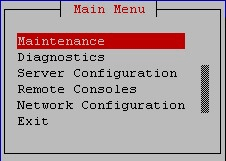 |
|
4. ☐ |
MPS X: Select the Upgrade submenu. |
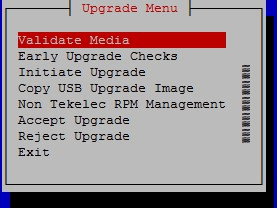 Select the Upgrade menu and press [ENTER]. |
|
5. ☐ |
MPS X: Select Validate Media submenu. |
Select the Validate Media menu and press [ENTER]. |
|
6. ☐ |
MPS X: Select the ISO to be validated. |
 |
|
7. ☐ |
MPS X: Check the validation status. |
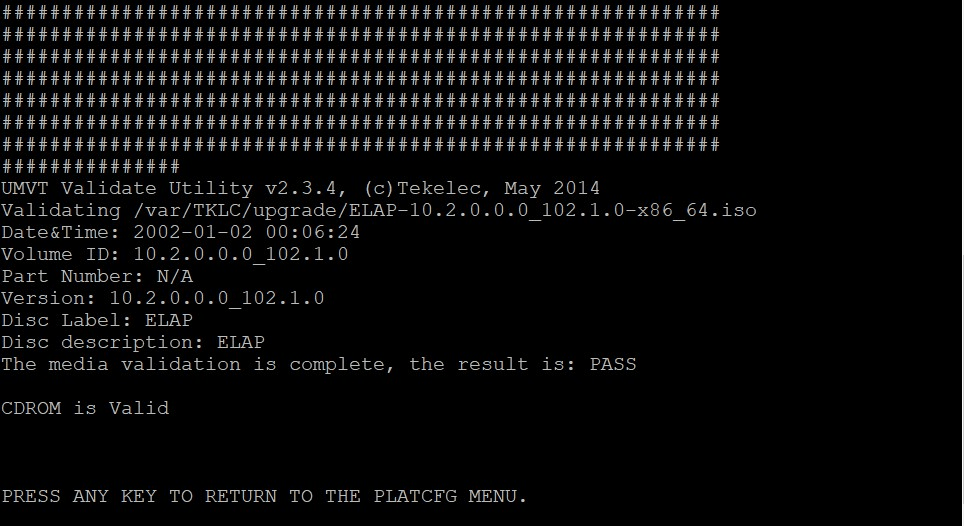 |
This procedure is complete!