2 Troubleshooting OCNADD
Note:
kubectl commands might vary based on the platform
deployment. Replace kubectl with Kubernetes environment-specific
command line tool to configure Kubernetes resources through
kube-api server. The instructions provided in this document
are as per the Oracle Communications Cloud Native Environment (OCCNE) version of
kube-api server.
2.1 Generic Checklist
The following sections provide a generic checklist for troubleshooting OCNADD.
Deployment Checklist
- Failure in Certificate or Secret generation.
There may be a possibility of an error in certificate generation when the Country, State, or Organization name is different in CA and service certificates.
Error Code/Error Message:

  The countryName field is different between
  CA certificate (US) and the request (IN)

  (similar error message will be reported forState or Org name)
To resolve this error:
- Navigate to "ssl_certs/default_values/" and edit the "values" file.
- Change the following values under "[global]" section:
- countryName
- stateOrProvinceName
- organizationName
- Ensure the values match the CA configurations, for
example:
If the CA has country name as "US", state as "NY", and Org name as "ORACLE" then, set the values under [global] parameter as follows:
[global] countryName=US stateOrProvinceName=NY localityName=BLR organizationName=ORACLE organizationalUnitName=CGBU defaultDays=365 - Rerun the script and verify the certificate and secret generation.
- Run the following command to verify if OCNADD deployment, pods, and services created are running and
available:
# kubectl -n <namespace> get deployments,pods,svcVerify the output, and check the following columns:Note:
Here, the namespace could be of the management group, relayagent group or mediation group.- READY, STATUS, and RESTARTS
- PORT(S) of service
Note:
It is normal to observe the Kafka broker restart during deployment. - Verify if the correct image is used and correct environment
variables are set in the deployment.
To check, run the following command:
# kubectl -n <namespace> get deployment <deployment-name> -o yamlNote:
The namespace should be used for the corresponding group management, relayagent or mediation - Check if the microservices can access each other through a REST
interface.
To check, run the following command:
# kubectl -n <namespace> exec <pod name> -- curl <uri>Note:
Here, the management group namespace should be used.Example:
For relayagent:
<relayAgentGroupName> =
                            <siteName>:<workerGroupName>:<relayAgentNamespace>:<relayAgentClusterName>
kubectl exec -it pod/ocnaddmanagementgateway-xxxx -n dd-mgmt -- curl 'http://ocnaddmanagementgateway.dd-mgmt:12889/ocnadd-configuration/v2/topic?relayAgentGroup=BLR:ddworker1:dd-relay-ns:dd-relay-cluster'If mTLS is enabled, then use the following command:
kubectl exec -it pod/ocnaddmanagementgateway-xxxx -n dd-mgmt --curl -k --location --cert-type P12 --cert /var/securityfiles/keystore/serverKeyStore.p12:$OCNADD_SERVER_KS_PASSWORD "https://ocnaddmanagementgateway.ddmgmt:12889/ocnadd-configuration/v2/topic?relayAgentGroup=BLR:ddworker1:dd-relay-ns:dd-relay-cluster"For mediation group:
<mediationGroup> =
                            <siteName>:<workerGroupName>:<mediationNamespace>:<mediationClusterName>
kubectl exec -it pod/ocnaddmanagementgateway-xxxx -n dd-mgmt -- curl 'http://ocnaddmanagementgateway.dd-mgmt:12889/ocnadd-configuration/v2/topic?mediationGroup=BLR:ddworker1:dd-med-ns:dd-mediation-cluster'If mTLS is enabled, then use the following command:
kubectl exec -it pod/ocnaddmanagementgateway-xxxx -n dd-mgmt --curl -k --location --cert-type P12 --cert /var/securityfiles/keystore/serverKeyStore.p12:$OCNADD_SERVER_KS_PASSWORD "https://ocnaddmanagementgateway.ddmgmt:12889/ocnadd-configuration/v2/topic?mediationGroup=BLR:ddworker1:dd-med-ns:dd-mediation-cluster"Note:
These commands are in their simple format and display the logs only if ocnaddconfiguration and ocnaddadmin pods are deployed.
The list of URIs for accessing Kafka Topic information:
For Relay Agent Kafka Cluster, the API endpoint is:
<MgmtGWIP:MgmtGW
        Port>.<mgmt-ns>/ocnadd-configuration/v2/topic?relayAgentGroup=<relayAgentGroupName>
where,
<relayAgentGroupName> =
                <siteName>:<workerGroupName>:<relayAgentNamespace>:<relayAgentClusterName>
For Mediation Kafka Cluster, the API endpoint is:
<MgmtGWIP:MgmtGW
        Port>.<mgmt-ns>/ocnadd-configuration/v2/topic?mediationGroup=<mediationGroup>
where,
<mediationGroup> =
                <siteName>:<workerGroupName>:<mediationNamespace>:<mediationClusterName>
<MgmtGWIP:MgmtGW Port>/ocnadd-configuration/v2/topic/?relayAgentGroup=<relayAgentGroupName>
<MgmtGWIP:MgmtGW Port>/ocnadd-configuration/v2/topic/<topicName>?relayAgentGroup=<relayAgentGroupName>
<MgmtGWIP:MgmtGW Port>/ocnadd-configuration/v2/broker/bootstrap-server?relayAgentGroup=<relayAgentGroupName>
Similarly, other APIs can be accessed for the configuration.
Application Checklist
Logs Verification
Note:
The below procedures should be verified or run corresponding to the applicable worker group (relayagent or mediation) or the management group.Run the following command to check the application logs and look for exceptions:
# kubectl -n <namespace> logs -f <pod name>
Note:
The namespace should be used for the corresponding group: management, relayagent, or mediation.Use the option -f to follow the logs, or use the grep
option to obtain a specific pattern in the log output.
Example:
# kubectl -n dd-relay logs -f $(kubectl -n dd-relay get pods -o name | cut -d'/' -f 2 | grep nrfaggregation)
The above command displays the logs of the ocnaddnrfaggregation
service.
Run the following command to search for a specific pattern in the log output:
# kubectl logs -n dd-relay <nrfaggregation pod name> | grep <pattern>
Note:
These commands are in their simple format and display the logs only if there is atleast onenrfaggregation pod deployed.
Kafka Consumer Rebalancing
The Kafka consumers can rebalance in the following scenarios:
- The number of partitions changes for any of the subscribed topics.
- A subscribed topic is created or deleted.
- An existing member of the consumer group is shutdown or fails.
- In the Kafka consumer application,
- Stream threads inside the consumer app skipped sending heartbeat to Kafka.
- The batch of messages took longer time to process and causes the time between the two polls to take longer.
- Any stream thread in any of the consumer application pods dies because of some error and it is replaced with a new Kafka Stream thread.
- Any stream thread is stuck and not processing any message.
- A new member is added to the consumer group (for example, new consumer pod spins up).
When the rebalancing is triggered, there is a possibility that offsets are not committed by the consumer threads as offsets are committed periodically. This can result in messages corresponding to non-committed offsets being sent again or duplicated when the rebalancing is completed and consumers started consuming again from the partitions. This is a normal behavior in the Kafka consumer application. However, because of frequent rebalancing in the Kafka consumer applications, the counts of messages in the Kafka consumer application and 3rd party application can mismatch.
Data Feed not accepting updated endpoint
Problem
If a Data feed is created for synthetic packets with an incorrect endpoint, updating the endpoint afterward has no effect.
Solution
Delete and recreate the data feed for synthetic packets with the correct endpoint.
Kafka Performance Impact (due to disk limitation)
Problem
When source topics (SCP, NRF, and SEPP) and MAIN topic are created with Replication Factor = 1.
For a low performance disk, the Egress MPS rate drops/fluctuates with the following traces in the Kafka broker logs:
Shrinking ISR from 1001,1003,1002 to 1001. Leader: (highWatermark: 1326, endOffset: 1327). Out of sync replicas: (brokerId: 1003, endOffset: 1326) (brokerId: 1002, endOffset: 1326). (kafka.cluster.Partition) ISR updated to 1001,1003 and version updated to 28(kafka.cluster.Partition)Solution
The following steps can be performed (or verified) to optimize the Egress MPS rate:
- Try to increase the disk performance in the cluster where OCNADD is deployed.
- If the disk performance cannot be increased, then perform the following steps for
OCNADD:
- Edit the Relay agent or Mediation custom values file.
- Change the value of below parameter to 1:
offsetsTopicReplicationFactor: 1transactionStateLogReplicationFactor: 1
- Scale down the Kafka and Kraft controller deployment by modifying the
following lines in the corresponding worker group (relayagent or mediation)
helm chart and custom
values:
ocnaddkafka: enabled: false - Perform helm upgrade for the worker group:
Refer to section "Update worker group service parameters" from Oracle Communications Network Analytics Data Director User Guide
- Delete PVCs for Kafka and Kraft controller using the following commands,
where
<namespace>is the relayagent or mediation group namespace:kubectl delete pvc -n <namespace> kafka-volume-kafka-broker-0 kubectl delete pvc -n <namespace> kafka-volume-kafka-broker-1 kubectl delete pvc -n <namespace> kafka-volume-kafka-broker-2 kubectl delete pvc -n <namespace> kraft-broker-security-kraft-controller-0 kubectl delete pvc -n <namespace> kraft-broker-security-kraft-controller-1 kubectl delete pvc -n <namespace> kraft-broker-security-kraft-controller-2 - Modify the value of the following parameter to
truein the corresponding worker group (relayagent or mediation) helm chart and custom values:ocnaddkafka: enabled: true - Perform helm upgrade for the worker group:
Refer to section "Update worker group service parameters" from Oracle Communications Network Analytics Data Director User Guide
Note:
The following points are to be considered while applying the above procedure:
- In case a Kafka broker becomes unavailable, then you may experience an impact on the traffic on the Ingress side.
- Verify the Kafka broker logs or describe the Kafka/Kraft-controller pod which is unavailable and take the necessary action based on the error reported.
500 Server Error on GUI while creating/deleting the Data Feed
Problem
Occasionally, due to network issues, the user may observe a "500 Server Error" while creating/deleting the Data Feed.
Solution
- Delete and recreate the feed if it is not created properly.
- Retry the action after logging out from the GUI and login back again.
- Retry creating/deleting the feed after some time.
Kafka resources reaching more than 90% utilization
Problem
Kafka resources (CPU, Memory) reached more than 90 percent utilization due to a higher MPS rate or slow disk I/O rate.
Solution
Add additional resources to the following parameters that are reaching high utilization.
File name: ocnadd-mediation-custom-values.yaml or
ocnadd-relayagent-custom-values.yaml corresponding to the
relayagent or mediation group.
ocnaddkafka.ocnadd.kafkaBroker.resourcekafkaBroker:
name: kafka-broker
resource:
limit:
cpu: 5 ===> change it to the required number of CPUs
memory: 24Gi ===> change it to the required memory size
Refer to section "Update worker group service parameters" from Oracle Communications Network Analytics Data Director User Guide.
Kafka ACLs: Identifying the Network IP "Host" ACLs in Kafka Feed
Problem
User is unable to identify the network IP Host ACLs in Kafka Feed.
Solution
The following procedure can be referred to when the user is unable to identify the network IP address.
Adding network IP address for Host ACL
This set of instructions explains how to add a network IP address to the host ACL. The procedure is illustrated using the following example configuration:
- Kafka Feed Name:
demofeed - Kafka ACL User:
joe - Kafka Client Hostname:
10.1.1.15
Note:
The steps below should be run corresponding to the mediation group against which the Kafka feed is created or modified.Retrieving Current ACLs
To obtain the current ACLs configured for the demofeed feed on the Kafka
service, run the following command from managementgateway within the
OCNADD management group deployment:
curl -k --location --cert-type P12 --cert /var/securityfiles/keystore/serverKeyStore.p12:$OCNADD_SERVER_KS_PASSWORD --request GET 'https://ocnaddmediationgateway.dd-mediation-ns:12890/ocnadd-admin/v2/<mediationGroup>/acls'
Example:
curl -k --location --cert-type P12 --cert /var/securityfiles/keystore/serverKeyStore.p12:$OCNADD_SERVER_KS_PASSWORD --request GET 'https://ocnaddmediationgateway.dd-mediation-ns:12890/ocnadd-admin/v2/BLR:ddworker1:dd-mediation-ns:dd-mediation-cluster/acls'
The output will be in JSON format and might look like this:
["(pattern=ResourcePattern(resourceType=GROUP, name=demofeed, patternType=LITERAL), entry=(principal=User:joe, host=10.1.1.15, operation=READ, permissionType=ALLOW))",
 "(pattern=ResourcePattern(resourceType=TOPIC, name=MAIN, patternType=LITERAL), entry=(principal=User:joe, host=10.1.1.15, operation=READ, permissionType=ALLOW))"]
Authorization Error in Kafka Logs
With the Kafka feed demofeed configured with ACL user
joe and client host IP address 10.1.1.15, Kafka
reports the following authorization error:
[2023-07-31 05:34:22,063] INFO Principal = User:joe is Denied Operation = Read from host = 10.1.1.0 on resource = Group:LITERAL:demofeed for request = JoinGroup with resourceRefCount = 1 (kafka.authorizer.logger)
In the above output, host ACL is allowing the specific client IP address
10.1.1.15, whereas the Kafka server is expecting an ACL entry for
the network IP 10.1.1.0 as well.
Steps to Create Network IP Address ACL
Step 1: Check Kafka Logs
To identify the network IP address that Kafka is denying against the configured feed:
Run:
kubectl logs -n <namespace> -c kafka-broker kafka-broker-1 -f
Example:
kubectl logs -n dd-med -c kafka-broker kafka-broker-1 -f
Look for traces similar to:
Principal = User:joe is Denied Operation = Read from host = 10.1.1.0 on resource = Group:LITERAL:demofeed...
Identify the denied IP address; in this example, it is 10.1.1.0.
Step 2: Create Host ACL for Network IP
Access any ocnaddmanagementgateway pod:
kubectl exec -it ocnaddmanagementgateway-xxxx -n dd-mgmt -- bash
Run the curl commands to configure the host network IP ACLs:
curl -k --location --cert-type P12 --cert /var/securityfiles/keystore/serverKeyStore.p12:$OCNADD_SERVER_KS_PASSWORD \
--request POST 'https://ocnaddmanagementgateway.ddmgmt:12889/ocnadd-configuration/v3/client-acl?mediationGroup=<mediationGroup>' \
--header 'Content-Type: application/json' \
--data-raw '{ "principal": "joe", "hostName": "10.1.1.0", "resourceType": "TOPIC", "resourceName": "MAIN", "aclOperation": "READ" }'
curl -k --location --cert-type P12 --cert /var/securityfiles/keystore/serverKeyStore.p12:$OCNADD_SERVER_KS_PASSWORD \
--request POST 'https://ocnaddmanagementgateway.ddmgmt:12889/ocnadd-configuration/v3/client-acl?mediationGroup=<mediationGroup>' \
--header 'Content-Type: application/json' \
--data-raw '{ "principal": "joe", "hostName": "10.1.1.0", "resourceType": "GROUP", "resourceName": "demofeed", "aclOperation": "READ" }'
Step 3: Verify ACLs
Use the following command to verify updated ACLs:
curl -k --location --cert-type P12 --cert /var/securityfiles/keystore/serverKeyStore.p12:$OCNADD_SERVER_KS_PASSWORD --request GET 'https://ocnaddmediationgateway.dd-mediation-ns:12890/ocnadd-admin/v2/<mediationGroup>/acls'
Example:
curl -k --location --cert-type P12 --cert /var/securityfiles/keystore/serverKeyStore.p12:$OCNADD_SERVER_KS_PASSWORD --request GET 'https://ocnaddmediationgateway.dd-mediation-ns:12890/ocnadd-admin/v2/BLR:ddworker1:dd-mediation-ns:dd-mediation-cluster/acls'
Expected output example:
["(pattern=ResourcePattern(resourceType=GROUP, name=demofeed, patternType=LITERAL), entry=(principal=User:joe, host=10.1.1.0, operation=READ, permissionType=ALLOW))",
 "(pattern=ResourcePattern(resourceType=GROUP, name=demofeed, patternType=LITERAL), entry=(principal=User:joe, host=10.1.1.15, operation=READ, permissionType=ALLOW))",
 "(pattern=ResourcePattern(resourceType=TOPIC, name=MAIN, patternType=LITERAL), entry=(principal=User:joe, host=10.1.1.0, operation=READ, permissionType=ALLOW))",
 "(pattern=ResourcePattern(resourceType=TOPIC, name=MAIN, patternType=LITERAL), entry=(principal=User:joe, host=10.1.1.15, operation=READ, permissionType=ALLOW))"]
Producer Unable to Send traffic to OCNADD when an External Kafka Feed is enabled
Problem
Producer is unable to send traffic to OCNADD when an External Kafka Feed is enabled.
Solution
Follow the below steps to debug and investigate if the producer is unable to send traffic to OCNADD when ACL is enabled and there are authorization errors coming in producer NF logs.
Debug and Investigation Steps:
Note:
The below steps should be run corresponding to the Relay Agent group against which the Kafka feed is being enabled.- Begin by creating the
admin.propertiesfile within the Kafka broker, following Step 2 of "Update SCRAM Configuration with Users" as outlined in the Oracle Communications Network Analytics Data Director User Guide. - If the producer's security protocol is SASL_SSL (port 9094), verify whether the
users have been created in SCRAM. Use the following command for verification in the
mediation
group:
./kafka-configs.sh --bootstrap-server kafka-broker:9094 --describe --entity-type users --command-config ../../admin.propertiesIf no producer's SCRAM ACL users are found, see the "Prerequisites for External Consumers" section in the Oracle Communications Network Analytics Data Director User Guide to create the necessary Client ACL users.
- In case the producer's security protocol is SSL (port 9093), ensure that the Network Function (NF) producer's certificates have been correctly generated as per the instructions provided in the Oracle Communications Network Analytics Suite Security Guide.
- Check whether the producer client ACLs have been set up based on the configured
security protocol (SASL_SSL or SSL) in the NF Kafka Producers. To verify this:
- Access ocnaddmanagementgateway pod from the management
group:
kubectl exec -it ocnaddmanagementgateway-xxxx -n dd-mgmt -- bash - Run the following curl command to list all the
ACLs:
curl -k --location --cert-type P12 --cert /var/securityfiles/keystore/serverKeyStore.p12:$OCNADD_SERVER_KS_PASSWORD --request GET 'https://ocnaddrelayagentgateway.dd-relayagent-ns:12888/ocnadd-admin/v2/<relayAgentGroup>/acls'Example:
curl -k --location --cert-type P12 --cert /var/securityfiles/keystore/serverKeyStore.p12:$OCNADD_SERVER_KS_PASSWORD --request GET 'https://ocnaddrelayagentgateway.dd-relayagent-ns:12888/ocnadd-admin/v2/BLR:ddworker1:dd-relayagent-ns:dd-relayagent-cluster/acls'The expected output might resemble the following example, indicating With Feed Name: demofeed, ACL user: joe, Host Name: 10.1.1.15, Network IP: 10.1.1.0:
["(pattern=ResourcePattern(resourceType=GROUP, name=demofeed, patternType=LITERAL), entry=(principal=User:joe, host=10.1.1.0, operation=READ, permissionType=ALLOW))","(pattern=ResourcePattern(resourceType=GROUP, name=demofeed, patternType=LITERAL), entry=(principal=User:joe, host=10.1.1.15, operation=READ, permissionType=ALLOW))","(pattern=ResourcePattern(resourceType=TOPIC, name=MAIN, patternType=LITERAL), entry=(principal=User:joe, host=10.1.1.0, operation=READ, permissionType=ALLOW))","(pattern=ResourcePattern(resourceType=TOPIC, name=MAIN, patternType=LITERAL), entry=(principal=User:joe, host=10.1.1.15, operation=READ, permissionType=ALLOW))"]
- Access ocnaddmanagementgateway pod from the management
group:
- If no ACLs are found as observed in step 4, follow the "Create Client ACLs" section provided in the Oracle Communications Network Analytics Data Director User Guide to establish the required ACLs.
By following these steps, you will be able to diagnose and address issues related to the producer's inability to send traffic to OCNADD when an External Kafka Feed is enabled and ACL-related authorization errors are encountered.
External Kafka Consumer Unable to consume messages from DD
Problem
External Kafka Consumer is unable to consume messages from OCNADD.
Solution
If you are experiencing issues where an external Kafka consumer is unable to consume messages from OCNADD, especially when ACL is enabled and unauthorized errors are appearing in the Kafka feed's logs, follow the subsequent steps for debugging and investigation:
Debug and Investigation Steps:
Note:
The below steps should be run corresponding to the mediation group against which the Kafka feed is created or modified.- Verify that ACL Users created for the Kafka feed, along with SCRAM users, are
appropriately configured in the JAAS config by executing the following
command:
./kafka-configs.sh --bootstrap-server kafka-broker:9094 --describe --entity-type users --command-config ../../admin.properties - Validate that the Kafka feed parameters have been correctly configured in the consumer client. If not, ensure proper configuration and perform an upgrade on the Kafka feed's consumer application.
- Inspect the logs of the external consumer application.
- If you encounter an error related to XYZ Group authorization failure
in the consumer application logs, follow these steps:
- Access ocnaddmanagementgateway pod from the management
group:
kubectl exec -it ocnaddmanagementgateway-xxxx -n dd-mgmt -- bash - Run the curl command below to retrieve ACLs information
and verify the existence of ACLs for the Kafka
feed:
curl -k --location --cert-type P12 --cert /var/securityfiles/keystore/serverKeyStore.p12:$OCNADD_SERVER_KS_PASSWORD --request GET 'https://ocnaddmediationgateway.dd-mediation-ns:12890/ocnadd-admin/v2/<mediationGroup>/acls'Example:
curl -k --location --cert-type P12 --cert /var/securityfiles/keystore/serverKeyStore.p12:$OCNADD_SERVER_KS_PASSWORD --request GET '
https://ocnaddmediationgateway.dd-mediation-ns:12890/ocnadd-admin/v2/BLR:ddworker1:dd-mediation-ns:dd-mediation-cluster/acls'
Sample output with Feed Name: demofeed, ACL user: joe, Host Name: 10.1.1.15, Network IP: 10.1.1.0:
["(pattern=ResourcePattern(resourceType=GROUP, name=demofeed, patternType=LITERAL), entry=(principal=User:joe, host=10.1.1.0, operation=READ, permissionType=ALLOW))","(pattern=ResourcePattern(resourceType=GROUP, name=demofeed, patternType=LITERAL), entry=(principal=User:joe, host=10.1.1.15, operation=READ, permissionType=ALLOW))","(pattern=ResourcePattern(resourceType=TOPIC, name=MAIN, patternType=LITERAL), entry=(principal=User:joe, host=10.1.1.0, operation=READ, permissionType=ALLOW))","(pattern=ResourcePattern(resourceType=TOPIC, name=MAIN, patternType=LITERAL), entry=(principal=User:joe, host=10.1.1.15, operation=READ, permissionType=ALLOW))"] - If no ACL is found for the Kafka feed with the resource type
GROUP, run the following curl command to create the Group resource type ACLs:curl -k --location --cert-type P12 --cert /var/securityfiles/keystore/serverKeyStore.p12:$OCNADD_SERVER_KS_PASSWORD --request POST 'https://ocnaddmanagementgateway.ddmgmt:12889/ocnadd-configuration/v3/client-acl?mediationGroup=<mediationGroup>' --header 'Content-Type: application/json' --data-raw '{ "principal": "<ACL-USER-NAME>", "resourceType": "GROUP", "resourceName": "<KAFKA-FEED-NAME>", "aclOperation": "READ" }'
- Access ocnaddmanagementgateway pod from the management
group:
- If you encounter an error related to XYZ Group authorization failure
in the consumer application logs, follow these steps:
- If you encounter an error related to XYZ TOPIC authorization failure in the
consumer application logs, follow these steps:
- Access ocnaddmanagementgateway pod from the management
group:
kubectl exec -it ocnaddmanagementgateway -n dd-mgmt -- bash - Run the curl command below to retrieve ACLs information and
verify the existence of ACLs for the Kafka
feed:
curl -k --location --cert-type P12 --cert /var/securityfiles/keystore/serverKeyStore.p12:$OCNADD_SERVER_KS_PASSWORD --request GET 'https://ocnaddmediationgateway.dd-mediation-ns:12890/ocnadd-admin/v2/<mediationGroup>/acls'Example:
curl -k --location --cert-type P12 --cert /var/securityfiles/keystore/serverKeyStore.p12:$OCNADD_SERVER_KS_PASSWORD --request GET 'https://ocnaddmediationgateway.dd-mediation-ns:12890/ocnadd-admin/v2/BLR:ddworker1:dd-mediation-ns:dd-mediation-cluster/acls'Sample output with Feed Name: demofeed, ACL user: joe, Host Name: 10.1.1.15, Network IP: 10.1.1.0:
["(pattern=ResourcePattern(resourceType=GROUP, name=demofeed, patternType=LITERAL), entry=(principal=User:joe, host=10.1.1.0, operation=READ, permissionType=ALLOW))","(pattern=ResourcePattern(resourceType=GROUP, name=demofeed, patternType=LITERAL), entry=(principal=User:joe, host=10.1.1.15, operation=READ, permissionType=ALLOW))","(pattern=ResourcePattern(resourceType=TOPIC, name=MAIN, patternType=LITERAL), entry=(principal=User:joe, host=10.1.1.0, operation=READ, permissionType=ALLOW))","(pattern=ResourcePattern(resourceType=TOPIC, name=MAIN, patternType=LITERAL), entry=(principal=User:joe, host=10.1.1.15, operation=READ, permissionType=ALLOW))"] - If no ACL is found for the Kafka feed with the resource type
TOPIC, run the following curl command to create the TOPIC resource type ACLs:curl -k --location --cert-type P12 --cert /var/securityfiles/keystore/serverKeyStore.p12:$OCNADD_SERVER_KS_PASSWORD --request POST 'https://ocnaddmanagementgateway.ddmgmt:12889/ocnadd-configuration/v3/client-acl?mediationGroup=<mediationGroup>' --header 'Content-Type: application/json' --data-raw '{ "principal": "<ACL-USER-NAME>", "resourceType": "TOPIC", "resourceName": "MAIN", "aclOperation": "READ" }'
- Access ocnaddmanagementgateway pod from the management
group:
Database Error During Kafka Feed Update
Problem:
When attempting to update a Kafka feed, you may encounter an error similar to the following:
Error Message: Updating the Kafka feed in the database has failed.
Solution:
To address this issue, retry the Kafka feed update using the Update Kafka feed option from OCNADD UI with the same information as in the previous attempt.
2.2 Helm Install and Upgrade Failure
This section describes the various helm installation or upgrade failure scenarios and the respective troubleshooting procedures:
2.2.1 Incorrect Image Name in ocnadd-<group-name>-custom-values.yaml File
Problem
helm install fails if an incorrect image name is provided in the
ocnadd-<group-name>-custom-values.yaml file or if the image is
missing in the image repository.
where group-name can be management-group,
relayagent-group, or mediation-group.
Error Code or Error Message
When you run kubectl get pods -n <namespace>, the status of the pods
might be ImagePullBackOff or ErrImagePull.
Solution
Perform the following steps to verify and correct the image name:
- Edit the specific
ocnadd-<group-name>-custom-values.yamlfile and provide the release-specific image names and tags. - Run the helm install command.
- Run the
kubectl get pods -n <namespace>command to verify if all the pods are in Running state.
2.2.2 Failed Helm Installation/Upgrade Due to Prometheus Rules Applying Failure
Scenario:
Helm installation or upgrade fails due to Prometheus rules applying failure.
Problem:
Helm installation or upgrade might fail if Prometheus service is down or Prometheus pods are not available during the helm installation or upgrade of the OCNADD.
Error Code or Error Message:
Error: UPGRADE FAILED: cannot patch "ocnadd-<mgmt|relayagent|mediation>-alerting-rules" with kind PrometheusRule: Internal error occurred: failed calling webhook "prometheusrulemutate.monitoring.coreos.com": failed to call webhook: Post "https://occne-kube-prom-stack-kube-operator.occne-infra.svc:443/admission-prometheusrules/mutate?timeout=10s": context deadline exceededSolution:
Perform the following steps to proceed with the OCNADD helm install or upgrade:
- Move the
ocndd-relayagent-alerting-rules.yaml,ocnadd-mediation-alerting-rules.yaml, andocnadd-mgmt-alerting-rules.yamlfrom the<chart_path>/helm-charts/charts/<groupName>/templatesto some other directory outside the OCNADD charts. - Continue with the helm install or upgrade.
- Run the following command to verify if the status of all the pods are
running:
kubectl get pods -n <namespace>
The OCNADD Prometheus alerting rules must be applied again when the
Prometheus service and pods are available back in service. Ensure to apply the alerting
rules using the Helm upgrade procedure itself by moving back the
ocndd-relayagent-alerting-rules.yaml,
ocnadd-mediation-alerting-rules.yaml, and
ocnadd-mgmt-alerting-rules.yaml files into the templates folder of
their respective chart directory
(<chart_path>/helm-charts/charts/<groupName>/templates).
2.2.3 Docker Registry is Configured Incorrectly
Problem
helm install might fail if the Docker Registry is not configured in all primary and secondary nodes.
Error Code or Error Message
When you run kubectl get pods -n <ocnadd_namespace>, the status of
the pods might be ImagePullBackOff or
ErrImagePull.
<ocnadd_namespace> can be of management, relayagent, or mediation
group.
Solution
Configure the Docker Registry on all primary and secondary nodes. For information about Docker Registry configuration, see Oracle Communications Cloud Native Environment Installation, Upgrade, and Fault Recovery Guide.
2.2.4 Continuous Restart of Pods
Problem
helm install might fail if MySQL primary or secondary hosts are not configured properly
in ocnadd-common-custom-values.yaml.
Error Code or Error Message
When you run kubectl get pods -n <ocnadd_namespace>, the pods show a
restart count that increases continuously, or there is a Prometheus alert for continuous
pod restart.
Solution
- Verify MySQL connectivity.
- MySQL servers may not be configured properly. For more information about the MySQL configuration, see Oracle Communications Network Analytics Data Director Installation, Upgrade, and Fault Recovery Guide.
- Describe the pod to check more details on the error, and troubleshoot further based on the reported error.
- Check the pod log for any error, and troubleshoot further based on the reported error.
2.2.5 Adapter Deployment Removed during Upgrade or Rollback
Problem
Adapter (data feed) is deleted during upgrade or rollback.
Error Code or Error Message
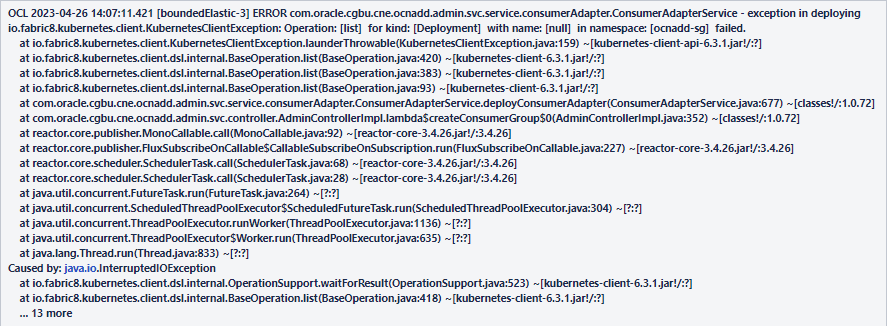
Sample error message displayed:
Figure 2-1 Error Message
Solution
This can be fixed by running the following commands:
- Run the following command to verify the data
feeds:
kubectl get po -n `ocnadd-med` - If data feeds are missing, verify the above mentioned error message in the admin
service log by running the following
command:
kubectl logs <admin svc pod name> -n `ocnadd-med` - If the error message is present, run the following
command:
kubectl rollout restart deploy <configuration app name> -n `ocnadd-mgmt`
2.2.6 ocnadd-custom-values.yaml File Parse Failure
This section explains the troubleshooting procedure in case of failure while
parsing the ocnadd-<group-name>-custom-values.yaml
file.
Problem
Unable to parse the ocnadd-<group-name>-custom-values.yaml
file or any other values.yaml while running Helm
install.
Error Code or Error Message
Error: failed to parse
ocnadd-<group-name>-custom-values.yaml: error converting
YAML to JSON: yaml
Symptom
When parsing the ocnadd-<group-name>-custom-values.yaml file,
if the above mentioned error is received, it indicates that the file is not
parsed because of the following reasons:
- The tree structure may not have been followed.
- There may be a tab space in the file.
Solution
Download the latest OCNADD custom templates zip file from MoS. For more information, see Oracle Communications Network Analytics Data Director Installation, Upgrade, and Fault Recovery Guide.
2.2.7 Kafka Brokers Continuously Restart after Reinstallation
Problem
When re-installing OCNADD in the same namespace without deleting the PVC that was used
for the first installation, Kafka brokers will go into CrashLoopBackOff
status and keep restarting.
Error Code or Error Message
When you run kubectl get pods -n <group_namespace> the
broker pod's status might be Error or
CrashLoopBackOff, and it might keep restarting continuously, with no
disk space left on the device errors in the pod logs.
where, <group_namespace> is for relayagent or mediation
group.
Solution
- Delete the StatefulSet (STS) deployments of the brokers. Run
kubectl get sts
                    -n             <group_namespace>
to obtain the StatefulSets in the namespace. - Delete the STS deployments of the services with the disk full issue. For example,
run:
kubectl delete sts -n <group_namespace> kafka-broker1 kafka-broker2 - After deleting the STS of the brokers, delete the PVC. Delete the PVCs
in the namespace that were used by the Kafka brokers.
Run:
kubectl get pvc -n <group_namespace>The number of PVCs used is based on the number of brokers deployed. Therefore, select the PVCs that have the namekafka-brokerorKraft controller, and delete them. To delete the PVCs, run:kubectl delete pvc -n <group_namespace> <pvcname1> <pvcname2>For example:
For a three-broker setup in mediation worker group namespacedd-med, you will need to delete these PVCs:kubectl delete pvc -n dd-med kafka-volume-kafka-broker-0 kafka-volume-kafka-broker-1 kafka-volume-kafka-broker-2 kraft-broker-security-kraft-controller-0 kraft-broker-security-kraft-controller-1 kraft-broker-security-kraft-controller-2
2.2.8 Kafka Brokers Continuously Restart After the Disk is Full
Problem
There is no disk space left on either the broker or the KRaft controller in the corresponding worker group (Relay Agent or Mediation).
Error Code or Error Message
When you run kubectl get pods -n <ocnadd_namespace>, the broker pod's
status might be Error or CrashLoopBackOff, and it
might keep restarting continuously.
where <ocnadd_namespace> is for relayagent or mediation group.
Solution
Note:
The below steps should be run corresponding to the worker (relayagent or mediation) group against which Kafka is reporting the disk full error.- Delete the StatefulSet (STS) deployments of the brokers (explained using
mediation group as an example).
- Get the STS in the namespace with the following
command:
kubectl get sts -n <mediation_namespace> - Delete the STS deployments of the services with the disk full
issue:
kubectl delete sts -n <mediation_namespace> <sts1> <sts2>For example, for a three-broker setup:
kubectl delete sts -n dd-med kafka-broker kraft-controller
- Get the STS in the namespace with the following
command:
- Delete the PVCs in the namespace that are used by the removed Kafka
brokers.
- To get the PVCs in the
namespace:
kubectl get pvc -n <mediation_namespace> - The number of PVCs used will be based on the number of brokers deployed.
Select the PVCs that have the name
kafka-brokerorkraft-controllerand delete them. - To delete PVCs,
run:
kubectl delete pvc -n <mediation_namespace> <pvcname1> <pvcname2>For example, for a three-broker setup in namespace
dd-med, you must delete these PVCs:kubectl delete pvc -n dd-med kafka-volume-kafka-broker-0 kafka-volume-kafka-broker-1 kafka-volume-kafka-broker-2 kraft-broker-security-kraft-controller-0 kraft-broker-security-kraft-controller-1 kraft-broker-security-kraft-controller-2
- To get the PVCs in the
namespace:
- Once the STS and PVCs are deleted, edit the custom values file of mediation (or relay agent) group.
- To increase the storage, edit the field
pvcClaimSize. For PVC storage recommendations, see the Oracle Communications Network Analytics Data Director Benchmarking Guide. - Upgrade the Helm chart after increasing the PVC size.
Refer to the section Update worker group service parameters from the Oracle Communications Network Analytics Data Director User Guide.
- Create the required topics.
2.2.9 Kafka Brokers Restart on Installation
Problem
Kafka brokers re-start during OCNADD installation.
Error Code or Error Message
The output of the command kubectl get pods -n
<ocnadd_namespace> displays the broker
pod's status as restarted.
where <ocnadd_namespace> is for relayagent or
mediation group.
Solution
The Kafka brokers wait for a maximum of 3 minutes for the Kraft controllers to come online before they are started. If the Kraft controller cluster does not come online within the given interval, the broker will start before the Kraft controller and will error out as it does not have access to the Kraft controller. The Kraft controller may start after the 3-minute interval, as the node may take more time to pull the images due to network issues. Therefore, when the Kraft controller does not come online within the given time, this issue may be observed.
2.2.10 Database Goes into the Deadlock State
Problem
MySQL locks get struck.
Error Code or Error Message
The output of the command:
ERROR 1213 (40001): Deadlock found when trying to get lock; try restarting the transaction.Symptom: Unable to access MySQL.
Solution
Perform the following steps to remove the deadlock:
- Run the following command on each SQL
node:
SELECT CONCAT('KILL ', id, ';')
FROM INFORMATION_SCHEMA.PROCESSLIST
WHERE `User` = <DbUsername>
  AND `db` = <DbName>;
This command retrieves the list of commands required to kill each connection.
For example:
SELECT CONCAT('KILL ', id, ';')
FROM INFORMATION_SCHEMA.PROCESSLIST
WHERE `User` = 'ocnadduser'
  AND `db` = 'ocnadddb';
+--------------------------+ | CONCAT('KILL ', id, ';') | +--------------------------+ | KILL 204491; | | KILL 200332; | | KILL 202845; | +--------------------------+ 3 rows in set (0.00 sec) - Run the generated
KILLcommands on each SQL node.
2.2.11 Upgrade fails due to Database MaxNoOfAttributes exhausted
Scenario:
Upgrade fails due to Database MaxNoOfAttributes exhausted
Problem:
Helm upgrade may fail due to maximum number for attributes allowed to be created has reached maximum limit.
Error Code or Error Message:
Executing::::::: /tmp/230300001.sql mysql: [Warning] Using a password on the command line interface can be insecure. ERROR 1005 (HY000) at line 51: Can't create destination table for copying alter table (use SHOW WARNINGS for more info). error in executing upgrade db scriptsSolution:
Delete few database schemas that are not being used or the ones which are stale.
For example, from MySQL prompt, drop database xyz;
Note:
Dropping unused or stale database schemas is a valid approach. However, exercise caution when doing this to ensure you are not deleting important data. Make sure to have proper backups before proceeding.2.2.12 Webhook Failure During Installation or Upgrade
Problem
Installation or upgrade unsuccessful due to webhook failure.
Error Code or Error Message
Sample error log:
Error: INSTALLATION FAILED: Internal error occurred: failed calling webhook
                "prometheusrulemutate.monitoring.coreos.com": failed to call webhook: Post
                "https://occne-kube-prom-stack-kube-operator.occne-infra.svc:443/admission-prometheusrules/mutate?timeout=10s":
                context deadline exceeded
Solution
Retry installation or upgrade using Helm.
2.2.13 Data Feeds Do Not delete after Rollback
Scenario:
During an upgrade from one version to another, if any data feeds (Adapter/Correlation) are spawned in the new version, the newly created resources may not be deleted even after a rollback.
Problem:
Upon rolling back to an older version, all resources in OCNADD should revert to their previous states. Consequently, any new resources generated in the upgraded version should be deleted since they did not exist in older versions.
Solution:
$ kubectl delete service,deploy,hpa <adapter-name> -n dd-mediation2.2.14 Data Feeds Do Not Restart after Rollback
Scenario:
When Data Feeds (Adapters/Correlation) are created in the source release, and an upgrade is performed to the latest release, later, if a rollback to the previous release is executed, the restart of respective data feed pods is expected.
Problem:
io.fabric8.kubernetes.client.KubernetesClientException: Operation: [update] for kind: [Deployment] with name: [app-http-adapter] in namespace: [ocnadd-deploy] failed.
    at io.fabric8.kubernetes.client.KubernetesClientException.launderThrowable(KubernetesClientException.java:159) ~[kubernetes-client-api-6.5.1.jar!/:?]
    at io.fabric8.kubernetes.client.dsl.internal.HasMetadataOperation.update(HasMetadataOperation.java:133) ~[kubernetes-client-6.5.1.jar!/:?]
    at io.fabric8.kubernetes.client.dsl.internal.HasMetadataOperation.update(HasMetadataOperation.java:109) ~[kubernetes-client-6.5.1.jar!/:?]
    at io.fabric8.kubernetes.client.dsl.internal.HasMetadataOperation.update(HasMetadataOperation.java:39) ~[kubernetes-client-6.5.1.jar!/:?]
    at com.oracle.cgbu.cne.ocnadd.admin.svc.service.consumerAdapter.ConsumerAdapterService.lambda$ugradeConsumerAdapterOnStart$1(ConsumerAdapterService.java:1068) ~[classes!/:2.2.3]
    at java.util.ArrayList.forEach(ArrayList.java:1511) ~[?:?]
    at com.oracle.cgbu.cne.ocnadd.admin.svc.service.consumerAdapter.ConsumerAdapterService.ugradeConsumerAdapterOnStart(ConsumerAdapterService.java:1022) ~[classes!/:2.2.3]
Solution:
Restart the Admin Service after the rollback, which in turn will restart the data feed pods to revert them to the older version.
2.2.15 Third-Party Endpoint DOWN State and New Feed Creation
Scenario:
When a third-party endpoint is in a DOWN state and a new third-party Feed (HTTP/SYNTHETIC) is created with the "Proceed with Latest Data" configuration, data streaming is expected to resume once the third-party endpoint becomes available and connectivity is established.
Problem
A third-party endpoint is in a DOWN state and a new third-party Feed (HTTP/SYNTHETIC) is created.
Solution
It is recommended to use "Resume from Point of Failure" configuration in case of third-party endpoint unavailability during feed creation.
2.2.16 Adapter Feed Not Coming Up After Rollback
Scenario:
When Data Feeds are created in the previous release and an upgrade is performed to the latest release, and in the latest release both the data feeds are deleted and rollback was carried out to the previous release. Then the feeds that are created in the older Release should have come back after Rollback.
Problem
- After the Rollback only one of the Data Feeds is created back.
- The Data Feeds get created after the rollback, however, it is stuck in "Inactive" state.
Solution:
- After the rollback, clone the feeds and delete the old feeds.
- Update the Cloned Feeds with the Data Stream Offset as EARLIEST to avoid data loss.
2.2.17 Adapters pods are in the "init:CrashLoopBackOff" error state after rollback
Scenario:
This issue occurs when the adapter pods, created before or after the upgrade, encounter errors due to missing fixes related to data feed types available only in the latest releases.
Problem:
Adapter pods are stuck in the init:CrashLoopBackOff state after a
rollback from the latest release to an older release.
Solution Steps:
- Delete the Adapter Manually:
Run the following command to delete the adapter:
kubectl delete service,deploy,hpa <adapter-name> -n dd-med - Clone or Recreate the Data Feed:
Clone or recreate the data feed again with the same configurations. While creating the data feed, the
Data Stream
                        Offset
option can be set asEARLIESTto avoid data loss.
2.2.18 Feed/Filter Configurations are Missing From Dashboard After Upgrade
Scenario:
After OCNADD is upgraded from the previous release to the latest release, it may be observed that some feed or filter configurations are missing from dashboard.
Problem:
When this issue occurs after upgrade, the configuration service log will have the following message "Table definition has changed, please retry transaction".
Solution:
- Delete the configuration service pod
manually:
kubectl delete pod n ocnadd-mgmt <configuration-name> - Check the logs of the new configuration service pod, if "Table definition has changed, please retry transaction" is still present in the log, repeat step 1.
2.2.19 Kafka Feed Cannot be Created in Dashboard After Upgrade
Scenario:
After OCNADD is upgraded from the previous release to the latest release, it may be observed that new Kafka feed configurations cannot be created in dashboard.
Problem:
When this issue occurs after upgrade, the configuration service log will have the following message "Table definition has changed, please retry transaction".
Solution:
- Delete the configuration service pod
manually:
kubectl delete pod n ocnadd-mgmt <configuration-name> - Check the logs of the new configuration service pod, if "Table definition has changed, please retry transaction" is still present in the log, repeat step 1.
2.2.20 OCNADD Services Status Not Correct in Dashboard After Upgrade
Scenario:
After upgrading OCNADD from the previous release to the latest release, you may observe that the OCNADD microservices do not reflect the correct status.
Problem:
After the upgrade, OCNADD microservices may fail to register their health profiles. The service logs will show repeated retry attempts similar to the following:
For StatefulSet deployments (e.g., kraft-controller, Kafka broker), use:
kubectl exec -it -n dd-med kafka-broker-0 -- bash
cat extService.txt | grep -i retry
For standard deployments, use:
kubectl logs -n <namespace> <ocnadd-service-podname> -f | grep -i retry
(namespace may be management, relayagent, or mediation group)
Sample Service Log:
ERROR ... Health Profile Registration is not successful, retry number 0
ERROR ... Health Profile Registration is not successful, retry number 1
ERROR ... Health Profile Registration is not successful, retry number 2
...
ERROR ... Health Profile Registration is not successful, retry number 12
Solution:
- Restart all OCNADD microservices using the following command.
Run this separately for each worker group and the management group if deployed in centralized mode:
kubectl rollout restart -n <namespace> deployment,sts(namespace can be of management, relayagent or mediation group)
- Verify service health:
Check the status of all OCNADD microservices in the OCNADD UI.
Each service should eventually show Active status.
2.2.21 Alarm for Unable to Transfer File to SFTP Server for Export Configuration
Scenario:
While performing the Export Configuration, the user encounters the following alarm:
Alarm:
OCNADD02009: SFTP service is unreachable
Solution:
Verify the following points to manage this alarm:
- Check the SFTP server IP: Ensure the SFTP server IP is correct. Verify that the provided IP is neither IPv6 nor FQDN.
- Check the Storage Path in the File Location: Ensure the file path is correct. The file path should be relative; absolute paths are not supported.
2.2.22 OCNADD Two-Site Redundancy Troubleshooting Scenarios
General Troubleshooting
This section provides information to address troubleshooting issues faced post two-site redundancy configuration. The issues and fixes mentioned in this section are related to alarms. After the site configuration is done, the user should move to the Alarm Dashboard and verify if any newly generated alarms are raised for two-site redundancy.
OCNADD02006: Mate Site Down
TYPE: COMMUNICATION
SEVERITY: MAJOR
Scenario:
When either CNE cluster of the mate site or mate site worker group is down or not accessible.
Problem Description:
The CNE cluster or worker group in the mate site is down or inaccessible.
Troubleshooting Steps:
- Check the status of worker group services in the mate site.
- Check if the CNE cluster is accessible or not.
- Verify if nodes are in an isolated zone or not.
- Run sync after the issue has been fixed.
OCNADD02000: Loss of Connection
TYPE: COMMUNICATION
SEVERITY: MAJOR
Scenario:
Initial connection with Redundancy Agent of mate site is not established.
Problem Description:
Connection could not be established with the mate site Redundancy Agent service due to egress annotation not enabled or cluster communication not supported.
Troubleshooting Steps:
- Check if LoadBalancer IP of mated site is able to communicate with
each other.
- Run Exec command in the mate site Redundancy Agent pod:
kubectl exec -ti -n <namespace> <mate_redundancyagent_pod_name> -- bash - Run the following cURL command:
curl -k --cert-type P12 --cert /var/securityfiles/keystore/serverKeyStore.p12:$OCNADD_SSL_KEY_STORE_PASSWORD --location -X GET https://<mate_redundancy_agent_external_ip>:13000
- Run Exec command in the mate site Redundancy Agent pod:
- Verify if CNE version requires egress annotation or not.
- Check the Redundancy Agent service pod logs in the mate site.
- If there are error logs in Redundancy Agent, then:
- Go to custom values of management charts.
- Set the value of
global.ocnaddredundancyagent.egresstotrue. - Run Helm chart upgrade:
- Go to the custom values of the management charts.
- Edit
global.ocnaddmanagement.ocnaddredundancyagent.egressand set it totrue. - Run the Helm chart
upgrade:
helm upgrade <release_name> <management_chart_path> -f <common-custom-values-path> -f <management-custom-values-path> -n <management_namespace>
- Post-upgrade error logs should not recur.
OCNADD02001: Loss of Heartbeat
TYPE: COMMUNICATION
SEVERITY: MINOR
Scenario:
When heartbeat from mate site Redundancy Agent is not sent to the primary site Redundancy Agent.
Problem Description:
When there is no heartbeat sent from mate site Redundancy Agent to primary site Redundancy Agent, then Loss of Heartbeat is detected.
Troubleshooting Steps:
- Run curl request from primary site to secondary site Redundancy
Agent to verify if calls are received at the Secondary Site:
- Run Exec command in the mate site Redundancy Agent
pod
kubectl exec -ti -n <namespace> <mate_redundancyagent_pod_name> -- bash - Run the following cURL command:
curl -k --cert-type P12 --cert /var/securityfiles/keystore/serverKeyStore.p12:$OCNADD_SSL_KEY_STORE_PASSWORD --location -X GET https://<mate_redundancy_agent_external_ip>:13000
- Run Exec command in the mate site Redundancy Agent
pod
- This should return 4xx error; if 500 response is received, then the connection between two sites is lost.
- If communication fails, then verify network communication between both setups.
- Run sync after the issue has been fixed.
OCNADD050018: Consumer Feed Configuration Sync Discrepancy
TYPE: OPERATIONAL_ALARM
SEVERITY: MAJOR
Scenario:
When the mate site configuration is created, both the sites have Consumer Feed Configuration with the same name, but Data Transfer Object (DTO) parameters are different.
Problem Description:
The consumer feed configuration is mismatched between mated worker group pair.
Troubleshooting Steps:
- Check mate site consumer feed configuration.
- Update the configuration with the mated site.
- Run sync option to clear the alarm.
OCNADD050019: Kafka Feed Configuration Sync Discrepancy
TYPE: OPERATIONAL_ALARM
SEVERITY: MAJOR
Scenario:
When the mate site configuration is created, both the sites have Kafka feed configuration with the same name, but DTO parameters are different.
Problem Description:
The Kafka feed configuration is mismatched between mated worker group pair.
Troubleshooting Steps:
- Check mate site Kafka feed configuration.
- Update the Kafka feed configuration with the mated site.
- Run sync option to clear the alarm.
OCNADD050020: Filter Configuration Sync Discrepancy
TYPE: OPERATIONAL_ALARM
SEVERITY: MAJOR
Scenario:
When the mate site configuration is created, both the sites have filter configuration with the same name, but DTO parameters are different.
Problem Description:
The filter configuration is mismatched between mated worker group pair.
Troubleshooting Steps:
- Check mate site filter configuration.
- Update the filter configuration with the mated site.
- Run sync option to clear the alarm.
OCNADD050021: Correlation Configuration Sync Discrepancy
TYPE: OPERATIONAL_ALARM
SEVERITY: MAJOR
Scenario:
When mate site configuration is created, both the sites have Correlation feed configuration with the same name, but DTO parameters are different.
Problem Description:
The correlation configuration is mismatched between mated worker group pair.
Troubleshooting Steps:
- Check mate site correlation configuration.
- Update the correlation configuration with the mated site.
- Run sync option to clear the alarm.
Unable to Sync Consumer Feed/Filter/Correlation/Kafka Feed
Scenario:
Unable to Sync Consumer Feed/Filter/Correlation/Kafka Feed
Problem Description:
Consumer Feed/Filter/Correlation/Kafka Feed configuration is not getting synced and is missing in the local site even after triggering manual sync. This issue persists despite resolving discrepancies encountered during the initial configuration.
Solution:
- Delete the two-site redundancy configuration and create again.
- Verify on secondary site if all the Consumer Feed/Filter/Correlation/Kafka Feed has been synced or not.
One of the mated sites is unavailable and user updates Consumer Feed/Filter/Correlation in the available Site
Scenario:
One of the Mated Site is unavailable, and the user updates Consumer Feed/Filter/Correlation in the available Site.
Problem Description:
After creating mate site configuration, the user updates the Consumer Feed/Filter/Correlation when one of the mated sites is unavailable. On updating the Consumer Feed/Filter/Correlation, the change will be reflected only on the available site, and when the other mated site becomes available again, discrepancy alarms will be raised.
Solution:
- Repeat the Consumer Feed/Filter/Correlation update operation in the primary site.
- Clear the discrepancy alarm that was raised previously.
One of the mated sites is unavailable and user deletes Consumer Feed/Filter/Correlation in the available Site
Scenario:
One of the mated site is unavailable, and the user deletes Consumer Feed/Filter/Correlation in the available Site.
Problem Description:
After creating mate site configuration, the user deletes the Consumer Feed/Filter/Correlation when one of the mated sites is unavailable. On deleting the Consumer Feed/Filter/Correlation, the change will be reflected only on the available site, and when the other mated site becomes available again, discrepancy alarms will be raised.
Solution:
- Delete the mate site configuration.
- Delete the Consumer Feed/Filter/Correlation in both sites if present.
- Create the mate site configuration again.
2.2.23 Resource Allocation Challenges During DD Installation on OCI
Scenario:
When DD is installed in OCI, some of the services are stuck in a pending state for a long time.
Problem:
Describing pods of pending services using the below command shows insufficient resources available to start the services:
kubectl describe po <pod_name> -n <namespace>Solution:
When encountering OKE cluster nodes CPU and memory issues during DD installation, it's essential to address them promptly. Follow these steps:
- Begin by assessing the utilization of resources on the affected nodes. You can do
this by executing the
command:
kubectl get nodes kubectl describe node <node_name> - If the resource utilization exceeds 90%, it indicates potential congestion. To
alleviate this, proceed with increasing the node's resources using the following
steps:
- Manually adjust the CPU and memory allocation for the instance node. Access the Oracle Cloud Infrastructure Console, navigate to "Instances," and select "Instance Details."
- Under "More Actions," choose "Edit" and then "Edit Shape."
- Expand the shape settings and adjust the CPU and memory allocation according to the specific requirements.
- After making the changes, reboot the instance and wait until it transitions to the "Running" state.
Note:
- One OCPU (Oracle Compute Unit) is equivalent to two vCPUs.
- Ensure that the allocated resources remain within the maximum limit of the instance shape.
- Increasing CPU and memory resources is subject to the limitations of the tenancy's assigned resource allocation.
2.2.24 Transaction Filter Update Takes Few Seconds to Reflect Changes in Traffic Processing
When a user updates a configuration for transaction filters, the DD services (filter service and consumer adapter) promptly receive a notification for the filter condition update; however, it may take a few seconds for the changes to be applied to the actual traffic processing.
2.2.25 Connection Timeout Errors in Configuration Service Logs
Scenario:
The "Connection Timeout Errors" are occasionally logged by the Configuration service when an instance of the service is deleted or goes down during pod restart and sends an unsubscribe request. However, the unsubscribe request to the configuration service may not always be successful, potentially due to network glitches. If the IP reported in these error logs does not belong to any pod, then these entries are treated as stale entries.
Error Message:
Following error logs will be reported in the configuration service logs:
reactor.core.Exceptions$ErrorCallbackNotImplemented: org.springframework.web.reactive.function.client.WebClientRequestException: connection timed out after 30000 ms: /10.233.92.24:9664
Caused by: org.springframework.web.reactive.function.client.WebClientRequestException: connection timed out after 30000 ms: /10.233.92.24:9664
        at org.springframework.web.reactive.function.client.ExchangeFunctions$DefaultExchangeFunction.lambda$wrapException$9(ExchangeFunctions.java:136) ~[spring-webflux-6.1.2.jar!/:6.1.2]
...
...
Caused by: io.netty.channel.ConnectTimeoutException: connection timed out after 30000 ms: /10.233.92.24:9664
...
Solution:
These error messages will not have any impact on the service processing the request. It can be ignored.
2.2.26 High Latency in Adapter Feed Due to High Disk Latency
Scenario:
The data director adapter feed reports high latency.
Problem:
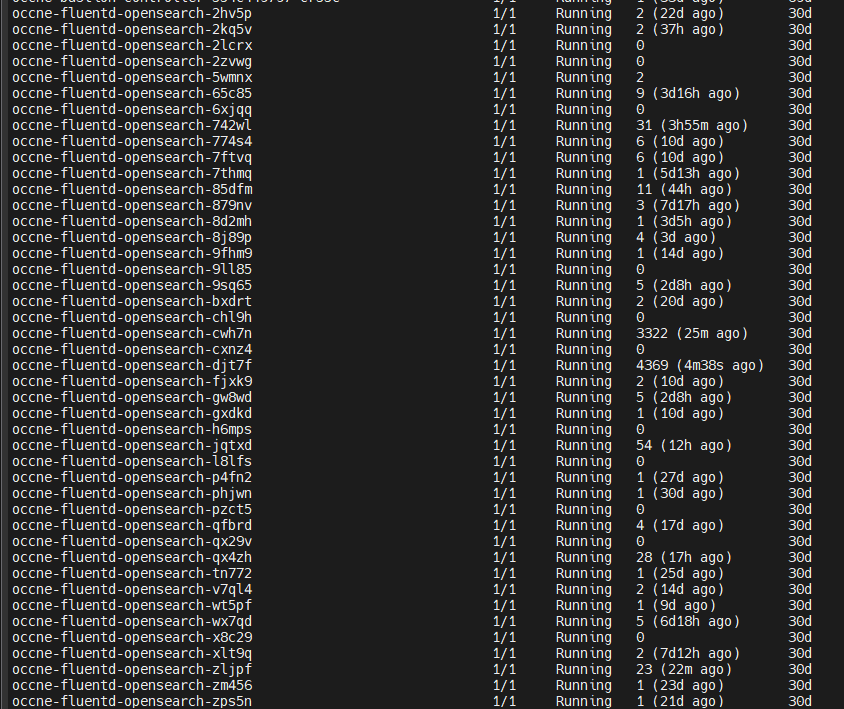
- The Fluentd pod reports multiple restarts and frequently gets killed by
OOMKilled. - This results in high disk usage by the Fluentd pods, impacting the Kafka disk write access. The Ceph storage class is shared by all the pods deployed in the cluster.
Details:
Containers:
  fluentd:
    Container ID:   containerd://a586d8342a087b5f910134c0ed796e1acc6c5ababe1c6fcefc3516ac2fea7bb9
    Image:          occne-repo-host:5000/docker.io/fluent/fluentd-kubernetes-daemonset:v1.16.2-debian-opensearch-1.0
    Image ID:       occne-repo-host:5000/docker.io/fluent/fluentd-kubernetes-daemonset@sha256:021133690696649970204ed525f3395c17601b63dcf1fe9c269378dcd0d80ae1
    Port:           24231/TCP
    Host Port:      0/TCP
    State:          Running
      Started:      Thu, 23 May 2024 10:42:00 +0000
    Last State:     Terminated
      Reason:       OOMKilled
Solution:
- Increase the memory allocation for the Fluentd pods to resolve the
OOMKilledissue. - Allow all the Fluentd pods to restart after the memory increase.
2.2.27 Kafka Broker Goes into "CrashLoopBackOff" State During Very Low-Throughput Traffic
Problem
The Kafka broker enters a CrashLoopBackoff state during very low-throughput traffic due to the No space left on device error. This occurs when the broker's Persistent Volume Claim (PVC) is full, preventing the broker from starting its process.
Error Code or Error Message
[2024-05-20 07:04:11,964] ERROR Error while loading log dir /kafka/logdir/kafka-logs (kafka.log.LogManager)
java.io.IOException: No space left on device
	at java.base/sun.nio.ch.FileDispatcherImpl.write0(Native Method)
	at java.base/sun.nio.ch.FileDispatcherImpl.write(FileDispatcherImpl.java:62)
	at java.base/sun.nio.ch.IOUtil.writeFromNativeBuffer(IOUtil.java:132)
	at java.base/sun.nio.ch.IOUtil.write(IOUtil.java:97)
	at java.base/sun.nio.ch.IOUtil.write(IOUtil.java:67)
	at java.base/sun.nio.ch.FileChannelImpl.write(FileChannelImpl.java:288)
	at org.apache.kafka.storage.internals.log.ProducerStateManager.writeSnapshot(ProducerStateManager.java:683)
	at org.apache.kafka.storage.internals.log.ProducerStateManager.takeSnapshot(ProducerStateManager.java:437)
	at kafka.log.LogLoader.recoverSegment(LogLoader.scala:373)
	at kafka.log.LogLoader.recoverLog(LogLoader.scala:425)
	at kafka.log.LogLoader.load(LogLoader.scala:163)
	at kafka.log.UnifiedLog$.apply(UnifiedLog.scala:1804)
	at kafka.log.LogManager.loadLog(LogManager.scala:278)
	at kafka.log.LogManager.$anonfun$loadLogs$15(LogManager.scala:421)
	at java.base/java.util.concurrent.Executors$RunnableAdapter.call(Executors.java:539)
	at java.base/java.util.concurrent.FutureTask.run(FutureTask.java:264)
	at java.base/java.util.concurrent.ThreadPoolExecutor.runWorker(ThreadPoolExecutor.java:1136)
	at java.base/java.util.concurrent.ThreadPoolExecutor$Worker.run(ThreadPoolExecutor.java:635)
	at java.base/java.lang.Thread.run(Thread.java:842)
Solution
This issue can be resolved by following the steps below. The procedure is applicable to the relayagent or mediation group with CEPH-based Kafka storage; use the corresponding group’s namespace.
- Increase the PVC size of your Kafka broker so that the Kafka process can start
normally.
Refer to the section Steps to increase the size of existing PVC of the Oracle Communications Network Analytics Data Director User Guide for more details on how to increase the size of a PVC.
For example, if you have configured a small PVC size for your Kafka broker, such as
8Gi, you can increase the size to11Gifor the Kafka broker process to start normally. - Run the following command to exec into the Kafka broker
pod:
kubectl exec -ti kafka-broker-0 -n <namespace> -- bash - Navigate to the
kafka/binfolder and apply the configsegment.msfor your Kafka topics by running the appropriate command:If ACL is not enabled, run:
./kafka-configs.sh --bootstrap-server localhost:9092 --alter --entity-type topics --entity-name <TOPIC_NAME> --add-config segment.ms=<Time in ms>If ACL is enabled, run:
./kafka-configs.sh --bootstrap-server kafka-broker:9094 --alter --entity-type topics --entity-name <TOPIC_NAME> --add-config segment.ms=<Time in ms> --command-config ../../admin.propertiesThe config must be applied for all the OCNADD Kafka topics.
Time in ms can be any small value, for example
600000(10 minutes) or720000(12 minutes).
2.2.28 Database Space Full Preventing Configuration and Subscription from Being Saved in Database
Scenario:
cnDBTier- Alarm Flooding: Too many alarms are raised due to repetitive failure scenarios, such as network communication failure.
- Excessive xDR Generation: Too many xDRs are generated either due to a traffic spike or network misconfiguration, leading to an increased number of xDRs.
Problem:
When this issue occurs, new entries in database tables within various schemas cannot be created. The following error might be seen in the logs of the Data Director export service:
SQL Error: 1114, SQLState: HY000 The table 'SUBSCRIPTION' is full
Solution:
- Free up space in the
AlarmDBby deleting older alarm entries. - Free up space in the
xDRDBby deleting older xDRs.
Steps to Resolve:
Step 1: Run the following command to log in to the MySQL pod.
Note:
Use the namespace in which the cnDBTier is deployed. For example,
the occne-cndbtier namespace is used. The default container name is
ndbmysqld-0.
kubectl -n occne-cndbtier exec -it ndbmysqld-0 -- bashStep 2: Run the following command to log in to the MySQL server using the MySQL client
$ mysql -h 127.0.0.1 -uocdd -p
$ Enter password:
Step 3: Free up space in the Alarm DB by deleting older alarms and event entries.
- Fetch the required events from the
EVENTStable:SELECT * FROM <alarm_db_name>.EVENTS WHERE ALARM_ID IN ( SELECT ALARM_ID FROM <alarm_db_name>.ALARM WHERE (ALARM_SEVERITY = 'INFO') OR (ALARM_STATUS = 'CLEARED' AND RAISED_TIME <= NOW() - INTERVAL 7 DAY) ) LIMIT 5000; - Delete the required events from the
EVENTStable:DELETE FROM <alarm_db_name>.EVENTS WHERE ALARM_ID IN ( SELECT ALARM_ID FROM <alarm_db_name>.ALARM WHERE (ALARM_SEVERITY = 'INFO') OR (ALARM_STATUS = 'CLEARED' AND RAISED_TIME <= NOW() - INTERVAL 7 DAY) ) LIMIT 5000; - Fetch the required alarms from the
ALARMtable:SELECT * FROM <alarm_db_name>.ALARM WHERE (ALARM_SEVERITY = 'INFO') OR (ALARM_STATUS = 'CLEARED' AND RAISED_TIME <= NOW() - INTERVAL 7 DAY) LIMIT 5000; - Delete the required alarms from the
ALARMtable:DELETE FROM <alarm_db_name>.ALARM WHERE (ALARM_SEVERITY = 'INFO') OR (ALARM_STATUS = 'CLEARED' AND RAISED_TIME <= NOW() - INTERVAL 7 DAY) LIMIT 5000; - Commit the changes:
commit;
Step 4: Free up space in the xDR DB by deleting older xDRs. The xDR table name is
the same as the Correlation Configuration name (for example,
<correlationname>XDR). Replace
<xDR_table_name> with <correlationname>XDR
in the steps below:
- Fetch the required xDRs from the corresponding xDR
table:
SELECT * FROM <storageadapter_schema>.<correlationname>XDR WHERE beginTime <= NOW() - INTERVAL 6 HOUR LIMIT 5000; - Delete the required xDRs from the corresponding xDR
table:
DELETE FROM <storageadapter_schema>.<correlationname>XDR WHERE beginTime <= NOW() - INTERVAL 6 HOUR LIMIT 5000; - Commit the changes:
commit;
Note:
The limit in the above queries can be increased from '5000' as needed.2.2.29 Invalid Subscription Entry in the Subscription Table
Scenario:
OCNADD supports a subscription mechanism for the configuration information exchange within Data Director services. OCNADD configuration service maintains the subscription table, and all the other services like correlation, filter, export, consumer adapter, etc., subscribe to the configuration service on startup and receive configuration updates via notifications from the configuration service. The configuration service manages the subscription entry cleanup from the database and its local cache. It deletes the subscription entry of the service which is not available or which has been unregistered or unsubscribed with the subscription service.
In the older version of OCNADD, for example, 24.2.x/24.3.x, it is possible that the older subscription entry may remain in the subscription table as the cleanup mechanism was not available or the clean unsubscription could not happen. This results in the older entries remaining in the subscription table. These older entries may result in delayed configuration notifications sent to the services that have subscribed to the configuration service when the configuration service is restarted during an upgrade/rollback. The other services, like correlation, export, or adapter, may not receive the notification in a timely manner and could not perform their functionality for a prolonged time duration.
Problem:
When this issue occurs, older entries in the subscription table can be observed. This is typically expected in rollback scenarios to older releases (e.g., from release 25.1.0 to 24.2.x).
| 6c0b06a8-06e1-47f3-91b3-6e3828284cca | https://10.233.82.205:12595/ocnadd-export/v1/export/notification | EXPORTSERVICE-1 | EXPORT_SERVICE | EXPORT-1 | kp-mgmt:ocnadd-vcne3 |mysql> select * from SUBSCRIPTION;
+--------------------------------------+--------------------------------------------------------------------+-------------------------+--------------------------+---------------------+----------------------+
| SUBSCRIPTION_ID | NOTIFICATION_URI | SERVICE_ID | SERVICE_TYPE | TARGET_CONSUMERNAME | WORKER_GROUP |
+--------------------------------------+--------------------------------------------------------------------+-------------------------+--------------------------+---------------------+----------------------+
| 980705eb-54ac-4148-9962-e587e80f4328 | https://10.233.113.164:9664/ocnadd-storageadapter/v1/notification | feed1-storage-adapter-1 | STORAGE_ADAPTER_SERVICE | feed1 | kp-mgmt:ocnadd-vcne3 |
| 012852ec-97f2-483c-a625-02d3c7f2c32d | https://10.233.96.131:12585/ocnadd-egress-filter/v1/notifications | FILTER_SERVICE-1 | FILTER_SERVICE | egress-filter | kp-mgmt:ocnadd-vcne3 |
| 467ef3b8-f26f-443e-a1e0-11b0a308e33a | https://10.233.75.161:9664/ocnadd-correlation/v1/notification | feed1-correlation-1 | CORRELATION_SERVICE | feed1 | kp-mgmt:ocnadd-vcne3 |
| d75fc1f7-82fe-442c-a528-83b7b35d6078 | https://10.233.109.96:9664/ocnadd-correlation/v1/notification | feed1-correlation-1 | CORRELATION_SERVICE | feed1 | kp-mgmt:ocnadd-vcne3 |
| 3c353e06-0635-4c4a-8c32-d13ac18069f9 | https://10.233.97.134:9182/ocnadd-consumeradapter/v5/notifications | A-ORA-ADAPTER-1 | CONSUMER_ADAPTER_SERVICE | a-ora | kp-mgmt:ocnadd-vcne3 |
| c1f0541f-ae36-46a2-b41f-09e3fb247505 | https://10.233.89.232:9182/ocnadd-consumeradapter/v5/notifications | A-ORA-ADAPTER-2 | CONSUMER_ADAPTER_SERVICE | a-ora | kp-mgmt:ocnadd-vcne3 |
| 6c0b06a8-06e1-47f3-91b3-6e3828284cca | https://10.233.82.205:12595/ocnadd-export/v1/export/notification | EXPORTSERVICE-1 | EXPORT_SERVICE | EXPORT-1 | kp-mgmt:ocnadd-vcne3 |
| a38e52ef-fd69-4ffe-b4c0-b70ab05c9301 | https://10.233.109.77:9664/ocnadd-correlation/v1/notification | feed1-correlation-1 | CORRELATION_SERVICE | feed1 | kp-mgmt:ocnadd-vcne3 |
+--------------------------------------+--------------------------------------------------------------------+-------------------------+--------------------------+---------------------+----------------------+
8 rows in set (0.01 sec)OCL [36m2024-12-04 07:31:03.237[0;39m [1;30m[parallel-1][0;39m [31mWARN [0;39m [35mc.o.c.c.o.c.e.s.n.ExportNotificationService[0;39m - Sending Export Config notification to uri: https://10.233.82.205:12595/ocnadd-export/v1/export/notification is not successful. Retry number 1
OCL [36m2024-12-04 07:31:33.234[0;39m [1;30m[parallel-1][0;39m [31mWARN [0;39m [35mc.o.c.c.o.c.e.s.n.ExportNotificationService[0;39m - Sending Export Config notification to uri: https://10.233.82.205:12595/ocnadd-export/v1/export/notification is not successful. Retry number 2
OCL [36m2024-12-04 07:32:03.240[0;39m [1;30m[parallel-1][0;39m [31mWARN [0;39m [35mc.o.c.c.o.c.e.s.n.ExportNotificationService[0;39m - Sending Export Config notification to uri: https://10.233.82.205:12595/ocnadd-export/v1/export/notification is not successful. Retry number 3 OCL [36m2024-12-04 07:33:02.252[0;39m [1;30m[default-nioEventLoopGroup-1-2][0;39m [1;31mERROR[0;39m [35mclient-logger[0;39m - Failed to connect to remote io.netty.channel.ConnectTimeoutException: connection timed out after 30000 ms: /10.233.82.205:12595 at io.netty.channel.nio.AbstractNioChannel$AbstractNioUnsafe$1.run(AbstractNioChannel.java:263) at io.netty.util.concurrent.PromiseTask.runTask(PromiseTask.java:98) at io.netty.util.concurrent.ScheduledFutureTask.run(ScheduledFutureTask.java:153) at io.netty.util.concurrent.AbstractEventExecutor.runTask(AbstractEventExecutor.java:173) at io.netty.util.concurrent.AbstractEventExecutor.safeExecute(AbstractEventExecutor.java:166) at io.netty.util.concurrent.SingleThreadEventExecutor.runAllTasks(SingleThreadEventExecutor.java:469) at io.netty.channel.nio.NioEventLoop.run(NioEventLoop.java:569) at io.netty.util.concurrent.SingleThreadEventExecutor$4.run(SingleThreadEventExecutor.java:994) at io.netty.util.internal.ThreadExecutorMap$2.run(ThreadExecutorMap.java:74) at io.netty.util.concurrent.FastThreadLocalRunnable.run(FastThreadLocalRunnable.java:30) at java.base/java.lang.Thread.run(Thread.java:1583)Solution:
- Delete the stale entry from the subscription table. For example, remove the entry
corresponding to the subscription ID
6c0b06a8-06e1-47f3-91b3-6e3828284ccawith the POD IP10.233.82.205:12595in the presented example. - Restart the configuration service after deleting the entry from the subscription table in the configuration database.
2.2.30 Correlation Configuration Does Not Get Deployed Post Rollback
Scenario:
Correlation configuration does not get deployed after the rollback.
Problem:
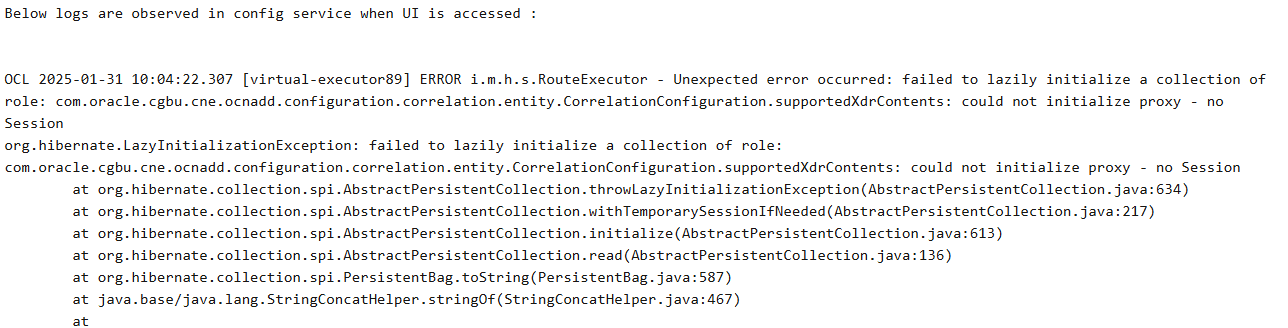
- The UI is not accessible after the Configuration Service is restarted following a rollback from the current release to target release.
- The Correlation Configuration does not get deployed after the Configuration Service is restarted following a rollback from the current release to target release.
Figure 2-2 Error Code or Error Message
Solution:
This issue can be addressed by applying the following workaround:
- Edit the Configuration Service deployment and add the following
parameter to the environment
variables:
- name: logger.levels.com.oracle.cgbu.cne.ocnadd.configuration.correlation.service.configuration
  value: DEBUG
- Update the parameter
logger.levels.com.oracle.cgbu.cne.ocnadd.configuration.correlation.service.configuration:
                        DEBUG
in the custom values of the management group.ocnaddconfiguration: ocnaddconfiguration: name: ocnaddconfiguration env: logger.levels.com.oracle.cgbu.cne.ocnadd.configuration.correlation.service.configuration: DEBUG - Perform the Helm upgrade for the management
group:
helm upgrade <management-release-name> -f ocnadd-common-custom-values.yaml -f ocnadd-custom-values-<mgmt-group>.yaml --namespace <source-release-namespace> <helm_chart>For example:helm upgrade mgmt -f custom-templates/ocnadd-common-custom-values.yaml -f custom-templates/ocnadd-custom-values-mgmt.yaml -n mgmt-ns ocnadd
2.2.31 Cleanup of Redundant xDR Tables
Scenario
xDR tables may remain in the Storage Adapter schema even after xDR storage has been disabled or removed. The following scenarios can lead to this condition:
- xDR storage is disabled in the correlation configuration.
- The correlation configuration has been deleted.
- The Storage Adapter was unavailable in a previous release, and a rollback was performed from the current release with xDR storage enabled.
Solution
If xDRs are no longer required, it is recommended to delete the xDR tables directly using the MySQL client.
2.2.32 Filter service does not receive any notification update after Migration
Scenario
After the migration has been completed in the current release, the filter service does
not receive notification from the configuration service. The data processing from the
filter service will be stopped, and any FILTERED /
CORRELATED_FILTERED feed will stop working.
Solution
The solution is to restart the ocnaddfilter service in the mediation
namespace. The same can be achieved by deleting the ocnaddfilter pod in
the mediation namespace.
kubectl delete po ocnaddfilter-xxxx -n <mediation_namespace>
Example if mediation namespace is dd-med:
kubectl delete po ocnaddfilter-xxxx -n dd-med
2.3 Troubleshooting Traffic Stability in OCNADD
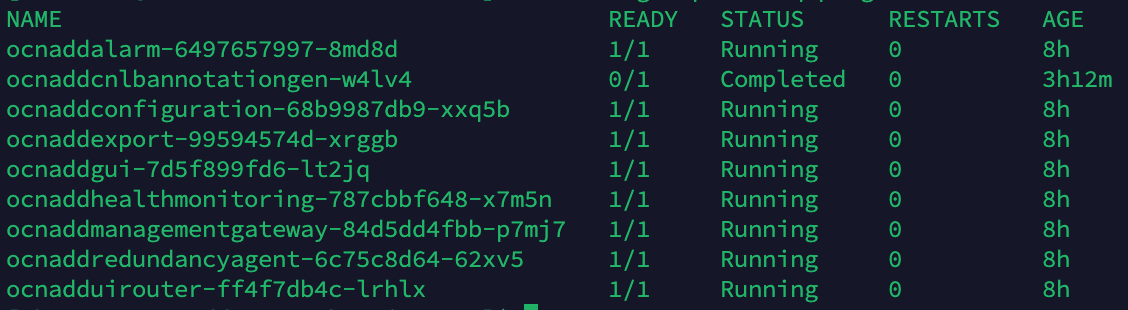
Verifying Pod Stability
To verify pod stability, run the following command:
kubectl get po -n <`ocnadd-group-namespace`>
Example
To verify pods in the management group namespace ocnadd-mgmt:
kubectl get po -n ocnadd-mgmt
To verify pods in the relay agent group namespace ocnadd-rea:
kubectl get po -n ocnadd-rea
To verify pods in the mediation group namespace ocnadd-med:
kubectl get po -n ocnadd-med
Output:
CrashLoopBackOff status will appear in the
output.
Figure 2-3 Output
Throughput metrics
Analyzing Throughput Metrics
Analyze the throughput metrics to validate both ingress and egress traffic rates. The following metrics are used to measure them:
- Ingress:
kafka_stream_processor_node_process_total(Metric reported under the relay agent group namespace)
- Egress:
ocnadd_egress_requests_total(Metric reported under the mediation group namespace)
These metrics can be visualized in Prometheus to understand the current system throughput. For details on these metrics and corresponding Prometheus queries, refer to the “OCNADD Metrics, KPIs, and Alerts” section of the Oracle Communications Network Analytics Data Director User Guide.
Output:
Ingress traffic rate
Figure 2-4 Ingress traffic rate
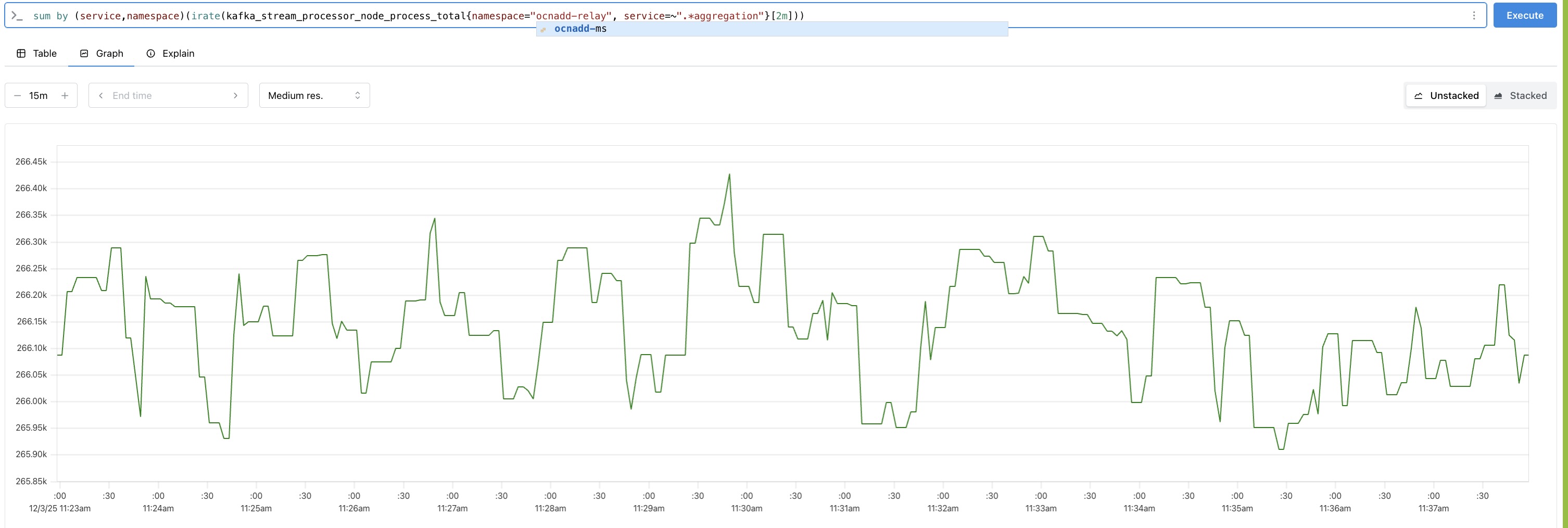
Egress traffic rate
Figure 2-5 Egress traffic rate
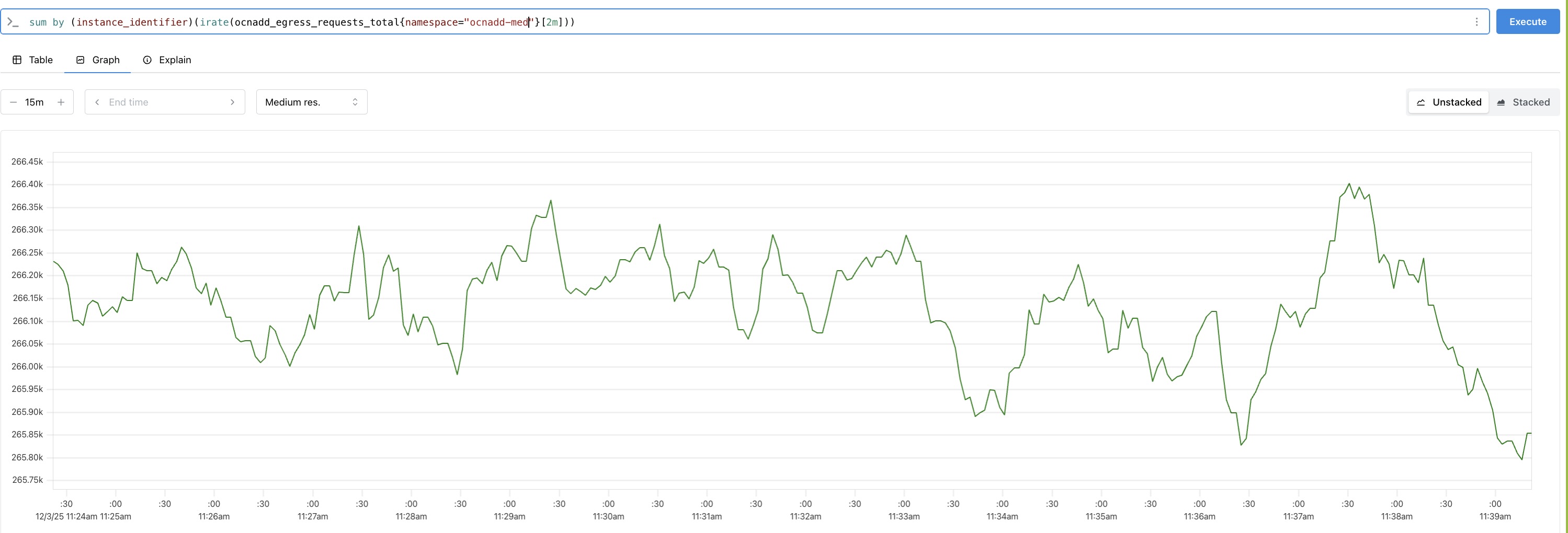
Resource utilization
To check the pod CPU and memory utilisation, run the following command:
kubectl top po -n <ocnadd-group-namespace>
Example:
To verify resource utilisation for pods in the management group namespace
ocnadd-mgmt:
> kubectl top po -n ocnadd-mgmt
To verify resource utilisation for pods in the relay agent group namespace
ocnadd-rea:
> kubectl top po -n ocnadd-rea
To verify resource utilisation for pods in the mediation group namespace
ocnadd-med:
> kubectl top po -n ocnadd-med
Output:
The output lists the resource utilisation for each pod in the specified namespace. Ensure no pod sustains CPU or memory utilisation above 85 percent for an extended duration.
Figure 2-6 Output
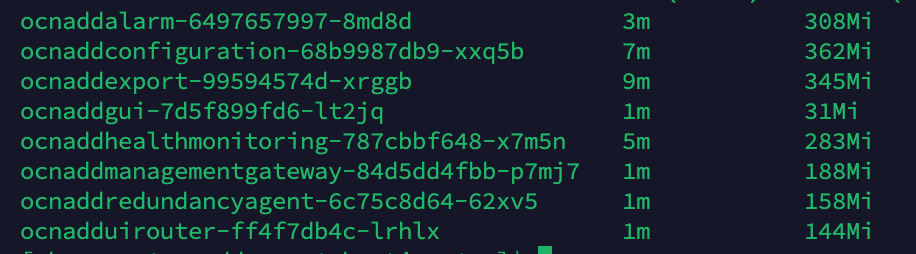
Kafka consumer performance
Run the Kafka consumer group command in the Relay Agent Kafka cluster and the
Mediation Kafka cluster to measure partition lag in the source NF topic and the
MAIN topic respectively. There should not be significant lag in
the partitions for a long period of time, and it should not continue to accumulate.
Review the consumer group command output every 2–3 minutes to determine whether the
lag is decreasing or building up across partitions.
./kafka-consumer-groups.sh --bootstrap-server <host>:<port> --describe --all-groups
Example:
./kafka-consumer-groups.sh --bootstrap-server kafka-broker:9092 --describe --all-groups
For Kafka port 9093 and 9094, the user must create
admin.properties to run the command:
./kafka-consumer-groups.sh --bootstrap-server kafka-broker:9093 --describe --all-groups --command-config /path/to/admin.properties
Output:
Figure 2-7 output
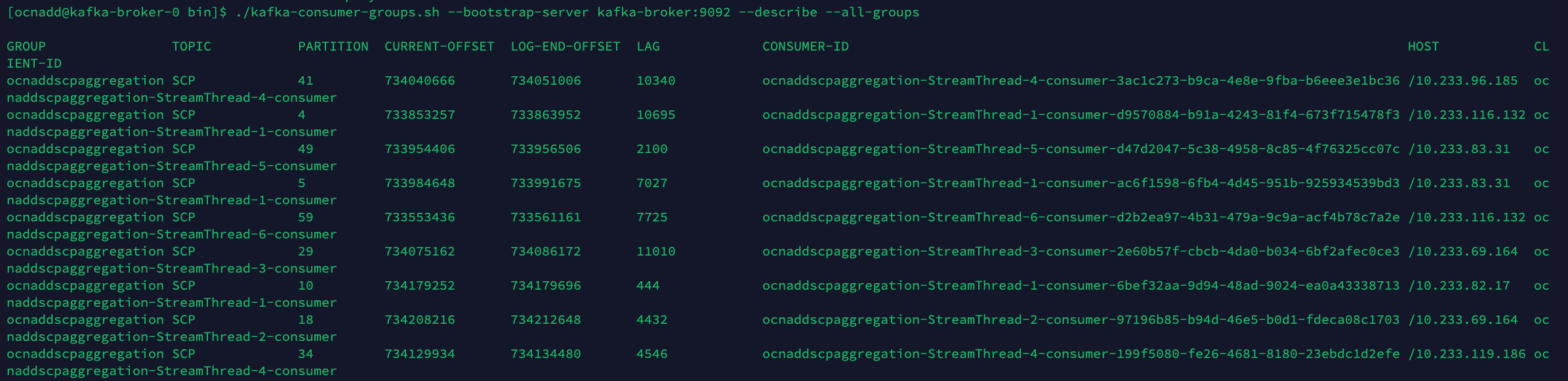
Figure 2-8 output
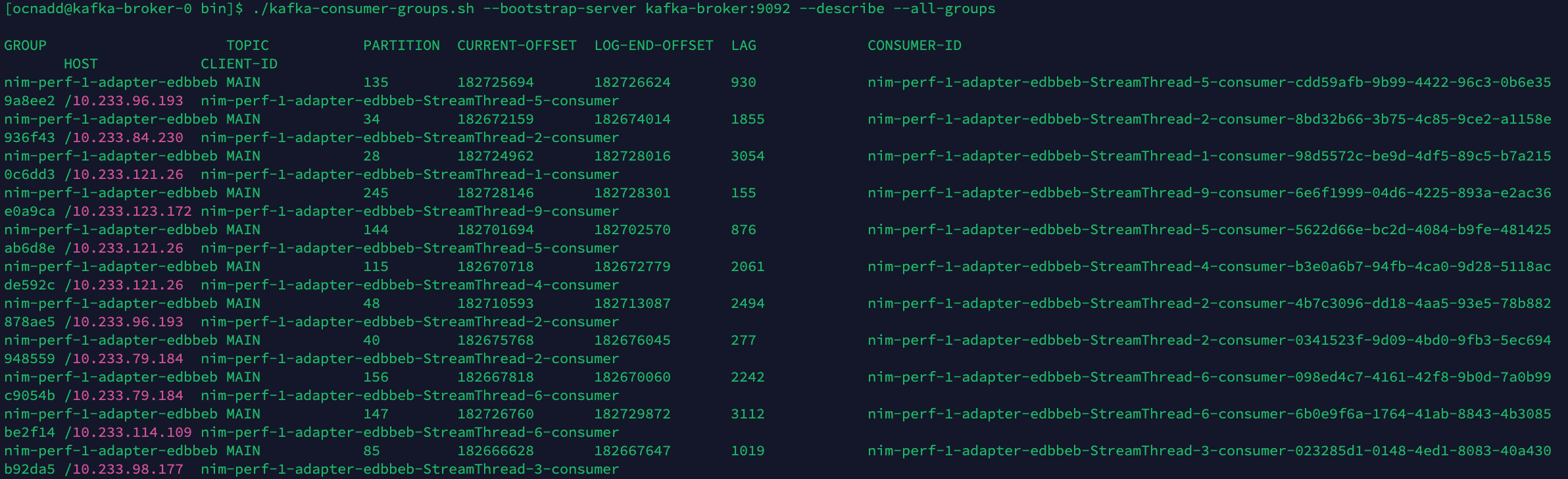
End-to-end latency
End-to-end metrics can be visualized to verify how quickly traffic is processed. This value should remain below the allowed threshold. Analyze the following metric to check end-to-end latency:
ocnadd_egress_e2e_request_processing_latency_seconds(Metric reported under the mediation group namespace)
For details on this metric and the Prometheus query, see the Oracle Communications Network Analytics Data Director User Guide, in the “OCNADD Metrics, KPIs, and Alert” section.
Output:
Figure 2-9 output
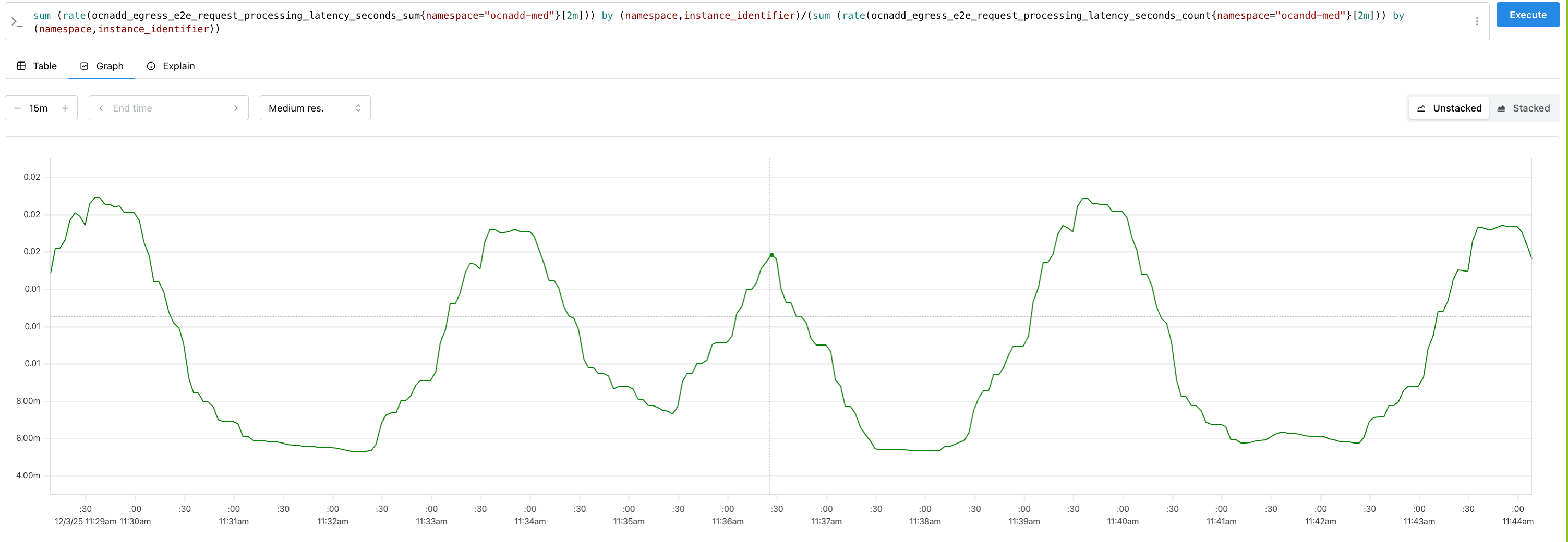
2.4 CNLB Troubleshooting Scenarios
This section should be referred to for troubleshooting issues encountered after OCNADD deployment and configuration in a CNLB-based CNE environment. The issues mentioned below are general problems that can be investigated to identify the root cause and find appropriate solutions.
Secondary Site Unable to Reach Primary Site RA on Load Balancer IP (CNLB IP):
Troubleshooting Steps:
- Verify indentation and configuration of CNLB annotations
first:
$ kubectl edit -n <namespace> deployment.apps/ocnaddredundancyagentIndentation and configuration should be like below example:
template: metadata: annotations: k8s.v1.cni.cncf.io/networks: default/nf-oam-int1@nf-oam-int1 oracle.com.cnc/cnlb: '[{"backendPortName": "rrbackport", "cnlbIp":"10.123.155.33","cnlbPort":"13000"}]' - If the annotation indentation is correct, proceed to check the attached Network
Attachment Definition (NAD)
information:
$ kubectl get net-attach-def <NAD Name Configured in RA> -n default -o yamlFor example:

- Retrieve the service set information by running the following
command:
$ kubectl exec -ti -n <occne-infra namespace> $(kubectl -n <occne-infra namespace> get po --no-headers -l app=cnlb-manager -o custom-columns=:.metadata.name) -- curl http://localhost:5001/service-infoIdentify the
serviceIpSetthat contains thefrontEndIPandfrontEndPortof the configured CNLB annotation in the RA deployment.For example: The RA is assigned to service set to
0. Ensure thatrrbackendportand10.121.44.157are not repeated in more than one entry in any of service set.{ "backendIpList": ["172.16.113.131"], "backendPort": 13000, "backendPortName": "rrbackendport", "frontEndIp": "10.123.155.33", "frontEndPort": 13000, "gatewayIp": "172.16.113.1", "networkName": "sig3" }- If multiple entries are found, run the following command to check which
other services are using the same
frontEndIp(cnlbIP). Resolve the issue by following the Oracle Communication Network Analytics Data Director User Guide to re-enable RA CNLB and assign a new IP.$ kubectl get deploy,sts,ds -A -o json | jq -r '.items[] | select(.spec.template.metadata.annotations."k8s.v1.cni.cncf.io/networks" != null) | {kind, namespace: .metadata.namespace, name: .metadata.name, podAnnotations: .spec.template.metadata.annotations."k8s.v1.cni.cncf.io/networks", cnlbIPS: .spec.template.metadata.annotations."oracle.com.cnc/cnlb"}' - Identify the CNLB App Assigned to Service Set 0
- Run the following command to identify which active CNLB app is
assigned to service set
0
kubectl exec -ti -n occne-infra $(kubectl -n <occne-infra namespace> get po --no-headers -l app=cnlb-manager -o custom-columns=:.metadata.name) -- curl http://localhost:5001/node-pod-roleSample output:

- Determine which CNLB app has the pod IP
10.233.71.213:$ kubectl get po -n occne-infra -o wide | grep 10.233.71.213Sample output:

- Check CNLB POD Status and Logs and Investigate identified CNLB
pod:
kubectl logs -n <occne-infra namespace> cnlb-app-58cb4fd4bc-xpbwmAnalyze the logs to determine if the issue is related to the CNLB pod.
- Run the following command to identify which active CNLB app is
assigned to service set
0
- If multiple entries are found, run the following command to check which
other services are using the same
Ingress/Egress NAD information missing in Dropdown for Ingress Feed and Adapter Feed in GUI
- First, investigate the CNLB job logs for any errors. If error logs
are found, verify that there is a sufficient number of external IPs or that the
network is correctly defined in the
cnlb.inifile.c$ kubectl logs -n <dd-med-namespace> <cnlb-job-pod-name>For example:$ kubectl logs -n ocnadd-med ocnaddcnlbannotationgen-h5fsb - Re-run the CNLB job to update the ConfigMap with the latest available NAD information. Refer to the Oracle Communication Network Analytics Data Director User Guide for instructions in the chapter "Create CNLB Annotation Generation Job."
- Verify the content of the ingress/egress ConfigMap to ensure it has
been created with the available ingress and egress NAD
information.c
$ kubectl get cm -n <dd-med-namespace> ocnadd-configmap-cnlb-egress -o yaml
$ kubectl get cm -n <dd-med-namespace> ocnadd-configmap-cnlb-ingress -o yaml
For example:
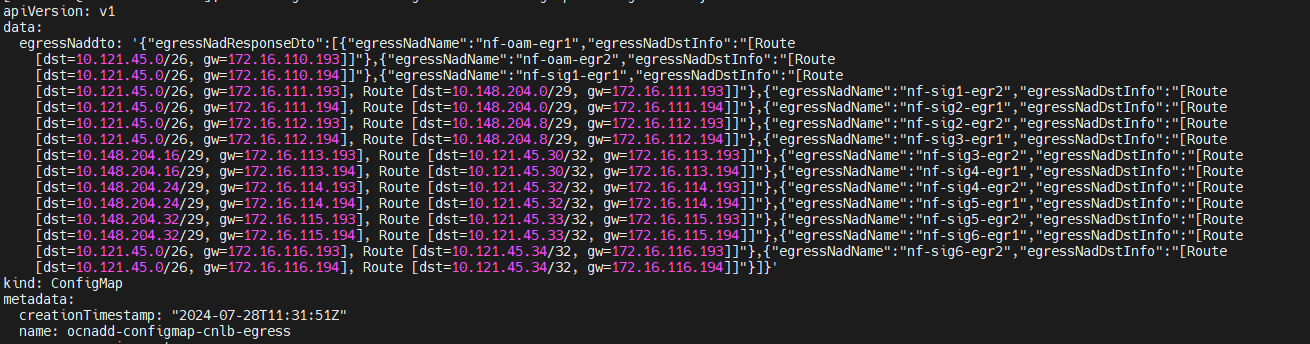

Ensure that at least one NAD entry is present in the ConfigMaps "ocnadd-configmap-cnlb-egress" and "ocnadd-configmap-cnlb-ingress" to enable traffic segregation.
2.5 Extended Storage with Druid Troubleshooting Scenarios
This section should be referred to for troubleshooting issues encountered after OCNADD integration with the DRUID database cluster. The issues mentioned below are generic and can be investigated using the Druid unified console or APIs.
Getting the list of active Supervisor Spec from Druid
A Supervisor Spec is created for every correlation configuration that supports extended storage when the extended storage type is set to Druid database. The API below provides a way to fetch the active Supervisor Specs running for Kafka ingestion.
URL: http://<druid_router_ip>:<druid_router_port>/druid/indexer/v1/supervisor
Endpoint:
/druid/indexer/v1/supervisor
Method:
GET
Request Body: None
Response:
200 OK – Returns a
List<String>
Description: Returns an array of strings representing the names of active supervisors. If there are no active supervisors, it returns an empty array.
Example Response:
[
  "corr1_tdr",
  "corr2_sudr"
]
Endpoint:
/druid/indexer/v1/supervisor?full=null
Method:
GET
Request Body: None
Response:
200 OK – Returns a
List<Supervisor>
Description: Returns an array of Supervisor objects. If there are no active supervisors, it returns an empty array.
[
  {
    "id": "joe_corr_feed_2XDR_dvm1",
    "state": "RUNNING",
    "detailedState": "RUNNING",
    "healthy": true,
    "spec": {
      "type": "kafka",
      "spec": {
        "dataSchema": {
          "dataSource": "joe_corr_feed_2XDR_dvm1",
          "timestampSpec": {
            "column": "beginTime",
            "format": "iso",
            "missingValue": null
          },
          "dimensionsSpec": {
            "dimensions": [
              { "type": "string", "name": "version", "multiValueHandling": "SORTED_ARRAY", "createBitmapIndex": true },
              { "type": "string", "name": "beginTime", "multiValueHandling": "SORTED_ARRAY", "createBitmapIndex": true },
              { "type": "string", "name": "endTime", "multiValueHandling": "SORTED_ARRAY", "createBitmapIndex": true },
              { "type": "string", "name": "configurationName", "multiValueHandling": "SORTED_ARRAY", "createBitmapIndex": true },
              { "type": "string", "name": "xdrStatus", "multiValueHandling": "SORTED_ARRAY", "createBitmapIndex": true },
              { "type": "long", "name": "totalPduCount", "multiValueHandling": "SORTED_ARRAY", "createBitmapIndex": false },
              { "type": "long", "name": "totalLength", "multiValueHandling": "SORTED_ARRAY", "createBitmapIndex": false },
              { "type": "string", "name": "transactionTime", "multiValueHandling": "SORTED_ARRAY", "createBitmapIndex": true },
              { "type": "string", "name": "path", "multiValueHandling": "SORTED_ARRAY", "createBitmapIndex": true },
              { "type": "string", "name": "methodType", "multiValueHandling": "SORTED_ARRAY", "createBitmapIndex": true },
              { "type": "string", "name": "egressAuthority", "multiValueHandling": "SORTED_ARRAY", "createBitmapIndex": true },
              { "type": "string", "name": "feedSourceNfFqdn", "multiValueHandling": "SORTED_ARRAY", "createBitmapIndex": true },
              { "type": "string", "name": "feedSourceNfId", "multiValueHandling": "SORTED_ARRAY", "createBitmapIndex": true },
              { "type": "string", "name": "producerFqdn", "multiValueHandling": "SORTED_ARRAY", "createBitmapIndex": true },
              { "type": "string", "name": "contentType", "multiValueHandling": "SORTED_ARRAY", "createBitmapIndex": true },
              { "type": "string", "name": "supi", "multiValueHandling": "SORTED_ARRAY", "createBitmapIndex": true },
              { "type": "string", "name": "ingressAuthority", "multiValueHandling": "SORTED_ARRAY", "createBitmapIndex": true },
              { "type": "string", "name": "consumerId", "multiValueHandling": "SORTED_ARRAY", "createBitmapIndex": true },
              { "type": "string", "name": "consumerFqdn", "multiValueHandling": "SORTED_ARRAY", "createBitmapIndex": true },
              { "type": "string", "name": "ueId", "multiValueHandling": "SORTED_ARRAY", "createBitmapIndex": true },
              { "type": "string", "name": "consumerNfType", "multiValueHandling": "SORTED_ARRAY", "createBitmapIndex": true },
              { "type": "string", "name": "xdrId", "multiValueHandling": "SORTED_ARRAY", "createBitmapIndex": true },
              { "type": "string", "name": "gpsi", "multiValueHandling": "SORTED_ARRAY", "createBitmapIndex": true },
              { "type": "string", "name": "pei", "multiValueHandling": "SORTED_ARRAY", "createBitmapIndex": true },
              { "type": "string", "name": "statusCode", "multiValueHandling": "SORTED_ARRAY", "createBitmapIndex": true },
              { "type": "string", "name": "userAgent", "multiValueHandling": "SORTED_ARRAY", "createBitmapIndex": true },
              { "type": "string", "name": "transactionId", "multiValueHandling": "SORTED_ARRAY", "createBitmapIndex": true },
              { "type": "string", "name": "feedSourceNfType", "multiValueHandling": "SORTED_ARRAY", "createBitmapIndex": true },
              { "type": "string", "name": "producerId", "multiValueHandling": "SORTED_ARRAY", "createBitmapIndex": true },
              { "type": "string", "name": "registrationTime", "multiValueHandling": "SORTED_ARRAY", "createBitmapIndex": true },
              { "type": "string", "name": "smfInstanceId", "multiValueHandling": "SORTED_ARRAY", "createBitmapIndex": true },
              { "type": "string", "name": "smfSetId", "multiValueHandling": "SORTED_ARRAY", "createBitmapIndex": true },
              { "type": "string", "name": "snssai", "multiValueHandling": "SORTED_ARRAY", "createBitmapIndex": true },
              { "type": "string", "name": "dnn", "multiValueHandling": "SORTED_ARRAY", "createBitmapIndex": true },
              { "type": "string", "name": "pcfInstanceId", "multiValueHandling": "SORTED_ARRAY", "createBitmapIndex": true },
              { "type": "string", "name": "consumerVia", "multiValueHandling": "SORTED_ARRAY", "createBitmapIndex": true },
              { "type": "string", "name": "producerVia", "multiValueHandling": "SORTED_ARRAY", "createBitmapIndex": true },
              { "type": "string", "name": "consumerPlmn", "multiValueHandling": "SORTED_ARRAY", "createBitmapIndex": true },
              { "type": "string", "name": "producerPlmn", "multiValueHandling": "SORTED_ARRAY", "createBitmapIndex": true },
              { "type": "long", "name": "pduSessionId", "multiValueHandling": "SORTED_ARRAY", "createBitmapIndex": false },
              { "type": "json", "name": "messages", "formatVersion": 5, "multiValueHandling": "SORTED_ARRAY", "createBitmapIndex": true }
            ],
            "dimensionExclusions": ["__time"],
            "includeAllDimensions": false,
            "useSchemaDiscovery": false
          },
          "metricsSpec": [],
          "granularitySpec": {
            "type": "uniform",
            "segmentGranularity": "HOUR",
            "queryGranularity": { "type": "none" },
            "rollup": false,
            "intervals": []
          },
          "transformSpec": {
            "filter": null,
            "transforms": [
              { "type": "expression", "name": "beginTime", "expression": "timestamp_format(__time)" },
              { "type": "expression", "name": "xdrId", "expression": "timestamp(endTime)+1" }
            ]
          }
        },
        "ioConfig": {
          "topic": "ADC-CORR-FEED-2-CORRELATED",
          "topicPattern": null,
          "inputFormat": { "type": "json", "keepNullColumns": false },
          "replicas": 1,
          "taskCount": 1,
          "taskDuration": "PT900S",
          "consumerProperties": {
            "auto.offset.reset": "earliest",
            "bootstrap.servers": "kafka-broker-0.kafka-broker-headless.iq-s-mgmt.svc.dv-m1.lab.in.oracle.com:9094,kafka-broker-1.kafka-broker-headless.iq-s-mgmt.svc.dv-m1.lab.in.oracle.com:9094,kafka-broker-2.kafka-broker-headless.iq-s-mgmt.svc.dv-m1.lab.in.oracle.com:9094,kafka-broker-3.kafka-broker-headless.iq-s-mgmt.svc.dv-m1.lab.in.oracle.com:9094",
            "ssl.protocol": "TLSv1.3",
            "security.protocol": "SASL_SSL",
            "ssl.keystore.location": "/var/securityfiles/keystore/serverKeyStore.p12",
            "ssl.truststore.location": "/var/securityfiles/keystore/trustStore.p12",
            "ssl.truststore.type": "PKCS12",
            "ssl.keystore.type": "PKCS12",
            "druid.dynamic.config.provider": {
              "type": "environment",
              "variables": {
                "ssl.keystore.password": "CLIENT_KS_PASSWORD",
                "ssl.truststore.password": "CLIENT_TS_PASSWORD"
              }
            },
            "sasl.mechanism": "SCRAM-SHA-256",
            "sasl.jaas.config": "org.apache.kafka.common.security.scram.ScramLoginModule required username=\"extuser1\" password=\"extuser1\";"
          },
          "autoScalerConfig": null,
          "pollTimeout": 100,
          "startDelay": "PT5S",
          "period": "PT30S",
          "useEarliestOffset": true,
          "completionTimeout": "PT1800S",
          "lateMessageRejectionPeriod": null,
          "earlyMessageRejectionPeriod": null,
          "lateMessageRejectionStartDateTime": null,
          "configOverrides": null,
          "idleConfig": null,
          "stopTaskCount": null,
          "emitTimeLagMetrics": false,
          "stream": "JOE-CORR-FEED-2-CORRELATED",
          "useEarliestSequenceNumber": true
        },
        "tuningConfig": {
          "type": "kafka",
          "appendableIndexSpec": { "type": "onheap", "preserveExistingMetrics": false },
          "maxRowsInMemory": 150000,
          "maxBytesInMemory": 0,
          "skipBytesInMemoryOverheadCheck": false,
          "maxRowsPerSegment": 50000,
          "maxTotalRows": null,
          "intermediatePersistPeriod": "PT1M",
          "maxPendingPersists": 0,
          "indexSpec": {
            "bitmap": { "type": "roaring" },
            "dimensionCompression": "lz4",
            "stringDictionaryEncoding": { "type": "utf8" },
            "metricCompression": "lz4",
            "longEncoding": "longs"
          },
          "indexSpecForIntermediatePersists": {
            "bitmap": { "type": "roaring" },
            "dimensionCompression": "lz4",
            "stringDictionaryEncoding": { "type": "utf8" },
            "metricCompression": "lz4",
            "longEncoding": "longs"
          },
          "reportParseExceptions": false,
          "handoffConditionTimeout": 900000,
          "resetOffsetAutomatically": true,
          "segmentWriteOutMediumFactory": null,
          "workerThreads": null,
          "chatRetries": 8,
          "httpTimeout": "PT10S",
          "shutdownTimeout": "PT80S",
          "offsetFetchPeriod": "PT30S",
          "intermediateHandoffPeriod": "P2147483647D",
          "logParseExceptions": false,
          "maxParseExceptions": 2147483647,
          "maxSavedParseExceptions": 0,
          "numPersistThreads": 1,
          "maxColumnsToMerge": -1,
          "skipSequenceNumberAvailabilityCheck": false,
          "repartitionTransitionDuration": "PT120S"
        }
      },
      "dataSchema": {
        "dataSource": "joe_corr_feed_2XDR_dvm1",
        "timestampSpec": {
          "column": "beginTime",
          "format": "iso",
          "missingValue": null
        },
        "dimensionsSpec": {
          "dimensions": [
            { "type": "string", "name": "version", "multiValueHandling": "SORTED_ARRAY", "createBitmapIndex": true },
            { "type": "string", "name": "beginTime", "multiValueHandling": "SORTED_ARRAY", "createBitmapIndex": true },
            { "type": "string", "name": "endTime", "multiValueHandling": "SORTED_ARRAY", "createBitmapIndex": true },
            { "type": "string", "name": "configurationName", "multiValueHandling": "SORTED_ARRAY", "createBitmapIndex": true },
            { "type": "string", "name": "xdrStatus", "multiValueHandling": "SORTED_ARRAY", "createBitmapIndex": true },
            { "type": "long", "name": "totalPduCount", "multiValueHandling": "SORTED_ARRAY", "createBitmapIndex": false },
            { "type": "long", "name": "totalLength", "multiValueHandling": "SORTED_ARRAY", "createBitmapIndex": false },
            { "type": "string", "name": "transactionTime", "multiValueHandling": "SORTED_ARRAY", "createBitmapIndex": true },
            { "type": "string", "name": "path", "multiValueHandling": "SORTED_ARRAY", "createBitmapIndex": true },
            { "type": "string", "name": "methodType", "multiValueHandling": "SORTED_ARRAY", "createBitmapIndex": true },
            { "type": "string", "name": "egressAuthority", "multiValueHandling": "SORTED_ARRAY", "createBitmapIndex": true },
            { "type": "string", "name": "feedSourceNfFqdn", "multiValueHandling": "SORTED_ARRAY", "createBitmapIndex": true },
            { "type": "string", "name": "feedSourceNfId", "multiValueHandling": "SORTED_ARRAY", "createBitmapIndex": true },
            { "type": "string", "name": "producerFqdn", "multiValueHandling": "SORTED_ARRAY", "createBitmapIndex": true },
            { "type": "string", "name": "contentType", "multiValueHandling": "SORTED_ARRAY", "createBitmapIndex": true },
            { "type": "string", "name": "supi", "multiValueHandling": "SORTED_ARRAY", "createBitmapIndex": true },
            { "type": "string", "name": "ingressAuthority", "multiValueHandling": "SORTED_ARRAY", "createBitmapIndex": true },
            { "type": "string", "name": "consumerId", "multiValueHandling": "SORTED_ARRAY", "createBitmapIndex": true },
            { "type": "string", "name": "consumerFqdn", "multiValueHandling": "SORTED_ARRAY", "createBitmapIndex": true },
            { "type": "string", "name": "ueId", "multiValueHandling": "SORTED_ARRAY", "createBitmapIndex": true },
            { "type": "string", "name": "consumerNfType", "multiValueHandling": "SORTED_ARRAY", "createBitmapIndex": true },
            { "type": "string", "name": "xdrId", "multiValueHandling": "SORTED_ARRAY", "createBitmapIndex": true },
            { "type": "string", "name": "gpsi", "multiValueHandling": "SORTED_ARRAY", "createBitmapIndex": true },
            { "type": "string", "name": "pei", "multiValueHandling": "SORTED_ARRAY", "createBitmapIndex": true },
            { "type": "string", "name": "statusCode", "multiValueHandling": "SORTED_ARRAY", "createBitmapIndex": true },
            { "type": "string", "name": "userAgent", "multiValueHandling": "SORTED_ARRAY", "createBitmapIndex": true },
            { "type": "string", "name": "transactionId", "multiValueHandling": "SORTED_ARRAY", "createBitmapIndex": true },
            { "type": "string", "name": "feedSourceNfType", "multiValueHandling": "SORTED_ARRAY", "createBitmapIndex": true },
            { "type": "string", "name": "producerId", "multiValueHandling": "SORTED_ARRAY", "createBitmapIndex": true },
            { "type": "string", "name": "registrationTime", "multiValueHandling": "SORTED_ARRAY", "createBitmapIndex": true },
            { "type": "string", "name": "smfInstanceId", "multiValueHandling": "SORTED_ARRAY", "createBitmapIndex": true },
            { "type": "string", "name": "smfSetId", "multiValueHandling": "SORTED_ARRAY", "createBitmapIndex": true },
            { "type": "string", "name": "snssai", "multiValueHandling": "SORTED_ARRAY", "createBitmapIndex": true },
            { "type": "string", "name": "dnn", "multiValueHandling": "SORTED_ARRAY", "createBitmapIndex": true },
            { "type": "string", "name": "pcfInstanceId", "multiValueHandling": "SORTED_ARRAY", "createBitmapIndex": true },
            { "type": "string", "name": "consumerVia", "multiValueHandling": "SORTED_ARRAY", "createBitmapIndex": true },
            { "type": "string", "name": "producerVia", "multiValueHandling": "SORTED_ARRAY", "createBitmapIndex": true },
            { "type": "string", "name": "consumerPlmn", "multiValueHandling": "SORTED_ARRAY", "createBitmapIndex": true },
            { "type": "string", "name": "producerPlmn", "multiValueHandling": "SORTED_ARRAY", "createBitmapIndex": true },
            { "type": "long", "name": "pduSessionId", "multiValueHandling": "SORTED_ARRAY", "createBitmapIndex": false },
            { "type": "json", "name": "messages", "formatVersion": 5, "multiValueHandling": "SORTED_ARRAY", "createBitmapIndex": true }
          ],
          "dimensionExclusions": ["__time"],
          "includeAllDimensions": false,
          "useSchemaDiscovery": false
        },
        "metricsSpec": [],
        "granularitySpec": {
          "type": "uniform",
          "segmentGranularity": "HOUR",
          "queryGranularity": { "type": "none" },
          "rollup": false,
          "intervals": []
        },
        "transformSpec": {
          "filter": null,
          "transforms": [
            { "type": "expression", "name": "beginTime", "expression": "timestamp_format(__time)" },
            { "type": "expression", "name": "xdrId", "expression": "timestamp(endTime)+1" }
          ]
        }
      },
      "tuningConfig": {
        "type": "kafka",
        "appendableIndexSpec": { "type": "onheap", "preserveExistingMetrics": false },
        "maxRowsInMemory": 150000,
        "maxBytesInMemory": 0,
        "skipBytesInMemoryOverheadCheck": false,
        "maxRowsPerSegment": 50000,
        "maxTotalRows": null,
        "intermediatePersistPeriod": "PT1M",
        "maxPendingPersists": 0,
        "indexSpec": {
          "bitmap": { "type": "roaring" },
          "dimensionCompression": "lz4",
          "stringDictionaryEncoding": { "type": "utf8" },
          "metricCompression": "lz4",
          "longEncoding": "longs"
        },
        "indexSpecForIntermediatePersists": {
          "bitmap": { "type": "roaring" },
          "dimensionCompression": "lz4",
          "stringDictionaryEncoding": { "type": "utf8" },
          "metricCompression": "lz4",
          "longEncoding": "longs"
        },
        "reportParseExceptions": false,
        "handoffConditionTimeout": 900000,
        "resetOffsetAutomatically": true,
        "segmentWriteOutMediumFactory": null,
        "workerThreads": null,
        "chatRetries": 8,
        "httpTimeout": "PT10S",
        "shutdownTimeout": "PT80S",
        "offsetFetchPeriod": "PT30S",
        "intermediateHandoffPeriod": "P2147483647D",
        "logParseExceptions": false,
        "maxParseExceptions": 2147483647,
        "maxSavedParseExceptions": 0,
        "numPersistThreads": 1,
        "maxColumnsToMerge": -1,
        "skipSequenceNumberAvailabilityCheck": false,
        "repartitionTransitionDuration": "PT120S"
      },
      "ioConfig": {
        "topic": "JOE-CORR-FEED-2-CORRELATED",
        "topicPattern": null,
        "inputFormat": { "type": "json", "keepNullColumns": false },
        "replicas": 1,
        "taskCount": 1,
        "taskDuration": "PT900S",
        "consumerProperties": {
          "auto.offset.reset": "earliest",
          "bootstrap.servers": "kafka-broker-0.kafka-broker-headless.iq-s-mgmt.svc.dv-m1.lab.in.oracle.com:9094,kafka-broker-1.kafka-broker-headless.iq-s-mgmt.svc.dv-m1.lab.in.oracle.com:9094,kafka-broker-2.kafka-broker-headless.iq-s-mgmt.svc.dv-m1.lab.in.oracle.com:9094,kafka-broker-3.kafka-broker-headless.iq-s-mgmt.svc.dv-m1.lab.in.oracle.com:9094",
          "ssl.protocol": "TLSv1.3",
          "security.protocol": "SASL_SSL",
          "ssl.keystore.location": "/var/securityfiles/keystore/serverKeyStore.p12",
          "ssl.truststore.location": "/var/securityfiles/keystore/trustStore.p12",
          "ssl.truststore.type": "PKCS12",
          "ssl.keystore.type": "PKCS12",
          "druid.dynamic.config.provider": {
            "type": "environment",
            "variables": {
              "ssl.keystore.password": "CLIENT_KS_PASSWORD",
              "ssl.truststore.password": "CLIENT_TS_PASSWORD"
            }
          },
          "sasl.mechanism": "SCRAM-SHA-256",
          "sasl.jaas.config": "org.apache.kafka.common.security.scram.ScramLoginModule required username=\"extuser1\" password=\"extuser1\";"
        },
        "autoScalerConfig": null,
        "pollTimeout": 100,
        "startDelay": "PT5S",
        "period": "PT30S",
        "useEarliestOffset": true,
        "completionTimeout": "PT1800S",
        "lateMessageRejectionPeriod": null,
        "earlyMessageRejectionPeriod": null,
        "lateMessageRejectionStartDateTime": null,
        "configOverrides": null,
        "idleConfig": null,
        "stopTaskCount": null,
        "emitTimeLagMetrics": false,
        "stream": "JOE-CORR-FEED-2-CORRELATED",
        "useEarliestSequenceNumber": true
      },
      "context": null,
      "suspended": false
    },
    "suspended": false
  }
]Endpoint:
/druid/indexer/v1/supervisor/{supervisorId}
Method:
GET
Request Body: None
Response:
200 OK– ReturnsIngestionSpec404 NotFound– None
Description: Retrieves the specification for a single supervisor. The returned specification includes:
-
dataSchema -
ioConfig -
tuningConfig
{
  "type": "kafka",
  "spec": {
    "dataSchema": {
      "dataSource": "DD_FEED2XDR",
      "timestampSpec": {
        "column": "beginTime",
        "format": "iso",
        "missingValue": null
      },
      "dimensionsSpec": {
        "dimensions": [
          {
            "type": "string",
            "name": "version",
            "multiValueHandling": "SORTED_ARRAY",
            "createBitmapIndex": true
          },
          {
            "type": "string",
            "name": "beginTime",
            "multiValueHandling": "SORTED_ARRAY",
            "createBitmapIndex": true
          },
          {
            "type": "string",
            "name": "endTime",
            "multiValueHandling": "SORTED_ARRAY",
            "createBitmapIndex": true
          },
          {
            "type": "string",
            "name": "configurationName",
            "multiValueHandling": "SORTED_ARRAY",
            "createBitmapIndex": true
          },
          {
            "type": "string",
            "name": "xdrStatus",
            "multiValueHandling": "SORTED_ARRAY",
            "createBitmapIndex": true
          },
          {
            "type": "long",
            "name": "totalPduCount",
            "multiValueHandling": "SORTED_ARRAY",
            "createBitmapIndex": false
          },
          {
            "type": "long",
            "name": "totalLength",
            "multiValueHandling": "SORTED_ARRAY",
            "createBitmapIndex": false
          },
          {
            "type": "string",
            "name": "transactionTime",
            "multiValueHandling": "SORTED_ARRAY",
            "createBitmapIndex": true
          },
          {
            "type": "string",
            "name": "path",
            "multiValueHandling": "SORTED_ARRAY",
            "createBitmapIndex": true
          },
          {
            "type": "string",
            "name": "methodType",
            "multiValueHandling": "SORTED_ARRAY",
            "createBitmapIndex": true
          },
          {
            "type": "string",
            "name": "egressAuthority",
            "multiValueHandling": "SORTED_ARRAY",
            "createBitmapIndex": true
          },
          {
            "type": "string",
            "name": "feedSourceNfFqdn",
            "multiValueHandling": "SORTED_ARRAY",
            "createBitmapIndex": true
          },
          {
            "type": "string",
            "name": "feedSourceNfId",
            "multiValueHandling": "SORTED_ARRAY",
            "createBitmapIndex": true
          },
          {
            "type": "string",
            "name": "producerFqdn",
            "multiValueHandling": "SORTED_ARRAY",
            "createBitmapIndex": true
          },
          {
            "type": "string",
            "name": "contentType",
            "multiValueHandling": "SORTED_ARRAY",
            "createBitmapIndex": true
          },
          {
            "type": "string",
            "name": "supi",
            "multiValueHandling": "SORTED_ARRAY",
            "createBitmapIndex": true
          },
          {
            "type": "string",
            "name": "ingressAuthority",
            "multiValueHandling": "SORTED_ARRAY",
            "createBitmapIndex": true
          },
          {
            "type": "string",
            "name": "consumerId",
            "multiValueHandling": "SORTED_ARRAY",
            "createBitmapIndex": true
          },
          {
            "type": "string",
            "name": "consumerFqdn",
            "multiValueHandling": "SORTED_ARRAY",
            "createBitmapIndex": true
          },
          {
            "type": "string",
            "name": "ueId",
            "multiValueHandling": "SORTED_ARRAY",
            "createBitmapIndex": true
          },
          {
            "type": "string",
            "name": "consumerNfType",
            "multiValueHandling": "SORTED_ARRAY",
            "createBitmapIndex": true
          },
          {
            "type": "string",
            "name": "xdrId",
            "multiValueHandling": "SORTED_ARRAY",
            "createBitmapIndex": true
          },
          {
            "type": "string",
            "name": "gpsi",
            "multiValueHandling": "SORTED_ARRAY",
            "createBitmapIndex": true
          },
          {
            "type": "string",
            "name": "pei",
            "multiValueHandling": "SORTED_ARRAY",
            "createBitmapIndex": true
          },
          {
            "type": "string",
            "name": "statusCode",
            "multiValueHandling": "SORTED_ARRAY",
            "createBitmapIndex": true
          },
          {
            "type": "string",
            "name": "userAgent",
            "multiValueHandling": "SORTED_ARRAY",
            "createBitmapIndex": true
          },
          {
            "type": "string",
            "name": "transactionId",
            "multiValueHandling": "SORTED_ARRAY",
            "createBitmapIndex": true
          },
          {
            "type": "string",
            "name": "feedSourceNfType",
            "multiValueHandling": "SORTED_ARRAY",
            "createBitmapIndex": true
          },
          {
            "type": "string",
            "name": "producerId",
            "multiValueHandling": "SORTED_ARRAY",
            "createBitmapIndex": true
          },
          {
            "type": "string",
            "name": "registrationTime",
            "multiValueHandling": "SORTED_ARRAY",
            "createBitmapIndex": true
          },
          {
            "type": "string",
            "name": "smfInstanceId",
            "multiValueHandling": "SORTED_ARRAY",
            "createBitmapIndex": true
          },
          {
            "type": "string",
            "name": "smfSetId",
            "multiValueHandling": "SORTED_ARRAY",
            "createBitmapIndex": true
          },
          {
            "type": "string",
            "name": "snssai",
            "multiValueHandling": "SORTED_ARRAY",
            "createBitmapIndex": true
          },
          {
            "type": "string",
            "name": "dnn",
            "multiValueHandling": "SORTED_ARRAY",
            "createBitmapIndex": true
          },
          {
            "type": "string",
            "name": "pcfInstanceId",
            "multiValueHandling": "SORTED_ARRAY",
            "createBitmapIndex": true
          },
          {
            "type": "string",
            "name": "consumerVia",
            "multiValueHandling": "SORTED_ARRAY",
            "createBitmapIndex": true
          },
          {
            "type": "string",
            "name": "producerVia",
            "multiValueHandling": "SORTED_ARRAY",
            "createBitmapIndex": true
          },
          {
            "type": "string",
            "name": "consumerPlmn",
            "multiValueHandling": "SORTED_ARRAY",
            "createBitmapIndex": true
          },
          {
            "type": "string",
            "name": "producerPlmn",
            "multiValueHandling": "SORTED_ARRAY",
            "createBitmapIndex": true
          },
          {
            "type": "long",
            "name": "pduSessionId",
            "multiValueHandling": "SORTED_ARRAY",
            "createBitmapIndex": false
          },
          {
            "type": "json",
            "name": "messages",
            "formatVersion": 5,
            "multiValueHandling": "SORTED_ARRAY",
            "createBitmapIndex": true
          }
        ],
        "dimensionExclusions": [
          "__time"
        ],
        "includeAllDimensions": false,
        "useSchemaDiscovery": false
      },
      "metricsSpec": [],
      "granularitySpec": {
        "type": "uniform",
        "segmentGranularity": "HOUR",
        "queryGranularity": {
          "type": "none"
        },
        "rollup": false,
        "intervals": []
      },
      "transformSpec": {
        "filter": null,
        "transforms": [
          {
            "type": "expression",
            "name": "beginTime",
            "expression": "timestamp_format(__time)"
          },
          {
            "type": "expression",
            "name": "xdrId",
            "expression": "timestamp(endTime)+1"
          }
        ]
      }
    },
    "ioConfig": {
      "topic": "FEED2-CORRELATED",
      "topicPattern": null,
      "inputFormat": {
        "type": "json",
        "keepNullColumns": false,
        "assumeNewlineDelimited": false,
        "useJsonNodeReader": false
      },
      "replicas": 1,
      "taskCount": 1,
      "taskDuration": "PT3600S",
      "consumerProperties": {
        "bootstrap.servers": "192.168.56.108:9092"
      },
      "autoScalerConfig": null,
      "pollTimeout": 100,
      "startDelay": "PT5S",
      "period": "PT30S",
      "useEarliestOffset": false,
      "completionTimeout": "PT1800S",
      "lateMessageRejectionPeriod": null,
      "earlyMessageRejectionPeriod": null,
      "lateMessageRejectionStartDateTime": null,
      "configOverrides": null,
      "idleConfig": null,
      "stopTaskCount": null,
      "stream": "FEED2-CORRELATED",
      "useEarliestSequenceNumber": false
    },
    "tuningConfig": {
      "type": "kafka",
      "appendableIndexSpec": {
        "type": "onheap",
        "preserveExistingMetrics": false
      },
      "maxRowsInMemory": 150000,
      "maxBytesInMemory": 0,
      "skipBytesInMemoryOverheadCheck": false,
      "maxRowsPerSegment": 50000,
      "maxTotalRows": null,
      "intermediatePersistPeriod": "PT10M",
      "maxPendingPersists": 0,
      "indexSpec": {
        "bitmap": {
          "type": "roaring"
        },
        "dimensionCompression": "lz4",
        "stringDictionaryEncoding": {
          "type": "utf8"
        },
        "metricCompression": "lz4",
        "longEncoding": "longs"
      },
      "indexSpecForIntermediatePersists": {
        "bitmap": {
          "type": "roaring"
        },
        "dimensionCompression": "lz4",
        "stringDictionaryEncoding": {
          "type": "utf8"
        },
        "metricCompression": "lz4",
        "longEncoding": "longs"
      },
      "reportParseExceptions": false,
      "handoffConditionTimeout": 900000,
      "resetOffsetAutomatically": false,
      "segmentWriteOutMediumFactory": null,
      "workerThreads": null,
      "chatRetries": 8,
      "httpTimeout": "PT10S",
      "shutdownTimeout": "PT80S",
      "offsetFetchPeriod": "PT30S",
      "intermediateHandoffPeriod": "P2147483647D",
      "logParseExceptions": false,
      "maxParseExceptions": 2147483647,
      "maxSavedParseExceptions": 0,
      "numPersistThreads": 1,
      "skipSequenceNumberAvailabilityCheck": false,
      "repartitionTransitionDuration": "PT120S"
    }
  },
  "context": null,
  "suspended": false
}
Getting the Health, Status and Stats of the supervisor
URL: http://<druid_router_ip>:<druid_router_port>/druid/indexer/v1/supervisor
1. Get Supervisor HealthEndpoint:
/druid/indexer/v1/supervisor/{supervisorId}/health
Method:
GET
Request Body: None
Response:
200 OK– Returns a JSON Object404 NotFound–"Invalid SupervisorID"503 Service Unavailable–"Supervisor is unhealthy"
Description: Retrieves the current health report for a single supervisor.
The health of a supervisor is determined by the supervisor's state (as returned by
the /status endpoint).
Example Response:
{
  "healthy": false
}
Endpoint:
/druid/indexer/v1/supervisor/{supervisorId}/stats
Method:
GET
Request Body: None
Response:
200 OK– Returns a JSON Object404 NotFound–"Cannot find any supervisor with id: [\"XXX\"]"
Description: Returns a snapshot of the current ingestion row counters for each task being managed by the supervisor, along with moving averages for the row counters.
{
  "0": {
    "index_kafka_adc_corr_feed_2XDR_dvm1_a971c56a6a3aa33_kioblpna": {
      "movingAverages": {
        "buildSegments": {
          "5m": {
            "processed": 11.075906329418917,
            "processedBytes": 13420.280089272523,
            "unparseable": 0.0,
            "thrownAway": 0.0,
            "processedWithError": 0.0
          },
          "15m": {
            "processed": 16.880517867690518,
            "processedBytes": 20190.08795040925,
            "unparseable": 0.0,
            "thrownAway": 0.0,
            "processedWithError": 0.0
          },
          "1m": {
            "processed": 10.000016421654086,
            "processedBytes": 12169.78312232924,
            "unparseable": 0.0,
            "thrownAway": 0.0,
            "processedWithError": 0.0
          }
        }
      },
      "totals": {
        "buildSegments": {
          "processed": 8497,
          "processedBytes": 10334893,
          "processedWithError": 0,
          "thrownAway": 0,
          "unparseable": 0
        }
      }
    }
  }
}Endpoint:
/druid/indexer/v1/supervisor/{supervisorId}/status
Method:
GET
Request Body: None
Response:
200 OK– Returns a JSON Object404 NotFound–"Cannot find any supervisor with id: [\"XXX\"]"
Description: Retrieves the current status report for a single supervisor. The report contains:
- The state of the supervisor tasks
- An array of recently thrown exceptions
{
  "id": "adc_corr_feed_2XDR_dvm1",
  "generationTime": "2025-08-11T04:44:09.346Z",
  "payload": {
    "dataSource": "adc_corr_feed_2XDR_dvm1",
    "stream": "ADC-CORR-FEED-2-CORRELATED",
    "partitions": 6,
    "replicas": 1,
    "durationSeconds": 900,
    "activeTasks": [
      {
        "id": "index_kafka_adc_corr_feed_2XDR_dvm1_1951ed0543fa752_hggimlaf",
        "startingOffsets": {
          "1": 390784,
          "0": 389009,
          "3": 389412,
          "2": 389161,
          "5": 389612,
          "4": 390184
        },
        "startTime": "2025-08-11T04:41:11.149Z",
        "remainingSeconds": 721,
        "type": "ACTIVE",
        "currentOffsets": {
          "1": 391078,
          "0": 389256,
          "3": 389701,
          "2": 389366,
          "5": 389901,
          "4": 390473
        },
        "lag": {
          "1": 0,
          "0": 0,
          "3": 0,
          "2": 0,
          "5": 0,
          "4": 0
        }
      }
    ],
    "publishingTasks": [],
    "latestOffsets": {
      "1": 391078,
      "0": 389256,
      "3": 389701,
      "2": 389366,
      "5": 389901,
      "4": 390473
    },
    "minimumLag": {
      "1": 0,
      "0": 0,
      "3": 0,
      "2": 0,
      "5": 0,
      "4": 0
    },
    "aggregateLag": 0,
    "offsetsLastUpdated": "2025-08-11T04:43:43.314Z",
    "suspended": false,
    "healthy": true,
    "state": "RUNNING",
    "detailedState": "RUNNING",
    "recentErrors": []
  }
}
Indexing Jobs not processing due to missing offsets
Problem: The Kafka ingestion job is not processing data due to missing offsets
in Druid. A “Druid Kafka offset error”, specifically an
OffsetOutOfRangeException, occurs when a Druid Kafka indexing
task tries to consume data from a Kafka topic offset that no longer exists. This
usually happens when messages in Kafka are deleted according to the retention policy
before Druid can ingest them.
Solution:
- Login to the Druid web console usingthe following
URL:
http://<druid_router_ip>:<druid_router_port>/unified-console.html#supervisors - Access the affected supervisor:
Scroll to the right side of the supervisor configuration and click the
...menu. You will see the Suspend option.
- Suspend the supervisor:
Click Suspend to pause the supervisor.

- Hard reset the offsets:
Click the
...menu again and select Hard Reset.
- Resume the supervisor:
Click Resume to restart the supervisor configuration.
- Verify ingestion:
The supervisor should enter the Running state, and data ingestion should start successfully.
Running Sql native query on Druid console
-
Login to the Druid web console using the following URL:
http://<druid_router_ip>:<druid_router_port>/unified-console.html - Select the Query tab:
From the top menu, click on Query.
- Run the SQL query:
Run the SQL query for the corresponding datasource directly on the web console, as shown below.