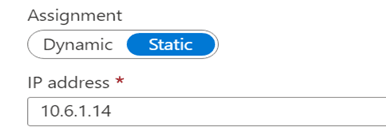
Changing Public and Private IP Address from Dynamic to Static
By default, the Azure VM has a dynamic IP address which changes during the reboot. Hence you need to change from dynamic to static.
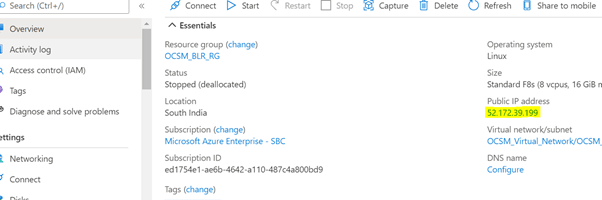
- See the accompanying screenshot:
Figure 10-4 Public IP Address
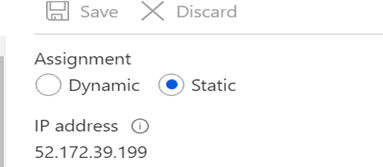
- Choose Static or Dynamic as per your requirement then click
Save.
Figure 10-5 Save IP address
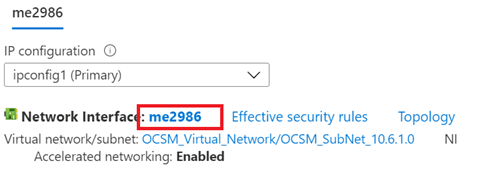
- Click on the network interface as shown in the graphic.
Figure 10-6 Network Interface
- Assign the Dynamic or Static IP address.
Figure 10-7 Static and Dynamic Address