17 Upgrading Unified Inventory and Topology
This chapter includes the details on upgrading Unified Inventory and Topology services.
Upgrading Unified Inventory and Topology Services
This chapter explains how to upgrade your existing Unified Inventory and Topology system to the latest release.
About Upgrading Unified Inventory and Topology
In this section, the release you are upgrading from is called the old release. The release you are upgrading to is called the new release.
Upgrading to a new release of UIM cloud native and the corresponding Unified Inventory and Topology services includes the following tasks:
- Planning the upgrade
- Performing the pre-upgrade tasks
- Upgrading operators
- Upgrading UIM cloud native and the corresponding Unified Inventory and Topology services
Planning Your Upgrade
Before you plan your upgrade, do the following:
- Read UIM Release Notes of the corresponding releases for information about UIM and Unified Inventory and Topology services.
- Check UIM Compatibility Matrix of the new release for the supported tech stack versions.
Pre-Upgrade Tasks
This section provides the consolidated steps to verify while upgrading services from a previous release.
See "Unified Inventory and Topology Toolkit" to understand the required artifacts and specification files for the new release.
- Download and extract the required artifacts, and assemble the specification files.
- Copy the configuration values from the specification files (applications-base.yaml, database.yaml, app-uim.yaml, app-messaging-bus.yaml, app-ata.yaml, and app-smartsearch.yaml) from the old release to the new release specification location, especially values related to the load balancer, ingress controller, storage volume, imagePullSecret, UIM custom settings, and SAF configurations.
- Copy your custom configuration data (such as custom-config.properties, topologyMapping, and so on.) and logging properties files from the old release to the new release specification location.
Pre-Upgrade Tasks for Releases 8.0.0.0.0 or Later
The pre-upgrade tasks are:
- In the UIM 8.0.0.0 release, uim-cntk has been merged with common-cntk. For details, see "Migrating UIM_CNTK to COMMON_CNTK" in the Cloud Native Deployment Guide.
- Updates have been made to the COMMON_CNTK command syntax for running scripts. Review and use the new command formats to ensure compatibility.
- The SPEC_PATH file structure has been modified. Verify and update any related configurations as needed. For more information, see "About the Specifications File".
- In this release, all modifications to configuration and logging properties must be performed within the $SPEC_PATH/project/instance/config/ directory. Direct updates to files under $COMMON_CNTK are not permitted.
- This release includes major version upgrades to FMW 14c and Java 21. Ensure your environment is updated to these versions.
Upgrading Operator
This section covers the important steps required to upgrade ingress-nginx, WebLogic Kubernetes Operator, and Strimzi Operator to the latest compatible versions.
Ingress Nginx Upgrade
To upgrade Ingress Nginx Controller, you must check the official documentation of ingress Nginx. The following commands are sample steps to upgrade ingress Nginx in place:
- Export the variable to point your ingress Nginx namespace installation as
follows:
export NGINX_NS=nginx - Add helm repository as
follows:
helm repo add ingress-nginx https://kubernetes.github.io/ingress-nginx --force-update - Upgrade ingress-nginx as
follows:
helm upgrade nginx-operator ingress-nginx/ingress-nginx --namespace $NGINX_NS --version <compatible-version>
Upgrading WebLogic Kubernetes Operator (WLSKO)
To upgrade WebLogic Kubernetes Operator, check UIM Compatibility Matrix for the latest supported version and follow the instructions mentioned in "Upgrading WebLogic Operator" in Cloud Native Deployment Guide. The sample for in-place upgrade is as follows:
- Export variable to point to your WebLogic operator namespace
installation:
export WLSKO_NS=wlsko - Add Helm
repository:
helm repo add weblogic-operator https://oracle.github.io/weblogic-kubernetes-operator/charts --force-update - Upgrade the
operator:
helm upgrade weblogic-operator \
   weblogic-operator/weblogic-operator \
  --version <compatible-version> \
  --namespace $WLSKO_NS
For information related to WebLogic operator installation, see https://oracle.github.io/weblogic-kubernetes-operator/managing-operators/installation/#install-the-operator.
Upgrading Strimzi Operator
To Upgrade the Strimzi operator, you must download and use the corresponding latest common-cntk for installation of Strimzi.
See "Upgrading Strimzi Operator" for information on upgrading the strimzi operator to latest supported version.
Upgrading Message Bus
This section provides the instructions to upgrade Message Bus service to a new release.
Pre-Upgrade Tasks
To upgrade Message Bus zookeeper, the replica should be an odd number greater than 2.
Pre-Upgrade Tasks for Release 7.7.0.0 or Later
Perform Zookeeper to Kraft Migration. The steps are listed under "Message Bus KRaft Migration".
Upgrading Message Bus
To upgrade Message Bus instance, follow instructions listed under "Upgrading Message Bus" Upgrading Message Bus section. Run the following command with the latest artifacts:
$COMMON_CNTK/scripts/upgrade-applications.sh -p $PROJECT -i $INSTANCE -s $SPEC_PATH -a messaging-busUpgrading UIM Cloud Native Environment
To upgrade UIM cloud native, see "Upgrading the UIM Cloud Native Environment" in UIM Cloud Native Deployment Guide.
The section "UIM Cloud Native Upgrade Procedures" in UIM Cloud Native Deployment Guide provides the instructions for in-place upgrade.
Upgrading Authorization Service
To upgrade Authorization to the latest version:
- Build the Authorization image using the latest authorization-builder.tar.gz. See "Creating Authorization Images" for more information.
- To upgrade the Authorization Service instance, see "Upgrading the Authorization Instance" and run the following
command:
$COMMON_CNTK/scripts/upgrade-applications.sh -p $PROJECT -i $INSTANCE -s $SPEC_PATH -a authorization
Upgrading ATA
This section includes the instructions to upgrade ATA to a new release.
Pre-Upgrade Tasks for Release 7.8.0.0 or Later
The Authorization service is mandatory and should be deployed and must be running before creating or upgrading an ATA instance.
Upgrading ATA
To upgrade ATA:
- Build ATA Image using the latest ata-builder.tar.gz. For information on creating the image, see "Creating ATA Images".
- Update app-ata.yaml, applications-base.yaml and database.yaml in the $SPEC_PATH/$PROJECT/$INSTANCE directory with the required configurations provided as part old setup. Provide new image names and tags in app-ata.yaml.
- PDB Upgrade: Upgrade ATA schema. For information on upgrading PDB, see
"Upgrading the ATA Schema". Run the following
command:
$COMMON_CNTK/scripts/install-database.sh -p $PROJECT -i $INSTANCE -s $SPEC_PATH -a ata -c 3 - Application upgrade: Upgrade the ATA instance. For information
on upgrading instance, see "Upgrading the ATA Instance". Run the following
command:
$COMMON_CNTK/scripts/upgrade-applications.sh -p $PROJECT -i $INSTANCE -s $SPEC_PATH -a ata
Upgrading SmartSearch
This section includes the process for upgrading SmartSearch.
Pre-Upgrade Tasks
A compatible version of OpenSearch must be running and accessible to the SmartSearch service.
Upgrading SmartSearch
To upgrade SmartSearch:
- Load the SmartSearch image after extracting it from the downloaded archive, and then
push it to your remote
repository.
podman load -i <smart-search-latest.tar> podman tag localhost/smart-search:latest <container repository>/smart-search:<tag> - Update the $SPEC_PATH/$PROJECT/$INSTANCE/app-smartsearch.yaml with the new SmartSearch image.
- Upgrade SmartSearch by running following command. For more information,
see "Upgrading the SmartSearch Service".
$COMMON_CNTK/scripts/upgrade-applications.sh -p $PROJECT -i $INSTANCE -s $SPEC_PATH -a smartsearch - Refresh the SmartSearch metadata. For more information, see "Creating SmartSearch Index and Metadata".
Upgrading UIM Cloud Native Using Staging Instance
This section describes the Blue-Green upgrade process for UIM cloud native using a staging instance, which leverages Oracle Data Guard. This approach minimizes production downtime and ensures that the latest version is verified in a staging environment before cutover.
In this approach:
- The Blue Environment represents the current production system that is available to all users.
- The Green Environment functions as a dedicated staging environment, where the backed-up UIM schema is upgraded and validated by attaching the new application. The UIM schema is secured and synchronized using Data Guard. All upgrade and test operations are performed in Green, ensuring no disruption to the Blue (production) environment. After the validation is complete, Green environment becomes the new production environment.
The Blue-Green upgrade involves the following phases:
- Phase 1: Staging and testing
- Phase 2: Staging update and Production cutover
- Phase 3: Upgrading the old Production (Blue) environment
Prerequisites
Learn about prerequisites required for performing UIM cloud native upgrade using staging instance.
The prerequisites for performing the Blue-Green upgrade are:
- Primary Production Environment (Blue environment): The
environment with an older version of the application. UIM and ATA should be present
on the same Oracle Container Database (CDB) for Data Guard replication.
Note:
- If the environment is older than UIM 7.5.1.x, perform data migration for ATA and OpenSearch.
- If the environment is older than 7.7.0.x but newer than 7.5.1.x, perform data migration for OpenSearch. See Unified Inventory and Topology Guide for more information.
- Secondary CDB (Green Environment): Provision a new container
database (CDB) using the same configuration as the Blue production environment.
Ensure that Repository Creation Utility (RCU) schemas are not replicated with Data
Guard, as this may cause issues. To prevent replication, configure the RCU schemas
for the Green environment in a separate CDB that does not have Data Guard
replication enabled.
Note:
Starting with Oracle Database 23ai, PDB-level data replication using Data Guard is supported. See the Oracle Data Guard documentation for more details. With Oracle Database 19c and earlier, PDB-level replication is not supported. Ensure that the Blue and Green environments use the same schema names. - Establish Data Guard Configuration: Implement Oracle Data Guard for real-time replication between Blue and Green CDBs. Set the Blue CDB to Active and the Green CDB to Standby.
- Establish Kafka Mirrormaker Replication: Set up Kafka MirrorMaker, configuring the Blue environment as the source and the Green environment as the target. For setting up Kafka Mirrormaker, see "Installing Mirror Maker" in Unified Inventory and Topology Deployment Guide.
Blue-Green Upgrade Phases
This section provides details about various phases involved in performing the Blue-Green upgrade. The following figure illustrates the various phases involved in performing Blue-Green upgrade.
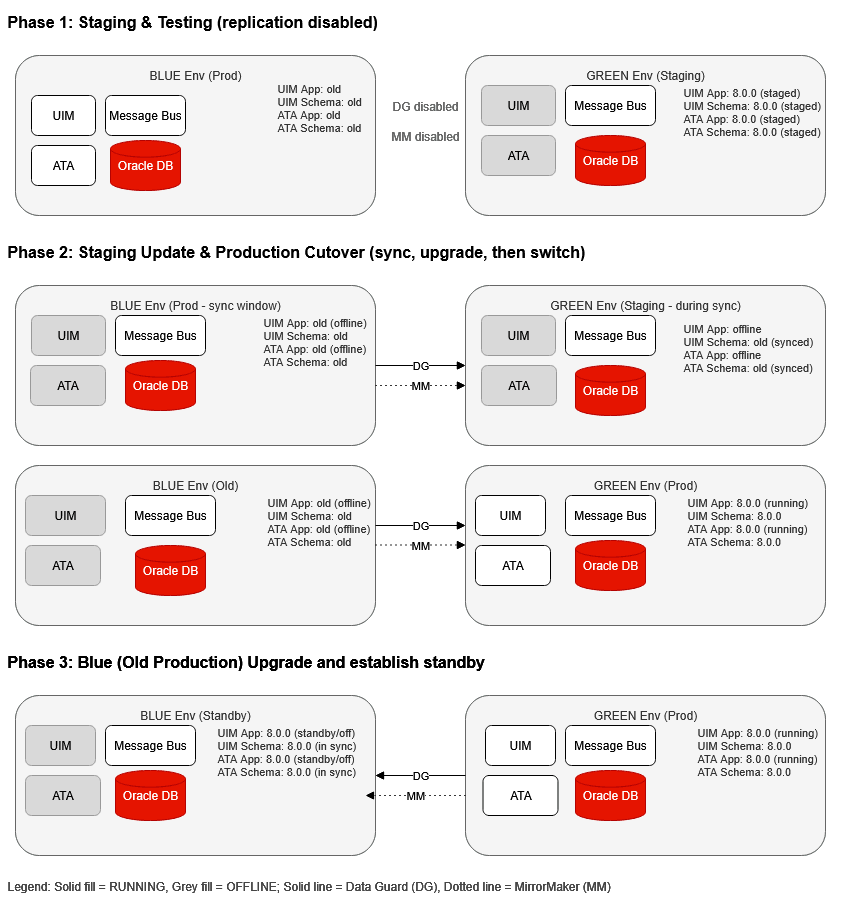
Phase 1: Staging and Testing
This section includes the tasks you perform for staging and testing.
Note:
The Blue environment is the current live production instance and remains online throughout this phase. The Green environment is configured and upgraded separately for staging and validating with the latest application version.
In this phase:
- Temporarily disable Data Guard replication between the Blue (source) and Green (standby) CDBs.
- Temporarily disable MirrorMaker replication from Blue (source) to Green (target) Message Bus. See "Installing Mirror Maker" in Unified Inventory and Topology Deployment Guide for more information.
- Perform upgrade on the Green CDB to a database version compatible with the latest version of UIM.
- Perform necessary tech stack upgrades to make Kubernetes, WLSKO, Strimzi, WIT, WDT, Helm, Podman, Nginx, CRI-O compatible with the latest version of UIM. See "UIM Cloud Native Deployment Software Compatibility" in UIM Compatibility Matrix for the corresponding software versions.
- Upgrade the Green environment schemas to the latest UIM version. Perform this for UIM and ATA schemas.
- Compile all necessary cartridges using the latest SCD version and deploy in the Green environment. Perform sanity testing and validate. See "UIM Cloud Native Deployment Software Compatibility" in UIM Compatibility Matrix for the compatible SCD version.
Phase 2: Staging Update and Production Cutover
The production Blue environment must be made offline, resulting in a scheduled downtime.
In this phase:
- Shutdown Blue and Green application instances (except for Message Bus). This is done
by using
delete-applications.shscript for all installed services or scaling down the replicas to 0. - Reactivate Data Guard to synchronize the Green PDB with the latest data from the
Blue production environment.
Note:
This process will revert the Green environment schemas to the earlier version currently used in the production database. However, it is required to ensure that all the latest production data is transferred to the staging environment. - Reactivate MirrorMaker to synchronize Green and Blue Message Bus.
- Perform ATA Migration and OpenSearch migration (if required).
- Monitor and verify whether data synchronization is achieved.
- Disable Data Guard and MirrorMaker after the above synchronization step.
- Perform the schema upgrade again on the Green PDB by following the procedure mentioned in Phase 1.
- Start the application instances in the Green environment. You can do this by running
the
create-applications.shscript for all installed services or by increasing the replica count as needed. - Deploy all necessary cartridges on UIM and perform the sanity test.
- Redirect the production traffic to the upgraded Green environment.
Once the process is complete, the Green environment will become the new production environment.
Phase 3: Blue (Old Production) Upgrade
The Green environment is now the active production system. After upgrade and data synchronization, the Blue environment will serve as the backup.
In this phase:
- Upgrade the Blue environment.
- Initiate Data Guard replication from Green to Blue, to synchronize all data changes.
- Initiate Mirror Maker replication from Green (source) to Blue (target) Message Bus.
- Suspend Data Guard replication after the synchronization is complete.
- Suspend Mirror Maker replication after the synchronization is complete.
- Test the Blue environment to make sure everything works correctly.
- Shut down the application instances in the Blue environment, except for the Message Bus. Retain the Blue environment as a backup.
- Enable Data Guard replication from Green CBD to Blue CDB.
- Enable Mirror Maker replication from Green (source) to Blue (target) Message
Bus.
After completing these steps, the Green environment will operate as the primary production environment, and the Blue environment will serve as the standby or backup.