Multi-Group Users
Learn about controlling access to Oracle Communications Unified Assurance user interfaces by assigning users to multiple groups.
About Multi-Group Users
A multi-group user is a user assigned to multiple user groups. Multi-group users have access to everything available in each group. This allows for a hierarchy of user access. You can restrict data using the restrictive user group properties. Assigning a user to multiple groups allows them to combine those restrictive groups without the need to log out and back in as different users.
Choosing Multi-Group Users or Multitenancy
Multi-group users and multitenancy serve different purposes. Multitenancy allows data to be viewed without regard to the restrictions of users and groups. If a user does not need access to typical configuration processes, but does need to view a specific service or dashboard, choose multitenancy. If a user provides support for two separate user groups and needs to be able to access everything those users can, choose multi-group users.
See Configuring Multitenancy for more information about multitenancy.
Setting Up Multi-Group Users
To set up multi-group users:
-
Create content for each group.
-
Make sure devices are discovered and data is being collected.
-
Create any required dashboards.
Note:
Even if a user has access to the dashboard, the content within the dashboard, such as devices, is still checked for access.
-
Create any required diagrams.
Note:
Even if a user has access to the diagram, the content within the diagram, such as devices, is still checked for access.
-
Create any required event filters.
-
Create any required links.
-
Create any required menus for the desired areas: diagrams, events, and topology. If a user has access to multiple menus, the menu options will be combined into a single menu with any duplicates removed.
-
-
Create groups for the desired areas: dashboard groups, device groups, diagram groups, event filter groups, and link groups. These groups will determine what each user has access to.
-
Create user groups with the proper restrictive properties set. The absence of a restrictive property will generally result in Root-level or Global-level access. The following exceptions exist:
-
RestrictiveEventMenuID: If no restriction is set, the user group will have access to whichever menu is flagged as the default menu.
-
RestrictiveTopologyMenuID: If no restriction is set, the user group will have access to the Default Topology Tools menu.
-
RestrictiveDiagramMenuID: By default, diagrams do not have context menus. A widget in a diagram only has a context menu if you select one in the widget editor under Action.
If no restriction is set, the user group will have access to the Root context menu in the widget editor or when viewing the final diagram, if any context menus have been selected for the diagram.
-
-
Create or update users to have the appropriate user group or groups. The users form has a User Group Name field for the primary group. If the user needs access to additional groups, they are added through the Subgroups selector.
Note:
Preferences for a user are only inherited from the primary user group.
Preferences that are set for a user subgroup are not inherited to the user.
Context Menus with Multi-Group Users and Restrictive Menus Access
The access to context menus and which menu items appear for multi-group users depends on the type of menu. Event and topology menus behave in the same way, and diagram menus differ.
Event and Topology Menus
The tools and submenus available in event and topology menus are made up of items from the restrictive menus set for the primary user group and subgroups. If no restrictive menus are set:
-
For most users, the default menu is used.
-
For users in groups whose role has the SUPER permission, such as those with the default Administrator role:
-
When configuring event or topology menus, all menus are available, regardless of the restrictive menu or Default Menu settings
-
When right-clicking the Event list or a topology graph, if no restrictive menus are set, the default menu is one of the following:
-
The one that matches the user group name, if it exists.
-
The one for which Default Menu is selected, if no menu matches the user group name.
For example, assume you have a SuperUser role, which has SUPER permission, and is assigned to the SuperGroup user group. This group has Super as a member, and RestrictiveEventMenuID is not set. In this case, Super will have configuration access to all event menus. When right-clicking the Event list, if a SuperGroup event menu exists, that appears. If it does not exist, the menu with Default Menu selected appears.
Because the least restrictive setting applies, the behavior remains the same even if Super has a subgroup for which RestrictiveEventMenuID is set.
-
-
A separator divides menu items from the primary user group and subgroups. The items from the primary user group are sorted according to the order configured in the menu. The items from subgroups are sorted alphabetically.
If an item from a subgroup already appears at the same level for the primary group or another subgroup, it is not repeated. Each menu or tool will only appear once at each level. However, if an item appears in two different menus, both of which are nested under the same parent menu, the item will appear twice: once inside each submenu.
Event Menu Example
In this example:
-
You have the event menu and tool hierarchy shown in the following image:
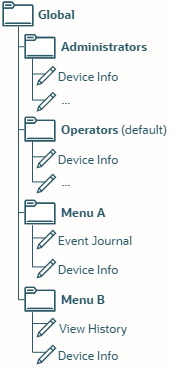
Description of illustration menu-hierarchy.png
Note:
The Administrators and Operators menus are provided by Unified Assurance. In this example, Operators is marked as default. For brevity, only the Device Info tool is shown to illustrate the fact that it is not duplicated in the resulting menus. In reality, these menus contain a variety of additional tools, indicated in the image by the ellipses (...).
-
You have user groups with the following restrictive property settings:
-
Group A: RestrictiveEventMenuID is set to Menu A.
-
Group B: RestrictiveEventMenuID is set to Menu B.
-
Group C: RestrictiveEventMenuID is not set.
-
Administrators: RestrictiveEventMenuID is not set.
-
The users listed in the following table would see the event context menus shown in the fourth column.
| User | Primary User Group | Subgroups | Context Menu |
|---|---|---|---|
| User A | Group A | None | Items from Menu A only: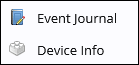 |
| User B | Group B | None | Items from Menu B only: 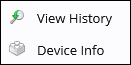 |
| User C | Group C | None | Items from Operators: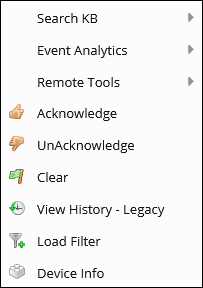 |
| User D | Group A | Group B | Items from Menu A above the separator and from Menu B below the separator, with no duplicates: 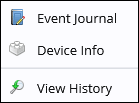 |
| User E | Group A | Group B and Group C | Items from Menu above the separator and from Menu B and Operators below the separator, with no duplicates: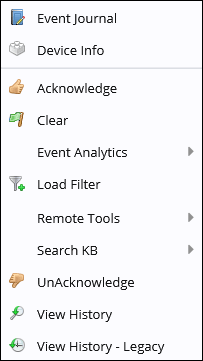 (Device Info appears only once, items are sorted alphabetically). |
| Admin | Administrators | None | Items from Administrators only: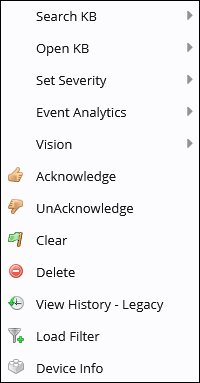 However, when configuring event menus, Admin would see all menus. |
Diagram Menus
Unlike event and topology menus, the items in diagram menus are not combined based on subgroups. Diagrams do not automatically have menus. Instead, you can optionally add individual menus to widgets when configuring diagrams.
When configuring diagrams:
-
The RestrictiveDiagramMenuID properties set for the primary user group and any subgroups determine which menus a user can add to widgets during configuration.
-
If no restrictive menus are set, the Root menu is used.
When viewing diagrams:
-
The RestrictiveDiagramMenuID properties for the primary user group and any subgroups determine which menus a user can see.
-
If the menu configured on a widget does not fall under a user's restrictive menu, the menu appears with a single No Actions Available item.
-
If no restrictive menu is set, the Root menu is used. All menus fall under Root, so whatever menu was configured for the widget appears.
-
The least restrictive setting for a user's group or subgroups applies. If RestrictiveDiagramMenuID is not set on one of a user's groups, even if it is set on another, the user will have access to any menu assigned to widgets.
This applies even for users in groups whose role has the SUPER permission.
Diagram Menu Example
In this example:
-
You have the diagram menu and tool hierarchy shown in the following image:
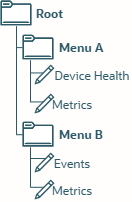
-
You set the RestrictiveDiagramMenuID property for the user groups as follows:
-
Group A: RestrictiveDiagramMenuID is set to Menu A.
-
Group B: RestrictiveDiagramMenuID is set to Menu B.
-
Group C: RestrictiveDiagramMenuID is not set. Defaults to Root, granting users in this group access to all diagram menus.
-
-
You create a diagram with three widgets:
-
Widget A: Context Menu is set to Menu A.
-
Widget B: Context Menu is set to Menu B.
-
Widget C: Context Menu is set to Root.
-
The users listed in the following table would see the diagram context menus shown in the widget columns.
| Users | Primary User Group | Subgroups | Widget A | Widget B | Widget C |
|---|---|---|---|---|---|
| User A | Group A | None | Items from Menu A: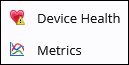 |
No actions:  |
No actions: |
| User B | Group B | None | No actions: |
Items from Menu B: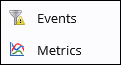 |
No actions: |
| User C | Group C | None | Items from Menu A: |
Items from Menu B: |
All items from Root: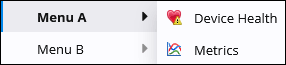 |
| User D | Group A | Group B | Items from Menu A: |
Items from Menu B: |
No actions: |
| User E | Group A | Groups B and Group C | Items from Menu A: |
Items from Menu B: |
All items from Root: |