3 Configuring Trouble to Resolve Reference Solution
- UIM and Unified Assurance applications have already been set up successfully by referring to the Trouble to Resolve Reference Solution Installation Guide.
- UIM and Unified Assurance have been deployed with SSL enabled as described in their respective installation guides to ensure security for all external APIs and URLs.
- UIM Message has been enabled with SSL based configuration, external system will need to use SSL certificate to send message to Message Bus.
Configuring UIM
This section describes the process of configuring UIM.
Installing Design-Time Environment
A design-time environment is required for the reference solution developer to deploy and configure UIM-related design-time components (cartridges).
Installing Design Studio
Service Catalog and Design - Design Studio is an IDE used for cartridge design and deployment. It supports both reference solution-specific cartridges and UIM-base cartridges.
This section provides sample guidelines for setting up Design Studio. For complete instructions, refer to the Design Studio Installation Guide.
- Get the following files:
- OEPE bundle
- Design Studio installer zip
- Extract the above files to a folder of your choice.
- Open the OEPE or Eclipse application.
- Follow the steps in Design Studio Installation Guide to install the Design Studio plug-ins and any required Eclipse plug-ins.
Setting Up Workspace
- Launch Eclipse using a fresh workspace.
- Turn off the Project under the Build Automatically option.
- Import the Inventory cartridges listed below:
- Required UIM and Base cartridges:
- ora_uim_basetags
- ora_uim_baseextpts
- ora_uim_basemeasurements
- ora_uim_baserulesets
- ora_uim_basetechnologies
- ora_uim_basespecifications
- ora_uim_mds
- ora_uim_model
- ora_uim_basewdm
- ora_uim_common
- ora_uim_workorder
- UIM Tech-pack cartridges:
- ora_uim_party_customer
- OracleComms_UIM_CarrierEthernet
- OracleComms_UIM_Packet
- Reference solution cartridges:
- ora_uim_bulkloader
- OracleComms_UIM_Sample_DWDM_OTN_Device
- OracleComms_UIM_Sample_SDH_Device
- OracleComms_UIM_Sample_Ethernet_Device
- OracleComms_UIM_Sample_DWDM_OTN_SDH_Ethernet_Service
- OracleComms_UIM_Sample_DWDM_OTN_SDH_Ethernet_Ports_Interfaces
- Required UIM and Base cartridges:
- Double-click on each cartridge name (one-by-one) to open its description into the editor and make the following changes:
- Unseal the cartridge if it is not already unsealed.
- Change the minor version from 7 to 8, where the major version is 7. This means that cartridge version will be changed from 7.7 to 7.8.
Note:
If major version of any cartridge is 1, then leave the minor version as 0. - Change the target versions of all those cartridges to 7.8.0.
- Add JRE 8 in Eclipse:
- Click on Windows menu and choose Preferences.
- In the Preferences window, expand Java in the left side panel and then click Installed JREs.
- Click Add.
Note:
JDK-21 must be shown in already installed JREs and as Default JRE. - Select JRE Type as Standard VM and click Next.
- Select JRE Home.
- Click Finish.
- Configure Java Compiler compliance level for your Eclipse workspace:
- Click on the Windows menu and choose Preferences.
- In the Preferences window, expand Java in the left side panel and select Compiler.
- On the Compiler page, check Configure workspace settings.
- Set the Compiler compliance level to 1.8 from the dropdown menu.
- Click Apply and Close to save the changes.
- Add UIM_LIB and OTHER_LIB in Java Build Path of any of the failed cartridge project:
- Download UIM_LIB and OTHER_LIB from reference solution package.
- Right-click on any (failed) cartridge name in the Studio Projects pane.
- Open Properties, select Java Build Path, and the Libraries. Click Add Variable, then Configure Variables, and finally click New.
- Add the variables with UIM_LIB and OTHER_LIB.
- Click Apply and Close.
- You will be prompted to re-compile. You must compile and build the whole workspace.
- Fixing Groovy error: if you see following error, OracleComms_UIM_FibreBroadband - Groovy: compiler mismatch: project level is 2.5, workspace level is 5.0, then do the following:
- Right-click on (failed) cartridge OracleComms_UIM_FibreBroadband in the Studio Projects pane.
- Open Properties and then the Groovy compiler.
- Change the dropdown value of Groovy compiler level for this project: 5.0.
- Click Apply and Close.
- Compile and build the workspace. There should be no errors now.
- Deploy UIM base cartridges, tech-pack cartridges, and custom cartridges. Then deploy the reference solution cartridges in the given order in UIM.
Loading Domain-Specific Seed Data
The reference solution package includes domain-specific (protocol) seed data for runtime, corresponding to the design-time specifications. This seed data must be installed in the UIM runtime application.
Configuring the UIM Application for Seed Data Import
custom-confg.properties file:
ExecuteBulkLoadInLive=true
InsertCardTaskChunkSizeInThread=100
PortMappingTaskChunkSizeInThread=100
ConnectivityPipeEnablementChunkSizeInThread=100
NetworkTaskChunkSizeInThread=200
PortMappingTaskChunkSizeInThread=200dev.yaml file
managedServers:
# USER_MEM_ARGS variable to be set on all managed servers
shape:
user_mem_args: "-XX:+UseContainerSupport -Xms5g -Xmx5g -Xmn2g -XX:+HeapDumpOnOutOfMemoryError -XX:HeapDumpPath=/logMount/$(DOMAIN_UID)/servers/$(SERVER_NAME)"
gc_mem_args:
options: "-XX:+UseG1GC -XX:ParallelGCThreads=8"After the above configuration is updated, perform an upgrade or restart of the UIM application.
Loading the Seed Data
Seed data is provided for DWDM, OTN, SDH, and Ethernet, corresponding to the specifications deployed during the design-time setup. Create this sample seed data in UIM using the UIM Bulk Loader utility tool.
Seed data with locations, devices, and networks are created after uploading excel sheets using the bulk loader utility. You must manually create protection path for service connectivities and assign those service connectivities to the services from UIM by following steps 4 and 5 mentioned below.
- Extract the data sheets from the reference solution package. You will find multiple folders and each folder may have multiple excel sheets. You must upload each excel sheet from all the folders in the following order to create Trouble to Resolve sample data in UIM:
- DWDM Texas
- Ethernet Texas
- OTN Dallas
- OTN Fort Worth
- OTN Houston
- OTN San Antonio
- SDH Dallas
- SDH Fort Worth
- SDH Houston
- SDH San Antonio
- SDH Subnet Dallas
- SDH Subnet1 Houston
- SDH Subnet2 Houston
- Texas Common
- You must update the NativeEMSName value in each seed data excel sheet against only those devices where you want to simulate an SNMP alarm according to the following guidelines:
Table 3-1 Guidelines for Simulating an SNMP Alarm
Entity Sheet Column Name For Alarm Simulator Type Value Format Physical Devices
NativeEMSName
SNMP Alarm using MIMIC simulator
IP Address of the Mimic Device.
Example: [ipaddress]
Physical Devices
NativeEMSName
SNMP Alarm using netsnmp script
Fully Qualified DNSName of VM from which netsnmp commands are sent.
Example: abc.xyz.com
Equipments
NativeEMSName
SNMP Alarm using MIMIC simulator
IP Address of the Mimic Device followed by ::index.
Example: [ipaddress]::1
Note: index should always be unique for identifying sub nodes like card, port, device interface.
Equipments
NativeEMSName
SNMP Alarm using netsnmp script
Fully Qualified DNSName of VM followed by ::index from which netsnmp commands are sent.
Example: abc.xyz.com::2
SNMP Alarm using MIMIC simulator
IP Address of the Mimic Device followed by ::index.
Example: [ipaddress]::2
InsertCards
CardNativeEMSName
SNMP Alarm using netsnmp script
Fully Qualified DNSName of VM followed by ::index from which netsnmp commands are sent.
Example: abc.xyz.com::2
PortMappings
PortNativeEMSName
SNMP Alarm using MIMIC simulator
IP Address of the Mimic Device followed by ::index.
Example: [ipaddress]::3
PortMappings
PortNativeEMSName
SNMP Alarm using netsnmp script
Fully Qualified DNSName of VM followed by ::index from which netsnmp commands are sent.
Example: abc.xyz.com::2
PortMappings
InterfaceNativeEMSName
SNMP Alarm using MIMIC simulator
IP Address of the Mimic Device followed by ::index.
Example: [ipaddress]::4
PortMappings
InterfaceNativeEMSName
SNMP Alarm using netsnmp script
Fully Qualified DNSName of VM followed by ::index from which netsnmp commands are sent.
Example: abc.xyz.com::4
- For each of the data sheets, perform the following the steps:
- Log in to UIM and click on Engineering Work Orders.
- Click Create and select Workflow Template as DataLoader.
- Click Save and Continue.
- Navigate to the Activity Details tab and select Load Data (avoid clicking on the name link).
- Click Assign and select User as Logged-in UIM Use, and then click Assign User.
- Click Start.
The Activity1 status will change from Ready to In Progress.
- Click the Load Data name link and go to the Activity Summary page. Expand the Automated Bulk Import menu.
- Click Browse and select the Excel file (from the folder mentioned in step 5) to be uploaded.
- Click Process.
- Perform steps g and h for all excel files in the folder to be uploaded and processed, one file at a time.
- Click Complete on top of the Activity Summary page.
This will change the Load Data status as Completed.
- Click on the name link next to Engineering Work Order and click Actions, then click Approve Configurations.
- Click Issue Configurations and click Complete.
- Repeat all steps for each excel file in all folders, in the given order.
- After successfully completing the above, proceed with the following steps to create the protection path for service connectivity:
- Identify the service connectivities from Texas Common, in the Texas_ServiceTrail_Connectivities_3.xlsx and click Connectivities.
- Navigate to each of the desired service connectivity in UIM, click Connectivity.
- Click Identification and then click Provide Name of Service Connectivity.
- Click Search. Select and edit the connectivities displayed under Search Results.
- To create a new connectivity design version, open the Connectivity Design tab and click Design Versions. From the dropdown menu, select Create New Version.
- Click on the "+” icon in Path 1 located below Jump To Path.
- To perform a path analysis under Path 2, click Select Pipe.
- The Source and Target values will be auto populated. You can select the desired Algorithm, Custom Tuning, and click Analyse. This returns the results of the path analysis.
- Select the desired path from the results by selecting the radio button next to Path and click Assign.
- Once the path is successfully assigned, complete the connectivity design version.
- Create the services manually from UIM as follows:
- Log in to UIM, click on Services and then click Create.
- Select the Specification as Digital Twin Subscriber Service. Enter the name and click Save and Continue.
- Under the Configurations tab, click Create to create a service configuration. Click Save And Close to create Service Configuration1.
- Go to Configuration Items and right-click on Service:<Service name> - 1 - 1 - Se_1_1.
- Click Add Configuration Item. Update Quantity of Service Trail to 1 and click Save And Close.
- Go to Configuration Items, right-click on Service Trail, then click Add Config Item.
- Update the value of Quantity of Service Connectivity to 1 and click Save And Close.
- Go to Configuration Items, click Configurations and then Service Connectivity.
- Click Reference. Then click Search under the Connectivity Search page to find and click OK to assign the desired Service Connectivity to Service Configuration.
- After a Service Connectivity is assigned under a Service Configuration, click Actions dropdown menu on the top-right side and then click Approve Issue and Complete to complete the service configuration version.
UIM Data Visualization
After the seed data (for DWDM/OTN) has been successfully imported into UIM, the following topology visualizations are available in the UIM application as part of ATA service. These views represent a subset of the complete topology and illustrate the CORBA and SNMP devices that are interconnected and the types of ports that are used.
Topology Graph (Geo Map Layout): The topology graph displays the geographical map view of the topology components.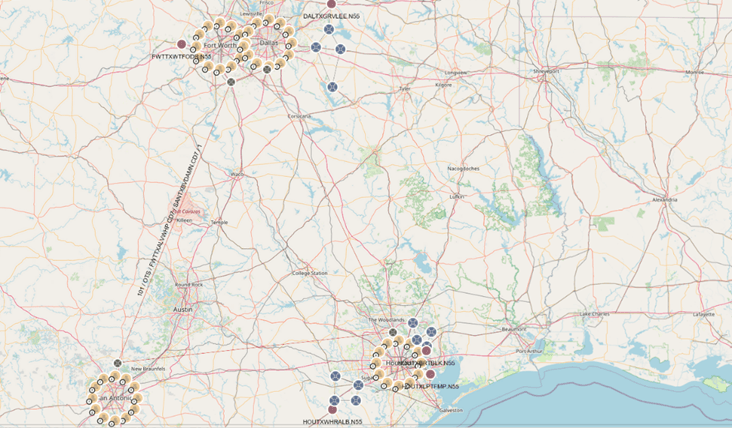
Description of the illustration geo-map-layout.png
Topology Graph (Forced Layout): The topology graph displays the topology components (such as devices and connectivities) as shown in the following figure, and is the default layout presentation.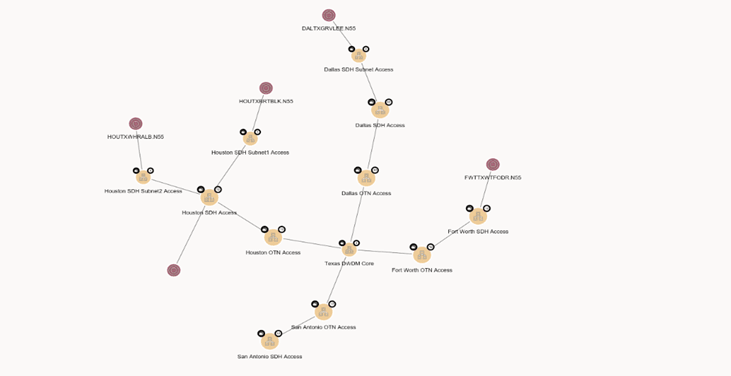
Description of the illustration forced-layout.png
Topology Path View: The Topology Path view for Service Connectivity, as shown in the following figure, can be viewed under Service Topology. You must navigate to Service Topology, and under it, right-click on Service Connectivity, and then click Show Paths.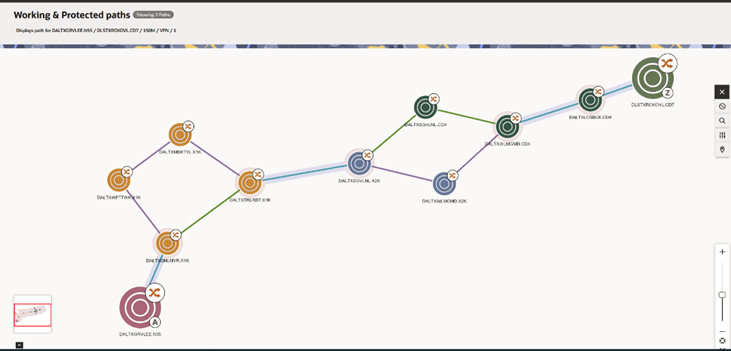
Description of the illustration topology-path-view.png
Note:
For more information on configuration of the ATA visualization, refer to the ATA User Guide.UIM and ATA Extensions
If you want to send alarms on SNMP node or subnode, you must make changes, as shown in the following example, in the alarm-consumer-static-config.yaml file under $COMMON_CNTK\charts\ata-app\charts\ata\config\alarm-consumer and restart the Alarm Consumer Microservice.
deviceMapping:
  #inventory:
  #  lookupFields: # The lookup is done according to the provided order. Supported values are name, id & deviceIdentifier
  #  - name
  #  - id
  #  - deviceIdentifier
  customizeDeviceLookup:
    enabled: true
For more information, see Unified Inventory and Topology Deployment Guide for Alarm Consumer extensibility configurations.
Configuring Unified Assurance
This section describes the process of configuring Unified Assurance.
Installing Unified Assurance Solution Packages
- Log in to the presentation server virtual machine (VM) using SSH.
- Copy the following package files to the /opt/assure1/distrib/packages location. Where, /opt/assure1 is the Unified Assurance installation directory.
The UA solution packages are:
- uniopsSmokeTest-rules-<Version>.pkg
- uniopsSmokeTest-rules-<Version>.def
- uniopsCorba-rules-<Version>.pkg
- uniopsCorba-rules-<Version>.def
- uniopsSnmp-rules-<Version>.pkg
- uniopsSnmp-rules-<Version>.def
- Run the following commands:
Package installation steps:
sudo su -
cd /opt/assure1/
source .bashrc
cd bin/
./Package install uniopsSmokeTest-rules-<Version>
./Package install uniopsCorba-rules-<Version>
./Package install uniopsSnmp-rules-<Version>
Note:
If you are re-installing packages, see “Troubleshooting” for more information. - Run the script below in web browser to create the SmokeTest Dashboard.
Note:
This step is applicable only for SmokeTest of Unified Assurance package.https://<Presentation Server host>/tools/uniops/dashboard.php - Click on Create Device under the SmokeTest dashboard to create a SmokeTest device.
- Simulate an event for the SmokeTest device by clicking on Simulate Event under the dashboard and validate it in both Unified Assurance and UIM.
Unified Assurance Extensibility
This section provides information about Unified Assurance extensibility.
Alarm Filtering
The tmf688-event-processor microservice provides filtering capabilities to retain or discard specific events based on business or functional requirements from northbound applications, such as UIM Inventory. This filtering is disabled by default. Alarm filtering can be enabled and configured with custom filter conditions as shown below.
To enable Alarm filtering:
- Edit config map for tmf688-event-processor. Set FILTER_ENABLED flag to true and save the config map:
FILTER_ENABLED: "true" - Configure the alarm filtering criteria and conditions.
- Login into Unified Assurance presentation server UI.
- Navigate to Configuration and click Rules.
- Expand Core Rules.
- Expand Default read-write branch and click processing. Then click event and then tmf688.
- Edit the filter.json rule to manage the filter conditions and filter criteria as per alarm filtering requirements.
- Restart the pod for tmf688-event-processor microservice.
kubectl delete pod <pod name> -n a1-zone1-pri
FCOM Rule Overrides
FCOM rules provide the transformation capability to transform fault events coming from NMS or EMS and devices to FCOM Assure1 events. The mappings in these rules can be re-configured through FCOM Rule Overrides.
For more information, refer to “FCOM Overrides” in the Oracle Communications Unified Assurance Implementation Guide.