Working with Global Search and Replace
P6 provides a way to replace data in multiple activities, WBS elements, and projects. You can configure a Global Search & Replace template to determine the data which will be replaced.
You can create a template to filter the data to be changed and specify what changes to make. You can save templates to be used later, and modify or delete templates. You can apply the changes and review the data before committing to the change. At the review stage, you can exclude certain rows from being changed and modify data in one or more rows before applying the change.
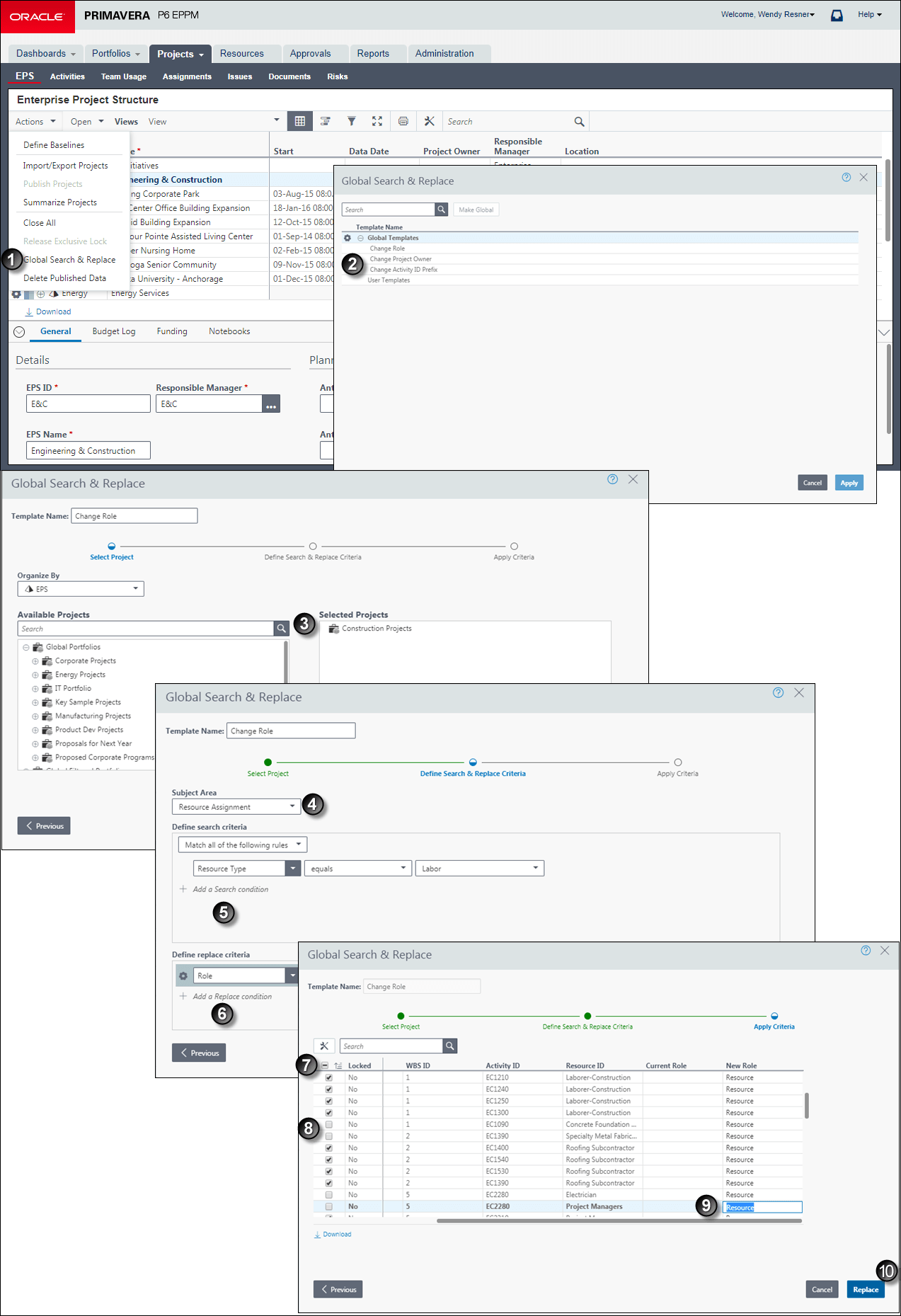
Global Search & Replace
| Item | Description |
|---|---|

|
Navigation: Begin by navigating to the EPS page in the Projects section. Then, click the Actions menu and select Global Search & Replace. |

|
Select a Template: Select an existing template to use, or create a new template. You can also modify an existing template or delete a template. |

|
Select Projects: Each template can be applied to a different project or set of projects. |

|
Select a Subject Area: Select a subject area to determine whether the Global Replace job will modify Project, WBS, or Activity data. Each template can be configured to replace data in one subject area. |

|
Define Search Criteria: Define search criteria and select to match All or Any of the criteria. |

|
Define Replace Criteria: Define up to 5 rows of criteria to replace. |

|
Automatically Excluded Rows: If the Search Criteria and Replace Criteria you defined include rows which cannot be replaced, the rows will automatically be excluded. For example, you may not have the privilege to edit data in a project. |

|
Exclude Rows: Clear the Include option for rows that you do not want to replace. |

|
Edit New Values: If necessary you can edit the new values which will be applied to rows. |

|
Replace: When you are done, click Replace to submit the Global Replace job. To see the progress of the job, click the User menu and select View Service Status.... |