Working with WBS Categories
Use WBS categories to define custom work breakdown structure (WBS) categories. Categories are not project-specific; you can assign them to any WBS elements in the EPS. WBS categories help reflect your organization's terminology and unique requirements. You can also use categories to group, sort, and filter WBS elements. You can create new WBS categories on the WBS Categories tab of the Enterprise Data page.
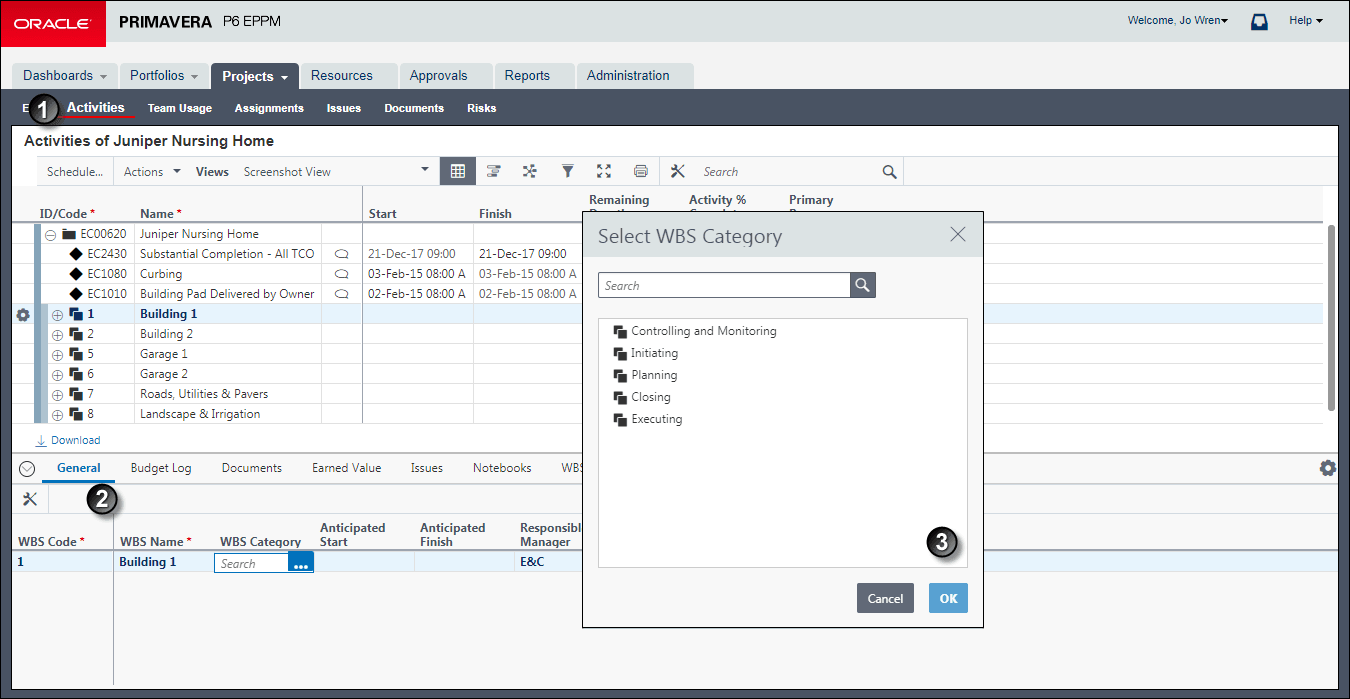
Table of WBS Category Assignment
| Item | Description |
|---|---|

|
Activities page: On the Activities page, use the General detail window to select the WBS category you want to assign. |

|
General Detail Window: In the General detail window, you can assign a WBS category by clicking in the WBS Category field. If the WBS Category field is not visible, click  Customize View and move WBS Category from the Available Columns to the Selected Columns list. The category you assign helps organize the WBS element within the project. For example, a WBS category called Design would indicate that this WBS will focus on design tasks. |

|
Select WBS Category dialog box: Use the Select WBS Category dialog box to assign a WBS category. You can select only one category. If you are assigning a WBS category to a parent WBS, you will be asked if you also want to assign that category to the child WBS elements. Choose yes or no as needed. |