Working with Related Activities
Use the Related Activities dialog box to view predecessor and successor activities and communicate with the activity owners.
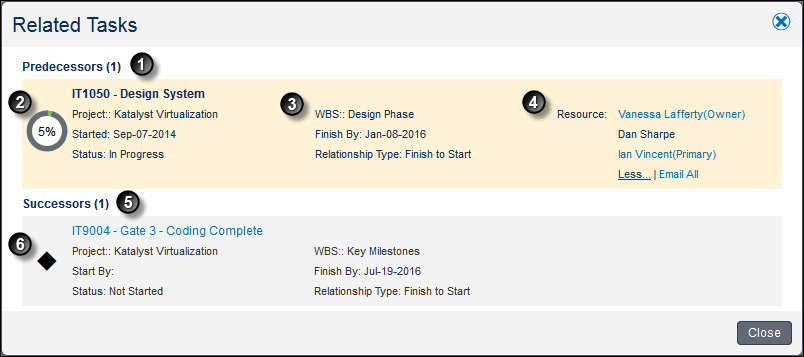
Table of Screen Highlights
| Item | Description |

|
Predecessors: View progress on predecessor activities to determine if you can begin your activity on time. |

|
Progress indicator: Use the progress indicator to determine how much work has been done on an activity. The color indicates the state of the activity and the shading represents the percent complete.
|

|
Dates for Predecessors:
Dates for Successors:
|

|
Resources: View the name of the people responsible for the activity. Send an email to the activity owner to communicate project status. For example, email the owner of a predecessor activity to request additional information on an activity, or notify an activity owner of a successor activity of a potential issue that could delay the start of their assigned activity. The email feature is only available if the activity owner has an email address assigned in P6. |

|
Successors: View the activities that have a dependency on you finishing your assigned activity. |

|
Milestone: The milestone icon indicates this is a start milestone if it is under Predecessors and a finish milestone if it is under Successors. |