Working with Steps
Use the Steps dialog box to view your assigned steps and report your progress. Open the Steps dialog box to add, edit, and delete steps. The add, edit, and delete functionality is only available if your project manager has turned this setting on for the project.
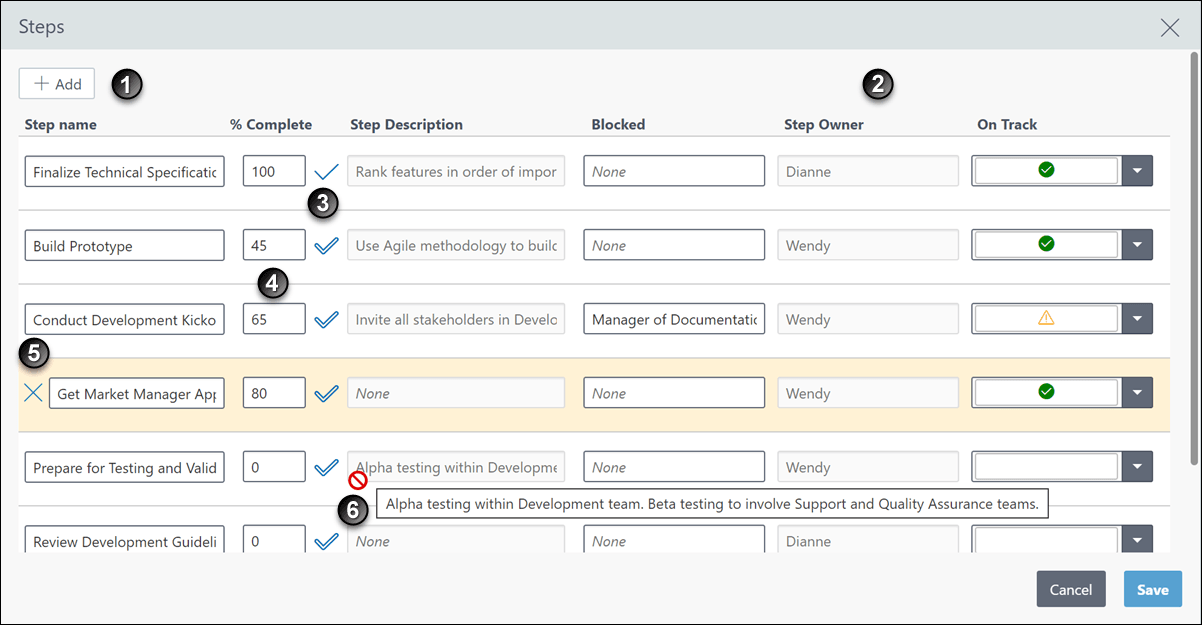
Table of Screen Highlights
| Item | Description |

|
Add Step: Depending on the settings configured by your project manager, you might be able to select  Add to create a new step. The new step appears at the bottom of the list. |

|
User Defined Fields: Depending on the settings configured by your project manager, you might be able to see and edit user defined fields for each step. |

|
Step Completed: When you are finished with a step, select  Complete Step (Ctrl+Alt+C), or enter 100 in the % Complete field. |

|
% Complete: Enter your percentage complete as you progress through each step. |

|
Delete: Depending on the settings configured by your project manager, the Delete icon might be visible when you select a row. To delete a step, select  Delete (Ctrl+Alt+R) and then Save. |

|
Step Description: If a step description is longer than the space available, you can read the text if you hover over the field. |