Navigating Submittal Exchange Project Logs

The top of each log has options you can use to customize your view.
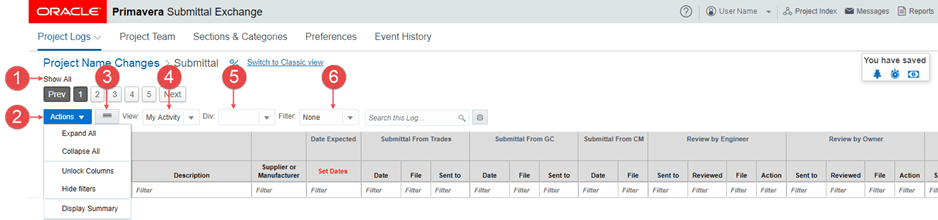

Log Navigation small

Note:

Not all users will see all menus, tabs, or options. Access to some features depends on which role or team you are on.
  1. Show Paging/Show All - Use the pagination toggle to see items in pages or to show them on one scrolling page.
  2. Actions - Use the Actions menu options to expand or collapse sections and categories, lock columns, and set up in-column filters.
  3. Log Display - Use the Log Display toggle button to view only the most recent information or the full log for all items.
  4. View - Use the View toggle button to view only My Activity or All Activity.

    Note:

    The system shows the last view selected, even when a user logs out. A user can manually switch back and forth between My Activity and All Activity.
  5. Div - Use the Div (division) drop-down to limit the view of your content to the selected division.
  6. Filter - Use the Filter drop-down to limit the view of your content to the selected filter.

Tip:

An alert message is displayed if the log display contains hidden columns. Select the Table Settings icon within the alert to show hidden columns and to hide additional columns.