22 Creating a Task Order Quotation
To create a task order quotation:
- Navigate to your Contract Shell.
- From the left Navigator, select Tasks.
- Select the Task Order Quotation task.
- The Quotation Form is displayed.
- The system automatically populates the fields in the top block.
- Select Accept to interact with the record.
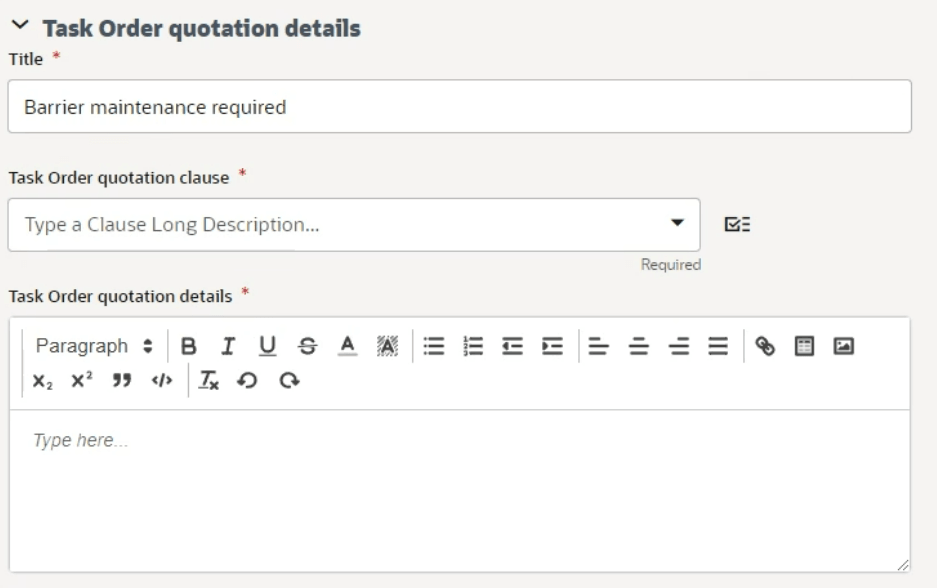
- Complete all the required fields in the notification.
You cannot send the form without completing the required fields.
- Select the clause picker icon next to Task Order quotation clause to view all clauses available for selection on this notification.
- To complete the Task Order Quotation Financial Breakdown, select an option from the Reference Commit drop-down list.
- Select the Quotation Breakdown tab.
This is where you will enter the cost line items.
- Select Add to choose the Line Item Type.
- Complete all the required fields and select Save to add the line item to the quotation items.
If required, you can add multiple line items.
Note:
At the internal review step, you can request a Response Time Extension. See Creating a Response Time Extension Notification for how to submit and respond to an extension of time. - Once you complete all fields, select Send to submit the task order quotation for internal review.
After the internal review concludes, the application creates a task for the other party to review.