3 Common Unifier Tasks

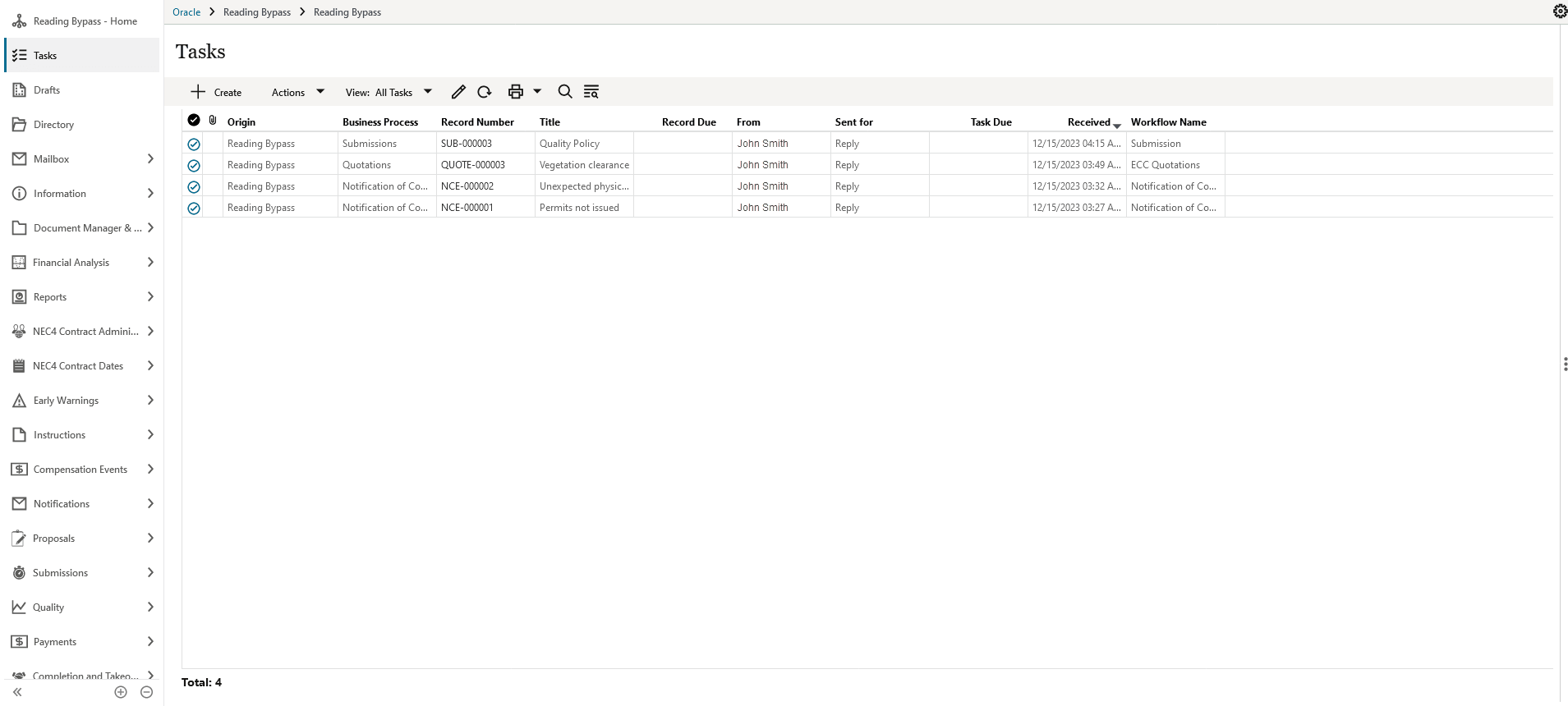
Viewing your Tasks

To view all tasks that have been assigned to you:

  1. Navigate to your Contract Shell.
  2. Select Tasks from the left Navigator.

Tasks image

Adding Attachments

You can upload attachments to every notification. To upload attachments:

  1. Select the Attachments tab.
  2. From the Attachments panel, select the paper clip icon.
  3. Either:
    • Drag and drop files
    • Use the Browse button to find a file.
  4. After adding your files, select Upload.

    All added attachments are added to the Attachments panel in the workflow.

Tip:

To remove an attachment, select the gear icon next to your attachment and choose Remove.
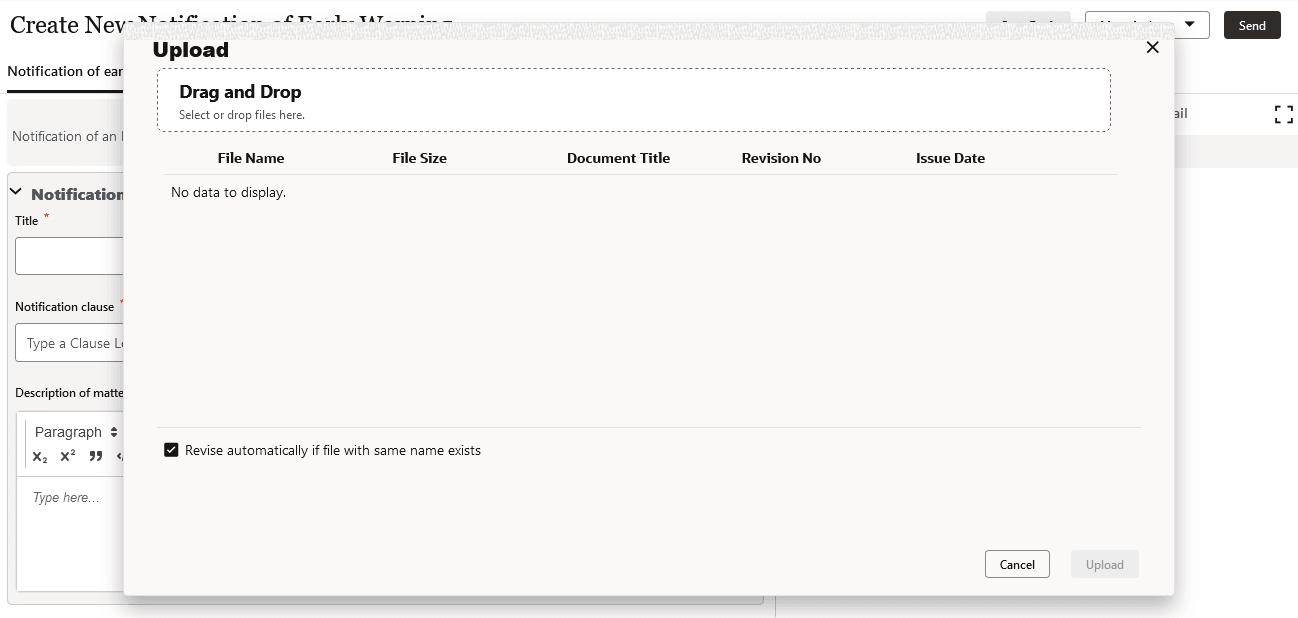
Upload image

Creating a Reference Process to Link Notifications

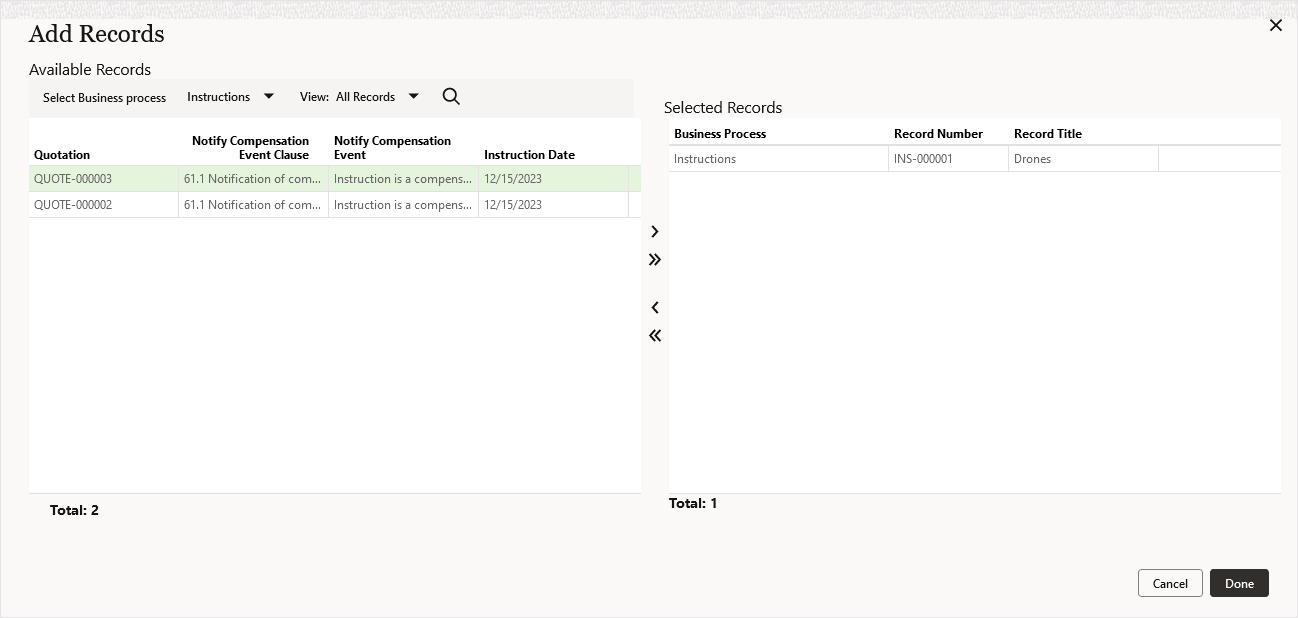
Notifications can be linked together using the Linked Records tab.

To link notifications:

  1. Select the Linked Records tab on the right panel.
  2. Select the Add icon from the Linked Records pane. The Add Records dialogue box is displayed.
  3. From the Select Business process drop-down menu, select the business process type to open all records of that business process type.
  4. Select the records you want to link. Use the > arrow to move an individual record to the Selected Records panel, or select >> to move all records.
  5. Repeat steps 3 and 4 for other business process types.
  6. Select Done.

Add Records image

Adding Key/Sectional Completion Dates

Key/Sectional Completion Dates for the NEC4 contract are available across a number of business processes and are created the same way in each.

To add key/sectional completion dates:

  1. Navigate to your Contract Shell.
  2. From the left Navigator, select NEC4 Contract Dates, and then select Key/Sectional Dates.

    All key sectional completion dates submitted by the administrator are available to view.

  3. Select the Key/Sectional Completion Dates tab.
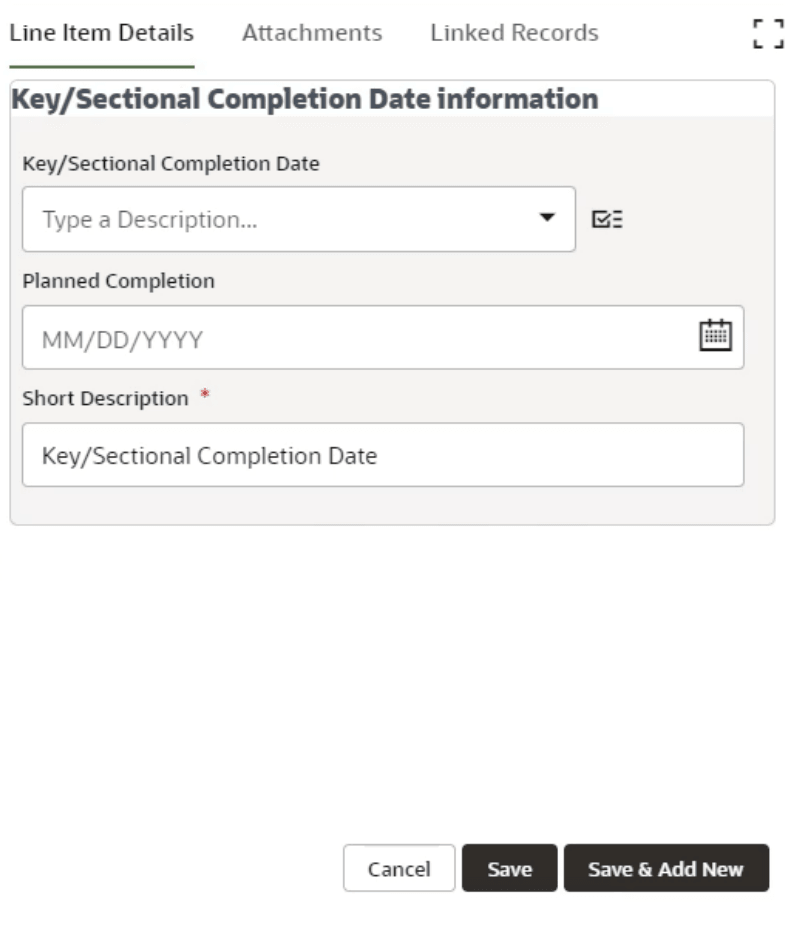
  4. Select Add to create a new line item.

    If required, you can add multiple line item records.

  5. Select the clause picker icon next to Key/Sectional Completion Date clause to view all clauses available for selection on this notification.
  6. Once you complete all fields, select Save.
  7. Select Send to submit the record.
    • You can now access the notification from the left Navigator by selecting Submissions, and then selecting Programmes.
    • The application creates a task for the other party to review.

Key/sectional completion date information image