Data Definitions
Data Definitions describe how data is entered and stored. Data Definitions are what Data Elements (the fields for the forms) are built on. There are three kinds of Data Definitions:
- Basic
- Cost Code
- Data Picker
Basic
For use in designing most of the fields on business process forms, attribute forms, managers, shells, and other components. See Creating a Basic Data Definition.
Cost Code
For use in designing the layout of cost code segments. Cost codes (or CBS codes) are used on cost BPs that will affect project cost sheets. See Creating a Cost Code Definition.
Data Picker
For use with master Business Process logs, Shells, Planning items, and Configurable Managers that function across a Shell hierarchy. Data pickers make it easier for users to choose the correct record from master business process logs or planning item type that resides across shells, a class in a configurable manager that operates across shells, or for auto-creation across shells. Data picker definitions differ from most of the data definitions you will create. For information on these definitions, see About Data Pickers and also Creating a Data Picker Definition.
Note:
You can also create shell data pickers for use on the Shell Attribute Form. Using a shell data picker lets you reference a project/shell from another project/shell, copy values from the referenced project/shell, or update the referenced project/shell by using the existing attribute form.Except for Data Pickers, Data Definitions consist of the following components:
- Data Type
- Data Size
- Input method
Data Type
Whether it is an alphabetical string or a number.
- String data contains letters, numbers, or special characters. Use string data when the criteria for the data being entered must be flexible. For example, an address field might contain letters, numbers, and special characters.
- An integer is a number, with or without decimals. It cannot contain letters or special characters. Use integers for data entry, such as cost or quantity amounts, where you want to prevent the user from entering letter characters.
Data Size
The number of characters for strings.
Input method
The method used to enter data. The following is a list of Input methods, including their functions:
- BP Creator
- Allows users to auto-create records based on a condition, such as a dollar amount, or a time frequency, such as daily or weekly. When a Business Process reaches the condition or frequency trigger in a Workflow, the BP Creator element on the form automatically creates a new record.
- Unlike other fields, Data Element fields built on the BP Creator definition are not visible on any form unless the auto-creation is manually initiated by the user. Instead, the auto-creation is set up in uDesigner and configured by the Unifier administrator. When this is completed, the form will show a text box with a Create button, or a hyperlink from the source record to the destination record.
- Checkbox
Provides an option that the user can select ("check") or not. "Not checked" is the default value.

Note:
Do not use a checkbox as a required field. Whether or not the checkbox is selected, a workflow assumes the "not checked" value and allows the record to be sent. - Multi-line text
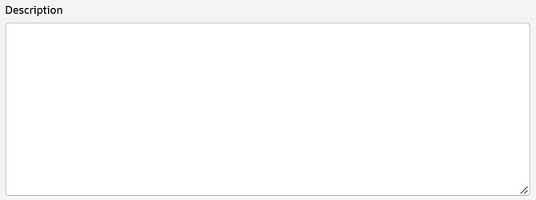
Use this element for multiple text lines for entries up to 4000 characters long, such as descriptions or remarks. You must also set the Data Size—the maximum number of characters.
- Multi-select input
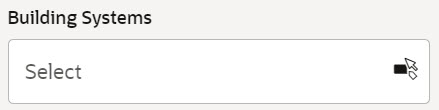
Allows the user to make multiple selections from a list. This input method automatically uses a comma as a separator between selections. The values for this definition are specified when the business process, form, manager, or other component is set up.
- Picker
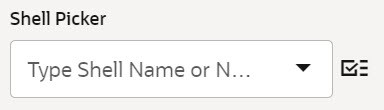
Allows users to choose from lists of items. uDesigner and Unifier are shipped with multiple predefined pickers.
- Pull-down menu
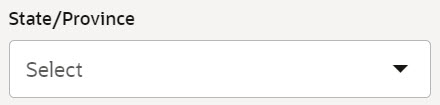
Provides a list of items the user can choose from but cannot change. The values for the pull-down menu choices can be up to 128 characters long and are specified when the business process, form, manager, or other component is set up.
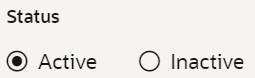
- Radio buttons
Use where two values are possible and one must be selected. Values of ‘one' and ‘two' are assigned by the system; the default ("true") value is "one." The actual values are set when the business process, form, manager, or other component is set up.
Note:
Do not use a radio button as a required field. The workflow will assume that a "true" value has been entered, even if the user makes no choice.
- Text box
Use a text box for a one-line alphanumeric text entry field, such as name or address. You must also set the Data Size—the maximum number of characters. A text box is usually used for smaller text (1 to 64 characters), but could be longer.

Note:
As you design the data structure, keep in mind that one of its purposes is to re-use data definitions throughout the life of many business processes, managers, shells, or other components. A data definition can be used in many different places in the Unifier interface—for example, for fields on a business process form, on a report, or on a cost, scheduling, or planning sheet.
- Be conservative about the number of data definitions you need, and be as generic as possible about naming them. Too many definitions can be confusing to users and can decrease your efficiency in designing forms and other components. If you need a data definition for a unique purpose, identify that purpose in the name you give the definition. This will make it easily recognizable and distinguish it from other, similar data definitions.
- Unifier has provided multiple data definitions for your use in building data elements. You can add other definitions of your own if you need them. For a list of the data definitions provided by Unifier, see the section on data definitions in the Unifier Data Reference Guide. Before you begin creating data definitions, review this list of definitions that already accompany the product; it will help you understand their function, and it may save you the effort of creating new definitions you might not need.
Data Definitions with Data Set Values
When working with data definitions that have data set values (for example, pull-downs, or drop-downs, multi-select inputs, radio buttons, or selections, and so forth) the status of the data set value is important.
When the status of the data set value is Inactive, the values will not be available for selection when you attempt to select an option manually.
Unifier ignores the status of the data set values, when the values are set by way of one of the following methods:
- Copy
- Auto-populate
- CSV import
- REST
- SOAP
- RAP
- Auto-create
The following explains what happens when an invalid data set value is selected:
- Copy
If the data set value has been deleted, the system accepts the data set value that was used in the source.
- Auto-populate
If the data set value has been deleted, the system accepts the data set value that was used in the source.
- CSV import
If the data set value has been deleted, the system does not accept the data set value (invalid).
- REST
If the data set value has been deleted, the system does not accept the data set value (invalid).
- SOAP
If the data set value has been deleted, the system does not accept the data set value (invalid).
- RAP
If the data set value has been deleted, the system does not accept the data set value that was used in the source (invalid).
- Auto-create
If the data set value has been deleted, the system accepts the data set value that was used in the source.