Oracle Agriculture Intelligence User Guide - Working with Insights
Get to Know the Agriculture Intelligence and Insight Details Pages
Before working with insights, it is important to understand where insights are presented in the application and how information is organized across the Agriculture Intelligence Dashboard and the Insight Details page. These two pages work together to provide both high-level situational awareness and detailed analytical context.
The Agriculture Intelligence Dashboard
The Agriculture Intelligence Dashboard is the primary page for monitoring detected events that may impact crop production and food security. It provides a consolidated, up-to-date view of insights across the country, allowing users to quickly identify areas of concern and prioritize further investigation.
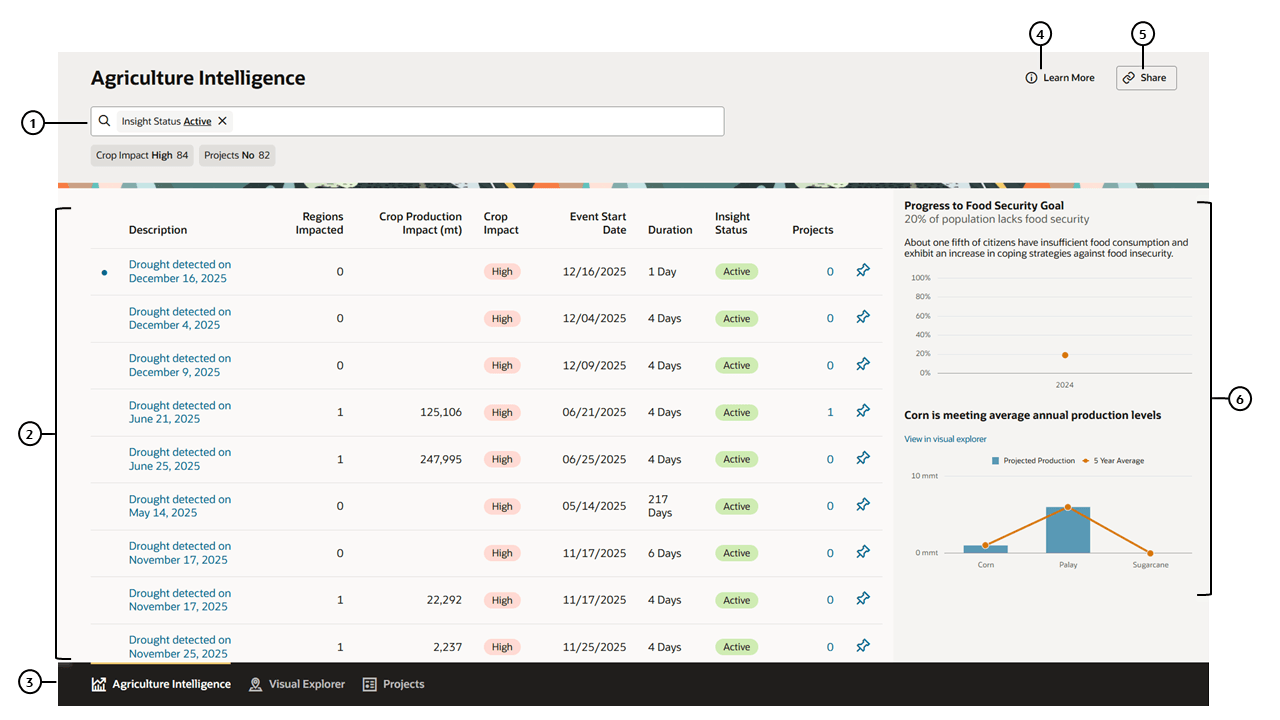
Key Elements of the Dashboard
| Callout # | Element | Description |
|---|---|---|
| 1 | Search and Filters | Allows users to refine the list of insights using predefined filters and search criteria. |
| 2 | Insights Table | Displays detected events along with impact metrics, duration, and associated projects. |
| 3 | Navigation Bar | Allows users to switch between views in the application. Options in the panel may change depending on the active user’s roles. |
| 4 | Learn More | Opens an alphabetized reference of terms, definitions, and data sources used within the application. |
| 5 | Share | Copies the current page URL to the clipboard for easy sharing with other users. |
| 6 | Food Security Progress Panel | Shows food insecurity indicators and progress toward defined improvement goals. |
The insights table on this page presents one row per detected event. Together, the columns provide a concise summary of what is happening, where it is happening, and how significant the potential impact may be. Users typically start here to scan for high-impact or emerging risks.
Insights Table Field Descriptions
| Column Header | Description |
|---|---|
| Description | Shows event type and detection date. |
| Hectares at Risk | Shows the number of hectares potentially at risk due to the event. |
| Crop Production Impact (MT) | The measure of how external factors, such as weather events, affect the overall volume of crop production. MT stands for Metric Tonnes, a standardized measure used to quantify crop production across different types of produce. |
| Crop Impact | An assessment of how various factors influence crop production, categorized as Low, Medium, or High. Low indicates minimal or no effect on yields, Medium reflects moderate impact with potential recovery, and High signifies severe disruption requiring significant intervention. |
| Event Start Date | The date on which a specific event, such as a weather event, or crop-related activity begins. If the event start date is in the future, it represents a projected start date. If the Event Start Date is today or in the past, it represents an actual start date. |
| Duration | Event duration measured in days. The time period over which an insight is observed. This is measured from the start of the event (start date) to the current day, expressed in days. It tracks how long the observed condition has been active. |
| Projects | Shows the number of projects associated with the event. |
The Insight Details Page
Selecting an insight from the dashboard opens the Insight Details page. This page provides in-depth information about a specific event, combining spatial, historical, and analytical context to support interpretation and decision-making.
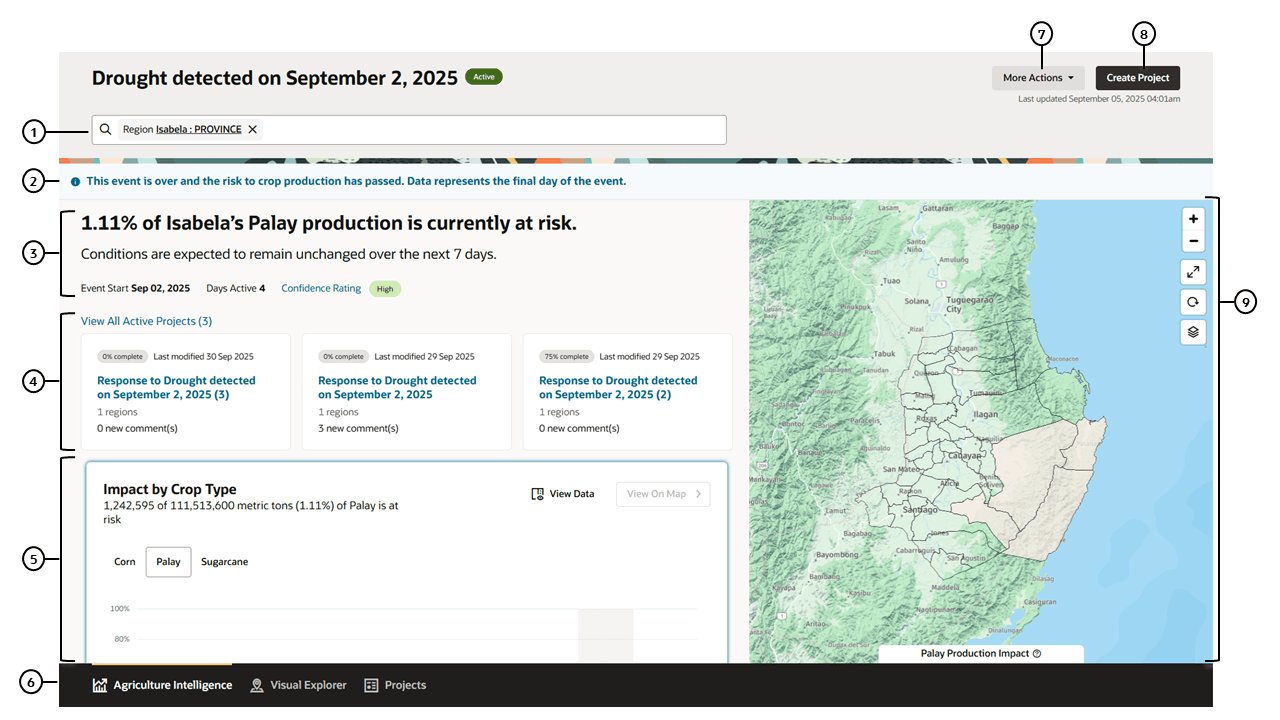
Key Elements of the Insight Details Page
| Callout # | Element | Description |
|---|---|---|
| 1 | Region Search | Allows users to jump to specific regions to see the estimated impact of the insight. |
| 2 | Alert Bar | Displays when there is an alert related to the insight or to inform the user when the insight has ended. |
| 3 | Insight Summary | Describes the detected event, including event type, affected area, and severity indicators. |
| 4 | Related Projects | Lists any response projects linked to the insight, enabling traceability from risk detection to action. |
| 5 | Data Graphs | Display one or more graphs indicating impact on agriculture by crop or date. May also include environmental data. |
| 6 | Navigation Bar | Allows users to switch between views in the application. Options in the panel may change depending on the active user’s roles. |
| 7 | More Actions | Shows a drop-down list of options including Pin Insight, Share and Archive. |
| 8 | Create Project | Allows users to create a new project tied to the insight. Opens a new page with a form to create the new project. |
| 9 | Insight Map | Displays the geographic extent of the event and its overlap with crops, administrative boundaries, and other contextual layers. |
The Insight Details page is designed to help users move from awareness to understanding. By combining visual, numerical, and historical information in a single view, it supports rapid assessment of both immediate risks and longer-term implications.
How These Pages Work Together
The Agriculture Intelligence Dashboard and the Insight Details page are designed to be used together:
- The Agriculture Intelligence dashboard supports scanning, prioritization, and situational awareness across many events.
- The Insight Details page supports focused analysis of a single event and its potential impacts.
- Navigation between the two is seamless, allowing users to move quickly from overview to detail.
Understanding the purpose and layout of these pages provides the foundation for effectively using insights in the application. The next section describes the specific tasks users can perform to analyze insights and take action.