Oracle Agriculture Intelligence User Guide - Working with Insights
Using Insights in the Application
This section describes the common tasks users perform when working with insights in Oracle Agriculture Intelligence. These tasks support the full workflow from identifying emerging risks to analyzing their impact and initiating response actions.
Task: View Insights from the Agriculture Intelligence Dashboard
This task explains how to access and review insights from the Agriculture Intelligence Dashboard. Users typically perform this task at the start of a work session to gain situational awareness of events that may impact crop production or food security.
These are the steps needed to complete this task:
- Log in to the Oracle Agriculture Intelligence application.
- Select the Agriculture Intelligence tab from the navigation tabs in the lower-left corner of the screen. For most users, this tab will be selected by default.
- Review the insights table displayed in the main panel of the page.
- Scan key columns such as Crop Impact, Hectares at Risk, and Duration to identify high-impact or emerging events.
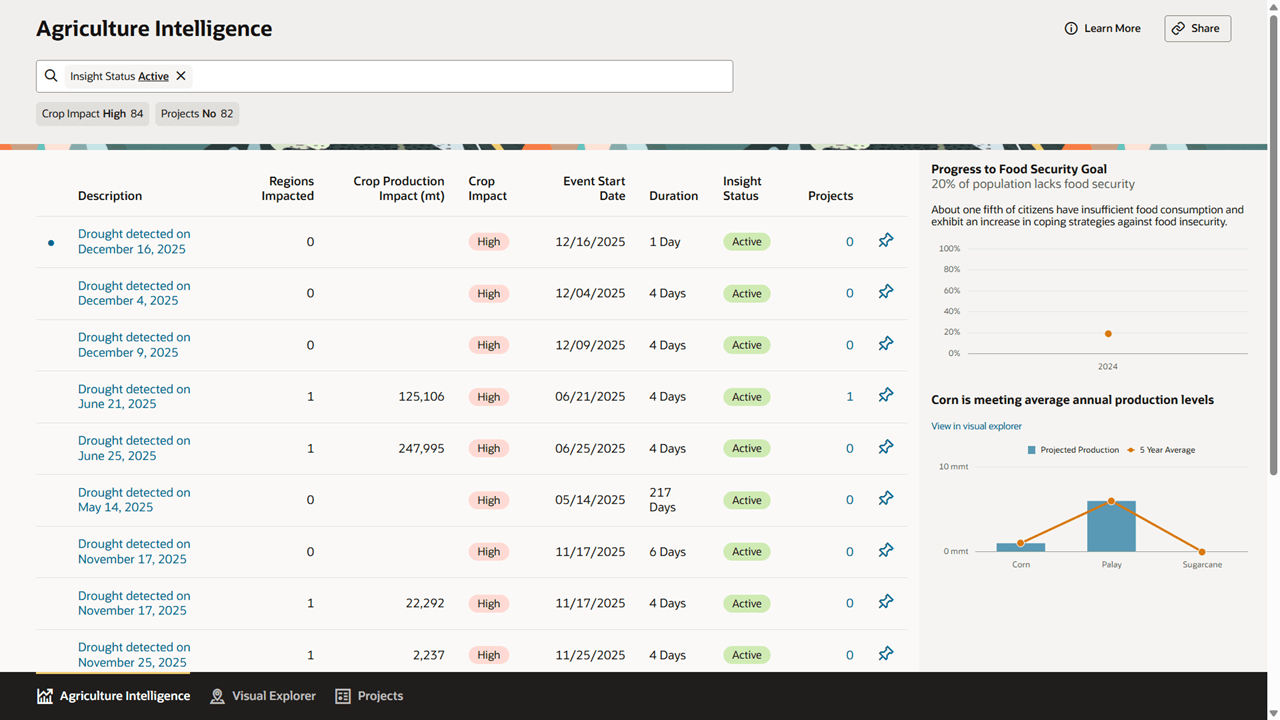
After completing this task, you have an overview of current insights across the country and can identify which events may require further investigation or action.
Task: Filter Insights to Focus on Relevant Events
This task describes how to narrow the list of insights to those most relevant to your role, region, or current priorities. Filtering insights through the smart search bar is commonly used when working with large numbers of events or when preparing regional or crop-specific analysis.
These are the steps needed to complete this task:
- Navigate to the Agriculture Intelligence page.
- Locate the Smart Search bar and default filters beneath the page title.
- Enter search text or adjust available filters to refine the list of insights.
- Review the updated insights table to confirm that the results reflect the desired scope.
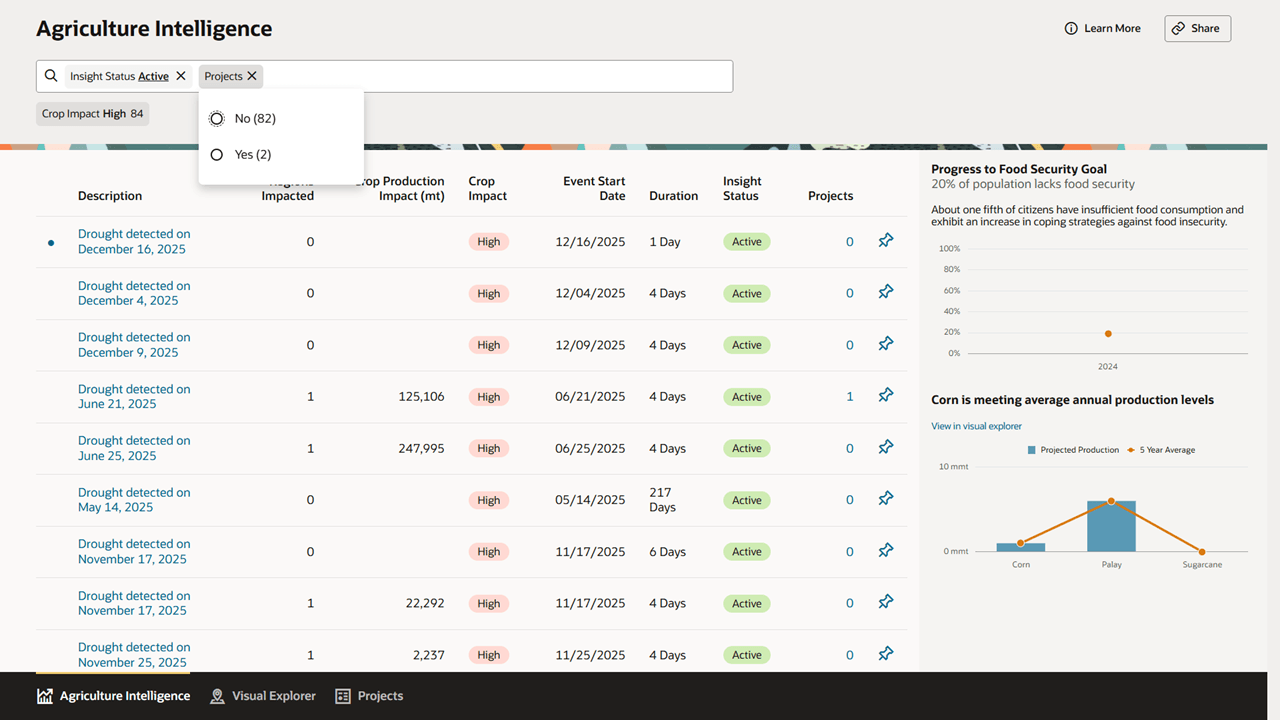
After completing this task, the insights table displays a focused set of events, allowing you to concentrate on the most relevant risks without distraction.
Task: Open and Review an Insight Detail Page
This task explains how to access detailed information for a specific insight. Users perform this task when they need to understand the causes, severity, and potential implications of an individual event.
These are the steps needed to complete this task:
- From the Agriculture Intelligence dashboard, identify the insight you want to investigate.
- Click the corresponding row in the insights table. This will take you to the Insight Details page. The insight name from you selected insight will display prominently on the page.
- Review the insight summary and impact metrics displayed on the Insight Details page.
- Examine trend indicators and historical comparisons to understand how the event is evolving.
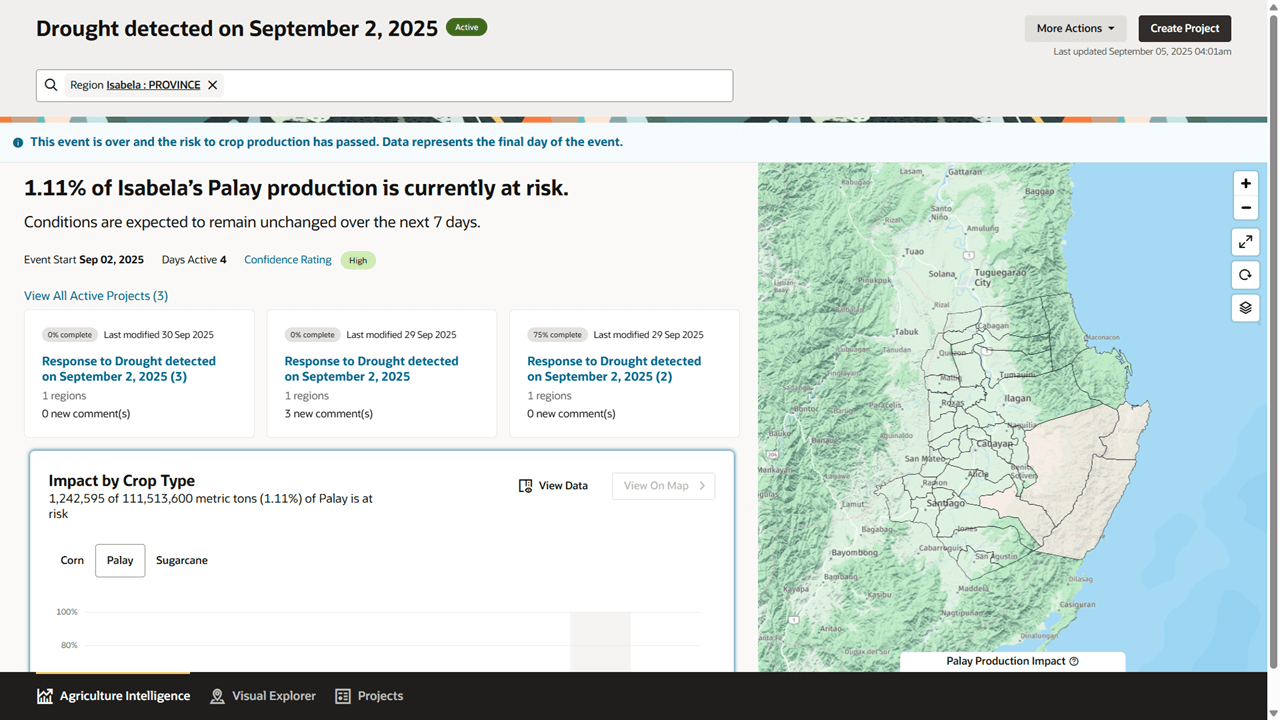
After completing this task, you have a detailed understanding of the selected insight, including its severity, trajectory, and historical context.
Task: Explore an Insight Using the Map
This task describes how to use the map on the Insight Details page to understand the geographic extent of an event. This task is useful when assessing whether key production zones or administrative areas are affected.
These are the steps needed to complete this task:
- Open the Insight Details page for a selected insight.
- On the right side of the page, you will see a map showing the affected area.
- Use pan and zoom controls to explore different parts of the impacted region. If you do not have access to all regions within the insight area, some data may be restricted.
- Use the Smart Search bar to filter by a particular crop or move to a specific region.
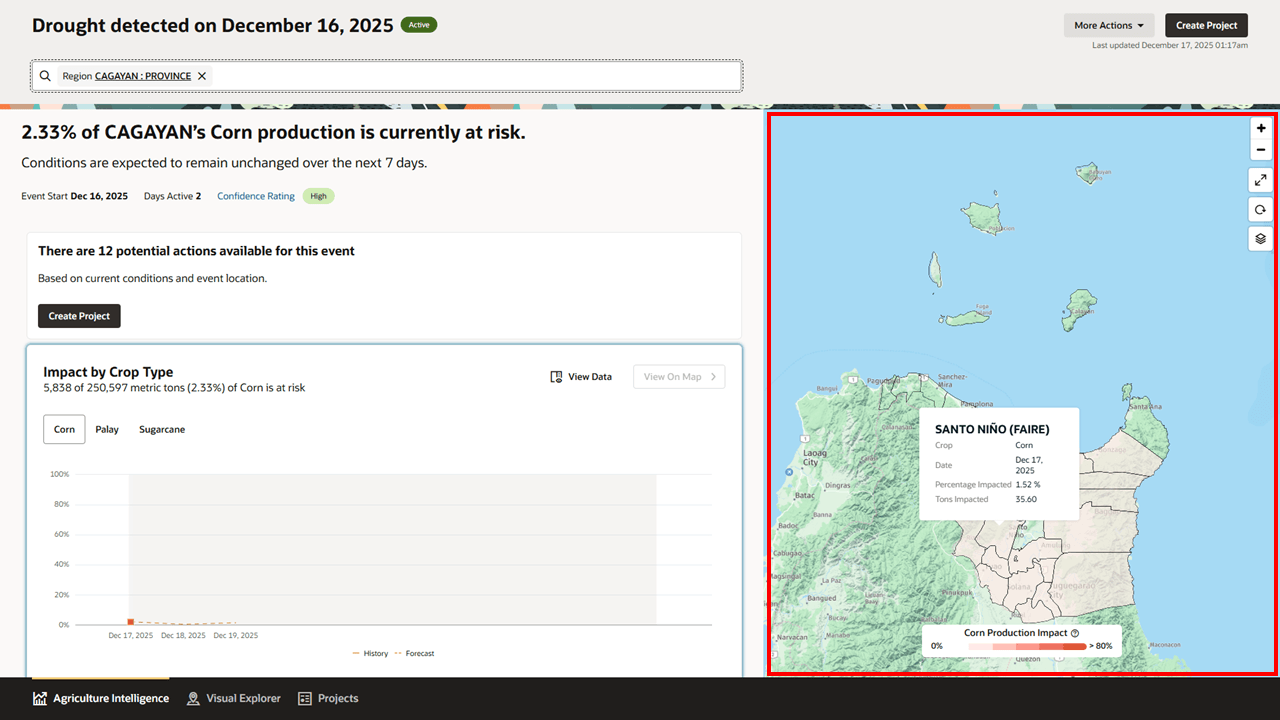
After completing this task, you can visually assess where the event is occurring and how it overlaps with critical agricultural areas.
Task: Create a Project from an Insight
This task explains how to initiate response planning directly from an insight. Users perform this task when an event requires coordinated intervention, monitoring, or follow-up activities.
These are the steps needed to complete this task:
- Open the Insight Details page for an event requiring action.
- Locate the Related Projects section on the page.
- If you don’t have an existing project related to the insight, select the option to create a new project.
- Provide any required project information as prompted by the application.
- Refer to the Managing Projects documentation for additional information on how to create projects.
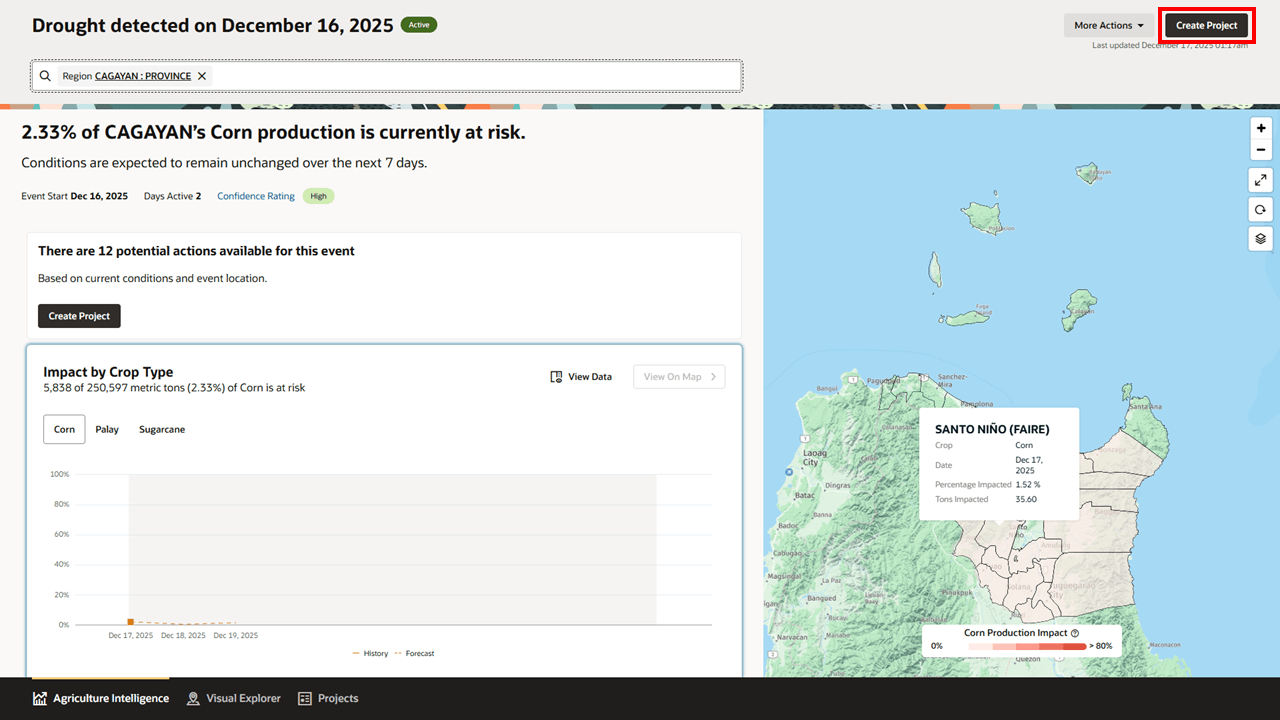
After completing this task, the insight is linked to a project, ensuring that response actions are traceable to the underlying data and automatically updated as conditions change.
Task: Monitor How an Insight Evolves Over Time
This task describes how to track changes in an insight as new data becomes available. Users typically perform this task during ongoing monitoring of medium or high-impact events.
These are the steps needed to complete this task:
- Open the Insight Details page for the event you want to monitor.
- Review trend and status indicators to understand recent changes.
- Examine updated impact metrics and historical comparisons as they refresh over time.
- Click on View Data when available on charts and graphs to view underlying data.
- Revisit the insight periodically to assess whether conditions are improving, stabilizing, or worsening.
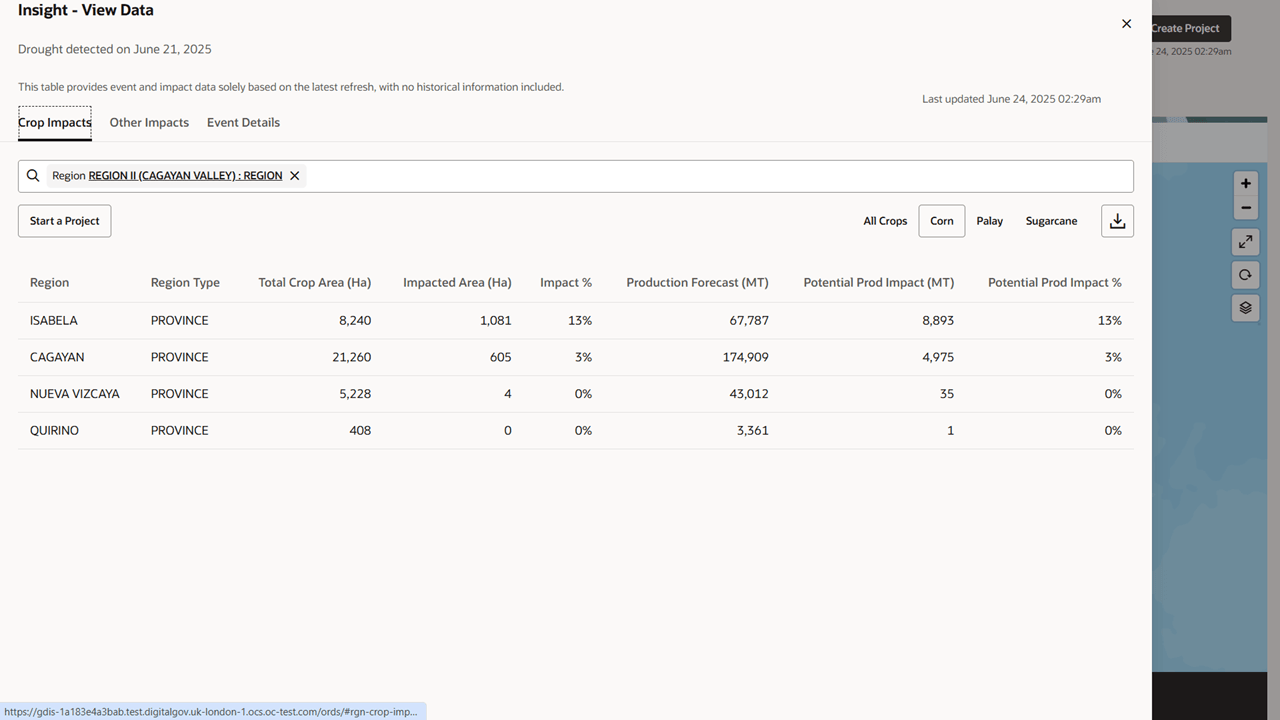
After completing this task, you can track how conditions evolve and adjust decisions or response actions based on the latest available information.
Task: Archive an Insight
This task describes how to archive an insight once it has ended and you no longer want to be available for users. Users typically perform this task to avoid having old insights appear for users, allowing them to concentrate on the most important events happening at this time.
These are the steps needed to complete this task:
- Open the Insight Details page for the event you want to monitor.
- Click on the More Actions button at the top right hand corner of the page.
- Click on the Archive option from the drop-down list that appears below the button.
- You will see a confirmation popup. Click the Archive button to confirm.
- Confirm that the insight no longer appears in the list of Insights.
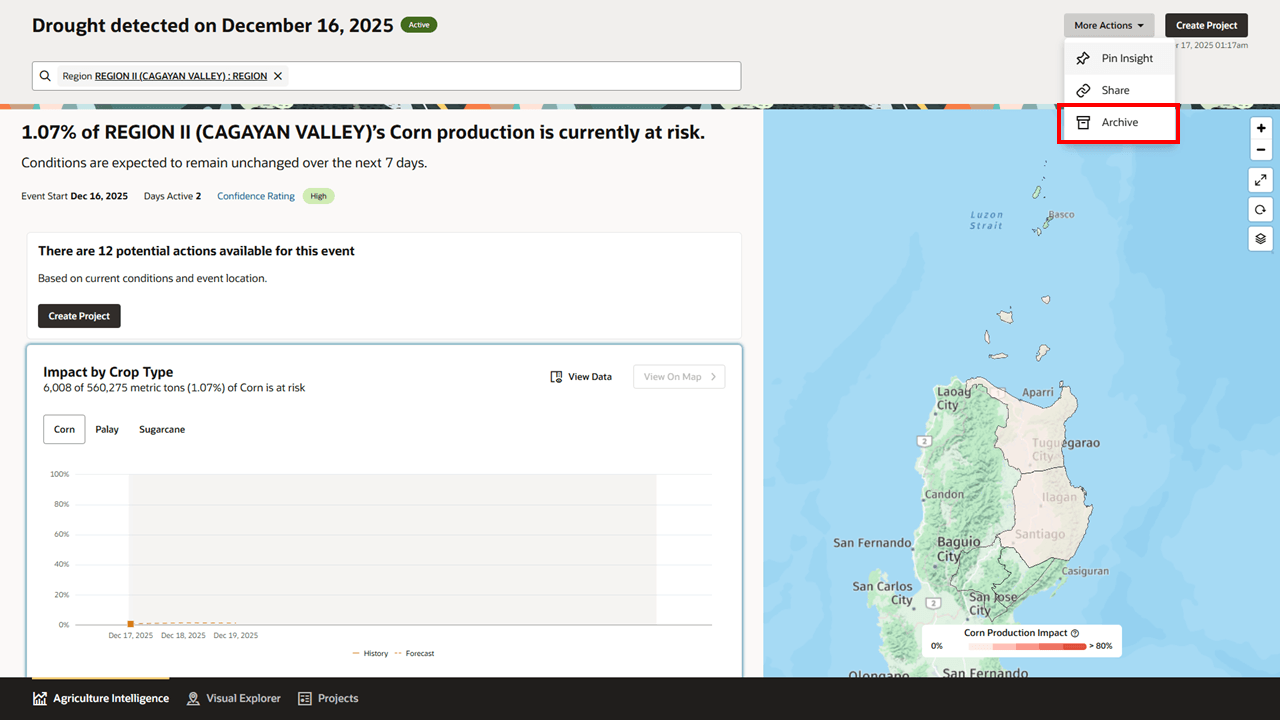
After completing this task, you will no longer see the Insight by default in the Agriculture Intelligence Dashboard.