Oracle Agriculture Intelligence User Guide - Managing Projects
Get to Know the Projects Pages
Before managing projects, it is helpful to understand where projects are accessed in the application and how information is organized across the Projects Dashboard and the Project Details page. These pages provide both a high-level view of all ongoing and completed projects and a detailed view for planning, monitoring, and coordination.
The Projects Page
The Projects Page is the central location for viewing and managing all projects in Oracle Agriculture Intelligence. It provides a consolidated overview of response and intervention efforts, allowing users to quickly understand project status, priorities, and links to underlying insights.
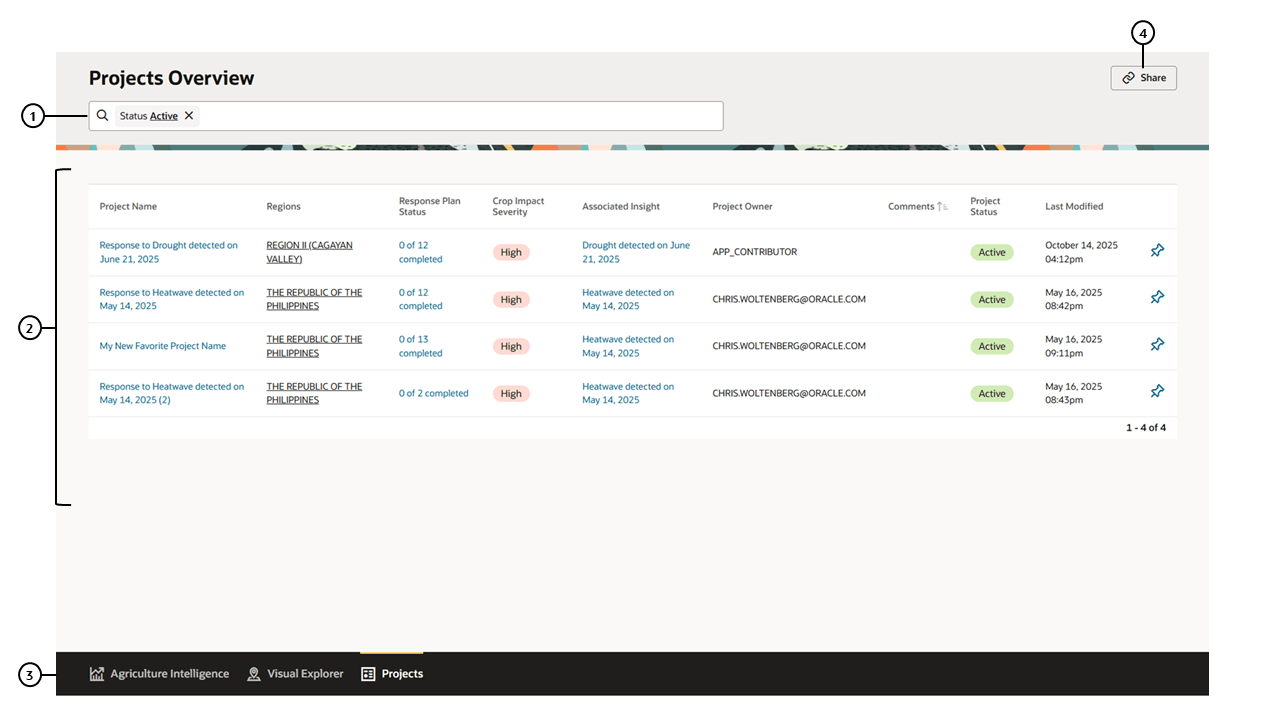
Key Elements of the Projects Page
| Callout # | Element | Description |
|---|---|---|
| 1 | Search and Filters | Allows users to refine the list of projects using predefined filters and search criteria. |
| 2 | Projects Table | Displays list of projects along with status of response, associated insight, project owner and project status. |
| 3 | Navigation Bar | Allows users to switch between views in the application. Options in the panel may change depending on the active user’s roles. |
| 4 | Share | Copies the current page URL to the clipboard for easy sharing with other users. |
The Projects Page is typically used to review ongoing work, identify projects requiring attention, and understand how response activities are distributed across regions or themes.
The Project Details Page
Selecting a project from the Projects Page opens the Project Details page. This page provides a comprehensive view of a single project, bringing together descriptive information, geographic context, linked insights, and progress tracking.
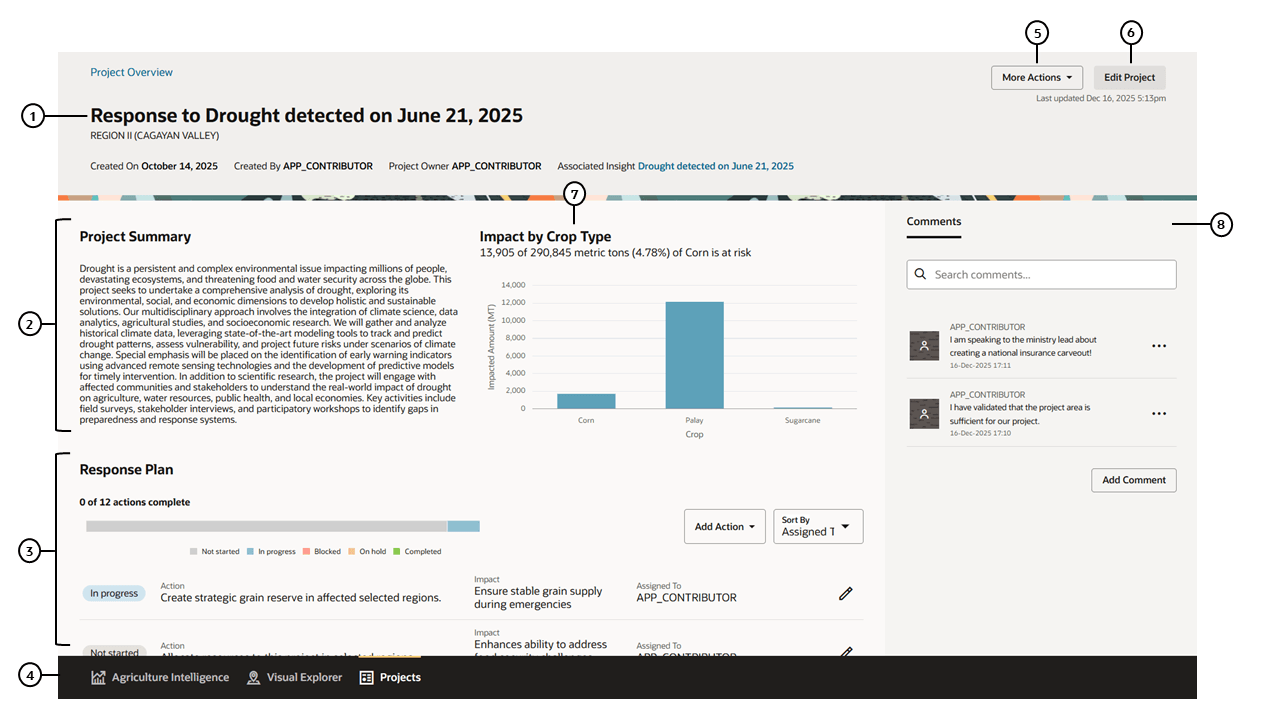
Key Elements of the Project Details Page
| Callout # | Element | Description |
|---|---|---|
| 1 | Project Header | Displays the project name, owner and associated insight, providing quick context about the project’s purpose. |
| 2 | Project Summary | Displays a user-provided description of the project, providing more detail about the project’s purpose. |
| 3 | Response Plan | Lists the actions associated with the project along with a description and status of each action. |
| 4 | Navigation Bar | Allows users to switch between views in the application. Options in the panel may change depending on the active user’s roles. |
| 5 | More Actions | Displays a drop-down list of options including Pin Project, Share and Archive. |
| 6 | Edit Project | Allows users to edit key information associated with the project. Opens in a panel to maintain the user context. |
| 7 | Impact | Shows the estimated impact of the associated insight to provide additional context to the project. |
| 8 | Comments | Displays a list of comments made by users related to the project. |
The Project Details page supports day-to-day project management as well as longer-term monitoring. By combining linked insights, spatial context, and status information in one place, it enables users to maintain a clear understanding of both what actions are being taken and why they were initiated.
How the Projects Pages Work Together
The Projects Dashboard and Project Details page are designed to be used together:
- The Projects Page supports scanning, prioritization, and management of multiple projects at once.
- The Project Details page supports focused planning, execution, and monitoring of a single project.
- Navigation between the two pages allows users to move seamlessly from overview to detail.
Understanding the layout and purpose of these pages provides the foundation for effectively managing projects in the application. The next section describes the common tasks users perform when creating, updating, and monitoring projects.