Oracle Agriculture Intelligence User Guide - Managing Projects
Managing Projects in the Application
Task: View Existing Projects
This task explains how to access and review projects that have already been created in the application. Users typically perform this task to understand ongoing and completed response activities, review project status, or identify projects that require attention.
These are the steps needed to complete this task:
- Log in to the Oracle Agriculture Intelligence application.
- Select the Projects tab from the navigation tabs in the lower-left corner of the screen.
- Review the projects table displayed on the Projects Dashboard.
- Scan key fields such as project name, status, and linked insights to understand current activities.
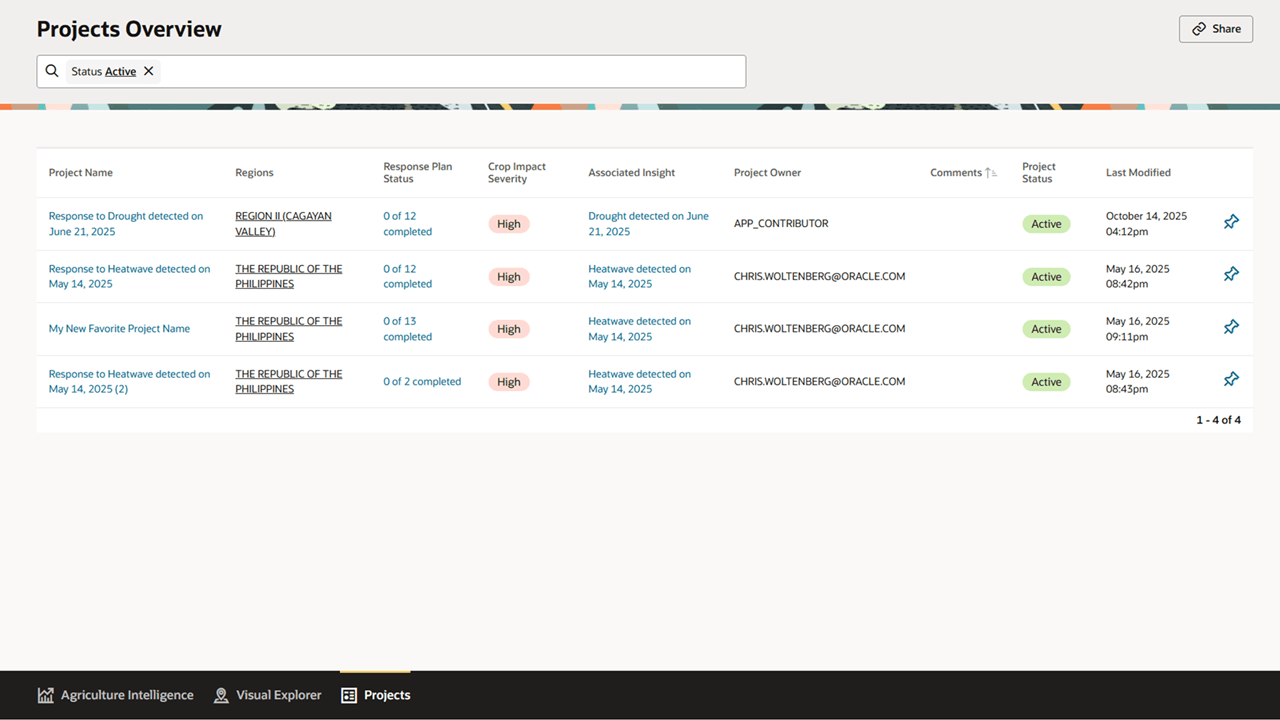
After completing this task, you have an overview of existing projects and their current state, enabling you to identify priorities or select a project for deeper review.
Task: Create a New Project from an Insight
This task describes how to create a new project to plan or document a response to an identified risk or opportunity. Users typically perform this task when an insight indicates that coordinated action or monitoring is required.
These are the steps needed to complete this task:
- Select the Agriculture Intelligence tab from the navigation tabs in the lower-left corner of the screen.
- Identify the Insight that you want to take action on and enter the Insight Details page for that insight.
- Click on the Create Project button at the top right hand corner of the page. This will take you to a New Project creation form.
- Provide context for your new project by giving your project a clear Project Name and Project Description. These fields can be changed after the project is created.
- Define the geographic scope of the project by assigning one or more Regions to the project. You can edit the list of regions affected by the project during project creation of afterwards.
- Determine what Actions you expect to perform as part of the project. You can assign users to actions during project creation of afterwards.
- Save the project to create it in the system. You should now see the project in the project list. The project creatoe will be assigned as the owner of the project.
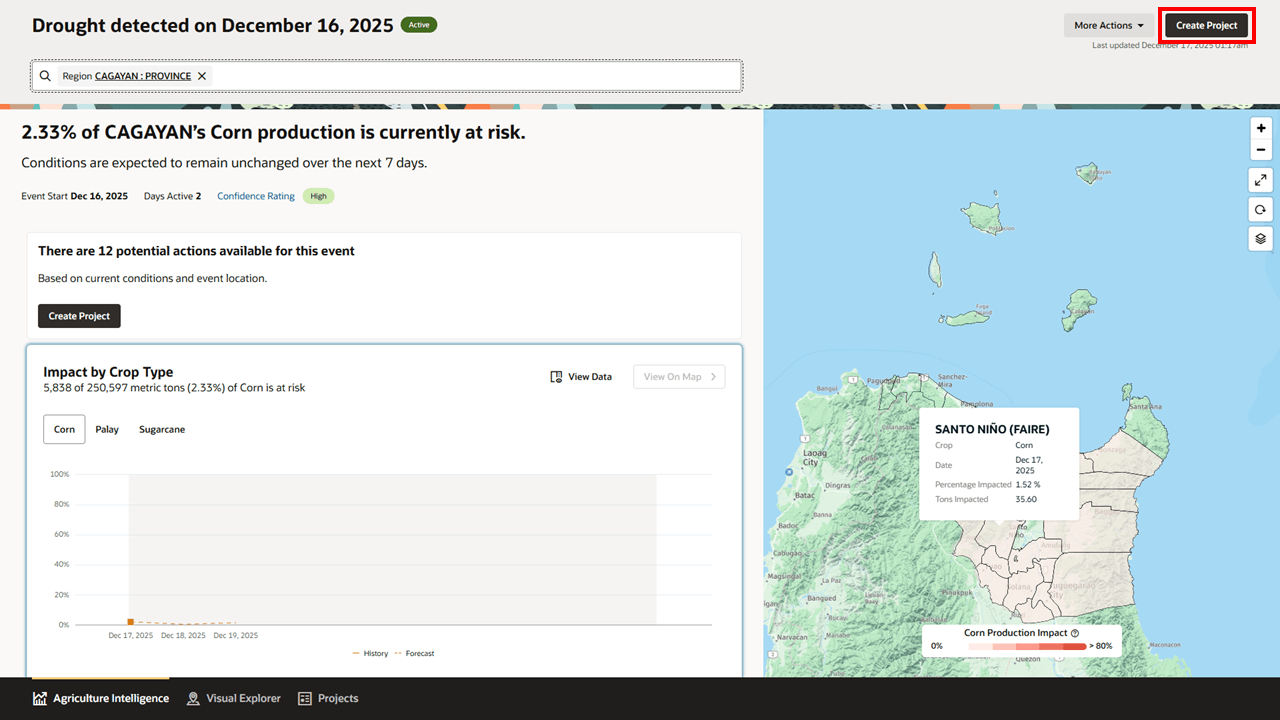
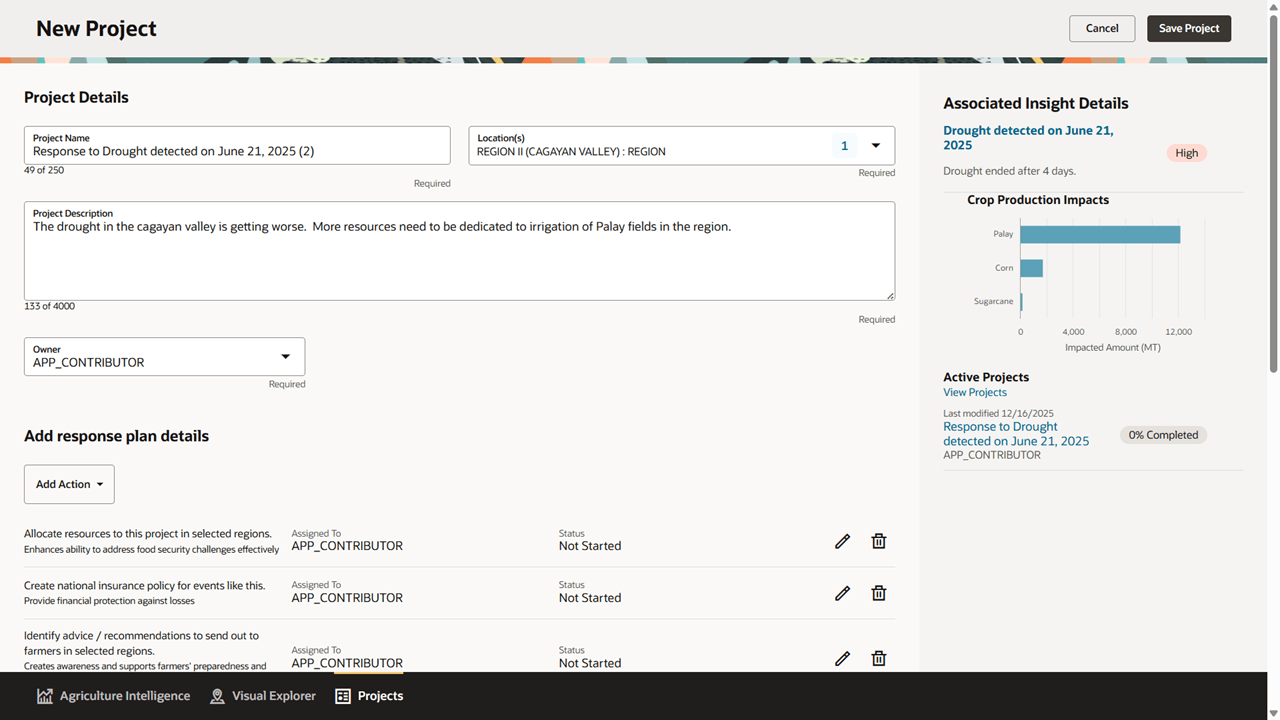
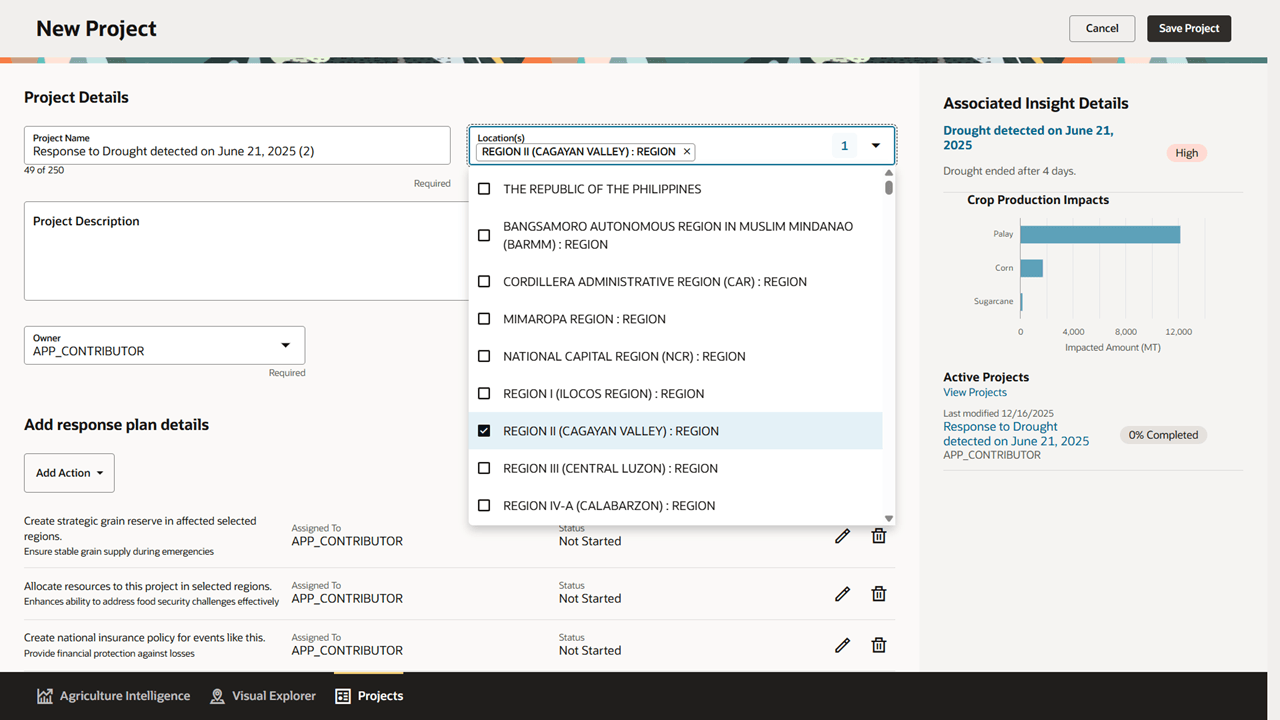
After completing this task, a new project is created and available for further configuration, including linking insights, defining geographic scope, and tracking progress.
Task: Review Project Details and Scope
This task explains how to access detailed information for a specific project. Users perform this task when they need to understand the purpose, scope, or current status of an individual project.
These are the steps needed to complete this task:
- From the Projects Dashboard, locate the project you want to review.
- Click the project row in the projects table to open the Project Details page.
- Review the project summary information displayed at the top of the Project Details page.
- Examine linked insights and any recorded updates or activities.
- Locate the map displaying the project’s geographic scope.
- Review the currently defined project area.
- Add comments or questions in the comments section if needed.
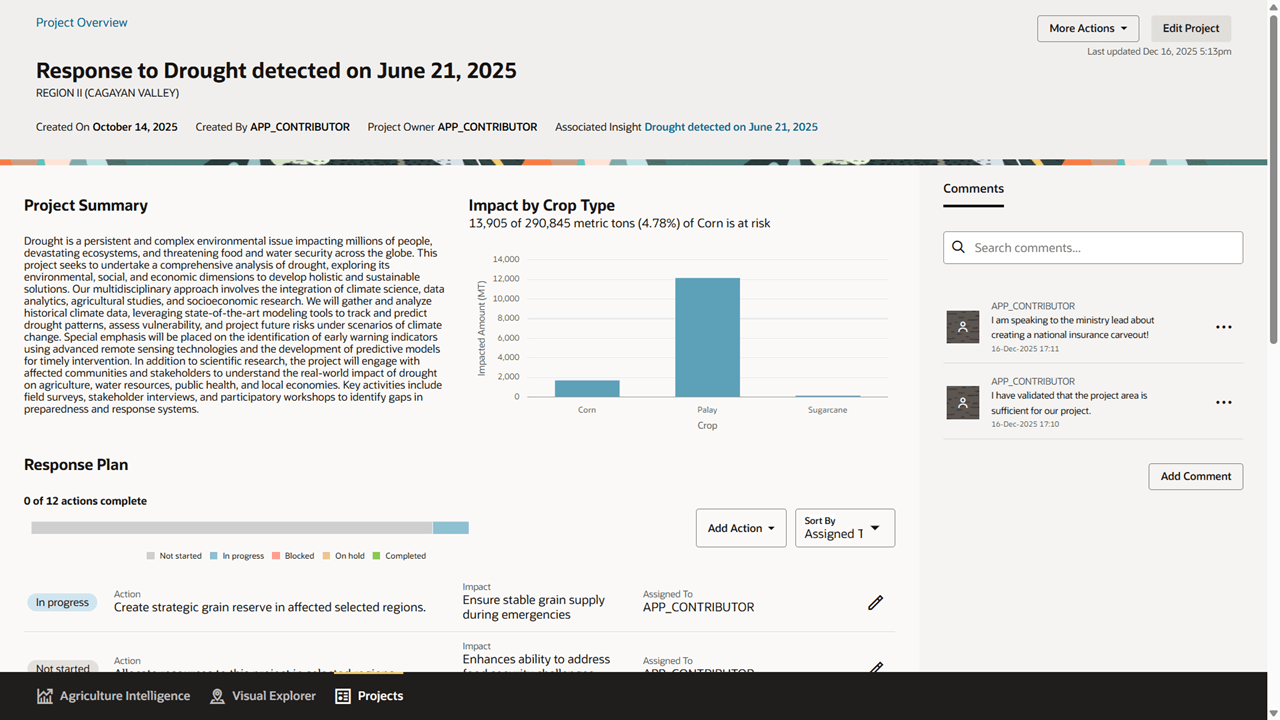
After completing this task, you have a detailed understanding of the selected project and how it relates to detected insights and response efforts.
Task: Update Project Status and Progress
This task describes how to record changes to a project as work progresses. Users typically perform this task to reflect milestones, status updates, or shifts in project focus.
These are the steps needed to complete this task:
- Open the Project Details page for the project you want to update.
- Locate the project status or progress fields.
- Update the project status, timeline, or notes as appropriate.
- Save your changes.
After completing this task, the project record reflects the latest information, helping teams stay aligned and informed.
Task: Monitor Project Outcomes Over Time
This task explains how to review a project as it evolves and assess whether objectives are being met. Users typically perform this task during ongoing monitoring or post-implementation review.
These are the steps needed to complete this task:
- Navigate to the Projects page and click on the desired project to open the Project Details page.
- Review the linked insight to understand how underlying conditions are changing.
- Examine project status, updates, and timeline information.
- Revisit the project periodically to assess progress and outcomes.
After completing this task, you can evaluate how response activities are progressing and determine whether adjustments, continuation, or closure of the project is appropriate.
Task: Archive a Project
This task describes how to archive an insight once it has ended and you no longer want to be available for users. Users typically perform this task to avoid having old insights appear for users, allowing them to concentrate on the most important events happening at this time.
These are the steps needed to complete this task:
- Open the Project Details page for the event you want to monitor.
- Click on the More Actions button at the top right hand corner of the page.
- Click on the Archive option from the drop-down list that appears below the button.
- You will see a confirmation popup. Click the Archive button to confirm.
- Confirm that the insight no longer appears in the list of Insights.
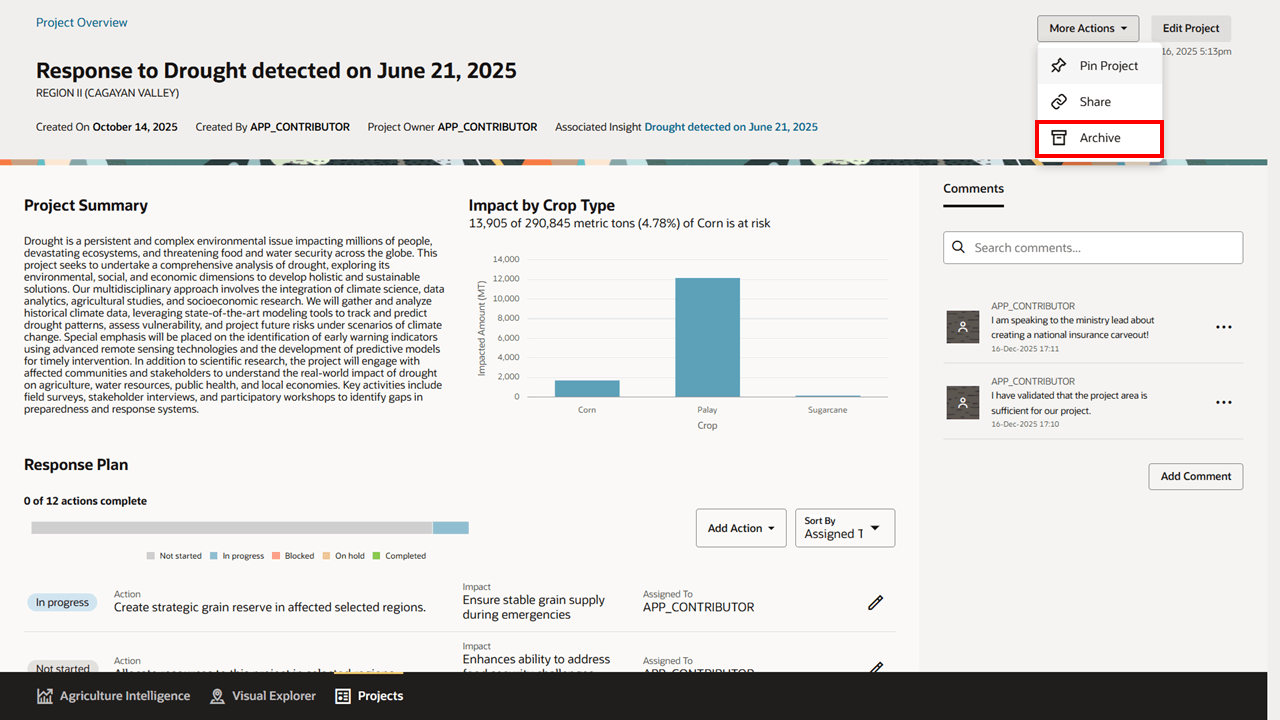
After completing this task, you will no longer see the Insight by default in the Agriculture Intelligence Dashboard.