Configure Custom Buckets
- Sign in to the Oracle Utilities application.
-
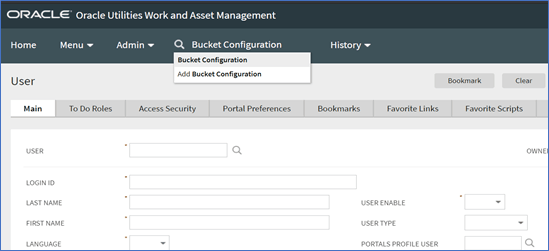
In the search bar at the top of the screen, search for the "Bucket Configuration" menu and open it.
-
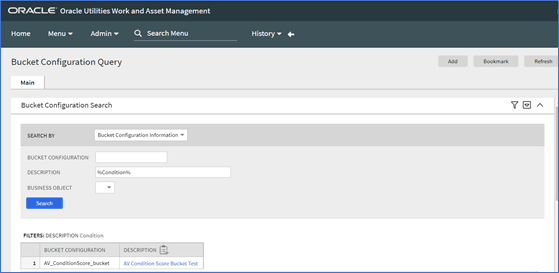
In the Description field, enter the percent symbol (%) to search for any predefined buckets.
Note:
A newly installed application will not have any default configurations. If there are any records available, results will be displayed based on the search criteria. Select any of the bucket configuration records returned from search results to navigate and view the configuration. - To add a new bucket configuration, click Add at the top right of the page.
-
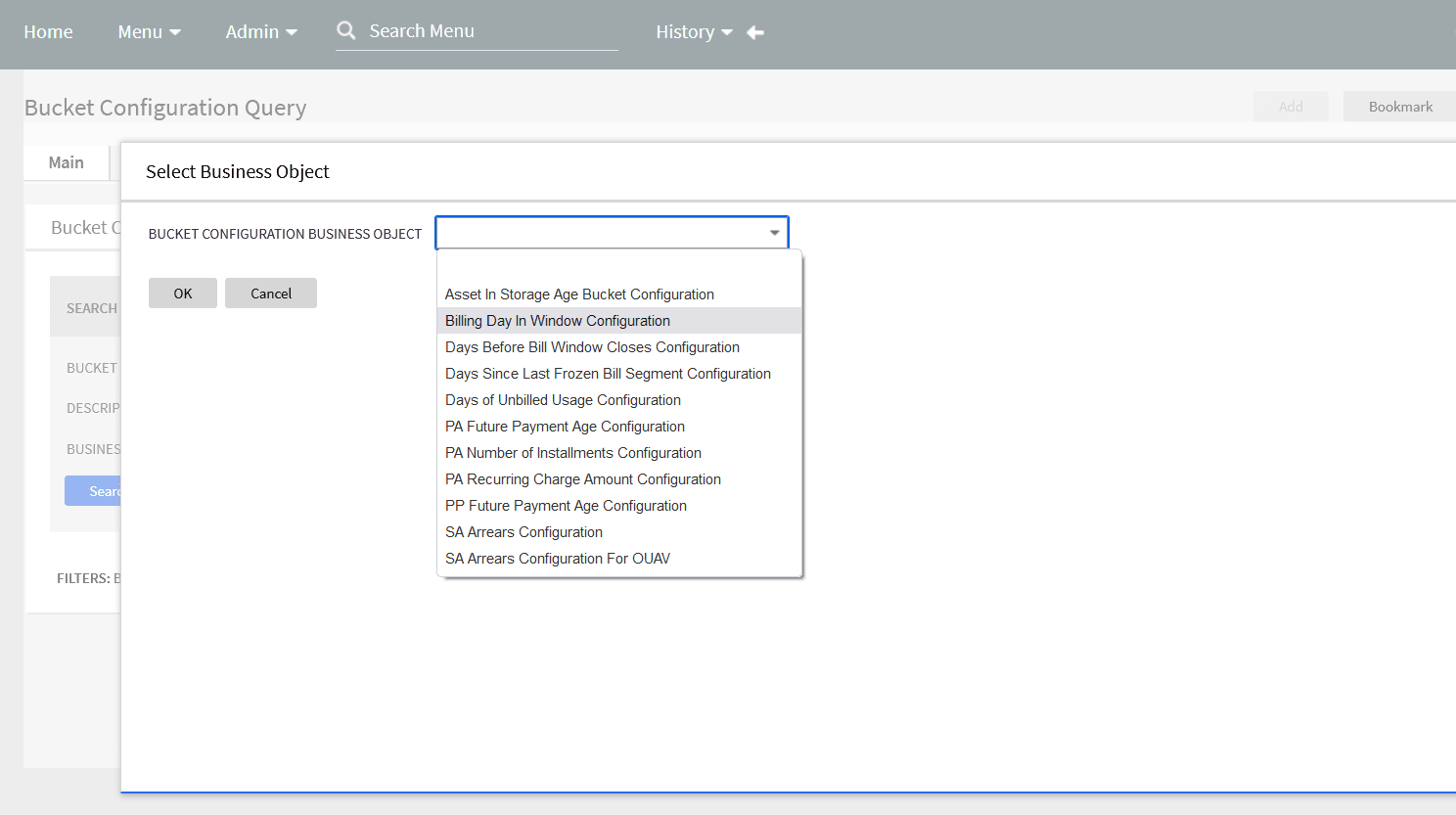
Select an option from the Bucket Configuration Business Objects menu. These options represent the placeholder for the bucket definition.
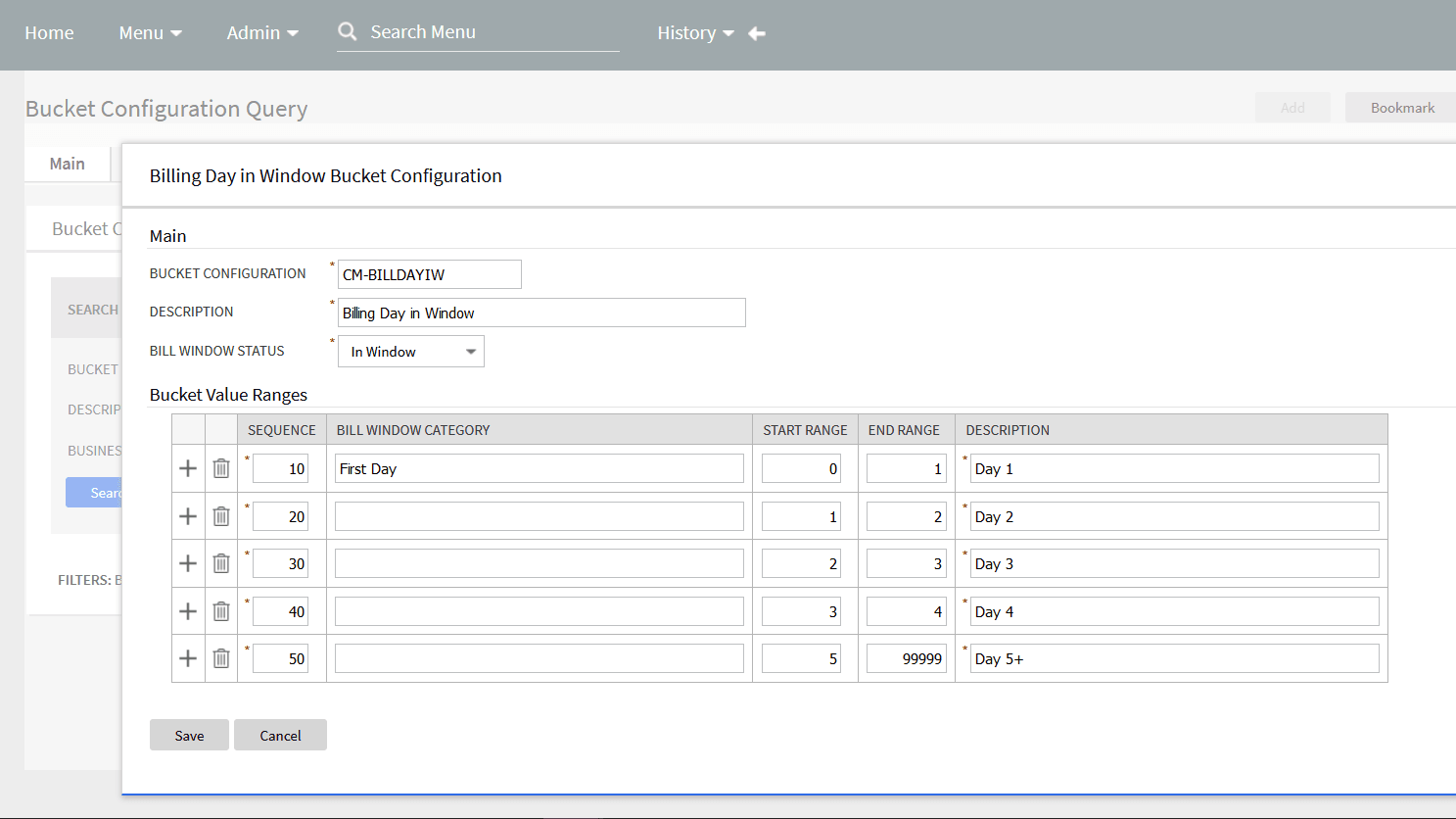
- In the Bucket Configuration field, define the bucket configuration code and its description. The code must be unique and should reflect the purpose of the bucket. For example, if the purpose of the bucket is for binning when a bill was completed within a bill cycle window, then your bucket configuration code could be CM-BILLDAYIW, where CM is a prefix that identifies that it is custom, and where BILLDAYIW represents that it is for binning Billing Day In Window.
-
In the Bucket Value Ranges section, define a sequence of intervals for the start and end ranges that represents how the data should be grouped or binned. In most cases, the ranges must be continuous, and the start range must be the end range of the previous interval. The existing functionality will assign the attribute being binned into a range using the formula: Start Range <= x < End Range, where x is the numerical attribute being binned. The intervals must include all possible values of the underlying attribute that is binned into buckets. It is best practice to use a high value for the last end range to ensure that a large value is included in the interval defining the default bucket.
- Only one bucket configuration for each Bucket Business Object is supported by Analytics Visualization. Otherwise the application will return incorrect values and may double-count measures.
- The bucket definition must have intervals that do not overlap and must cover all possible values. Otherwise, the application will return incorrect values and may under- or double-count measures.