Initial Star Schema Load
After existing historical data is replicated from the source into the Oracle Utilities Analytics Warehouse Analytics replication layer, Dimensions, Facts and Materialized views for the respective source should be loaded. Follow below steps for loading data into star schemas:
Dimensions Load
- Log in to the Oracle Utilities Analytics Warehouse Administration Tool.
- Click Job Configuration in the left panel under ETL Configuration.
- In the Job Configuration page, click Enable Jobs.
- Select the appropriate Source Product and Instance Number.
-
In the Job Type field, select Dimension Jobs, and then click Enable Jobs.
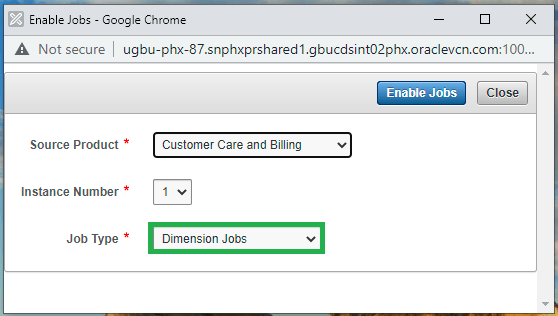
Now all dimension jobs for the selected context are enabled. The scheduler agent B1_RUN_ALL is also configured. Therefore, dimension jobs will be triggered by the scheduler agent automatically.
Note:
Although the latest Oracle Utilities Analytics Warehouse Installation and Configuration Checklist is for version 2.7.0.2 of the product, the steps still apply to version 25.10.0.0.0.Facts Load
- Log in to the Oracle Utilities Analytics Warehouse Administration Tool.
- Click Job Configuration in the left panel under ETL Configuration.
- In the Job Configuration page, click Enable Jobs.
- Select the appropriate Source Product and Instance Number.
-
In the Job Type field, select Dimension and Facts Jobs, and then click Enable Jobs.
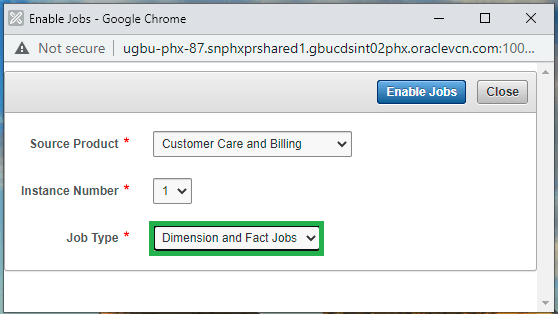
Now all fact ETL jobs are enabled. Scheduling the B1_RUN_ALL job will trigger these fact ETL jobs automation to load their respective target fact table. Navigate to the Oracle Data Integrator→ Operator tab and monitor the execution status. You can also monitor the execution of jobs in B1_JOBS_VW in the metadata schema. Wait for all facts to load completely.
Configure the Exclusion of Control Zone Secondary Dimension Lookup for NMS Facts
Note:
To configure the exclusion of the Control Zone Secondary Dimension lookup for NMS facts, follow the below section. This configuration is applicable only if the configured source product is Network Management System (NMS).OUAW supports excluding the lookup on the Control Zone Secondary dimension table in the data flow of the out-of-the-box NMS Fact tables. This can be done by setting the global parameter Exclude Control Zone Secondary Flag to "Y" in the Global Configuration page of AdminTool. The exclusion of the lookup on this dimension helps in avoiding population of error keys (-99) in the fact table in case if a Secondary Control Zone is not configured in NMS.
The Exclude Control Zone Secondary Flag global parameter for the configured NMS context allows either "Y" or "N" values as input, "N" being the default value.
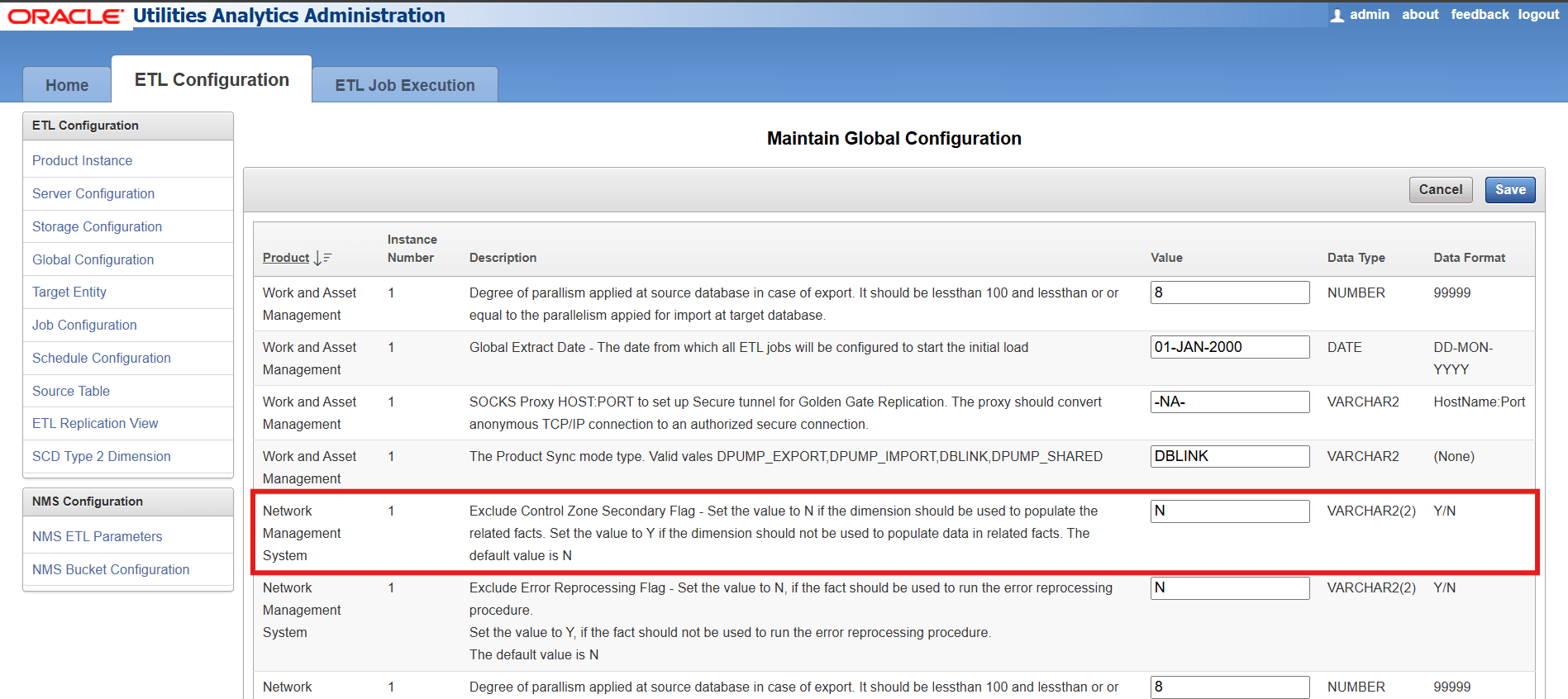
Setting the parameter value to "Y" excludes the Control Zone Secondary dimension lookup during the fact processing and populates the CTRL_ZONE_SEC_KEY column of the Fact table with 0 (zero). Setting the value to "N" performs the lookup on the dimension and populates the CTRL_ZONE_SEC_KEY column of the Fact table based on the lookup value.
- Abnormal Device Log Fact
- Crew Activity Fact
- Damage Assessment Fact
- Damage Assessment Detail Fact
- Outage Fact
- Outage History Fact
- Recent and Restored Call Facts
- Recent and Restored Crew Facts
- Recent and Restored Customer Outage Facts
- Recent and Restored Job Facts
- Storm Fact
- Switch Plan Fact
- Switch Plan Segmentation Fact
- Switch Plan State Fact
Materialized Views (MV) Load
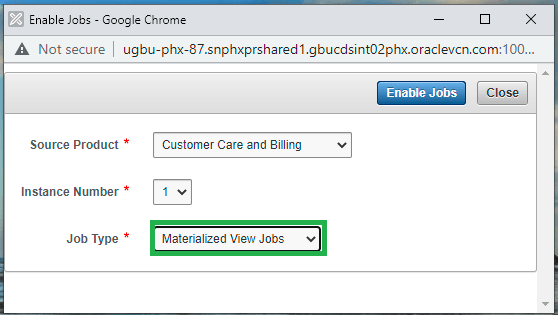
Follow the same steps in Facts Load above to enable materialized views for the configured source product, and make sure that all required materialized views are created. Except for Oracle Utilities Network Management System, all other source products contain materialized views.