14 Install Network Management System BI Publisher Reports on PaaS
The Oracle Utilities Network Management System (NMS) BI Publisher tool can be used to generate outage reports that support metrics recommended by the Institute of Electrical and Electronics Engineers (IEEE). Follow the steps below to install the Oracle Utilities Analytics Warehouse (OUAW) NMS IEEE outage reports.
-
Download the Oracle Utilities Analytics Warehouse NMS BI Publisher reports.zip file from edelivery.oracle.com.
-
Make sure Oracle Analytics Cloud (OAC) is running.
- Ensure ADB Wallet is downloaded.
- Log in to the Oracle Analytics Cloud BI Publisher server,
https://<OAC URL>/xmlpserver. -
Navigate to Administration > Upload Center.
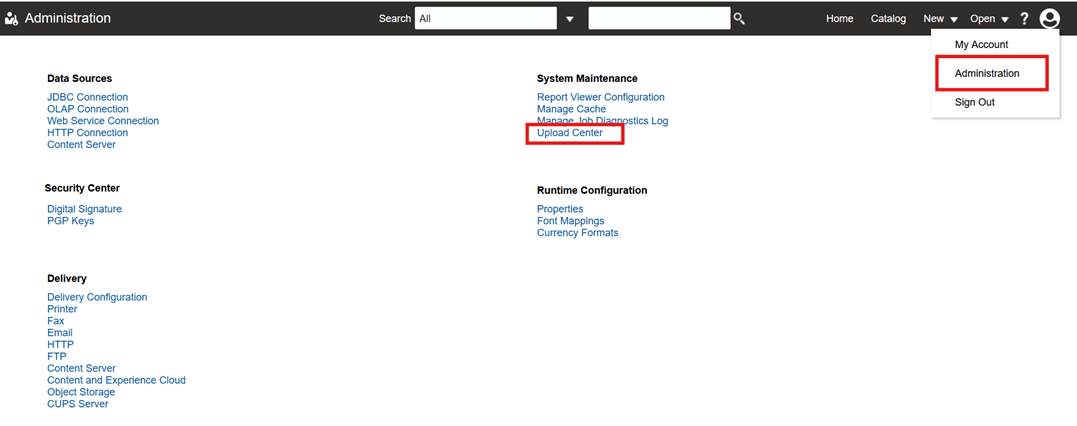
-
Click Choose File and complete the following steps:.
- Select the wallet (*.sso) from the unzipped ADB wallet folder.
- From File Type, select JDBC Client Certificate.
- Click Upload.
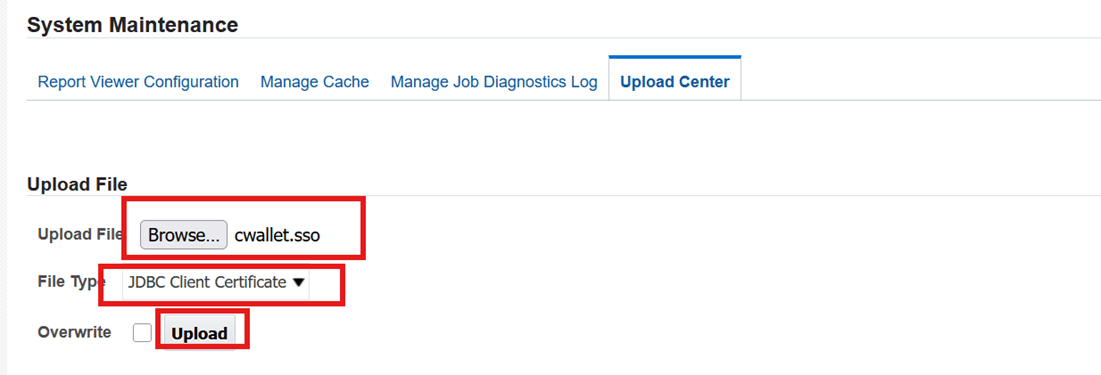
You will get a successful notification after adding the file.

-
Navigate to Administration > JDBC Connection.
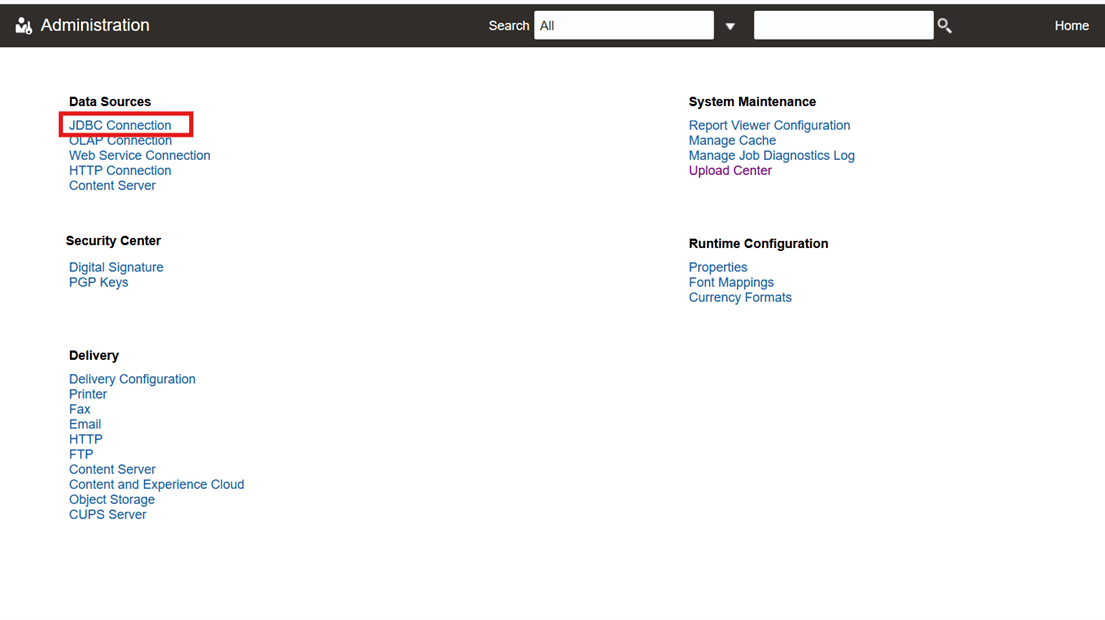
-
Add the Data Source details, click Test Connection and ensure a successful connection is established then click Apply.
Field Name and Description Value Data Source Name
For example, NMS BI Publisher
Driver Type Oracle 12c Connection String jdbc:oracle:thin:@ followed by a TNS Connect Descriptor found in the tnsnames.ora file in the unzipped Wallet client folder.
Example: jdbc:oracle:thin:@(DESCRIPTION=(ADDRESS=(PROTOCOL=tcps)(HOST=example.adb.us-phoenix-1.oraclecloud.com)(PORT=1522))(CONNECT_DATA=(SERVICE_NAME=example_high.adb.oraclecloud.com)))
Username MDADM Password MDADM Password Client Certificate *.sso File 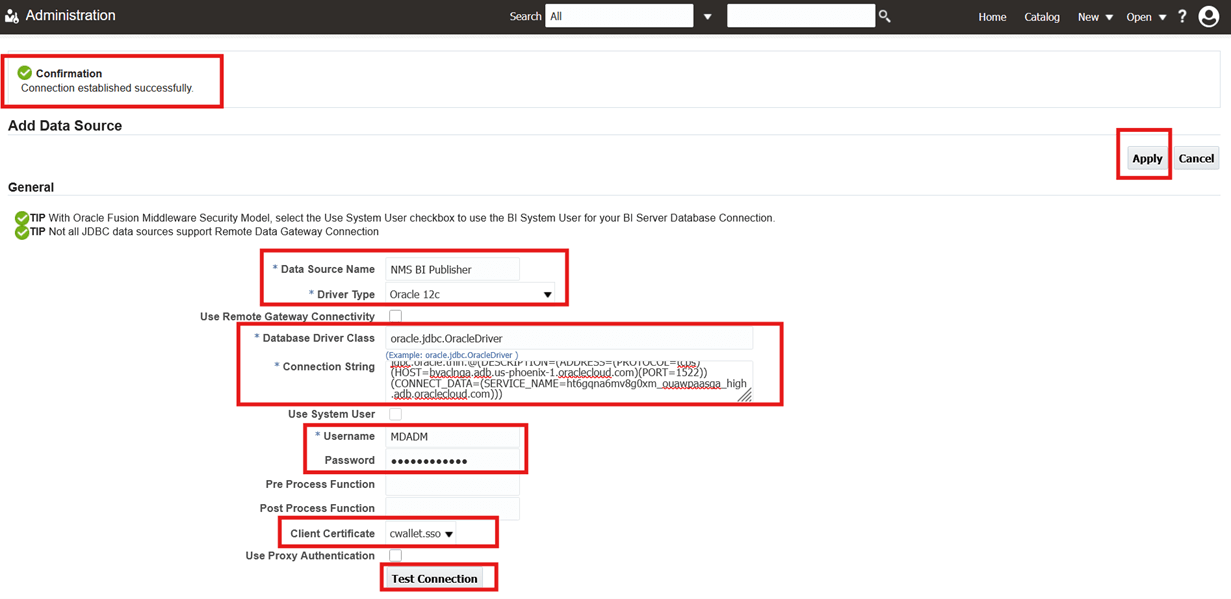
-
Unzip the IEEE outage reports contained in Oracle Utilities Analytics Warehouse NMS BI Publisher reports.zip from the installation media to a temporary directory (example: TEMPDIR) on the server where Oracle BI Publisher is installed. The following directories appear after the unzip:
-
CELID
-
CEMI
-
DailyTroubleReport
-
DeviceOutageHistory
-
FeederImpactOnSystemMetrics
-
IEEE Benchmarking
-
IEEE TMED
-
IEEEIndiceCalculations
-
RecurringDeviceOutages
-
- From the BI Publisher Catalog page, select Shared Folders from the folders tree.
- At the top of the folders section, search the New drop-down list and select Folder.
- Enter NMS IEEE Reports as the folder name (or a name of your choice).
- Click Create. The new folder is added. You may have to click Refresh to update the Folders list.
- Select the NMS IEEE Reports folder in the folder list, and create another new folder within it named NMS IEEE Data Models.
- Select the NMS IEEE Data Models directory, and then click Upload in the Tasks section on the bottom left.
- Browse to the directory where the NMS IEEE BI Publisher reports exist (TEMPDIR from step 1, which contains the files listed below in the corresponding directories).
-
Locate all of the data model files and upload them to the NMS IEEE Data Models directory. These files contain the xdmz extension and include the following:
- CELID DataModel.xdmz
- CEMI Data Model.xdmz
- DailyTroubleReport.xdmz
- DeviceOutageHistory.xdmz
- Feeder Impact on System Metrics.xdmz
- IEEE Benchmarking Model.xdmz
- IEEE_TMED_Calculations.xdmz
- IEEEIndiceCalculations.xdmz
- RecurringDeviceOutages.xdmz
-
Select the NMS IEEE Reports directory and click Upload in the Tasks section.
- Browse to the directory where the OUA NMS IEEE BI Publisher reports exist (TEMPDIR from step 1, which contains the files listed below in the corresponding directories).
-
Locate all of the report files and upload them to the NMS IEEE Reports directory. These files contain xdoz extension and include the following:
- CELID DataModel.xdoz
- CEMI Data Model.xdoz
- DailyTroubleReport.xdoz
- DeviceOutageHistory.xdoz
- Feeder Impact on System Metrics.xdoz
- IEEE Benchmarking Model.xdoz
- IEEE_TMED_Calculations.xdoz
- IEEEIndiceCalculations.xdoz
- RecurringDeviceOutages.xdoz
-
Assign the appropriate JDBC connection to the imported data models.
- Click Catalog.
- Select the NMS IEEE Data Models directory and select the CELID DataModel.xdmz data model.
- Click Data Model on the top left.
- In the Properties frame on the right, make sure that the Default Data Source points to the data source you created earlier. This defaults to NMS BI Publisher.
- You must perform this step for all of the data models under the NMS IEEE Data Models directory.
-
Assign the appropriate data model to all of the NMS IEEE Reports.
- Click on Catalog.
- Select the NMS IEEE Reports directory. Click on Edit for the CELID Report.
- Click on Search on the top left of the page.
- Browse and select the appropriate data model file (it will have the name of the report with an extension of xdmz).
- Save the current report by clicking on Save on the top right of the page.
- You must repeat the steps above for all the reports under the NMS IEEE Reports directory.
You should now be able view the standard IEEE indices reports from BI Publisher by simply selecting the desired report from the NMS IEEE Reports directory under Catalog.