Installation Steps
To install the integration:
1. Download the CCB2-MDM2.zip file from Oracle Software Delivery Cloud (http://edelivery.oracle.com/) or My Oracle Support.
Note: For specific instructions about installing this integration on non-Windows/Linux platforms, refer to the knowledge article ID 1349320.1 on My Oracle Support.
2. Extract the CCB2-MDM2.zip file to get the installation folder.
This folder includes the subfolders such as bin, config, install, MDS-Artifacts, and services (also includes wrapper composites).
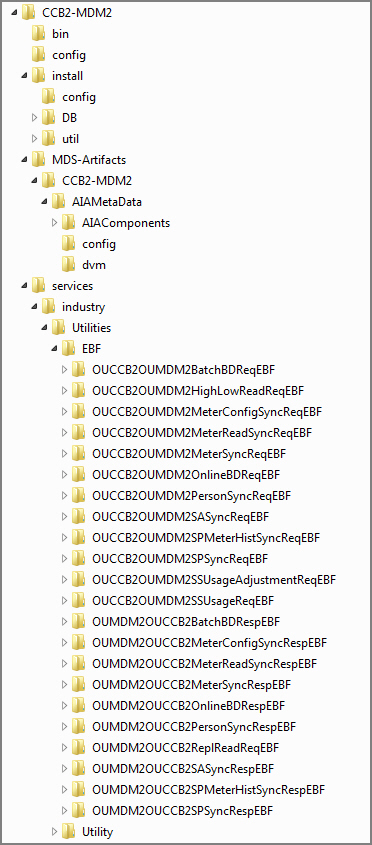
Following are the additonal wrapper composites: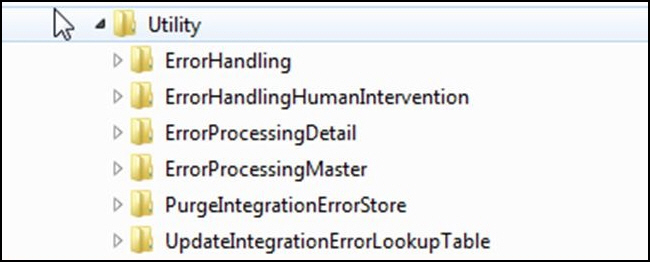
3. Configure the installation properties. Refer to the Installation Properties chapter for information about individual properties.
The configurable file locations are:
• InstallProperties.xml
Path: CCB2-MDM2/config/InstallProperties.xml
• ConfigurationProperties.xml
Path: CCB2-MDM2/MDS-Artifacts/CCB2-MDM2/AIAMetaData/config/ConfigurationProperties.xml
• JMSWrapperConfigurationProperties.xml
Path: CCB2-MDM2/MDS-Artifacts/CCB2-MDM2/AIAMetaData/config/JMSWrapperConfigurationProperties.xml
4. Review the Installation Properties section.
Refer to the Installation Properties chapter for accurate values of parameters, such as hostnames, ports, service endpoints, database credentials, and any other environment-specific information.
5. Open each of the following files for editing:
• InstallProperties.xml
• ConfigurationProperties.xml
• JMSWrapperConfigurationProperties.xml
6. Update the properties.
7. In each file, locate the placeholder or default property values, and update them with the actual values as specified in the Installation Properties chapter.
8. Export the following environmental variables:
export ORACLE_HOME=/scratch/gbuora/SOA14c/Oracle_Home export SOA_HOME=$ORACLE_HOME/soa
export MW_HOME=$ORACLE_HOME # If you want to keep MW_HOME for compatibility
# Source the WebLogic environment setup script from new location source $ORACLE_HOME/wlserver/server/bin/setWLSEnv.sh
# Set product home and cd into its bin
export PRODUCT_HOME=/scratch/gbuora/SOA14c/product_homes/C2M-EBS # expor class path of ant-contrib.jar
export CLASSPATH=/scratch/gbuora/ant-contrib.jar:$CLASSPATH cd $PRODUCT_HOME/bin
9. Set the following environment variables for Linux and Windows operating systems:
Variable | Example |
|---|---|
Linux and Windows OS | |
MW_HOME | XXX/Middleware |
SOA_HOME | XXX/Middleware/soa |
PRODUCT_HOME | The product installation folder. Example: PRODUCT_HOME=/scratch/PRODUCT_HOMES/CCB2-MDM2 |
10. The commands indicated in the readme file (setWLSEnv.sh on Linux and setWLSEnv.bat on Windows) set the environment variables used for executing the installation scripts.
Below is an example to set up environment variables in a typical installation:
Linux
export MW_HOME=/Oracle/Middleware/soa
export SOA_HOME=$MW_HOME/soa
export PRODUCT_HOME=/Product_Homes/CCB2-MDM2
source $MW_HOME/wlserver/server/bin/setWLSEnv.sh
Windows
SET MW_HOME=C:\Oracle\Middleware\soa
SET SOA_HOME=%MW_HOME%\soa
SET PRODUCT_HOME=C:\Product_Homes\CCB2-MDM2
cd %MW_HOME%/wlserver/server/bin/
setWLSEnv.cmd
Windows
SET MW_HOME=C:\Oracle\Middleware
SET SOA_HOME=%MW_HOME%\soa
SET ORACLE_HOME=C:\Oracle\Middleware
SET PRODUCT_HOME=C:\Product_Homes\CCB2-MDM2
%MW_HOME%/wlserver/server/bin/setWLSEnv.cmd
Example
set ORACLE_HOME=C:\scratch\SOA14c\Oracle_Home
set SOA_HOME=%ORACLE_HOME%\soa
set MW_HOME=%ORACLE_HOME% REM If you want to keep MW_HOME for compatibility
REM Source the WebLogic environment setup script
call %ORACLE_HOME%\wlserver\server\bin\setWLSEnv.cmd
REM Set product home and change directory
set PRODUCT_HOME=C:\scratch\SOA14c\product_homes\CCB2-MDM2
set CLASSPATH=C:\scratch\ant-contrib.jar;%CLASSPATH%
cd /d %PRODUCT_HOME%\bin
Replace C:\scratch\... with the actual Windows path if different.
Use call to execute .cmd scripts so the environment variables persist.
/d in cd allows changing drive letters if needed.
Also note the following:
• PRODUCT_HOME/install/util/ant folder contains all the ant build scripts.
• PRODUCT_HOME/bin/InstallBuild.xml is used to install CCB2-MDM2 integration code.
• PRODUCT_HOME/bin/UnInstallBuild.xml is used to uninstall CCB2-MDM2 integration code.
• PRODUCT_HOME/bin/DeployUndeployUtility.xml is used to deploy/ undeploy individual composite/ MDS folder and then restart the managed server.
Note: The installation process may take several minutes to complete.