Activity Attachments
Using the Oracle Field Service mobile application photographs can be captured and linked to an activity, with the photographs recorded in Oracle Cloud Infrastructure Object Storage. The activity’s status must be ‘Started’ to attach photographs.
To attach a photograph:
1. Click Attachments on the Activity Details page.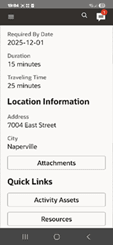
2. Click Take Photos on the Attachments page.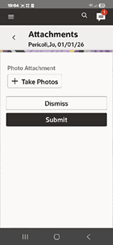
3. Take one or more photographs on the device and click the button with tick mark on it. Note the maximum number of attachments is defined in the Activity Details screen.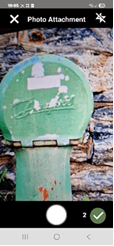
4. Click Done.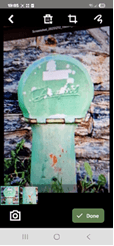
5. Click Submit on the Attachments page.
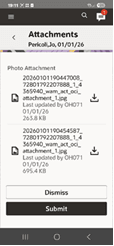
Oracle Field Service will record the photographs in Oracle Cloud Infrastructure Object Storage. When the activity is completed, the integration will include an additional service history in the completion details with references to the photographs in object storage.