Create an Oracle Utilities Data Intelligence Instance
As an administrator, you can create instances for Oracle Utilities Data Intelligence to enable your users to start using it.
About Creating an Instance
Use the Create Instance page in Oracle Utilities Data Intelligence directly without specifying the data source. When you do this, you can:
- Decide which compartment to use.
- Select the Oracle Utilities Application source instance of your choice.
- Set up the identity provider of your choice.
- Analyze data from sources other than Oracle Utilities Applications, such as Fusion Data Intelligence, without initially specifying an Oracle Utilities Applications URL.
- Bring data from third-party products even if you don’t have any Oracle Utilities Applications product.
- Bring data from a non-Oracle Utilities Applications source and anOracle Utilities Applications source in the same instance. You must provide Oracle Utilities Applications details prior to loading data from Oracle Utilities Applications.
- Terminate the instance from the instance details page in Oracle Utilities Data Intelligence.
After the instance is created, you must complete these tasks:
- Create a data connection to an applicable source by logging a service request. See Create a Connection to Your Source Applications.
- Set up and manage your users and groups in Oracle Identity Cloud Service.
After the instance is created, as an administrator, assign the FAW Service Administrator group to the applicable users to manage the instances in the tenancy. If your tenancy uses identity domains, see the Adding Users to Groups section in Using the Console. To add this group to an existing user in Oracle Identity Cloud Service, see Assign Groups to the User Account. To sign into the instance, a user must have any of the groups mentioned in System Groups assigned to them.
Create an Oracle Utilities Data Intelligence Subscription Instance
Create a service instance to manage your cloud resources.
Prior to creating the instance, you may want to view the service limits of Oracle Autonomous Data Warehouse and Oracle Analytics Cloud using the Limits, Quotas and Usage page in the Oracle Cloud Infrastructure Console . See Viewing Your Service Limits, Quotas and Usage. If you're unable to create the instance with an error due to inadequate capacity, then you can either get in touch with the administrator for the tenancy or submit a service request through My Oracle Support to describing the issue.
If you're planning to access your instance from a virtual cloud network only, then prior to creating an instance with private network access, you must ensure that the prerequisites are in place. See Deploy Oracle Utilities Data Intelligence with a Private Endpoint.
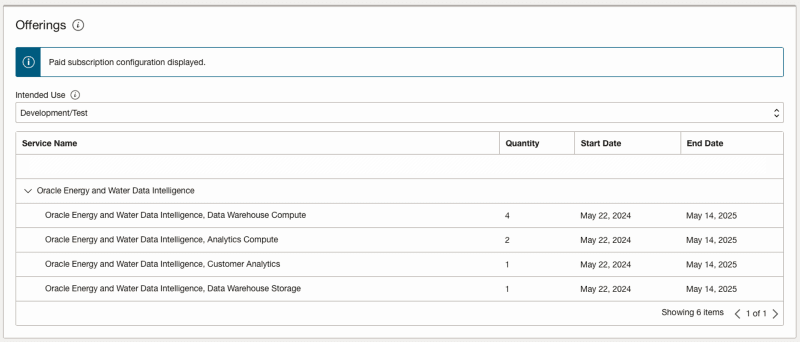
- Under Offerings, verify that the displayed subscriptions match your Oracle Utilities Data Intelligence order and select
Development/Test as your first instance.
Oracle sends an email to the designated email address when your service is ready. You can display the Activity page to check the current status. When the status changes from CREATING to ACTIVE, the service is ready to use.
Navigate to the Details page for the new service to access the Oracle Utilities Data Intelligence URL and the associated Oracle Autonomous Data Warehouse and Oracle Analytics Cloud instances.
Because you haven't yet set up a connection to an Oracle Utilities Data Intelligence source, Oracle Utilities Data Intelligence displays a message on the Data Configuration page asking you to set up a data source connection as an initial step. See Create a Connection to Your Source Applications.
If you had set up provisioning of Oracle Utilities Data Intelligence with single sign-on, then your service is associated with the federated Oracle Identity Cloud Service instance. If you hadn’t set up single sign-on for Oracle Utilities Data Intelligence, then your service is associated with the default Oracle Identity Cloud Service instance that you received with your Oracle Cloud account.
Verify Your Instance and Sign In
Oracle sends an email to the designated email address when your Oracle Utilities Data Intelligence service instance is ready.
- Sign in to the Oracle Cloud Infrastructure Console.
- Click the Navigation menu icon.
- In the navigation options, click Analytics & AI. Under Analytics, click Data Intelligence.
- Navigate to your service instances page.
- If you've chosen public network, then navigate to the Analytics Application URL to verify that your Oracle Utilities Data Intelligence service instance is up and running. If you've chosen private network, then contact your networking team for access to the Oracle Utilities Data Intelligence url.