Website Navigation
The website navigation allows customers to access the content throughout Digital Self Service - Transactions.
Note: You can use the Opower Configuration Tool to implement certain configurations for Digital Self Service - Transactions. This can include user experience configurations, interface messages and formats, branding configurations, and other configurations relevant to Digital Self Service - Transactions. To review if any configurations listed below are available with the Opower Configuration Tool, access the tool at https://configuration.opower.com/ and review the available options for the pages and widgets included in your Digital Self Service - Transactions web portal.
Main Navigation Menus and Account Selector
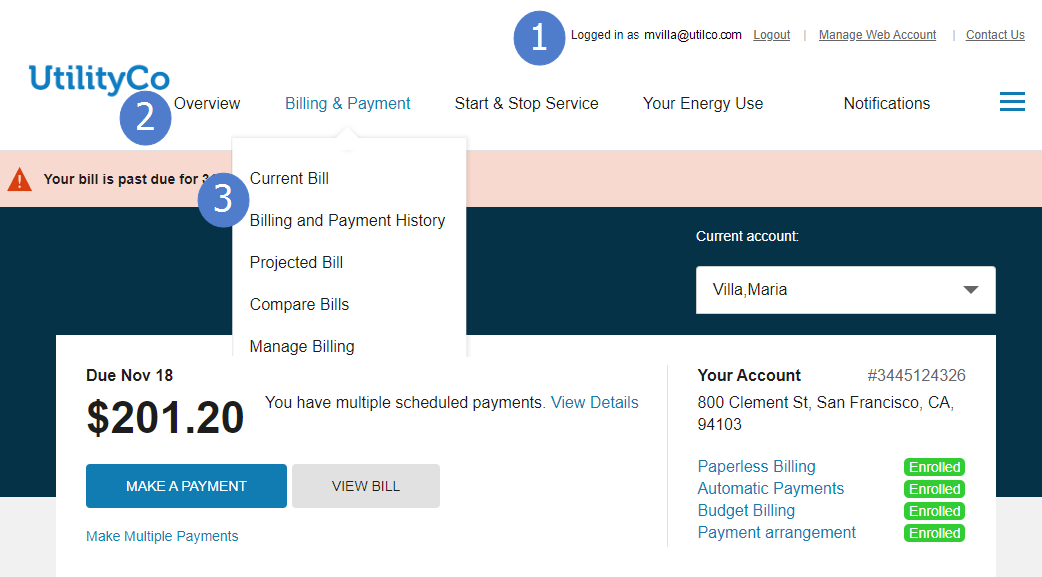
The main navigation menus displayed across the top of the screen allow customers to access the main content categories for the site, as well as other commonly accessed resources such as account information and utility contact information.
Customers can use the Current account drop-down list to select the utility account they want to view. In addition to the Overview Dashboard, the account selector is available on all applicable areas of Digital Self Service - Transactions portal such as Billing and Payment and the Alerts and Notifications.
The following image shows a standard example of the main navigation menus and the account selector and indicates the primary configuration options.
Secondary Navigation Menu
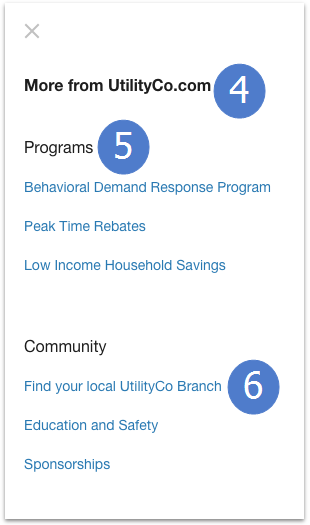
The secondary menu is displayed when users click the menu button displayed with three horizontal lines, which is also referred to as a hamburger menu. The following image shows a standard example of the website navigation items within the secondary menu and indicates the primary configuration options.
Reviewing Navigation Configuration Options
Use the table below to review all website navigation configuration options which can be submitted as a request using My Oracle Support.
| Image Number | Configuration Option |
|---|---|
| 1 |
Top Menu The top menu navigation displays user account information for authenticated users, as well as links to the user's account preferences and a utility contacts page. Default: No top menu displayed. |
| 2 |
Main Navigation Menus The main navigation menus displayed across the top of the page. Customers can interact with each menu to select from a list of linked menu items. To maintain a good user experience, it is recommended to include no more than 2 menus in addition to the default menus. Contact your Oracle Utilities Delivery Team for any updates to the default menu names. Default: Menus and links as shown in the example image above and in any supplied demonstration environments. |
| 3 |
Main Menu Items The linked items that are included in each menu of the main menu. Default: No main menu items provided. Note: If you provide updates to the default, provide the names and links for each additional main menu item. Clearly specify the main menu for each item. |
| Not Depicted |
Account Selector Account Search Requirements An account search is available for customers with multiple accounts if the number of accounts is greater than or equal to a configurable threshold. Default: Five or more accounts. |
| 4 |
Secondary Menu Title The title of the secondary menu. Default: More from UtilityCo.com |
| 5 |
Secondary Menu Categories The categories that group links in the secondary menu. It is recommended that these categories are closely related to the main menus and navigation for the utility. Default: None. |
| 6 |
Secondary Menu Items The linked items that are included in each category of the secondary menu. Default: None. Note: If you provide updates to the default, provide the names and links for each secondary menu item. Clearly specify the category for each item. |
Reviewing Account Selector Configuration Options
Use the table below to review all account selector configuration options which can be submitted as a request using My Oracle Support.
| Image Number | Configuration Option |
|---|---|
| Not Depicted |
Account Selector Account Search Requirements An account search is available for customers with multiple accounts if the number of accounts is greater than or equal to a configurable threshold. Default: Five or more accounts. |
User Experience Variations
The user experience varies for customers depending upon their service types, available data, costs, and locale. Note that the following list indicates the primary user experience variations, not all possible variations.
- Responsive Menus: The responsive design of Digital Self Service - Transactions allows the menu layout to adjust based on the user's screen size. For smaller screen sizes, the options displayed across the top are instead displayed within a single menu, which then provides the full list of menu options. The main navigation links are displayed above the secondary menu title and all other categories.
- Digital Self Service - Energy Management: Digital Self Service - Energy Management features are an optional add-on, available through the Oracle Utilities Opower Digital Self Service - Energy Management Cloud Service. If this Cloud Service is not included as an add on to your Digital Self Service - Transactions web portal, all applicable navigation items for Digital Self Service - Energy Management features are hidden.
- Account Search: An account search is available for customers with multiple accounts if the number of accounts is greater than or equal to a configurable threshold. This allows customers with a large number of accounts to search for a particular account rather than having to browse through the full list of accounts.