Client PWA Installation Instructions
OMA is a PWA application and can be installed on the following systems.
Operating System | iPadOS/iOS | Android | Windows |
|---|---|---|---|
OS Version | 18.x+ | 13.x+ | Windows 11 |
Memory (min) | 6 GB or 8 GB | 8 GB | 8 GB |
Storage (min) | 256 GB | 256 GB | 256 GB |
Supported Browsers | Safari | Chrome | Chrome, Edge |
Screen Size (min) | 5.2 in. | 5.2 in. | 5.2 in. |
OMA installation is done by using the device's browser and connecting to the OMA application website.
OMA has a standardized installation process for Android, iOS, iPadOS, and Windows:
1. Launch the browser to the HTTPS server where OMA is installed (for example, https://host.com:8889/mobile/oma2/www/index.html).
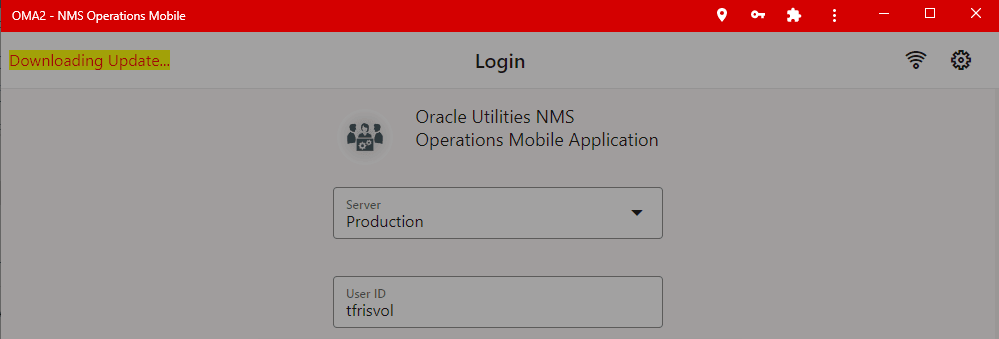
2. On launch, the browser will detect the app is a PWA and will start the download of the PWA to the browser cache storage. This will be identifiable to the user by the flashing "Downloading Update..." in the OMA header bar:
3. On iOS and iPadOS, while the PWA is downloading, a dialog screen will be displayed with instructions for installing OMA after the download is complete.
4. Once the PWA download is complete, on all but iOS and iPadOS devices, an Install as PWA button will replace the flashing Downloading Update... notification.
5. Click the Install as PWA button.
6. On iOS and iPadOS systems, once the Downloading Update... is complete, navigate to and press the Share... button ( ). Select the option to add OMA to your home screen. Press the OMA icon on the home screen to start the PWA.
). Select the option to add OMA to your home screen. Press the OMA icon on the home screen to start the PWA.7. On Windows with Chrome:
a. You will be presented with an installation dialog box. Click the Install button to install it on the device.
b. The PWA will close in the browser tab and open as a standalone PWA app.
c. The PWA will be given a start menu option from where you can launch the app, pin it to the taskbar, pin it to the start menu, or open the location of the app and copy it to the desktop.
8. On Windows with Microsoft Edge:
a. You will be presented with an installation dialog box. Click the Install button to install it on the device.
b. The PWA will close in the browser tab and open as a standalone PWA app.
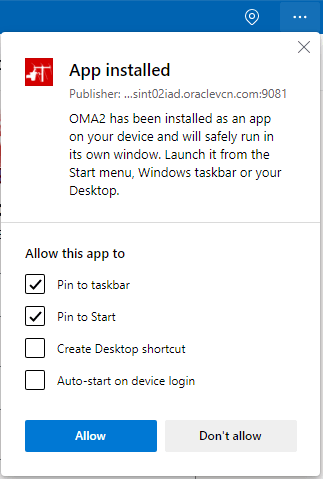
c. You will also be provided a dialog about installation options:
9. On Android Chrome:
a. You will be presented with an installation dialog. Click the Install button to install it on the device.
b. A small temporary message will indicate the app is being added to the home screen.
c. Close the browser and the home screen should be focused on the location of the OMA app icon. Feel free to drag it to any location on the home screen(s).
d. To launch OMA as a PWA, just click on the OMA launch icon.