Understanding GPS Proximity Options
The GPS Proximity Options dialog box lets you configure how the application responds based on your distance from your assigned location.

Understanding the Enable Task Prompts Option
The Enable Task Prompts option will toggle OMA's task proximity feature. When enabled, OMA will automatically prompt crews to check in as they approach tasks and check out as they leave them.
Understanding the Automatically Set On Site Option
The Automatically Set On Site option, when enabled, automatically sets a crew On Site when they get within the Proximity radius of their assigned task.
Understanding the Prompt Retry Timeout Field
The Prompt Retry Timeout field allows you to configure how long your prompts should last before performing their default action. The default check‑in action is setting the crew to On Site. The default check out action is nothing.
Understanding the Enabled Safety Prompts Option
The Enabled Safety Prompts option will toggle OMA's operation safety prompt feature. When enabled, you will be prompted before performing location based actions while your GPS indicates that you are outside of the Proximity Radius.
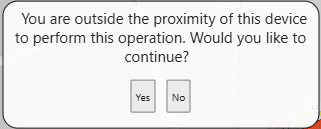
The following actions are protected by a safety prompt:
• Adding a damage report to a device
• Adding a tag
• Removing a tag
• Operating a device
• Completing a switching step
• Aborting a switching step
• Failing a switching step
• Instructing a switching step
• Indicating Ready for Instruct on a switching step
Understanding the Prohibit Operations Beyond Proximity Radius Option
When this options is enabled, OMA will prohibit location based actions when beyond the proximity radius rather than prompting.
Understanding the Proximity Radius Field
The Proximity Radius field determines the radius, in miles, for proximity based actions.
Map Options
Enable Map Tracking Option
When selected, the Enable Map Tracking Option checkbox enables the Track Current Location function. (Track Current Location is available from the GPS Location menu and automatically keeps the Map centered on your position as you move)
Feeder Automation Indicators
When selected, these provide additional information to Crews about the DMS status of feeders. These indications are displayed on the Task Details cards and the Map Selection Panel, for the selected device
Other options may be made available to you based on project requirements.
About
The About page provides information about the application and associated servers.
• Application Information
• Product Version: The OMA release that is running.
• Project Version: The version number for a build of OMA with project specific customizations.
• Application Key
• Application Server: Information about the NMS application server.
• Mobile Server: Information about the NMS mobile gateway server.
Logout
To log out, select the main menu and the Logout button. On logout, you may be asked a number of questions, for example:
• Would you like to suspend your active jobs?
• Would you like to mark your crew as off-shift on logout?