Understanding the Notifications List
Clicking the Notifications button ( ) opens the Notifications list, which may be displayed from a slide out panel (drawer) on the side of the Flex Operations window or from a dialog box that opens on top of the Flex Operations page (depending on the choice in the list settings or your system's standard configuration).
) opens the Notifications list, which may be displayed from a slide out panel (drawer) on the side of the Flex Operations window or from a dialog box that opens on top of the Flex Operations page (depending on the choice in the list settings or your system's standard configuration).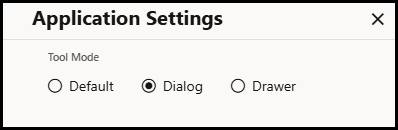
Notifications List Actions
The Notifications list includes a Mark All Read button and a Create Notification button for users with Edit permission (for example, the Flex Call Administrator user type; see Understanding User Types for more information.).
Notification Row Actions
• Each unread notification row will include a small filled circle on the left ( ), which will disappear when the notification is read (or the Marked All Read button is clicked).
), which will disappear when the notification is read (or the Marked All Read button is clicked).• Call Entry notification rows include Edit ( ) and Delete buttons for performing respective actions.
) and Delete buttons for performing respective actions.• Event-type notifications include Open Event ( ) and Clear Notification (
 ) options.
) and Clear Notification () options.Editing and Creating Notifications
• Clicking Edit or Create opens a drawer with editing options and buttons that allow you to Save or Cancel edits to the notification.
Deleting Notifications
• Clicking the Delete button ( ) opens a confirmation dialog box with Delete and Cancel options.
) opens a confirmation dialog box with Delete and Cancel options.Marking All Read
• Clicking Mark All Read marks all notifications as read and closes the notifications drawer.