Understanding Common Events and Crews Page Controls
Icons in the Events and Crews panes' title bars allow you to control the position and display of the panes.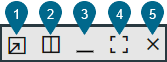
1. Pop Out: Pop the Events and Crews tab out to a separate browser tab/window.
2. Side‑By‑Side Orientation: rearranges the Events and Crews panes to be side‑by‑side. Once the panes are side‑by‑side, the icon will change to a square divided horizontally to indicate that you may switch the pane orientation to Events on top of Crews.
3. Minimize Pane: Click to minimize the pane to its title bar, which will maximize the other pane. When a pane is minimized, you can display it temporarily by clicking the title bar. The button will change to a Restore button ( ); click the Restore button to restore the pane to its previous layout.
); click the Restore button to restore the pane to its previous layout.4. Maximize Pane: Click to maximize the pane, which will minimize the other pane. Alternatively, you can double-click the title bar to maximize it. The button will change to a Restore button (); click the Restore button to restore the pane to its previous layout.
); click the Restore button to restore the pane to its previous layout.5. Close Events and Crews Tab ( ): Click to close the pane.
): Click to close the pane.Note: These pane controls are also available when viewing a safety document associated with a switching sheet.