Managing DERMS Strategies and Events
Managing DERMS strategies and events requires creating and editing strategies, then creating and executing events for a given strategy using the DERMS Strategies, DERMS Events, and the DERMS Details tools. The rest of this section explains these tools and provides procedures for performing actions in the Edge DERMS client.
Working with the DERMS Events Tool
By default, DERMS Events displays all active events in the system.
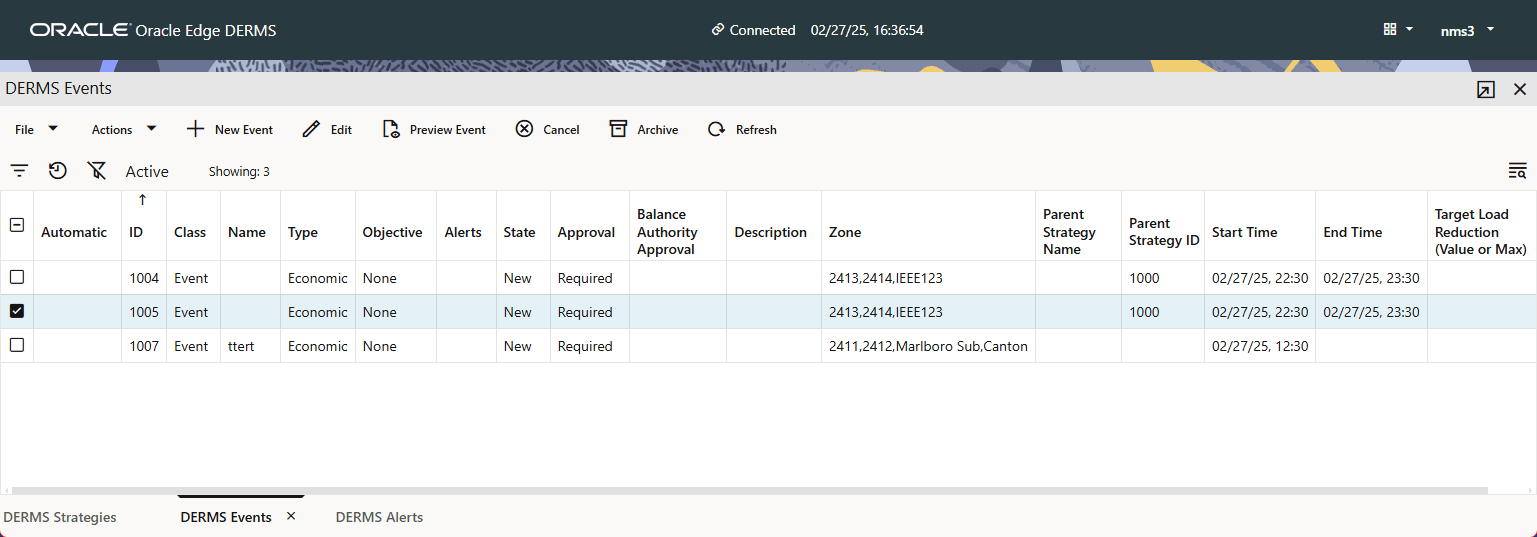
DERMS Events Columns
• The Automatic column indicates whether this event has automatically‑generated stages. If yes, then the cell will have a check‑mark.
• The ID column displays the identifier of the event.
• The Class column displays that the row is an Event.
• The Name column displays the name given to the event.
• The Type column displays whether the row is an Emergency, Economic, or other configured category.
• The Objective column displays whether the row is a Manual or a targeted reduction event.
• The Alerts column displays whether the event has any associated active alerts or warnings.
• The State column displays the state of the event (from New to Completed).
• The Approval column displays whether the event requires approval or whether approval has been given or denied.
• The Balance Authority Approval column displays whether the event requires Balance Authority Approval or whether approval has been given or denied.
• The Description column displays the description given to the event.
• The Zone column displays the control zone that the event addresses.
• The Parent Strategy Name column displays the name of the strategy that created this event.
• The Parent Strategy ID column displays the identifier of the strategy that created this event.
• The Start Time column displays the time when the event was started.
• The End Time column displays the time when the event ended.
• The Target Load Reduction (Value or Max) column displays the reduction value for this event.
DRMS Events Actions
Actions Menu
Menu Option | Description |
|---|---|
 Refresh Refresh | Refreshes the table. |
 Edit Edit | Opens a new DERMS Event Details tab and allows you to edit the selected event. |
 Alert History Alert History | View the history of all alerts for the selected event. |
 Retry All Alerts Retry All Alerts | Retry all alerts for the event. |
 Archive All Alerts Archive All Alerts | Archive all alerts for the event. |
 Cancel Cancel | Cancel the selected event. |
 Archive Archive | Archive the selected event. |
 New Event New Event | This then opens a new DERMS Event Details tab and allows you to create the event. |
 Preview Event Preview Event | Preview the selected event in the Event Preview dialog box. |
Working with the DERMS Strategies Tool
DERMS Strategies by default displays all active strategies in the system.
DERMS Strategies Columns
• The Automatic column indicates whether this strategy has automatically‑generated stages. If yes, then the cell will have a check‑mark.
• The ID column displays the identifier of the strategy.
• The Class column displays that the row is a Strategy.
• The Name column displays the name given to the strategy.
• The Type column displays whether the row is an Emergency, Economic, or other configured category.
• The Objective column displays whether the row is a Manual or a targeted reduction event.
• The State column displays the state of the strategy from Active to Archived.
• The Description column displays the description given to the strategy.
• The Run On Days column displays which days this strategy can run.
• The Zone column displays the control zone that the strategy addresses.
• The # Times Executed column displays the number of times the strategy has been executed.
• The Date Last Executed column displays the most recent time that the strategy was executed.
DRMS Strategies Actions
Actions Menu
Menu Option | Description |
|---|---|
| Refresh | Refreshes the table. |
| New Strategy | This opens a new DERMS Strategy Details tab and allows you to create the strategy. |
| Edit | Opens a new DERMS Strategy Details tab and allows you to edit the selected strategy. |
| Preview Strategy | Opens a Preview dialog box that previews the results of an event created using the selected Strategy. |
| New Event | Creates a new event from the selected strategy. The DERMS Event Details tab opens with details copied from the strategy. |
| Archive | Archive the selected strategy. |
 Unarchive Unarchive | Sets the selected archived strategy back to active. |
Mark As Draft | Sets the strategy to a draft state. |
Unmark As Draft | Removes the draft state from the strategy. |
Alerts and Warning Summaries
The Alerts and Warnings summaries are filled boxes that appear on the far right side of the toolbar and displays a count of all active alerts and warnings in the system. The Alert summary is only visible if there are active alerts; likewise, the Warning summary is only visible if there are active warnings.