1.3.1 Uncollected Funds Manual Release

This topic describes the systematic instructions to manually release uncollected funds.

Uncollected funds in a credit transaction refer to the portion of the payment that has not yet been cleared or collected. Similarly, the funds may be held until a float period or until they require manual release. Releasing uncollected funds in such cases can help ensure that the payment is completed smoothly and without any issues.

The Uncollected Fund Manual Release screen allows you to choose whether to release the uncollected funds for credit transactions requiring manual release, or for credit transactions with a float period. Funds can be released before the available date is reached.
  1. Click Uncollected Fund Manual Release under Account Transactions.
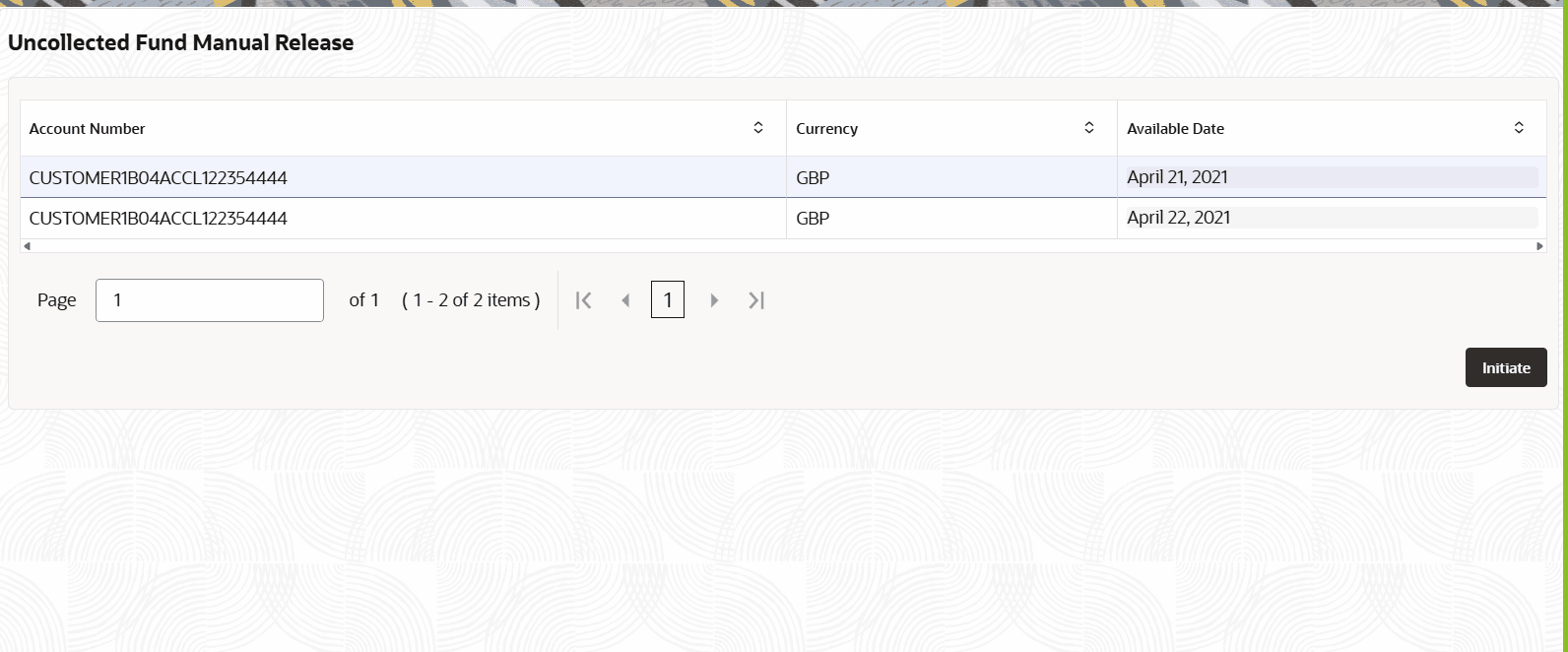
    The Uncollected Fund Manual Release page displays.

    Figure 1-9 Uncollected Fund Manual Release


  2. Specify the fields on the screen.

    Table 1-5 Uncollected Fund Manual Release - Field Description

    Field Description
    Account Number Auto-populates the Account Number containing uncollected funds.
    Currency Auto-populates the operating currency of the account.
    Available Date Auto-populates the Available Date of the uncollected funds.
  3. User has to select the required account number to initiate. Click Initiate.
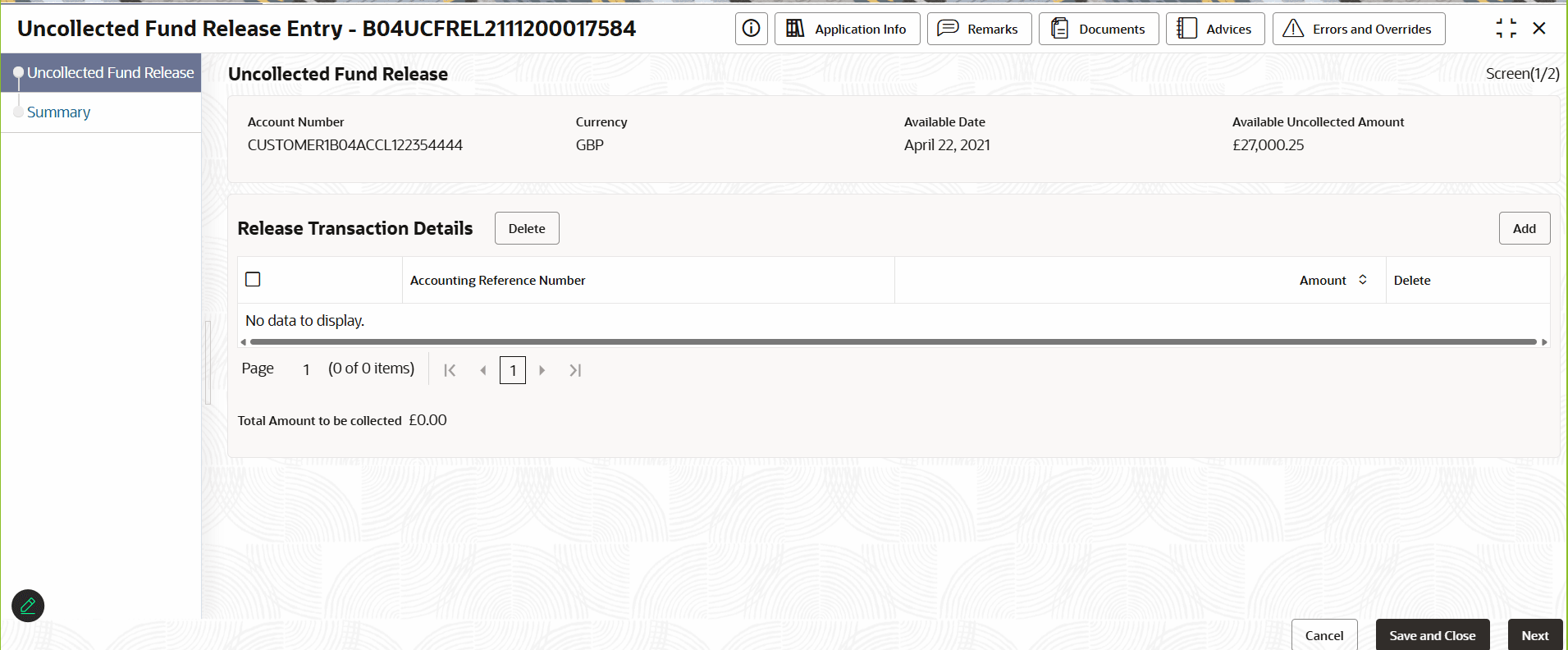
    The Uncollected Fund Release Entry screen displays.

    Figure 1-10 Uncollected Fund Release Entry


  4. Click Add button to select Available Transactions.
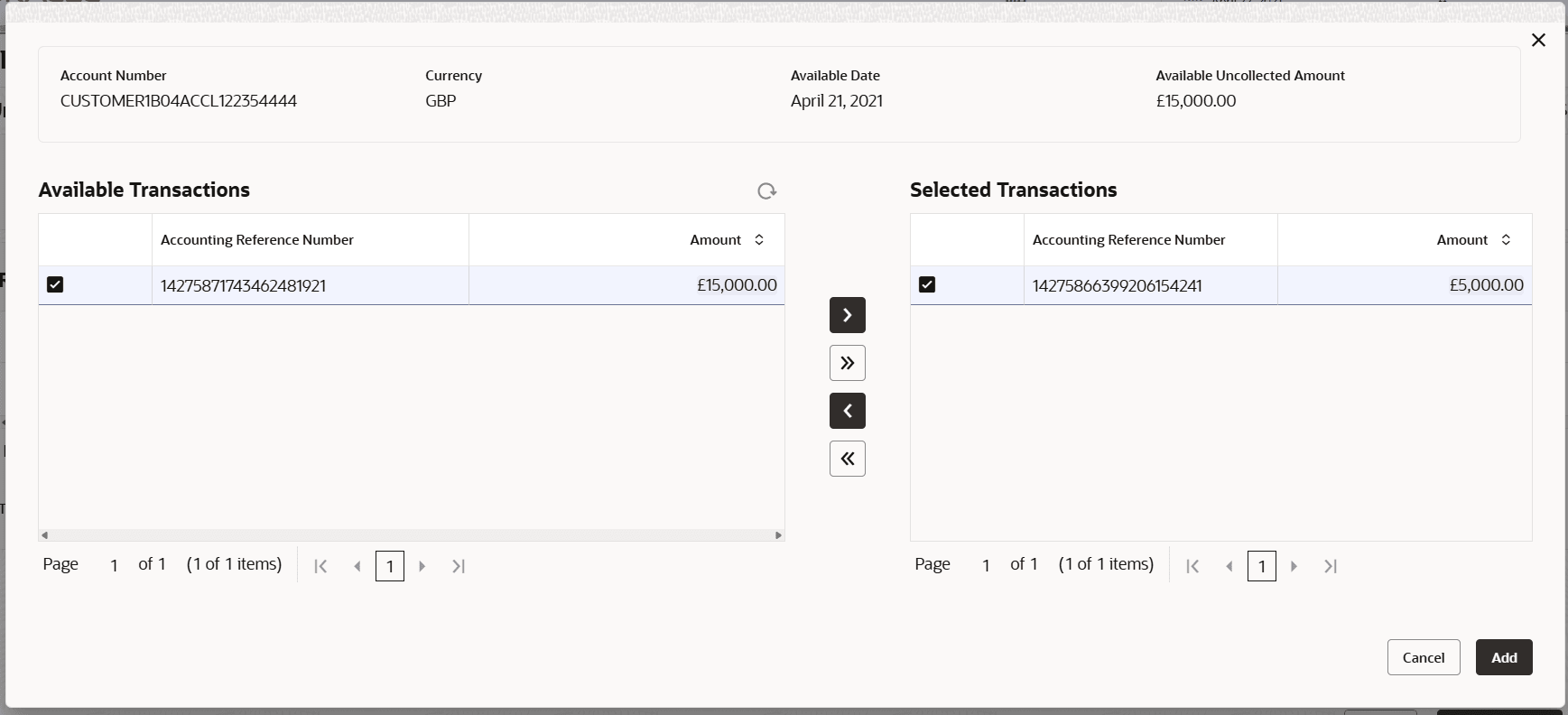
    The screen displays Available Transactions.

    Figure 1-11 Available Transactions


  5. Select Accounting Reference Number check box and click Select Record then Click Add.
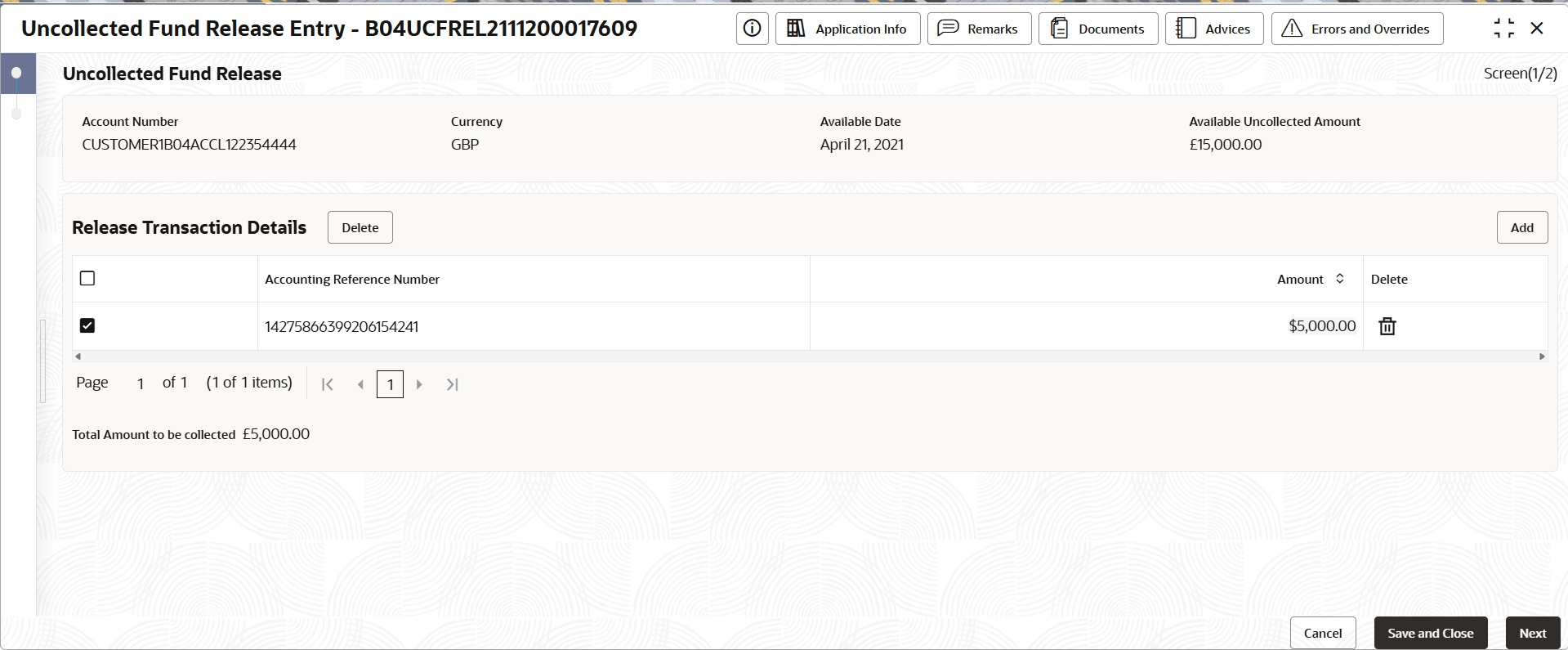
    The Uncollected Fund Release Entry screen displays.

    Figure 1-12 Uncollected Fund Release Entry


  6. Specify the fields on the screen.

    Table 1-6 Uncollected Fund Release Entry - Field Description

    Field Description
    Account Number Displays the Account Number.
    Currency Auto-populates the operating currency of the account.
    Available Date Displays the Available Date.
    Available Uncollected Amount Displays the Available Uncollected Amount.
    Account Reference Number Displays the Account Reference Number.
    Amount Displays the Amount.
    Delete Click delete icon to Delete Account details from the row.
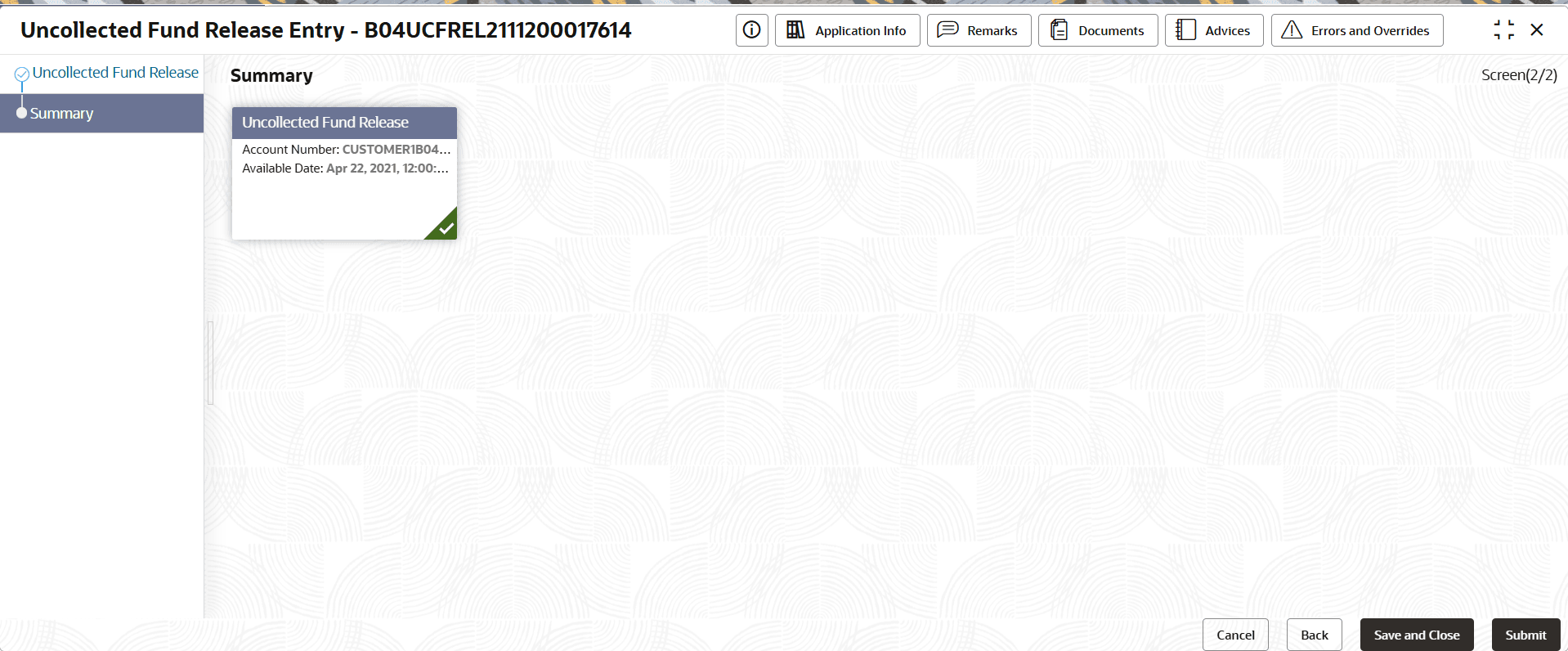
  7. Click Next.
    The Summary screen displays the edited or new tiles with a checkmark in green on the bottom right of the tile.
  8. Click Submit from the Summary screen.
    The Stage Movement Submission dialog displays the Overrides stage.
  9. Complete the Stage Movement Submission process.
    1. Accept any Overrides generated and click Proceed Next.
      The Checklist stage fetches and displays checklists mapped to this stage.
    2. Confirm the checklist items and then click Proceed Next.
      The Outcome stage displays.
    3. Select Proceed from the drop-down list and click Submit.
      The Stage Movement Submission process creates the Approve Uncollected Fund Manual Release task.
  10. Complete the Approve Uncollected Fund Manual Release task.
    1. Click Tasks, and under Tasks, click Free Tasks.
      The Free Tasks page displays.
    1. Search the listed tasks with these column values. The Process Name column contains Uncollected Fund Manual Release, the Stage column contains Approve Uncollected Fund Manual Release.
    1. Click Acquire and Edit.
      The Approve Uncollected Fund Manual Release - <Application Number> page displays
  11. Review the updated Uncollected Fund Details and click Submit from the Summary page.
    1. The Uncollected Fund Manual Release is approved
  12. Complete the Stage Movement Submission process.
    1. Accept any Overrides generated and click Proceed Next. The Checklist stage fetches and displays checklists mapped to the Approve stage.
    2. Confirm the checklist items and then click Proceed Next. The Outcome stage displays.
    3. Select PROCEED from the drop-down list.
    4. Click Submit.
  13. Confirm that all stages of the uncollected fund manual release process are complete.
    1. Click Tasks, and under Tasks, click Completed Tasks. The Completed Tasks page should display Entry and Approval stages.