2.2 Create and Activate New Cloud Account
After you subscribe to the cloud service, you will receive a Welcome to Oracle Cloud email with details to create and activate your new cloud account.
To create and activate a new cloud account
- Click Create New Cloud Account in the email.The New Cloud Account Information screen displays.
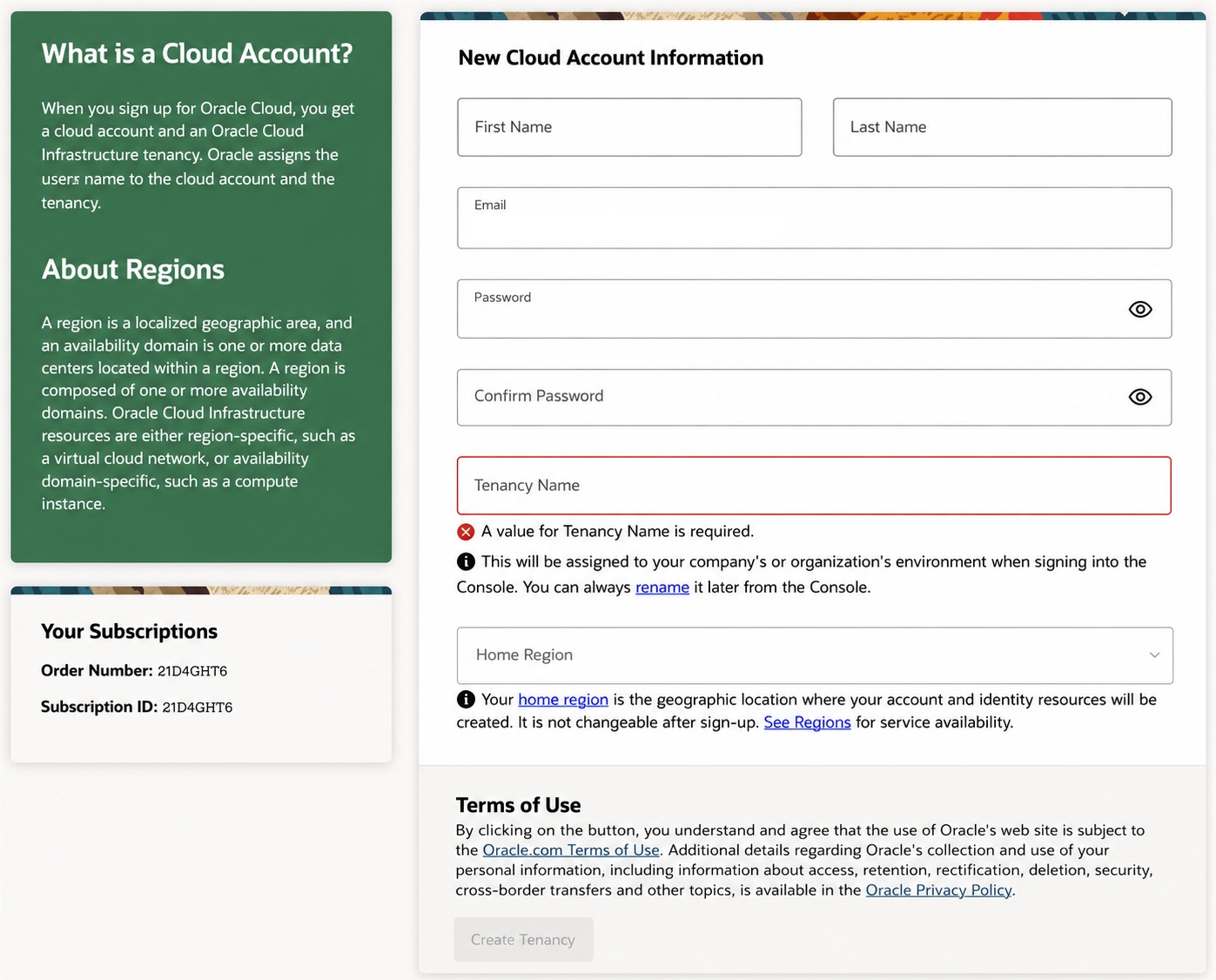
- Specify the following details to sign up.
Table 2-1 New Cloud Account Information
Field Description First Name First name of the person who will be the cloud administrator. Last Name Last name of the person who will be the cloud administrator. Email Address Email address of the person who will be the cloud administrator. Note:
Instructions to log into the new Oracle Cloud Account will be sent to this email address.Password Specify the password to access the new cloud account. Confirm Password Specify the confirm password. Note:
Both Password and Confirm Password must be matched.Tenancy Name Specify the tenancy name to be associated with the cloud account. Note:
You cannot modify the tenancy name after it is created. Hence, ensure to provide a valid tenancy name, based on your organization's requirements and naming conventions.Home Region Select the Home Region, where the account is located. Check the service availability before selecting the home region. For assistance regarding home region selection, contact Oracle support. Existing customers have to ensure that the identity resources are located in the home region. Note:
You can subscribe to additional regions but you cannot modify the home region, after provisioning your tenancy. - Click Create Tenancy to access the New Cloud Creation Confirmation page. After successful activation, the cloud account administrator will receive a Get Started Now with Oracle Cloud email.
Parent topic: Welcome to Oracle Cloud Service
