3.9 Post Process Status
This topic provides information about monitoring the status of post-processing tasks.
- To complete the Post Process Status task, follow the steps below:
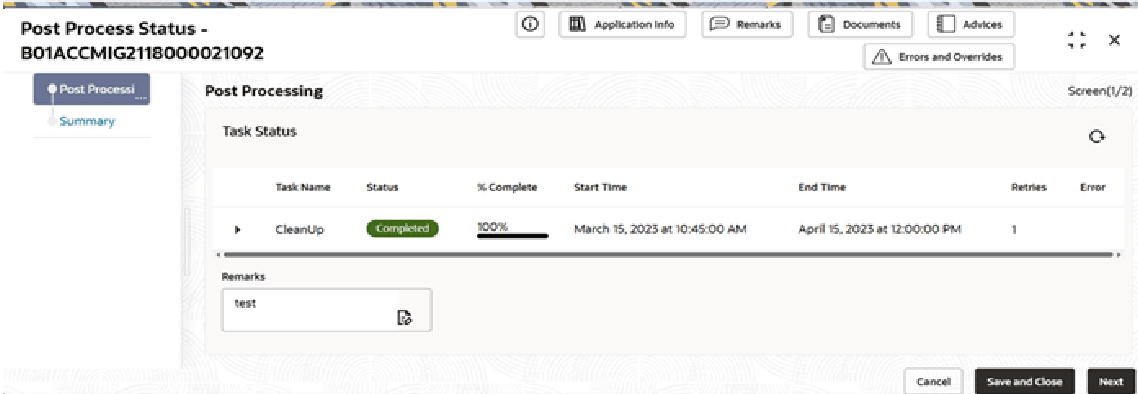
- Click Acquire and Edit.The Post Process Status screen displays with Post Processing Data Segment.
For more information on fields, refer to the field description table.
Table 3-11 Post Process Status - Field Description
Field Description Task Name Displays the background prerequisites tasks which were triggered as part of initiation. Status Displays the completion status for the particular task. - In Progress
- Completed
- Incomplete
- Failed
% Complete It is a progress bar which shows the completion percentage. Start time Displays the Start Date with time stamp. End Time Displays the End Date with time stamp. Retries Displays the retry count, helping users understand how many times the system has retried. Error Displays the Error code with description in case of any failures. Remarks Specify the remark. Note:
Follow internal runbook procedures if any task fails or is stuck.
- Click Acquire and Edit.
Parent topic: Migration Process