3.4 Stage 2 Migration
This topic describes the systematic instructions to second stage of migration.
- To complete the Migration Stage 2 task, follow the steps below:
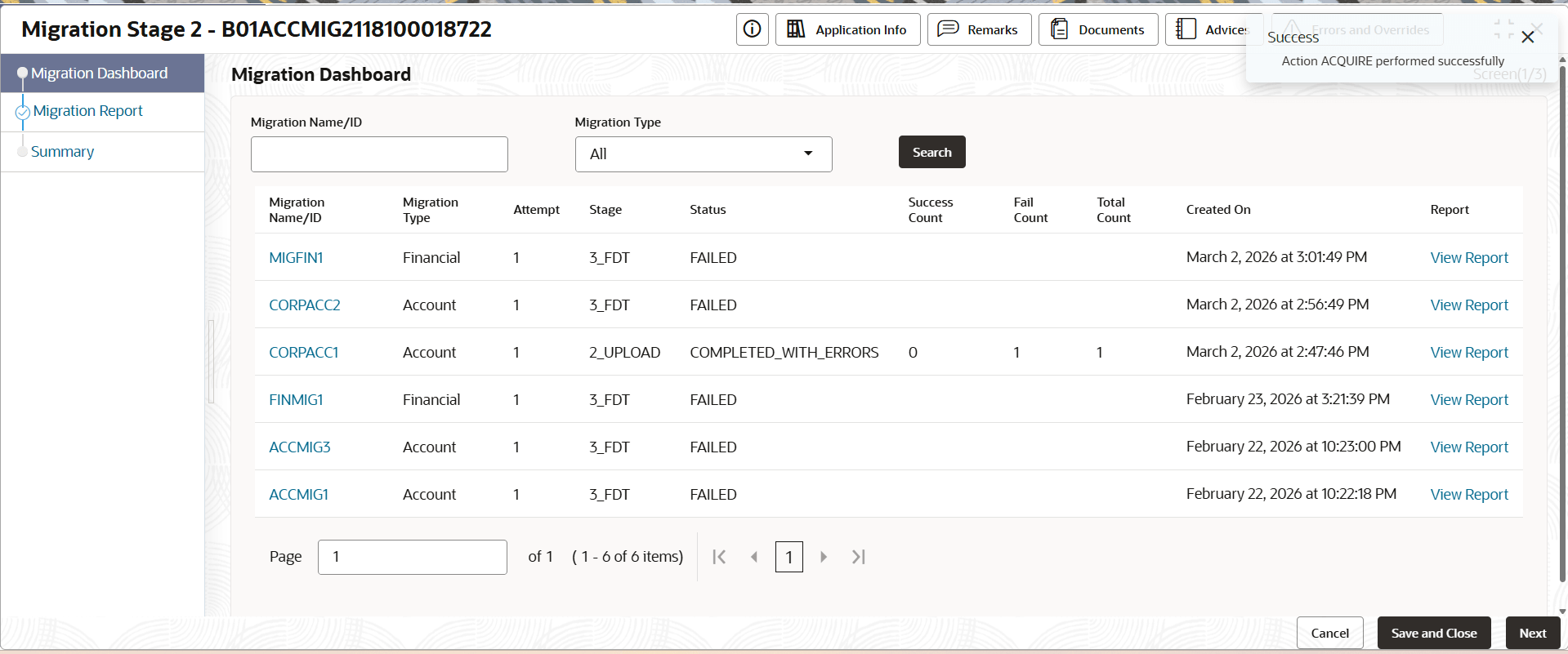
- Click Acquire and Edit.The Migration Stage 2 screen displays with Migration Dashboard.
For more information on fields, refer to the field description table.
Table 3-6 Migration Dashboard - Field Description
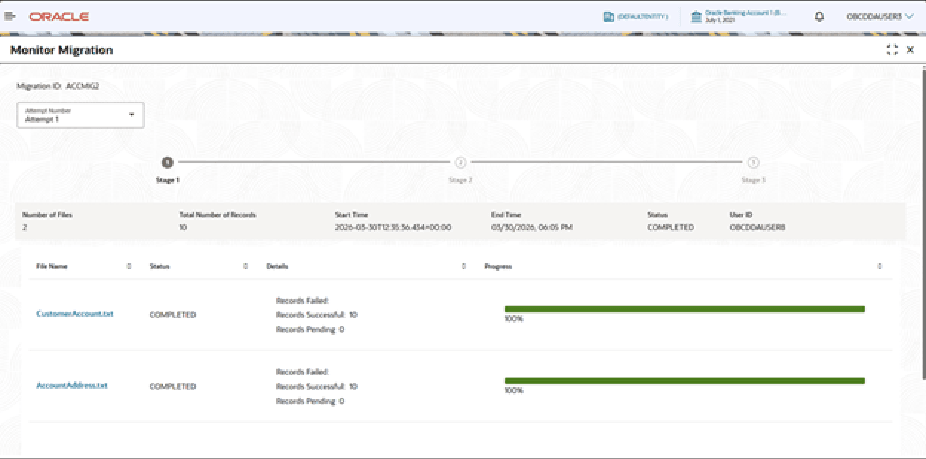
Field Description Migration Name/ID Displays the Migration Name or ID as a hyperlink associated with the set of files selected in previous stage. On click of hyperlink user will be able view the monitor migration screen. Screenshot is given below
Migration Type Displays the Migration Type associated with the Migration ID. - Account
- Financial
Attempt Displays the attempt number for the Migration ID. Stage The values displayed in the UI are: - 1_UPLOAD
- 2_STAGING
- 3_FDT
Status Displays the completion status of a particular Migration ID. - Completed
- Completed with Errors
- Failed
Success Count Displays the number of successful records for the particular stage Fail Count Displays the number of failed records for the particular stage Total Count Displays the total number of records for the particular stage Created On Displays the Date Time Stamp of when the particular Migration ID was initiated. Report The user can generate report for the particular Migration ID using this.
- Click Acquire and Edit.
- Click on Migration ID.The Monitor Migration page displays.
For more information on fields refer to the field description table.
Table 3-7 Monitor Migration - Field Description
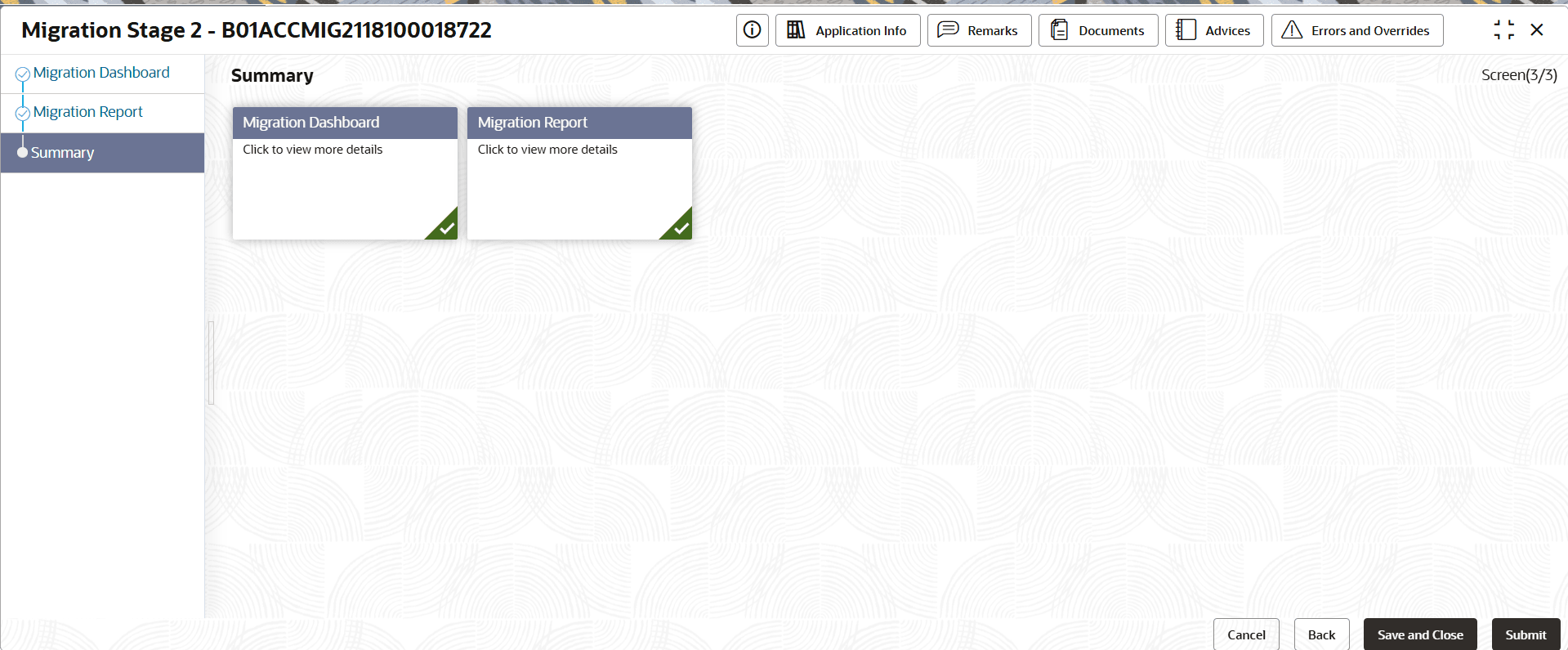
Field Description Migration ID Displays the unique Migration ID. Attempt Number Displays the latest Attempt number of the selected Migration ID. - Click Next.The Summary page displays.
Parent topic: Migration Process