1.1 Batch Monitoring Dashboard
This topic provides information about Batch Monitoring Dashboard
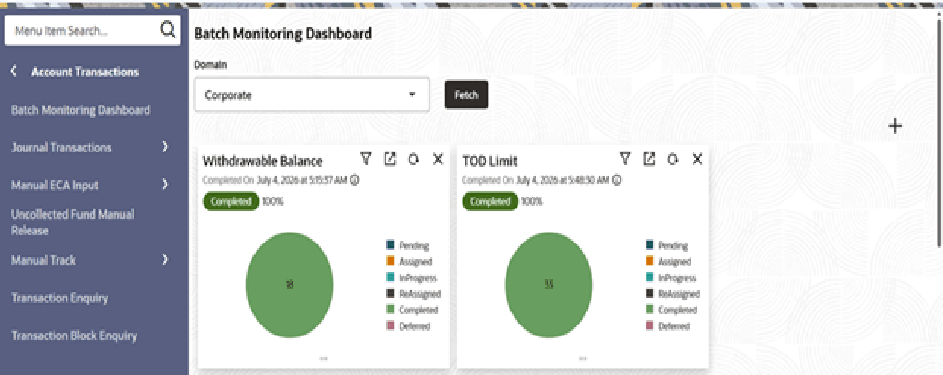
- Click Account Transactions, and under Account Transactions, click Batch Monitoring Dashboard.The Batch Monitoring Dashboard screen displays.
User will be able to see all the batches for the domain which are running during EOD process in an individual widget. Those are shown in a pie chart. User is also provided with an option to check the status based on record-wise, stream-wise and instance-wise along with the batch configuration and execution details.
For more information on fields refer to the field description table.
Table 1-1 Withdrawable Balance Batch Widget - Field Description
Field Description Domain Select the required domain from the drop down. The available options are:- Corporate
- Retail
- Nostro
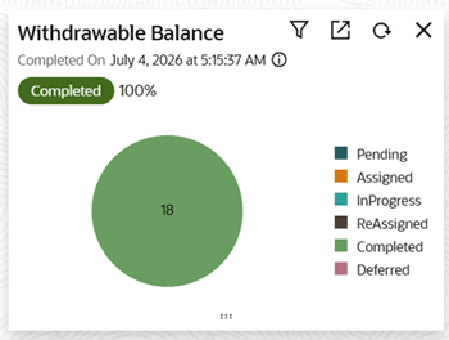
- Click on Withdrawable Balance.
Figure 1-2 Withdrawable Balance - Field Descriptions
Table 1-2 Withdrawable Balance - Field Description
Field Description Batch Name Name of the batch is shown on the top left corner of the widget (Eg: Withdrawable Balance) Completed On Shows the date and time of the batch execution based on its current running status. Batch Status Running: The specific batch is currently running
Completed: The specific batch execution is completed.
Aborted: The specific batch execution is aborted while running.
Error: The specific batch execution has an error while running
Re-Run: The specific batch is executed after resolving the error.
- Click
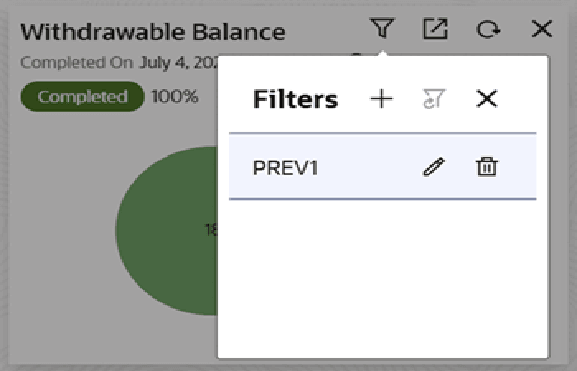
 icon on a widget. The popup screen displays.
User can create, update, or apply an existing filter, which allows them to retrieve details as per the applied filter.
- Click
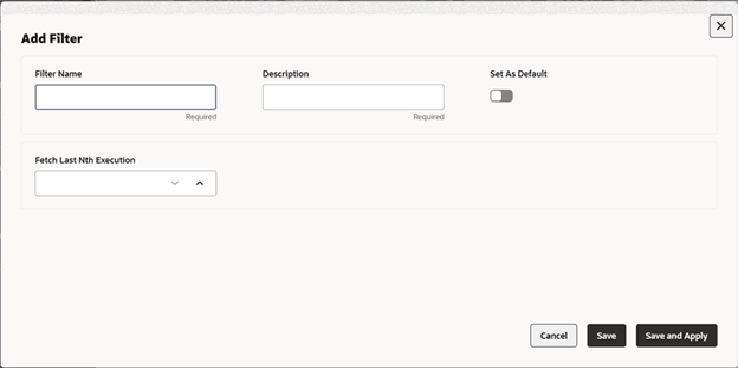
 .User will be able to create a new user-defined filter.
Another popup screen is launched as below.
Table 1-3 Add Filter - Field Description
Field Description Filter Name Unique user defined names. Description User can provide details about the filter. Set as Default Toggle Button: If it is set as default, this will be applied as default filter to the widget.
Fetch Last Nth Execution User will be able to fetch the previous batch execution details. - Click
 icon on existing filter.User is allowed to delete the existing filters.
 - Click
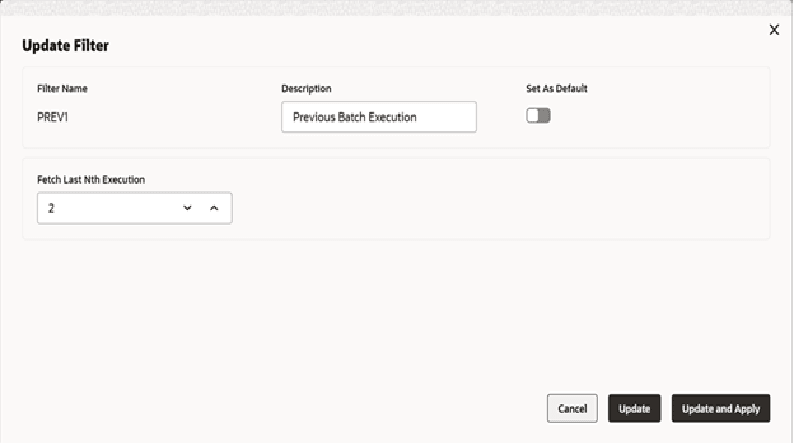
 icon on the existing filter a popup screen is launched as given below and user is allowed to modify the filter details from that screen. The Existing filter a popup screen displays.
User is allowed to modify the filter details from that screen.
- Click
 to expand.User is allowed to view the specific batch execution details at Instances level, Streams level and Driver Records level along with the Batch Configuration Details and Batch Execution Details.
Batch Execution Details based on Instances:
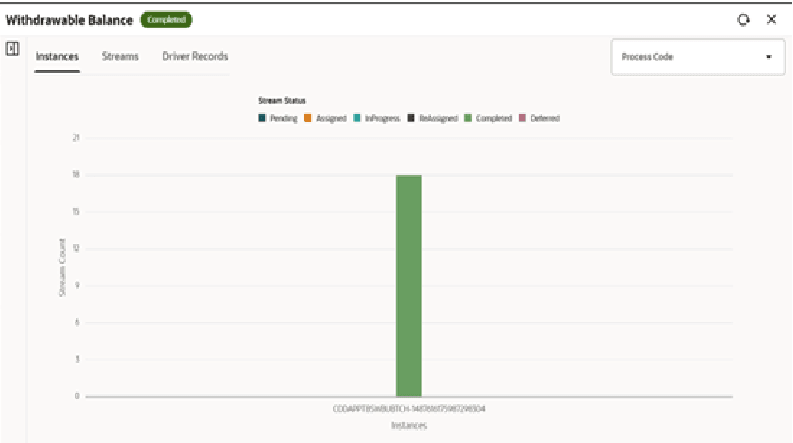
User is able to view the progress of the batch execution based on number of Instances that are configured for a specific batch. For example, from the below screen user knows that the batch is running in single instance along with the number of completed streams (18) processed in that instance. The instance can also show the streams based on its respective statuses.
Figure 1-6 Withdrawable Balance - Field Descriptions
Table 1-4 Batch Execution Details - Field Description
Field Description Process code Select process code from the drop down. Batch running with multiple sub processes can be filtered using the process code filter.
Distinct process codes available for the specific batch
Instance Id The Batch Instance ID is shown below each bar in the chart. Refer to the ID below the bar to identify the specific batch instance associated with that data point. Streams Count Streams count is shown as y-axis in bar chart, to show the total number of streams for the batch execution. Batch execution details based on Streams:
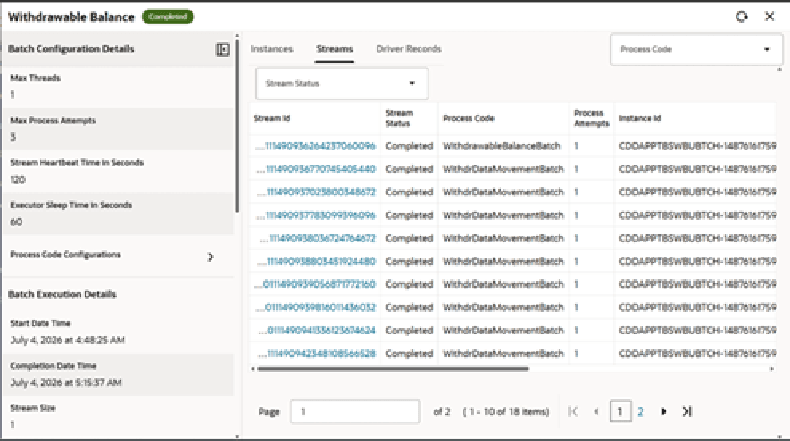
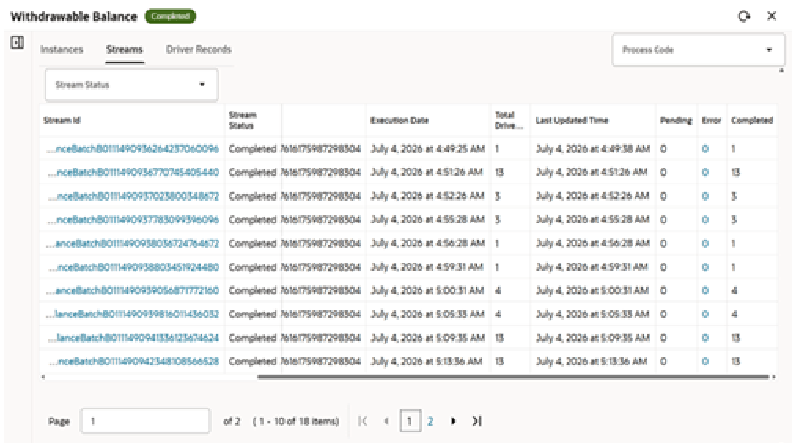
The user is able to view the progress of the batch execution based on the number of streams.
Figure 1-7 Withdrawable Balance - Field Descriptions
Figure 1-8 Withdrawable Balance - Field Descriptions
Table 1-5 Batch Execution Details - Field Description
Field Description Process code Dropdown: Batch running with multiple sub processes can be filtered using the process code filter. The dropdown will show the distinct process codes available for the specific batch. Stream Status Dropdown: To filter the streams based on their status. Stream ID This is a unique stream id specific to a batch. User is allowed to click on a stream to view the driver records of the stream. Stream Status Pending, Assigned, In progress, Reassigned, Completed, Deferred Process Code Process code of a specific stream is shown. Process Attempts Number of attempts taken by a stream to execute the records. Instance Id The Instance which is processing the stream. Execution Date Date and time of the stream that was created. Total Driver Records Total Number of driver / batch records in a stream. Last updated Time Date and time of the stream that was last processed. Pending Total number of pending driver / batch records in a stream. Error Total number of error records in a stream. The user is allowed to view the error statistics when the count is other than zero. Completed Total number of completed driver / batch records in a stream. Batch execution details based on Driver Records:
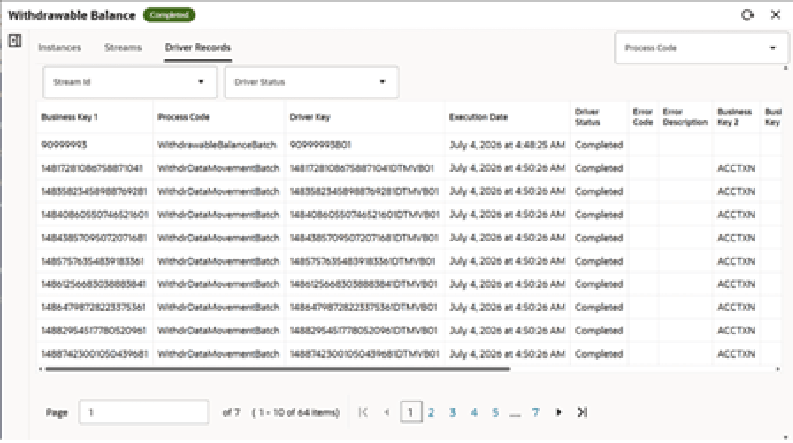
User is able to view the progress of the batch execution based on a driver record.
Figure 1-9 Withdrawable Balance - Field Descriptions
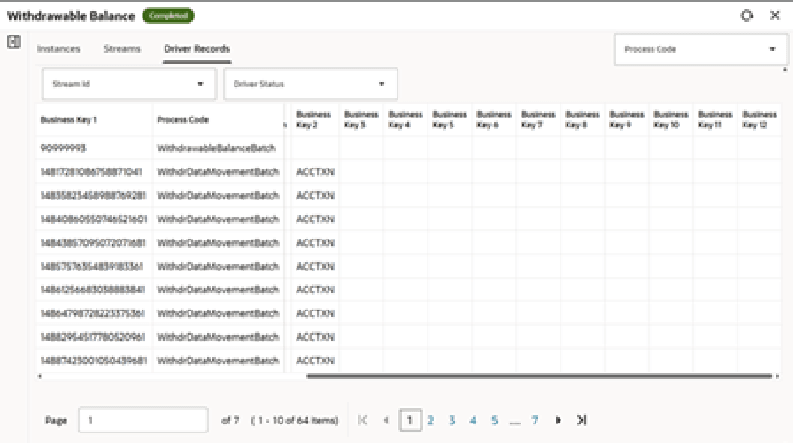
Figure 1-10 Withdrawable Balance - Field Descriptions
Table 1-6 Batch Execution Details - Field Description
Field Description Process code Select the required process code from the drop down. Batch running with multiple sub processes can be filtered using the process code filter.
The dropdown will show the distinct process codes available for the specific batch.
Stream ID Select the required stream ID from the drop down. This is a unique stream id specific to a batch. User is allowed to click on a stream to view the driver records of the stream.
Driver Status Select the required driver status from the drop down.
The available options are:- Pending
- Completed
- Error
Business key1 The batch specific business key for a driver record. Process Code Process code of a specific stream is shown. Driver Key Unique reference to identify a driver record. Execution Date Date and time of the driver record that was created. Driver Status Completed, Error, Pending. Error Code Shows the Error code for the error driver record. Error Description Shows the Error description for the error driver record. Business key 2 to Business key 12 The batch specific other business keys for a driver record. Batch Configuration Details:Table 1-7 Batch Execution Details - Field Description
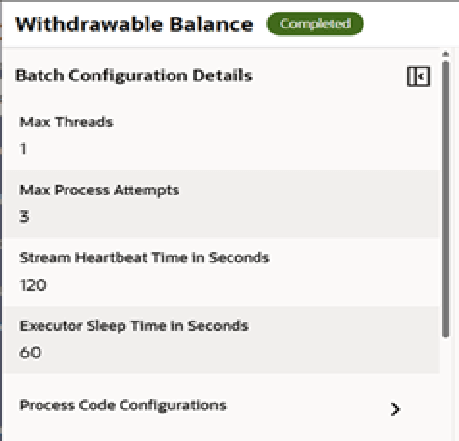
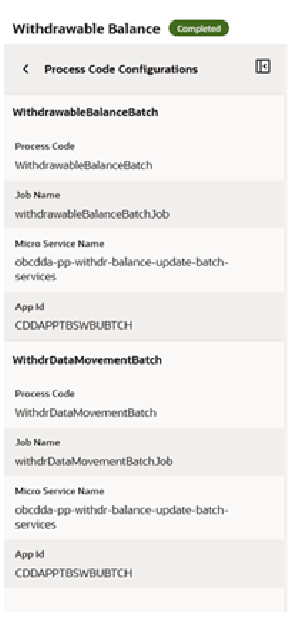
Field Description Max Threads Maximum number of threads configured in an instance to execute the streams in parallel. Max Process Attempts Maximum number of attempts allowed for a reassigned stream before it is deferred. Stream Heartbeat Time in seconds Stream time-out duration to recognize stream's batch instance is down and to re-assign the stream to an existing available batch instance. Execution sleep time in seconds Execution sleep time to wait for checking streams processing status in the executor process. Process Code Configuration:A batch can have multiple process codes configured. User is allowed to view configuration for multiple process codes applicable for a batch.Table 1-8 Batch Execution Details - Field Description
Field Description Process code Name of the process code for a batch. Job Name Name of the batch configuration to process a specific process code stream. Micro Service Name Name of the batch micro service name to assign the stream for processing. App Id Application Id of the batch micro service to assign the stream for processing. Batch Execution Details:Table 1-9 Batch Execution Details - Field Description
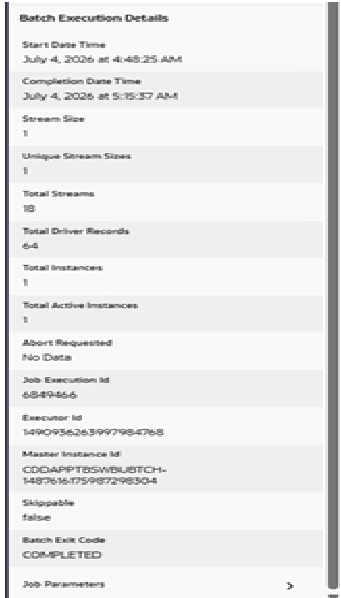
Field Description Start date time Date and time of commencement of the batch execution. Completion date time Date and time of the completion of the batch execution. Stream size Number of driver records in a stream. Unique stream sizes Number of unique stream sizes available for batch execution. Total Streams Total number of streams available for batch execution. Total Driver Records Total number of driver records available for batch execution. Total Instances Total number of batch instances available to process streams for batch execution. Total Active Instances Total number of active instances available for batch execution at a specific time. Abort Requested The indicator to know whether the running batch execution is requested for an abort. Job Execution ID PLATO batch generated unique ID for processing batch job. Executor ID Unique batch execution ID. Master Instance Id Master batch instance ID acting as a poller to assign the pending streams for batch execution and also to check the stream progress for batch completion. Skippable A batch with error driver records can be skipped. Batch Exit code COMPLETED – processed all driver records.
FAILED-WTH-POP – Failed with Population (for continuous population enabled batches).
FAILED-WTH-DEFST – Failed with Deferred streams.
FAILED-WTH-POP-DEFST – Failed with both Population (for continuous population enabled batches) and Deferred streams.
Job Parameters List of job parameters passed for the batch execution, which is unique.
Parent topic: Account Transactions